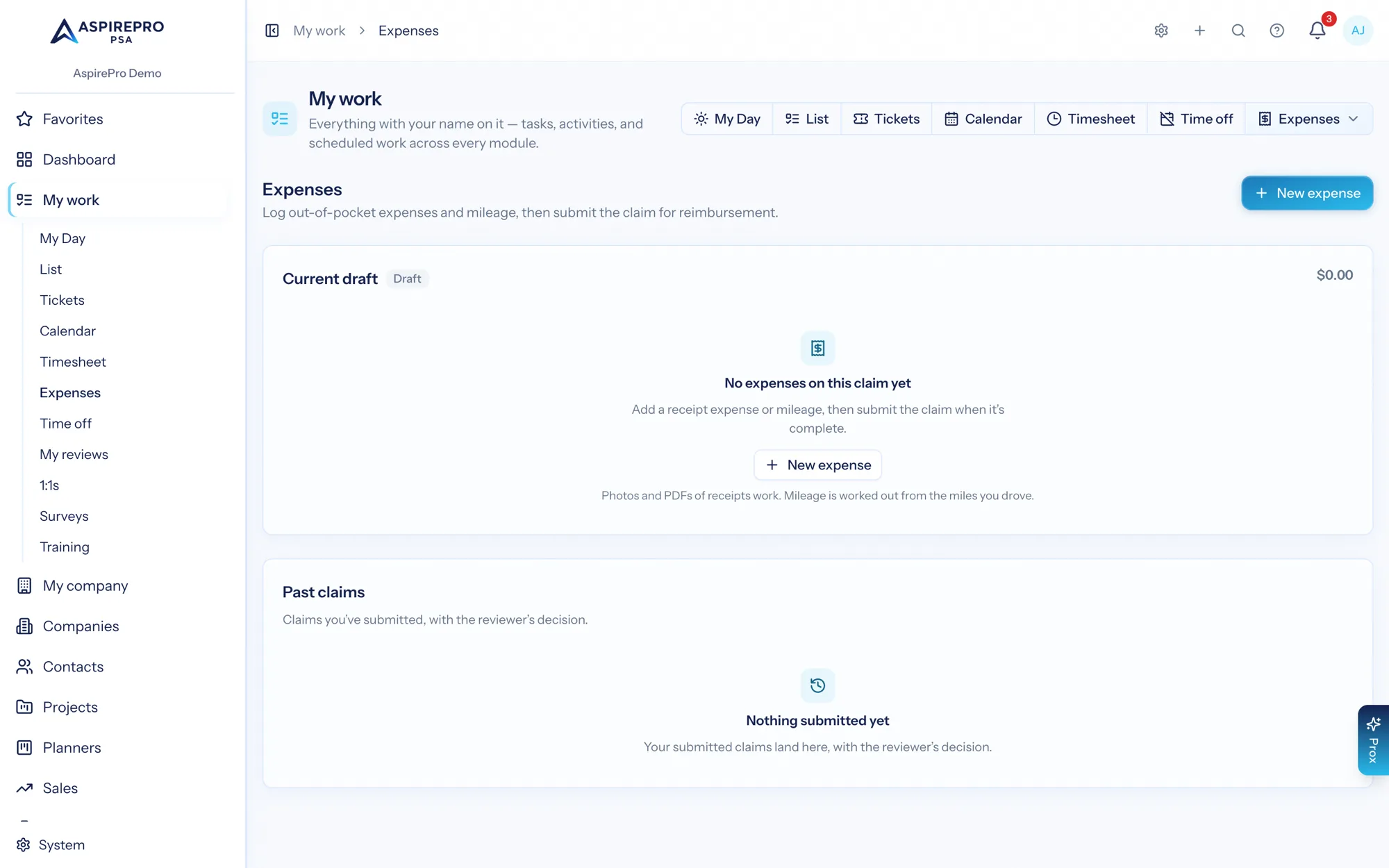
People on your team buy things for work: a client lunch, a parking garage, a software seat, a tank of gas. Reimbursements is how that money gets recorded, reviewed, and paid back — a receipt takes about fifteen seconds to log, a reviewer approves or bounces it with a reason, and finance marks it paid.
The important thing to understand up front: this works with no accounting integration at all. Submit → approve → mark reimbursed is a complete, useful loop on its own. The approval workflow is the product; adding it to QuickBooks is a convenience you can turn on later — or never. Read How this fits your accounting system for the whole picture.
Submitting an expense#
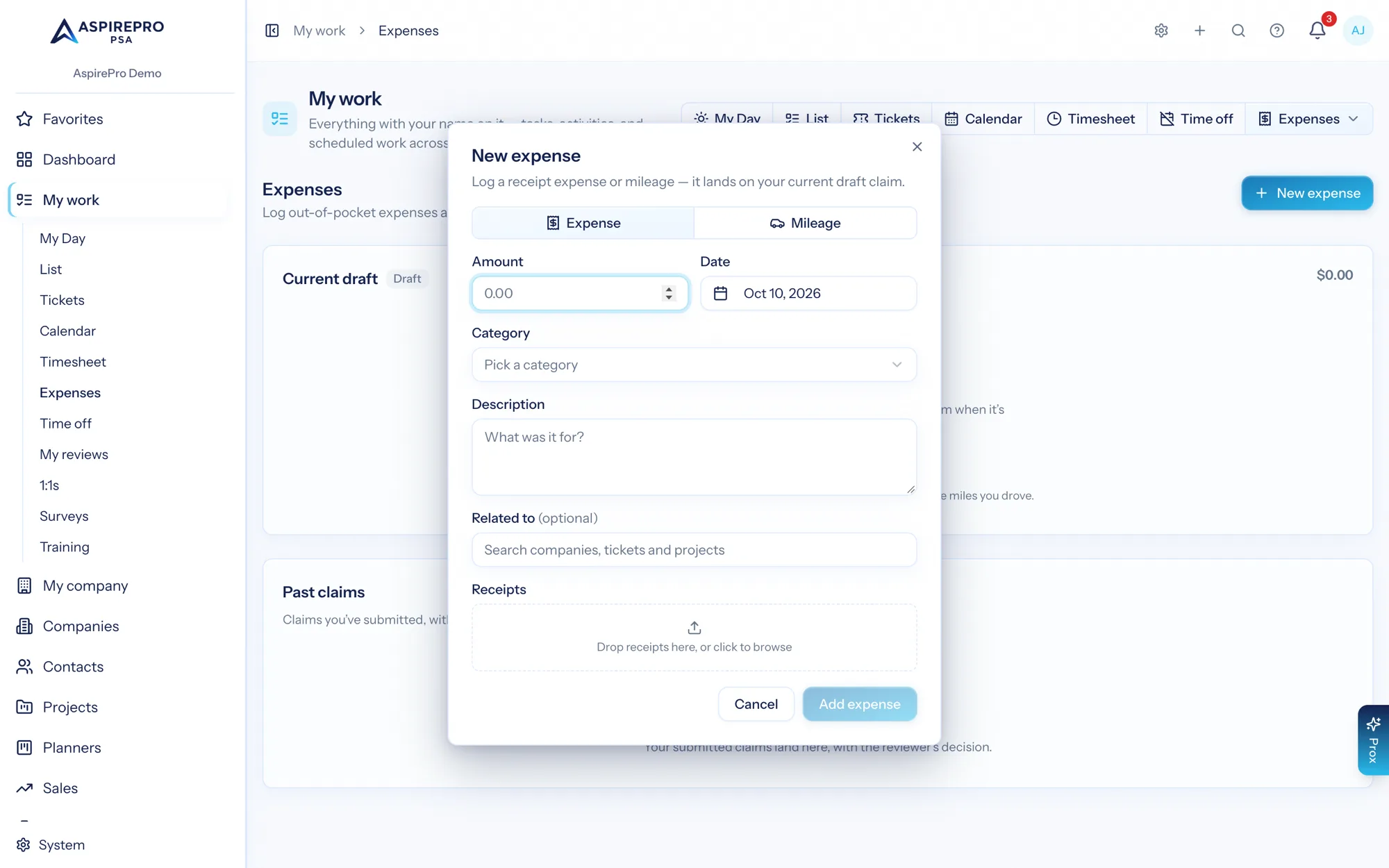
Everything you submit lives under My work → Expenses. New expense opens a single dialog — one screen, no wizard, no "create a report first" step.
Expense or mileage#
The dialog has two tabs:
- Expense — the amount you actually spent, on a date, in a category, with a receipt.
- Mileage — the miles you drove. AspirePro multiplies by your organization's mileage rate and shows you the math live (
48 mi × $0.67 = $32.16). Both the miles and the rate used are stored on the item, so a later rate change never silently rewrites last quarter's claims.
Receipts#
By default, every expense needs a receipt — a photo or a PDF, up to ten files per item. That default is deliberate: a reimbursement is a payment made on someone's word, and the receipt is what turns it into a record you could defend to an accountant or an auditor a year later. An administrator can relax the requirement in Finance settings if your organization would rather trust and move fast.
Mileage is exempt, always — there is no receipt for driving. The miles and the rate are the record.
"Related to" — the one link#
Under the amount sits a single optional field: Related to. Start typing and it searches your companies, tickets, and projects together, with a badge on each result telling you which is which. Pick one and you're done.
That is deliberately one field instead of the three-dropdown cascade most expense tools make you climb — pick a client, then pick a project, then pick a task. Picking a ticket or a project already tells us the client, so asking you again would just be a form maze. And skipping the field entirely is always fine: an unlinked expense is plain overhead, which is what most expenses actually are.
Once — and only once — something is linked, a Billable to client switch appears. Before a link exists the switch would be meaningless (billable to whom?), so it isn't there. Flip it on and that expense becomes a cost you can pass through to that client.
You don't have to think about claims#
Behind the scenes, items batch into a claim — the thing that gets reviewed and paid as a unit. In practice you never have to manage that. Every expense you log lands on your current draft; when you hit Submit, whatever is sitting there goes for review as one claim, titled by month ("Expenses — August 2026") unless you named it.
Log receipts as they happen, submit when you're ready. That's the whole mental model.
Review#
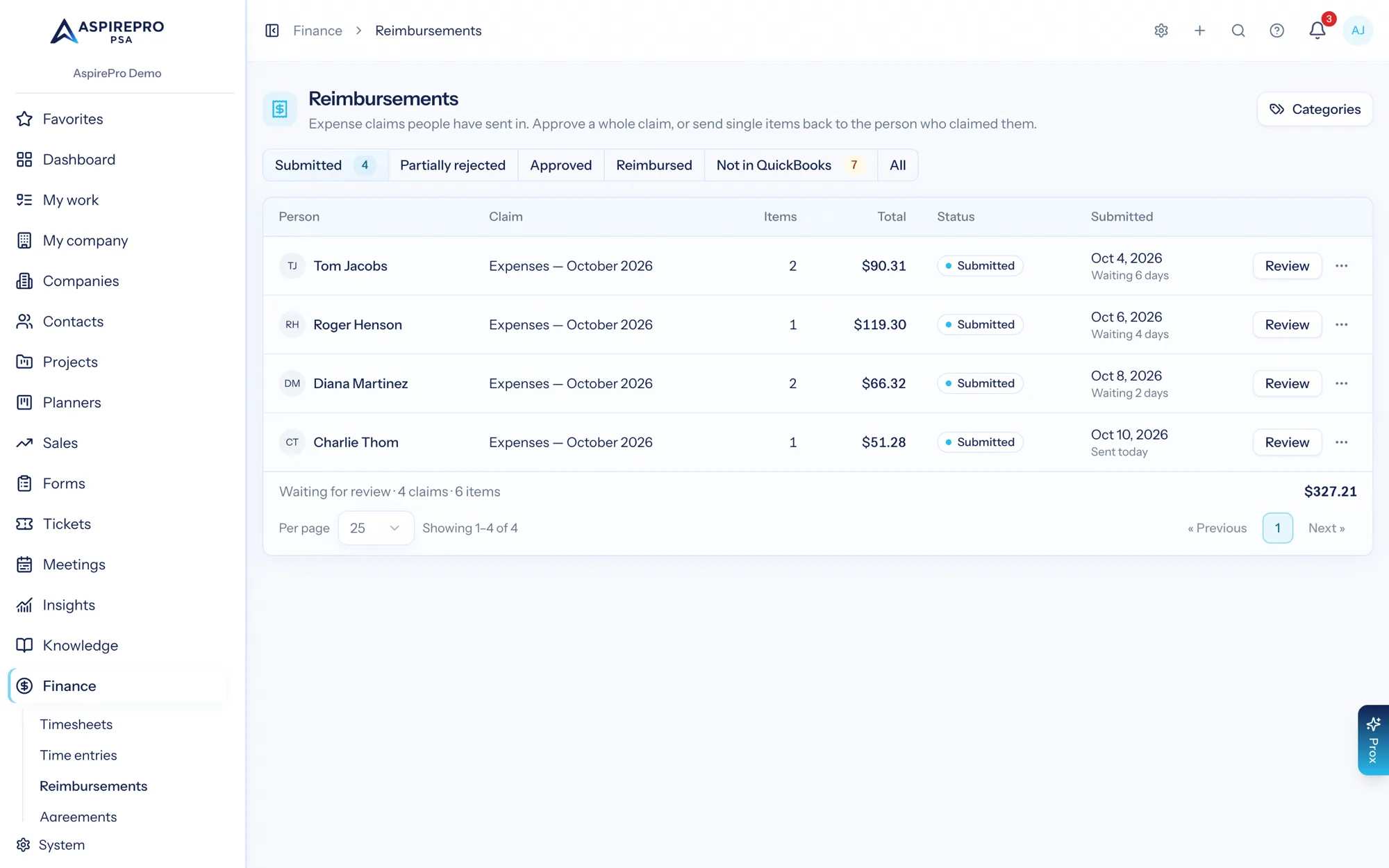
Reviewers work from Finance → Reimbursements — a queue with tabs for Submitted, Partially rejected, Approved, Reimbursed, and All. The submitted tab is sorted oldest first, on purpose: the person waiting the longest is out of pocket the longest, and that should be the first thing you see.
Open a claim and you get the whole submission — who, what, when, which category, what it's linked to, whether it's billable, and the receipt itself, one click from the row.
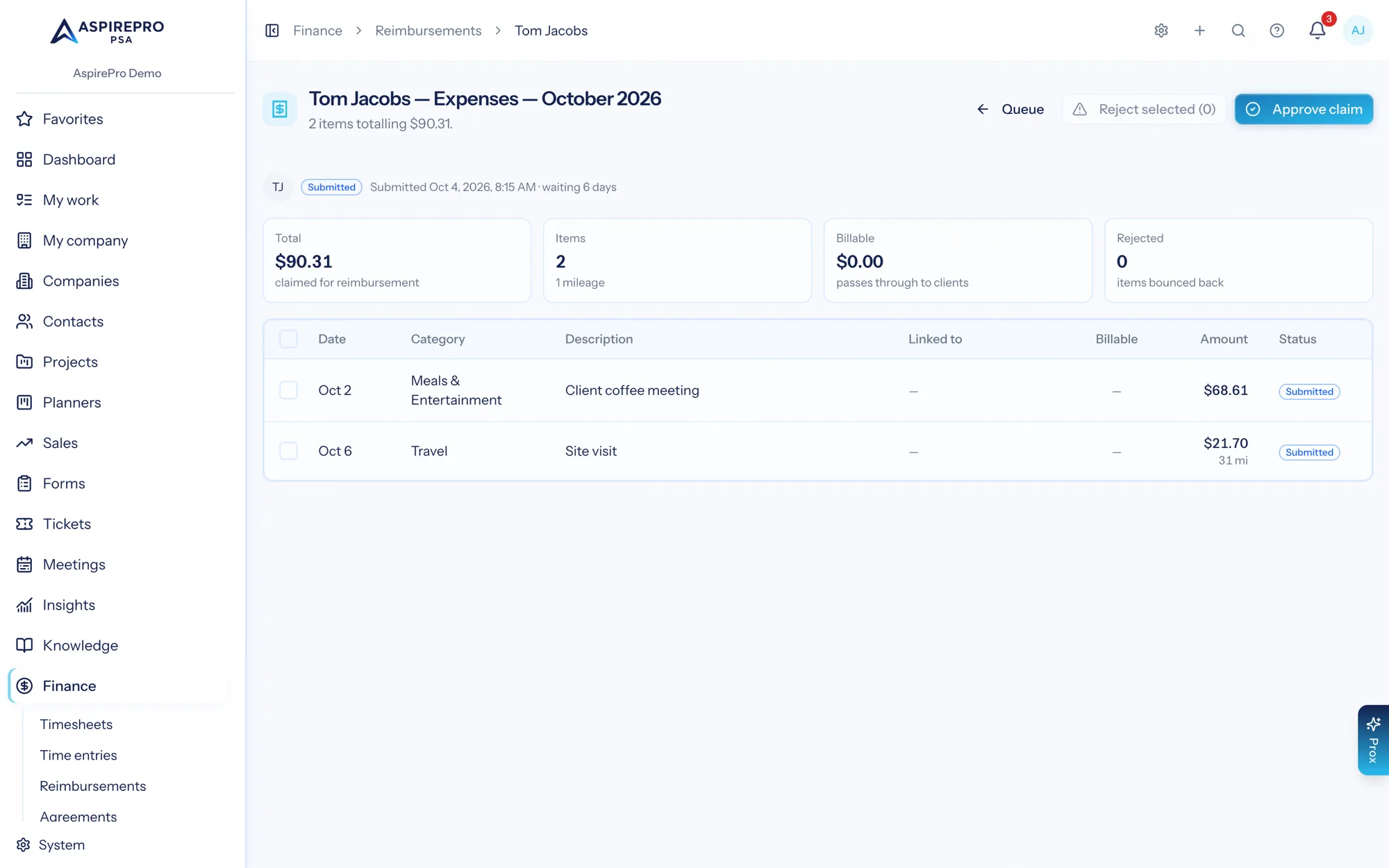
You can work at whatever grain suits the claim:
- Approve the claim — every still-submitted item approves at once, with an optional note to the submitter.
- Approve or reject one item — open the row, look at the receipt, decide. Siblings are untouched; the claim only closes out once every item has a decision.
- Reject in bulk — select several items, give one shared reason, and optionally override the reason per item where a generic one wouldn't help.
A rejection reason is always required. "Rejected" with no explanation is a dead end for the person who has to fix it — so the field isn't optional, and the reason travels back with the item.
The fix-and-resubmit loop#
Rejected items bounce back to their owner's My work → Expenses in red, each carrying its reason and the reviewer's note. They become editable again — fix the amount, add the missing receipt, re-categorize — and the next Submit sends them back into the queue. Approved siblings stay approved; nobody redoes work that was already accepted.
Submitted items are locked while they're under review, and items can only be deleted while they're still yours to edit.
Two rules worth naming#
- You can't review your own claim. Even with the permission, your own submissions are decided by someone else.
- Deciding is separate from paying. Approval says "this is legitimate business spend." Marking it reimbursed says "we've actually sent the money." They're different facts and they're recorded separately.
Marking it reimbursed#
When an approved claim gets paid, finance records it: paid on (the date), method (check, ACH, payroll, or other), and an optional reference — a check number, a payment ID, whatever your bank calls it. The claim moves to Reimbursed, the submitter is notified, and that's the terminal state.
Be clear about what this is: AspirePro is not a payment rail. It does not move money out of your bank, and it should not pretend to. Your organization pays people through its bank, its payroll provider, or its A/P process — the tools that are actually licensed and insured to move funds. What AspirePro owns is the record of decision: who spent what, who approved it, when it was paid, how, and against which reference. That record is what everything downstream is built on.
Contractor and subcontract labor#
On Finance → Reimbursements → Categories, any category — a local one or a QuickBooks expense account — can be marked Team cost. Spend in it that is assigned to a client then counts as the team's cost of that client on Finance → Profitability, whether or not Include client expenses in return on time is switched on there. The reasoning: a freelancer who did the client's work is the team for that client, and leaving that bill out would show a client delivered entirely by contractors as pure return. A local category marked here carries the mark to the QuickBooks account it's linked to, so an approved billable reimbursement in it counts the same way as a bill brought in from QuickBooks. Nothing is marked by default; until it is, contractor bills are treated as your own expenses.
What an approved expense does downstream#
The moment an item is approved, it stops being a form submission and becomes a real expense record:
- It appears in Finance → Expenses alongside ledger spend, carrying its category, date, amount, and memo.
- It counts in Profitability. A billable, client-linked item lands in that client's direct costs. An unlinked item is overhead: it belongs to no client, so it stays out of every client margin rather than being spread across them on a guess.
- It counts in your expense metrics and widgets automatically, because it's the same expense data every other finance surface already reads.
- Billable items are tracked as unbilled client cost — work-in-progress on the cost side, waiting to be passed through on the client's next invoice.
At cost in the books, with markup on the bill#
Approved items land in your expense records at cost — always. If someone spent $42.10, your books say $42.10. What you charge the client is a separate question: a pass-through markup (a Finance setting, 0% by default) applies when the item is billed onto an invoice as an expense line.
An expense is not the same thing as a charge, and the difference matters when you are deciding where to record something: an expense is money one of your people spent out of pocket and is owed back, which you may also pass through to the client; a charge is something the client is being sold, like a part or a licence, which nobody is owed for.
That split is the point. Marking up your own recorded costs would inflate your expenses, deflate your margins, and put a number in your books that never happened. The cost is a fact; the markup is a pricing decision. They live in different places.
Reversals#
If a previously approved item turns out to be wrong, a reviewer can reject it after the fact. The expense record it created is voided — not deleted — and every finance surface stops counting it, the same way a voided ledger transaction behaves. The item bounces back to its owner with the reason. Nothing is quietly erased; the trail stays intact.
That works while the item lives only in AspirePro. Once it has gone further, rejecting it would leave two records that disagree, so AspirePro refuses and tells you what to undo first:
- It's on a client invoice. A billable item pulled onto an invoice (Pull work → Expenses) can't be rejected while that invoice bills it — the client would still be charged for spend you no longer count. Take the line off the invoice, or void the invoice, and then reject it. A cancelled invoice that is still holding its work (because its copy in QuickBooks, Xero or Stripe hasn't been cancelled yet) still counts; once Finance → Sync shows the copy cancelled, or you release the work from the invoice, the item is free. If the invoice is paid, the client has paid for this expense and it can't be rejected.
- Its claim is in QuickBooks as a bill. The bill already owes the person the whole claim. Delete or void the bill in QuickBooks first, then reject the item here. AspirePro checks with QuickBooks when you try: if the bill is gone, the claim stops saying it's in QuickBooks, the rejection goes ahead, and the rest of the claim can be copied to QuickBooks again once it's approved. If QuickBooks can't be reached, nothing changes — reconnect it and try again. A bill in a QuickBooks company you've since unlinked doesn't hold the item.
The same rule applies everywhere an item can be rejected: one item, several at once, or through Prox. When several are rejected together and one of them is held, none of them change.
Dashboards, Prox, and payroll#
- Insights metrics — Reimbursements Pending (how many claims and how many dollars are waiting, with aging — never cached, so the number is true the second after a decision), Reimbursed by Category, and Reimbursements by Person. Add them to any dashboard as a number, list, bar, or donut.
- Prox can do the whole loop in a sentence: "log a $40 parking receipt against the Acme ticket," "submit my expenses." Approving, rejecting, and marking claims paid are also available — behind the review permission, and always with an explicit confirmation, because those actions decide other people's money.
- Pay runs — when pay runs pay reimbursements through payroll, a person's approved claims go on their next pay run and are marked reimbursed when that run is marked paid. A claim on a pay run can't also be marked reimbursed or copied to QuickBooks by hand. Contractors who are billed through QuickBooks or Xero keep the normal route for their claims.
- Payroll export — the HR payroll export carries a Reimbursed column: everything actually paid in the period, per person, ready for whoever runs your payroll.
- Notifications fire at each hand-off: reviewers hear when a claim is submitted, submitters hear when it's decided and when it's paid. Every decision is written to the audit log.
Permissions#
Reimbursements deliberately splits into two very different grants:
- Submitting is grainless. Anyone who can sign in can log their own expenses and submit them — exactly like logging time. Requiring a permission to be reimbursed for your own money would be an odd thing to gate.
- Reviewing needs Review Reimbursements (
finance.reimbursements.review) — approve, reject, and mark anyone's claims paid. It's implied by Manage Finance, so your finance leads already have it, and it requires Finance access. It's also what gates the Finance → Reimbursements queue and the per-person spend metric.
See Roles & permissions to grant it.
Settings#
Three Finance settings shape the module:
- Require receipts — on by default; turn it off if your organization prefers speed over paperwork. Mileage is exempt either way.
- Billable markup (%) — what a billable expense is marked up by when it goes onto a client invoice. 0% (bill at cost) by default.
- Mileage rate ($ per mile) — your per-mile rate. Changing it affects new items only; existing ones keep the rate they were logged at.
If you have no accounting system connected, AspirePro seeds a starter set of categories — Travel, Meals & Entertainment, Supplies, Software, Mileage, Other — so reimbursements work on day one. Connect QuickBooks later and those stay right where they are, beside the expense accounts brought in from QuickBooks.
How this fits your accounting system#
There are three honest tiers here, and you choose the one that matches how much you want AspirePro touching your books.
Tier 1 — Standalone (no integration)#
Everything above works. People submit, reviewers decide, finance records payment, and your dashboards and profitability numbers reflect it. Your organization moves the actual money the way it already does.
This is also why Finance → Expenses appears once you have approved reimbursements, even with no QuickBooks connected: approved reimbursements are real expense records, and they're records AspirePro owns — created here, decided here, complete here. It would be strange to hide a page listing data we're the system of record for.
Statements never appears without connected accounting software, and that's the other half of the same principle. A P&L requires a general ledger: every account, every transaction, both sides of every entry. AspirePro has your invoices, your time, and your reimbursements — a genuine slice of the picture, and nowhere near a complete one. Anything we drew and labeled "Profit & Loss" from that slice would be a fabrication, and a convincing one, which is worse. So we don't draw it.
The rule underneath both behaviors: AspirePro records the money events it owns — invoices, time, reimbursements — and brings in what your accounting system owns — vendor spend, statements. Nothing pretends to be the other.
That's also why there's no free-form "add a company expense" button. Reimbursements exist because an employee is owed money and that requires a workflow. General company spend — the AWS bill, the office rent, the vendor invoice — belongs in your accounting system. If AspirePro let you type arbitrary spend into it, you'd have a second set of books that silently drifts from the real one, and nobody would know which was right.
Tier 2 — Read-only (QuickBooks connected)#
With QuickBooks connected, your real expense categories replace the starter set, the spending brought in from QuickBooks appears next to your reimbursements, and Statements light up. Reimbursements still don't write anything to your books — approving a claim creates a record here and nowhere else. Plenty of organizations stop exactly here, and that's a perfectly good place to stop.
Tier 3 — Bills in QuickBooks (you press the button)#
With QuickBooks connected, an approved claim becomes a Bill in QuickBooks only when you copy it there — one bill for that person's vendor, one line per item. Nothing happens automatically. Approving a claim is your team's decision about the expense; adding a bill is an accounting decision, and you make it explicitly — Copy to QuickBooks from the claim, or several at once from Finance → Reimbursements → Not in QuickBooks.
A few decisions worth explaining:
- People pick from a short local list, not your chart of accounts. When someone logs a parking receipt they choose "Travel", not "6120 · Expenses:Travel:Ground Transportation". Nobody submitting an expense should have to know where it posts — and if you make them guess, they will guess wrong. The list lives on Finance → Reimbursements → Categories; finance keeps it short and human.
- Finance decides where each category posts. Each local category is linked to one QuickBooks expense account, set once on that same Categories page (or under Expense accounts on System → Integrations → QuickBooks → Reimbursements, where each shows Linked to its account or Not linked yet). Only people who review expense claims or manage Finance settings can change these accounts. A reviewer can still change a single item — open it on the review page and pick an account — without changing the category's account. Once a claim is in QuickBooks, its accounts are fixed: the bill is the record.
- Every bill is checked before anything is added. Copy to QuickBooks first shows you the bill: the vendor, every line with the account it will post to, and the total. If a line has no account, or the person isn't linked to a vendor, the claim is refused with the exact reason — and nothing reaches your books. Fix the account or the item and press the button again.
- Bills against a vendor, not payroll. That's how reimbursements actually flow in practice — through accounts payable. Contractors are always vendors, and most organizations already keep a vendor record for employees who submit expenses. Routing reimbursements through payroll would tangle them up with wages, taxes, and withholding they have nothing to do with.
- Every person must be linked to a QuickBooks vendor, by hand, from the Payees list on System → Integrations → QuickBooks → Reimbursements (Link vendor). The search starts with the person's first name; a human confirms. AspirePro never creates vendors for you — you'd end up with duplicate payees and no idea which is real. If none matches, add the person in QuickBooks first, then search again.
- Once a claim is a bill, its items stay approved. Rejecting one would leave the bill owing money AspirePro says was rejected, so it's refused until the bill is deleted or voided in QuickBooks — see Reversals.
- A bill QuickBooks refuses never undoes the approval. The approval is a fact about your team's decision; whether QuickBooks accepted the bill is a separate question. The last problem is shown on the claim and on the queue until the bill goes through.
Reimbursements complete the money picture: Timesheets and Invoices capture what you earn, Expenses & Vendors captures what you spend, and Profitability turns both into the margin on each client — with your team's out-of-pocket spend counted where it actually landed.