Finance → Profitability answers the question every services business asks and few can: which clients are worth the team's time, and which ones are quietly eating it? It works out the return on time for each client and agreement, the cost of each person's time, measures how much of your team's finished work each client took, tracks how your recurring revenue moves, and raises the accounts that need a conversation. All of it comes from records your team already creates, with no accounting integration required.
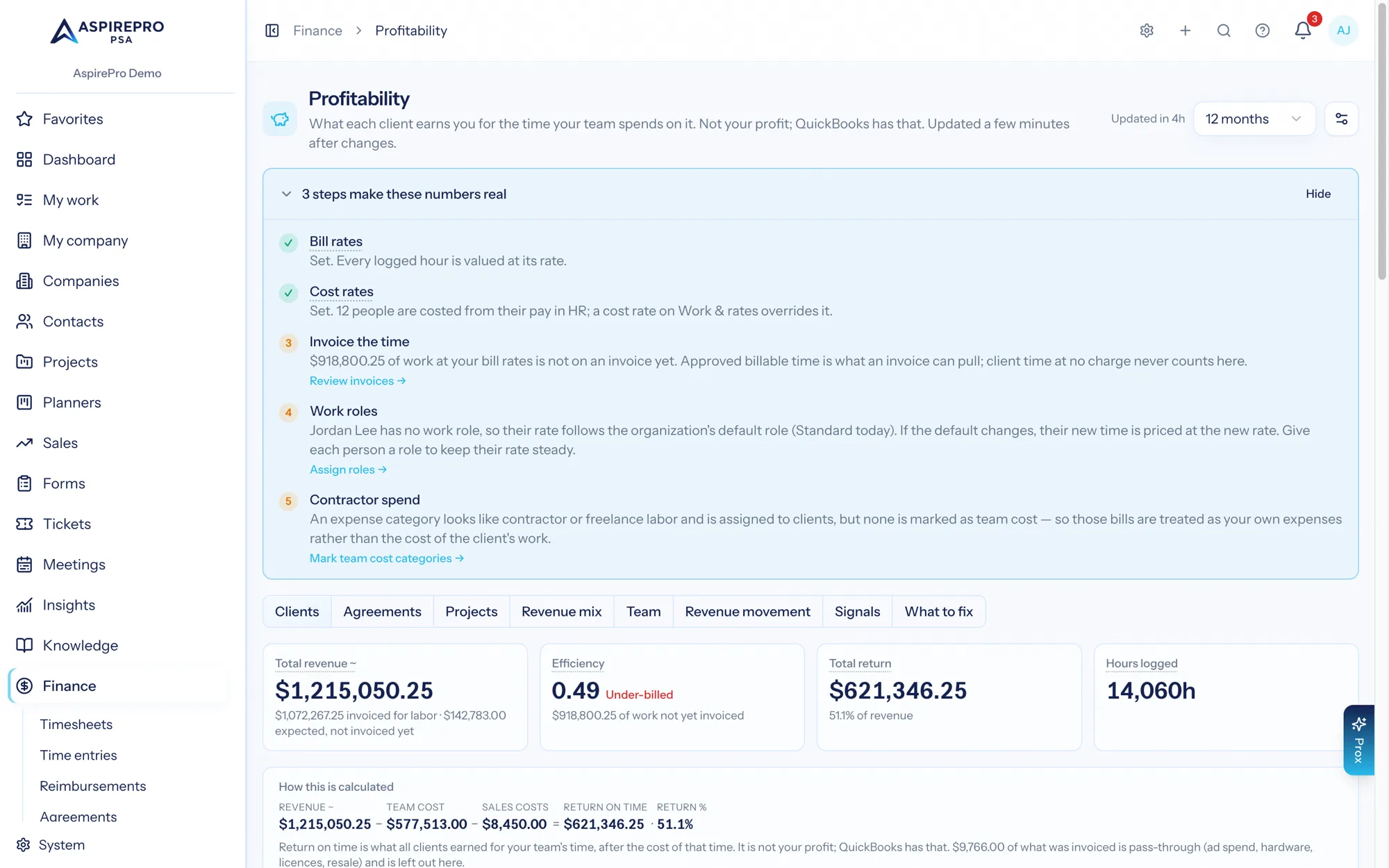
This page is the map. Every mechanic has its own page below, and all of them use the same worked example so the numbers build on each other instead of restarting. On the page itself, every figure's name — Revenue, Efficiency, Return, Team cost, Bill rates — carries a dotted underline and explains itself on hover, in two sentences, so a reader never has to leave the page to learn a word.
What "Return on time" means here#
Return on time is what a client earns you for the time your team spends on it. It is not your profit: your profit lives in QuickBooks, after every business expense. This figure answers a different question: is this client worth the team's time?
Throughout this section, Return on time is revenue minus the recorded cost of your team's time. Client expenses come off it too, but only when Include client expenses in return on time is on; it is off by default. Rent, software and payroll taxes are never taken off it. The screen says Return on time, or Return for short in a column or a tile, and so do these pages.
Beside it sits Efficiency — labor invoiced divided by what the logged hours were worth at your bill rates. It needs no cost rates, so it is the first figure a new organization gets, and it answers a different question: not is this client worth the team's time but are we billing what our time is worth. Efficiency →
Two more words this section uses: pass-through is invoiced money that moved through you rather than paying for your hours (ad spend, hardware, licences, hosting resale) — it is left out of Efficiency and $/hour, and out of Return while client expenses are off; subcontract labor is contractor spend in a category marked Team cost, counted as the team's cost of that client whatever the switch says.
What it is, and what it deliberately is not#
Profitability is a client scorecard, not a profit-and-loss statement. It answers "does this relationship earn well" and "who drains the team". It does not answer "did the business make money this month" — that is Statements, rendered live from QuickBooks.
That leads to a rule the whole module is built on: nothing that belongs to no client is ever spread across clients to make the books balance. Rent, payroll, software and general overhead belong to no client, so they appear in no client's return. Where a cost was not recorded, the page says so rather than estimating one into the total.
- Recorded only — a client's cost is logged time at cost rates, plus team pay from agreements, contractor labor in a category marked Team cost, and commissions or referral fees recorded by pay rules. With client expenses switched on, it also includes expenses assigned to that client in QuickBooks, client-linked reimbursements, and the processing fee on their card payments. Nothing else.
- No allocation — there is no setting that spreads shared spend across clients. There used to be; it was removed because a headline capability that depends on a QuickBooks connection is not a capability most teams have.
- Withheld rather than flattering — when no cost was recorded, the Return tile and cell read Team cost not set (or
—) instead of a dollar figure that would only be revenue, and Return % is never shown as100%. See How return on time is calculated. - Labelled, always — a collapsible "What's behind these numbers" panel sits on every Profitability view and travels into the client PDF, marking each ingredient Recorded, Partly recorded, Estimated or Not available. Above it, a "How this is calculated" line shows the subtraction with the real numbers in it.
The tabs#
- Clients — the headline grid: every client's revenue, team cost, return, return %, share of work, estimated return and a trend line by default (plus a client expenses column when that switch is on), with $/hour earned, hours logged, tickets opened, work vs revenue and estimated team cost available from the Columns menu, plus a "Where each client sits" chart. Clients tab →
- Agreements — the same money sliced by contract, with monthly value, the at risk badge, and an expandable month-by-month revenue-versus-cost chart per agreement. Agreements tab →
- Projects — while the Projects module is on: each project's revenue (including its share of the agreement fee), team cost, return and $/hour earned. Projects tab →
- Revenue mix — what you resell against what your team does: product margin, the return on the team's time, the blend, and your targets. Revenue mix →
- Team — per person: hours logged, billable percentage, revenue from their work, cost of their time, return on their work and hours with no cost rate, plus an hours-by-month matrix. It needs its own permission. Team tab →
- Revenue movement — how monthly recurring revenue moved over the last completed month: opening + new + growth − decline − lost = closing, with every bucket's agreements listed on its card. Revenue movement →
- Signals — six rules that read the stored numbers and name the account worth a conversation, each with its limit on screen and its arithmetic in the card. Signals →
- What to fix — ten cards (eight while Include client expenses in return on time is off), plus worklists that appear when they have something in them, showing exactly which gaps in your own data are distorting the numbers, each linked to the worklist that fixes it. What to fix →
The settings#
The settings live behind the gear on the page header and need the Finance settings permission. Most apply when a report is read, so a change moves every month on screen at once. The two that decide how agreement fees and project revenue are shared rebuild the months instead, and the figures update within a few minutes.
- Count revenue from — Invoices, plus what agreements should bill (the default: invoices, then what live agreements were expected to bill in months no invoice covered) or Invoices only. Every surface honours it, including the Insights widgets. Counting revenue →
- Assumed cost rate (shortcut) — one number for what an hour of your team costs, used instead of per-role cost rates, plus the assumptions (hours per closed ticket, per completed task, per meeting, and a give-or-take percentage) that price the work nobody logged time against. Off until you set the rate; while it is the only cost you have, Return shows as an estimate, and it never changes a recorded Return. Effort →
- Include client expenses in return on time — off by default. Off, return on time is revenue minus team cost, and nothing about expenses appears anywhere in the section. On, expenses assigned to a client in QuickBooks, billable reimbursements linked to a client, and card-processing fees come off that client's return too. Costs →
- Count product sales as revenue with a margin — on by default. Products you resell count as revenue and the cost on each invoice line comes off; a line with no cost is left out until a cost is added. Revenue mix →
- Share agreement fees across projects and people — By the value of the work (recommended) or Don't share. How an agreement fee is shared →
- Where project revenue comes from — Invoices or Agreement value, for organizations that invoice outside AspirePro. Projects tab →
- Count team pay from agreements — When it's earned (recommended) or When it's paid; offered once pay runs pay people. Pay from agreements →
- Target earned per hour and Margin targets (%) — optional targets shown beside Earned per hour on the Team tab and beside the Revenue mix figures.
A third control, the Edit limits dialog, lives on the Signals tab and is documented with the rules it governs.
Permissions and the feature toggle#
- View profitability (
finance.profitability.view) — the whole section, including cost data. Implied by Manage finance, and it requires Access finance. - View member economics (
finance.profitability.members) — the Team tab only. It is compensation-adjacent, so it is admin-tier by default and is not implied by Manage finance. Without it the tab is not rendered and its URL returns 403. - Finance settings (
finance.settings) — required to change the Profitability settings and the signal limits. - Feature toggle — Profitability is a Finance sub-feature under System → Features. Switching it off hides the nav entry and blocks the routes; the stored numbers are kept and reappear untouched if it is switched back on.
The reference example used throughout#
Every page below computes with the same client and the same month, so you can follow one set of numbers from revenue through cost, effort, return and signals.
Rivera Group, June 2026. One monthly retainer and one time-and-materials agreement. One invoice. Three people logging time. One expense assigned to Rivera in QuickBooks. One card payment with a processing fee. Twelve tickets closed, thirty-one project tasks completed, eighteen client meetings held.
- Rivera Monthly Retainer — monthly retainer, $6,000/month. Invoice INV-1042 issued 5 June for $6,000, paid by card on 9 June.
- Rivera Website Rebuild — time-and-materials, no invoice in June.
- Time logged — Dana Okoye 62.0 h at a $65.00 cost rate, Marc Ellis 41.5 h at $58.00, Priya Shah 18.0 h with no cost rate on file.
- Client expenses — a $420.00 stock-photo licence assigned to Rivera in QuickBooks, plus a $174.30 card-processing fee on INV-1042.
- Across the organization in June — 728 work items finished; $320,000.00 of client revenue, counting invoices plus what agreements should bill.
How it is calculated, in one line#
return on time = revenue − team cost − contractors − sales costs
efficiency     = labor invoiced ÷ work at bill rates
Revenue is counted the way you chose. Team cost is logged hours times the cost rate recorded on each entry, plus team pay from agreements. Contractor labor in a category marked Team cost and commissions or referral fees come off too. With Include client expenses in return on time on, client expenses come off as well: expenses assigned to the client in QuickBooks, client-linked reimbursements and payment-processing fees. Nothing else is subtracted, and nothing is added in. For Rivera in June, counting revenue on the default setting and with client expenses switched on:
revenue          $6,000.00 invoiced + $3,900.00 expected = $9,900.00
team cost        $4,030.00 + $2,407.00 + $0.00           = $6,437.00
client expenses  $420.00 + $174.30                       =   $594.30
return           $9,900.00 − $6,437.00 − $594.30         = $2,868.70   (29.0%)
With the switch off, the expense line disappears and Rivera's return is $9,900.00 − $6,437.00 = $3,463.00 (35.0%). The pages below use the switched-on figure so every term can be shown.
Every term is unpacked in How return on time is calculated. Efficiency for the same month is 0.91 — $22,500 invoiced for labor against $24,750 of work at bill rates — and is worked through on Efficiency.
By kind of business#
The same page reads correctly for a fractional consultant, a security firm, a web shop and an agency, because every one of them sells hours and bills money. What differs is which figure to watch first:
- Retainers (fractional CIO or CISO, marketing retainers). Efficiency: a fixed fee against wobbling hours. Under 0.8 for a quarter means the retainer is priced for a smaller client than it has become.
- Fixed-fee engagements (a penetration test, a website build). Read the Agreements tab over 12 months, not one: the deposit month, the quiet middle and the balance month sum to the truth.
- Agencies with pass-through. Mark ad spend, media buys and resold licences pass-through on their catalog items, and mark contractor categories Team cost. Then Revenue, Efficiency and Return all mean what they say.
- Anyone who has not set cost rates yet. Efficiency and Share of work work today; Return waits for a cost rate or one assumed team rate. The tiles say which.
Where to start#
Four starting points. Pick the one that describes you and do the settings in the order given.
- You track time and invoice in AspirePro. Everything is recorded. Set cost rates on your work roles under System → Work & rates — that is the only step most teams are missing — then use Apply current rates there so the hours you already logged get them too, and leave revenue counting on the default. The setup card at the top of the page walks the same steps in your own figures. Read Costs and Clients tab.
- You invoice somewhere else. Keep your agreements accurate — amounts, billing cycles and dates — and stay on Invoices, plus what agreements should bill, which fills the months no invoice covered with what the contract said the month was worth. Read Counting revenue.
- You don't track time. You still get a real answer, and it is not a guessed cost. The Share of work column gives each client's share of the tickets closed, project tasks completed and client meetings held (planner tasks are counted too, but only ever in the "not linked to any client" total), set against its share of the revenue — no assumptions at all. If you want a rough cost figure beside it, set the estimate assumptions and read the two amber
~columns as the estimate they are labelled as. Read Effort. - You need a QBR pack tomorrow. Open a client from the grid, check the "What's behind these numbers" panel says what you are willing to show, and download the PDF. Read The client report.
All the pages in this section#
- How return on time is calculated — the subtraction, term by term, and the rule that hides a percentage.
- Counting revenue — the per-agreement, per-month ladder and the amber
~. - Costs — the recorded sources, the client-expenses switch, and every time-entry rule.
- Effort and the three tiers — share of work, the estimate, and logged time.
- Efficiency — labor invoiced against the value of the work, the bands, and reading it by kind of business.
- Clients tab — every column, the KPI row, the chart, and which companies get a row.
- Agreements tab — the contract view and why it never sums to the client view.
- Projects tab — each project's revenue, cost and return, and how an agreement fee is shared.
- Revenue mix — products against services, and your margin targets.
- Team tab — hours, billable %, revenue, cost and return per person, and pay from agreements.
- Revenue Movement — how monthly recurring revenue moved.
- Signals — the six rules, their limits and their blind spots.
- What to fix — the cards and the "What's behind these numbers" panel.
- Freshness and history — updates within minutes and overnight, months still in progress, and frozen history.
- The client report — the per-client page and the QBR PDF.
- Profitability and Insights — which widget answers which question, and how it counts revenue.
Profitability pairs naturally with the rest of the platform: Statements for the whole-business view, Expenses & Vendors to sharpen client expenses, Work & rates for the cost rates that make team cost real, and Insights for the same numbers as dashboard widgets. Prox can read all of it throughget_profitability, and can adjust the settings for you throughmanage_profitability_settings, within your permissions: the signal limits, the estimate assumptions (including the give-or-take range,assumed_hours_range_pct, 0–75) and the client-expenses switch (include_client_expenses). It reads the low and high end of every estimate (estimated_margin_low/estimated_margin_high), sees client expenses (ledger_costs) only while the switch is on, and is told never to call any of it profit.