Time workflows are rules about time. Each one reads: WHEN something happens, IF the conditions match, THEN do these actions. They run on their own in the background.
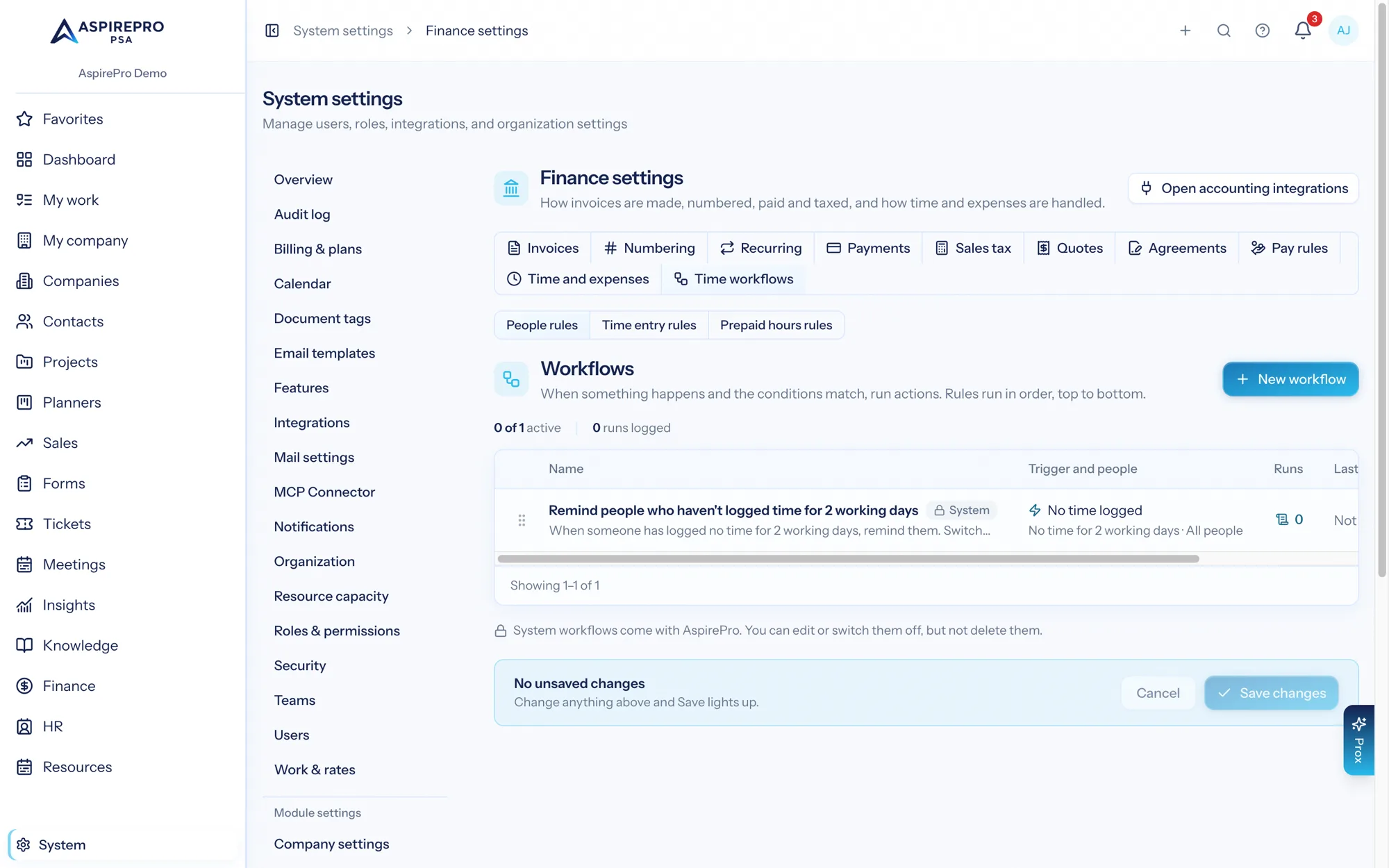
There are three kinds, on three tabs:
- People rules: for example, remind anyone who has logged no time for 2 working days.
- Time entry rules: for example, tell the project owner when someone logs more than 8 hours in a day.
- Prepaid hours rules: for example, add a "Talk about renewal" task when a prepaid block is used up.
Where to find them#
Open System → Finance settings → Time workflows. People who run timesheets but don't use System can open the same tab with the Time workflows button at the top of Finance → Timesheets; they see only this tab of Finance settings.
You need the Manage time workflows permission and View all time. A rule works out who hasn't logged time, so it can only be managed by someone who is allowed to see everyone's time. Finance settings and Manage timesheets both include Manage time workflows.
The Prepaid hours rules list shows only while Agreements is switched on, and only to people who can View agreements (or View client finance).
How rules run#
- Rules run top to bottom in the order listed. Drag them to reorder.
- A rule can be set to stop later workflows when this one matches.
- Each rule has an Active switch. Switch a rule off to keep it without running it.
- A rule must have at least one action.
- Bulk changes made by AspirePro itself, such as re-pricing time, changing how time is billed, or moving a task's time to another task, never fire time entry rules.
People rules#
No time logged#
The one trigger is No time logged. It fires when someone has logged no time on their last working days.
- Choose For (working days), from 1 to 20.
- Optionally set Repeat every (days). Leave it at 0 to fire once, or set a number to fire again every that many days while the quiet stretch continues.
- Working days come from each person's work schedule. Weekends, holidays and approved time off don't count.
- The count ends yesterday and looks back at most 30 days. Rejected entries don't count as time logged.
- A new starter is never "missing" days before they joined, which is the later of their account's creation date and their hire date. Someone who has left (a termination date in HR) is never flagged. Only active people are checked.
- It fires once per quiet stretch. Logging any time starts the count again.
- It is checked once a day, not before the check hour in your organization's time zone (9 o'clock unless you change it). See Organization.
If#
A people rule can test the person's name, role, whether they have a work schedule, and the days since they last logged time.
Then#
Send a notification is the one action. Send it to the person (the default), to one other person, or to everyone with a role. Anyone other than the person themselves gets it only if they can view all time.
Time entry rules#
Time entry rules are notify-only. No action can change hours, billable, rates or status, because those feed invoices and pay.
When#
- Time logged: someone logs time, or stops a running timer. Running timers fire nothing.
- Time entry edited: someone changes the hours, billable, day, work item or work type of a finished entry.
If#
A time entry rule can test the person and their role, the hours, billable, work type, work role, client, project, task, ticket, agreement, status, notes, work date, day of the week, whether it falls on a weekend, and whether the rate was set by hand.
Then#
Send a notification to:
- the person who logged it (the default);
- their timesheet approvers;
- the project owner;
- one other person, or everyone with a role.
Apart from the person and the project owner, a recipient hears about someone's time only if they can view all time or approve timesheets.
Prepaid hours rules#
Prepaid hours reached an alert level fires when a prepaid block passes one of its alert levels (set on the agreement, or the organization's default list) or runs out. See Agreements.
The built-in prepaid alert has already gone out by the time a rule runs. A rule adds actions on top of it and never sends that alert a second time.
If#
A rule can test the alert level reached (%) (it has a value only when a real alert fires), whether the hours are used up, the agreement name, the client, the client PO number, total hours, hours used, percent used, hours left, the end date and the days to the end date.
Then#
- Send a notification to the owners of the block's projects (the default), the client's owner, one person, or everyone with a role. People who can see agreements get a link to the block. A project owner who can't gets a link to their project's Time tab. Anyone else is skipped, so a rule never shows a block's hours to someone who can't see them.
- Add a task to the block's projects: puts a task in the first column of every open project that uses the block, or only the newest. Set a due date and an assignee if you like. You can use
{agreement.name}and{project.name}in the task name. Adding this action needs someone who can see every project.
Adding a prepaid rule needs View agreements (or View client finance).
Test before you commit#
- Test checks the rule without changing anything and shows how many people, entries or blocks would match.
- Run now applies the saved rule. This does make changes, so it asks you to confirm. It runs in the background, and you get a notification when it is done, linking to the rule's run log. For time entry rules it looks at finished entries from the last 30 days. For prepaid rules it looks at every live prepaid block.
- The Run log lists every run: when it happened, which person, entry or block, whether it matched and the outcome.
Ready-made rule#
Every organization starts with one people rule, switched off:
- Remind people who haven't logged time for 2 working days
Switch it on to use it, or edit it first. It can be switched off but not deleted. There is no ready-made prepaid rule, because the built-in prepaid alert already exists.
Good to know#
- System → Organization → Automations sets the check hour, how long run history is kept, and how many workflows may follow each other. See Organization.
- Prox and your AI tools can read, create, edit, test, switch on and off, and delete these rules, with the same permissions and checks as this page.
- For project and task rules, see Project and task workflows.