Finance has two settings areas under System: Finance settings for invoicing, and Agreements for agreement behavior and taxonomy. Both need the finance-settings permission.
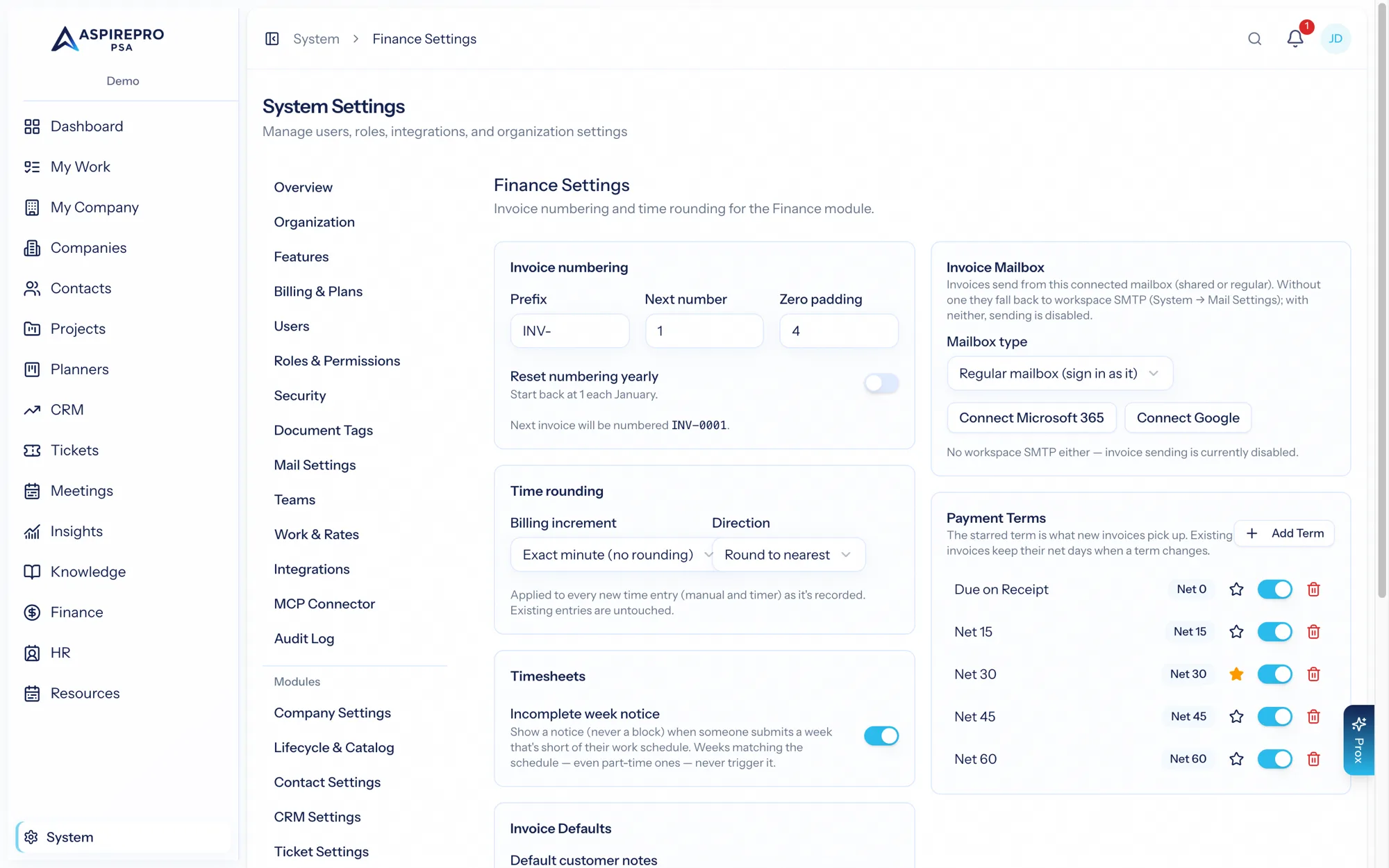
Finance settings#
System → Finance settings is organized in tabs. Each section on a tab saves on its own, and a link can open a tab directly (for example ?tab=numbering).
- Invoices
- Invoice defaults — customer notes and terms that pre-fill new invoices.
- Payment terms — named Net-N presets (Net 15, Net 30…) with one default, pickable per invoice.
- Invoice mailbox — connect a Microsoft 365 or Google mailbox (Microsoft shared mailboxes supported) so invoices send from a dedicated, branded address. Connect, disconnect, and test the connection; without one, invoices go out through organization email, or else from AspirePro's address under your organization's name. The invoice mailbox only sends, so it can be the same mailbox as one of your ticket boards (a client's reply to an invoice then opens a ticket on that board, unless Replies go to points elsewhere). A mailbox belongs to one organization, so a mailbox connected in another organization can't be connected here.
- Replies go to — the address a client's reply to an invoice, a payment reminder or a quote goes to, whoever or whatever sends it (a recurring schedule included). Left empty, replies go to the invoice mailbox, your organization email, your business email, or the person who pressed Send.
- Numbering — invoice numbers (a prefix, the next number, the minimum digits, and whether numbering starts again each year) and quote numbers. Each shows the next number before you save.
- The prefix can be left empty for plain numbers (1185, 1186 …). It takes letters, numbers, spaces and
-_.#(soINVorINV#, the way Detect finds them in QuickBooks, work as they are) — no slashes or backslashes. It can also hold the date:{YYYY},{YY}or{MM}.INV-{YYYY}-reads INV-2026- this year, and starting again each year gives INV-2027-0001 without editing it. - Numbering follows — with QuickBooks, Xero or Stripe connected, invoice numbers can carry on their sequence. Detect from QuickBooks reads its recent invoice numbers and fills in the prefix, digits and next number for you to check and save. From then on, each new invoice carries on from the highest number QuickBooks has used — including ones its own recurring invoices took. If QuickBooks can't be reached, AspirePro's own count carries on, and the number is checked again when the invoice goes to QuickBooks: a draft whose number QuickBooks has taken since gets the next free one, and a sent invoice is held back with the reason, so a number is never used twice.
- QuickBooks only uses the numbers AspirePro sends when custom transaction numbers are on in QuickBooks (Account and settings → Sales → Sales form content); the Numbering tab tells you if they're off.
- Recurring — the hour each day's recurring invoices are made (in your organization's time zone), and whether a new recurring invoice starts out making drafts or sending automatically.
- Payments — Online payments: a Pay now button on invoices, and whether Stripe or QuickBooks Payments takes the money. See Pay now.
- Who sends payment reminders? — AspirePro (on the days you choose, with your own wording), QuickBooks, Xero, Stripe or nobody. See Payment reminders.
- Sales tax — Who works out sales tax? AspirePro, QuickBooks or Xero. See Sales tax.
- Quotes — how long a quote is valid, the total above which a quote needs approval, and default terms.
- Time and expenses — time rounding (to the nearest N minutes, or always up), the incomplete-week notice for timesheets, and reimbursements (receipts, billable markup, mileage rate).
QuickBooks, Xero and Stripe connections have their own pages under System → Integrations. If one of them stops being connected, what happens to the settings above that point at it depends on how:
- Its login expires (or Stripe refuses its key) — nothing is changed, and the settings apply again by themselves once it's reconnected. Until then AspirePro sends the reminders it can't (leaving the invoices in that system to it), emails invoices itself, numbers them from its own count, and Pay now goes through another processor or is off. Sales tax is the exception: invoices that system works out the tax for wait unsent until it's back, so none goes out without its tax. Each card says so, the people who can change Finance settings are told once, and a banner across the top of every page reminds them until it's back. Saving a card meanwhile keeps the choice. The system's page under System → Integrations shows Needs reconnecting with a Reconnect button (Replace key for Stripe); reconnecting the same company or account keeps every link and every setting.
- You disconnect it — every setting that pointed at it goes back to AspirePro straight away: who works out sales tax, who sends reminders, how invoices are sent, whose numbering is followed, and Pay now (its processor, or the switch itself when nothing is left to take a payment). Each card says what happened and when. Reconnecting doesn't put the old choices back: choose them again when you want them.
Finance is single-currency: agreements, invoices, and quotes are all in USD, and that's what's sent to Stripe, Xero, and QuickBooks. (Deal values in the CRM and compensation figures in HR keep their own free-text currency labels — those are descriptions, not charged money.)
Agreement settings#
System → Agreement settings governs how agreements behave and are classified:
- Rules & automation — auto-calculate end dates, require key fields, block past-dated starts, auto-expire and auto-activate on schedule, send expiration notifications and pre-notice alerts, and more. These are the rules that keep your agreements clean and renewals on time.
- Work on expired agreements — Allow with a warning (the default: an expired agreement still takes work and still bills, it just nags) or Block until renewed. Either way its recurring revenue is reported as at risk on every MRR figure until it's renewed or completed. See lapsed agreements.
- Nudge after days expired — how long an agreement may sit in Expired before finance managers are reminded to renew or complete it, repeating every period after. 0 turns it off.
- Types — your agreement type taxonomy (name, abbreviation, color), including whether a type can have child agreements, and the product its fee is billed as — so invoices for it post to that product's item and income account in QuickBooks or Xero. See where each line posts.
- Statuses — the statuses an agreement moves through; the built-in ones (draft, active, expiring, expired, completed, cancelled) can't be deleted, because the automation and every revenue figure are written in terms of them.
- Templates — reusable agreement blueprints that pre-fill the create form (including line items) so standard contracts are one click.
Set invoice numbering and payment terms before you send your first invoice, and build a template for each standard agreement you offer — the up-front setup pays off every time you bill.