System → Roles is where you define what people can do. Access in AspirePro is role-based: you build roles out of granular permissions, then assign roles to users. A user's abilities are the sum of their roles.
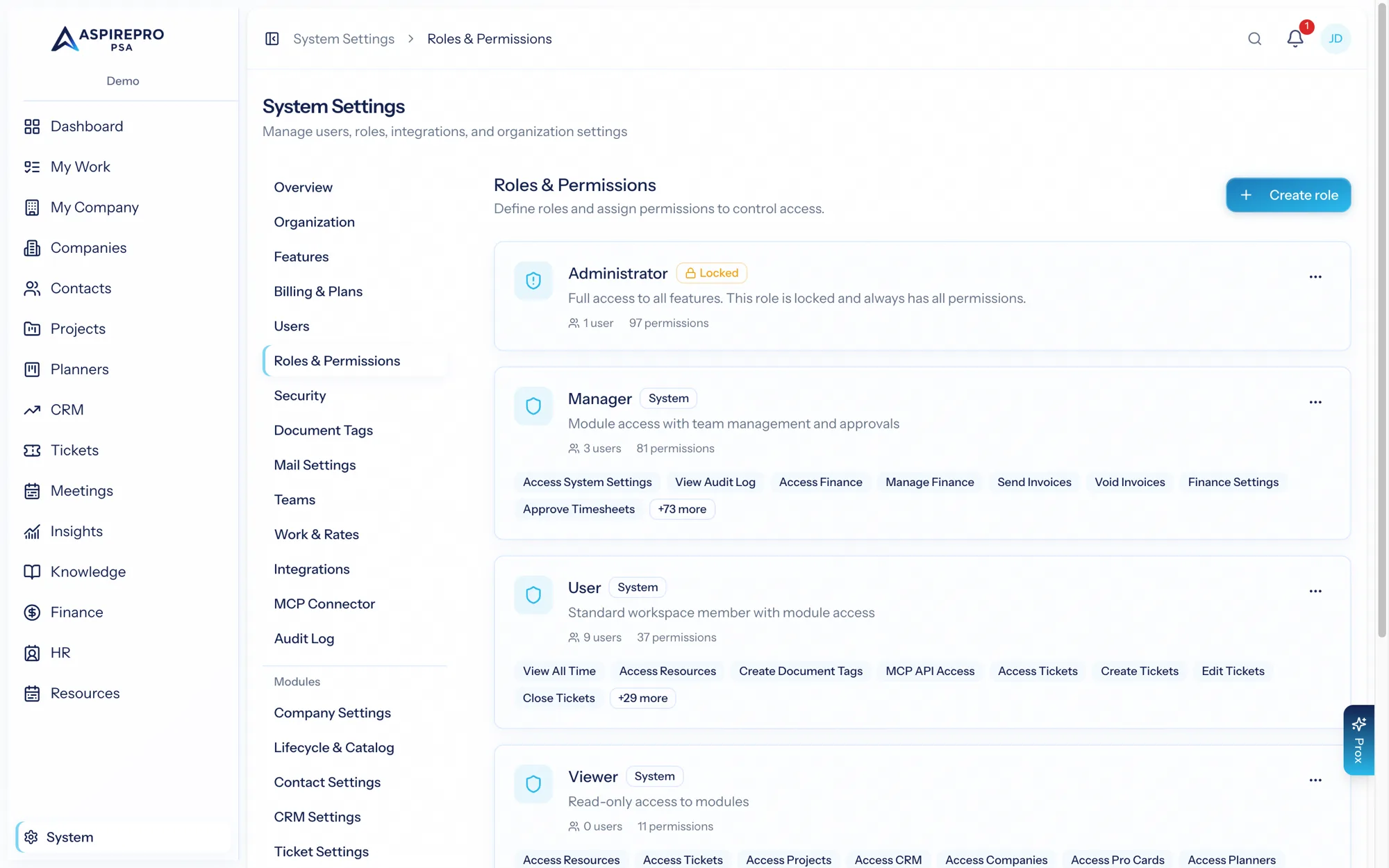
How permissions work#
Permissions are granular and grouped by module. Rather than a blunt "admin / member" switch, you grant specific abilities — view companies, edit projects, close tickets, manage finance settings, and so on — so each role gets exactly the reach it needs and no more.
Permissions are enforced everywhere the data is touched: in the interface, on every server request, and by the Prox AI assistant. There's no back door — if a role can't do something, it can't do it by any path.
Doing the work, and billing for it, are different rights#
Worth knowing when you are designing roles, because the answer is not always "Finance":
- Recording what a job cost — adding a charge for a part or a fee — rides on the right to edit the work (Edit tickets, or editor on the project). The person who fitted the drive is the person who knows a drive was fitted.
- Billing it — raising an invoice from a job — needs Manage Finance, or the company-level finance permission, and access to the job itself. A finance permission is not a key to every board in the workspace.
- Moving stock — taking a charged item off the shelf — needs Purchasing & Inventory, wherever it is triggered from.
Building a role#
- Open System → Roles and create a role (or edit one).
- Give it a name that reflects its purpose ("Support agent," "Sales manager," "Read-only").
- In the permission editor, work module by module and grant the abilities the role should have.
- Save. Assign the role to users from Users.
The editor groups permissions by module so you can reason about one area at a time.
"Manage" implies the rest#
To keep roles sane, higher permissions imply the lower ones they depend on. Granting a module's manage permission automatically includes the everyday abilities within it — you don't have to tick every box individually, and you can't accidentally grant "manage" while forgetting "view." AspirePro resolves these dependencies for you when you save, so a role is always internally consistent.
This means:
- Grant manage for a module to give full control of it.
- Grant narrower permissions (view, edit, a specific action like close tickets or edit projects) for more limited roles.
- When you enable a permission that requires others, its prerequisites come along automatically.
Designing a good role set#
- Start from job functions, not individuals — "Project manager," "Billing admin," "Support agent."
- Prefer several focused roles you combine over a few sprawling ones; a user can hold multiple roles.
- Keep a read-only role handy for stakeholders who should see but not change.
- Review roles when you enable a new module, so the right people gain access deliberately.
Permissions and modules#
When a module is disabled, its permissions are moot — the module is unreachable regardless of role. When you enable a module, revisit your roles to grant access to the people who need it; enabling a module doesn't automatically give anyone permission to use it.
Because Prox operates at the requesting user's permission level, well-designed roles make the AI assistant safe by construction — it can never do more on someone's behalf than their role allows.