Work a list of names without losing a single follow-up
Give a contact list a purpose and it becomes a block to work from: today's calls, what slipped, who has gone quiet, the person's record beside the queue, one-tap outcomes, and a next step that has to be set before a touch can be saved.
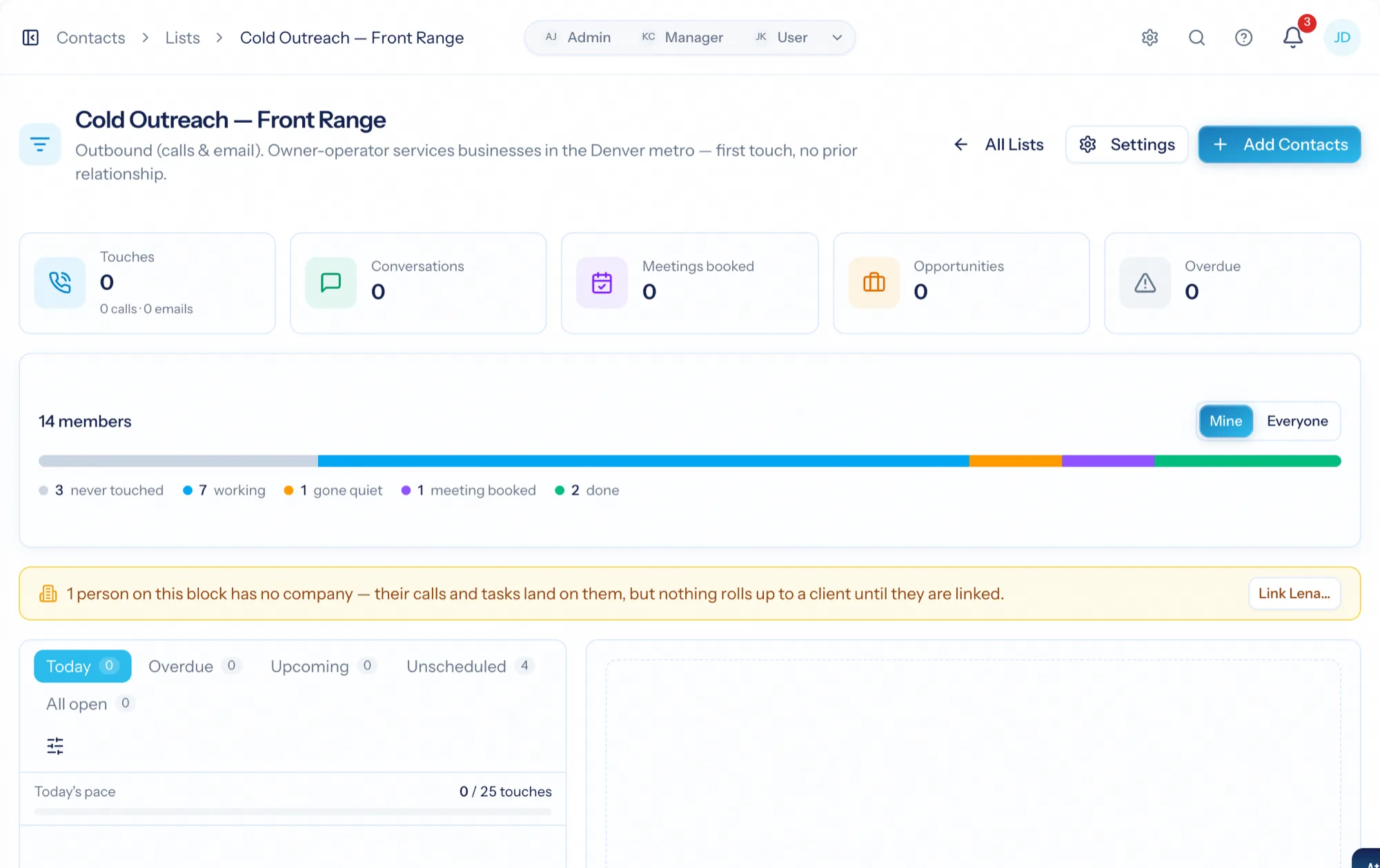
Outbound calling software gives a rep a list to work and a place to record what happened on each call — without a separate dialer, a spreadsheet of callbacks or a cadence engine deciding the day. AspirePro builds it on the activities your team already logs: pick a block of names, work through them by phone and email from one screen, and the block tells you where you stand, who is overdue and who has gone quiet — with HubSpot's lead status and tasks in the same queue when it is connected.
The list, the person and the log in one place
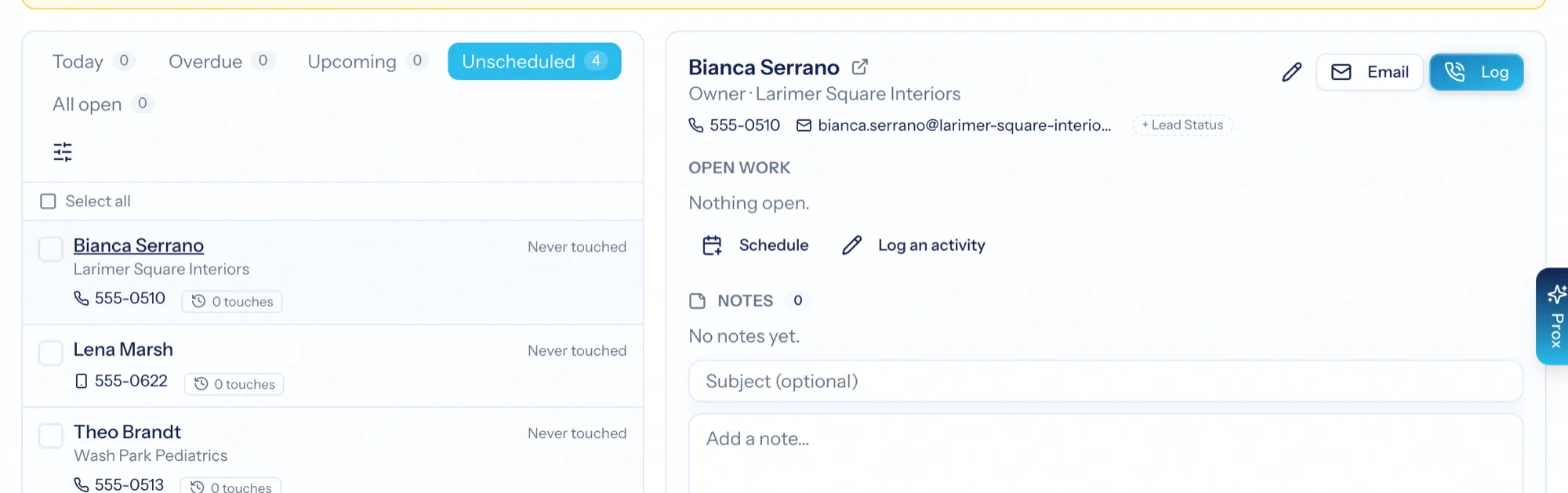
Queue on the left, the person's record beside it — numbers, open work, notes, recent activity — and the log form in the panel. A rep never bounces between three tabs.
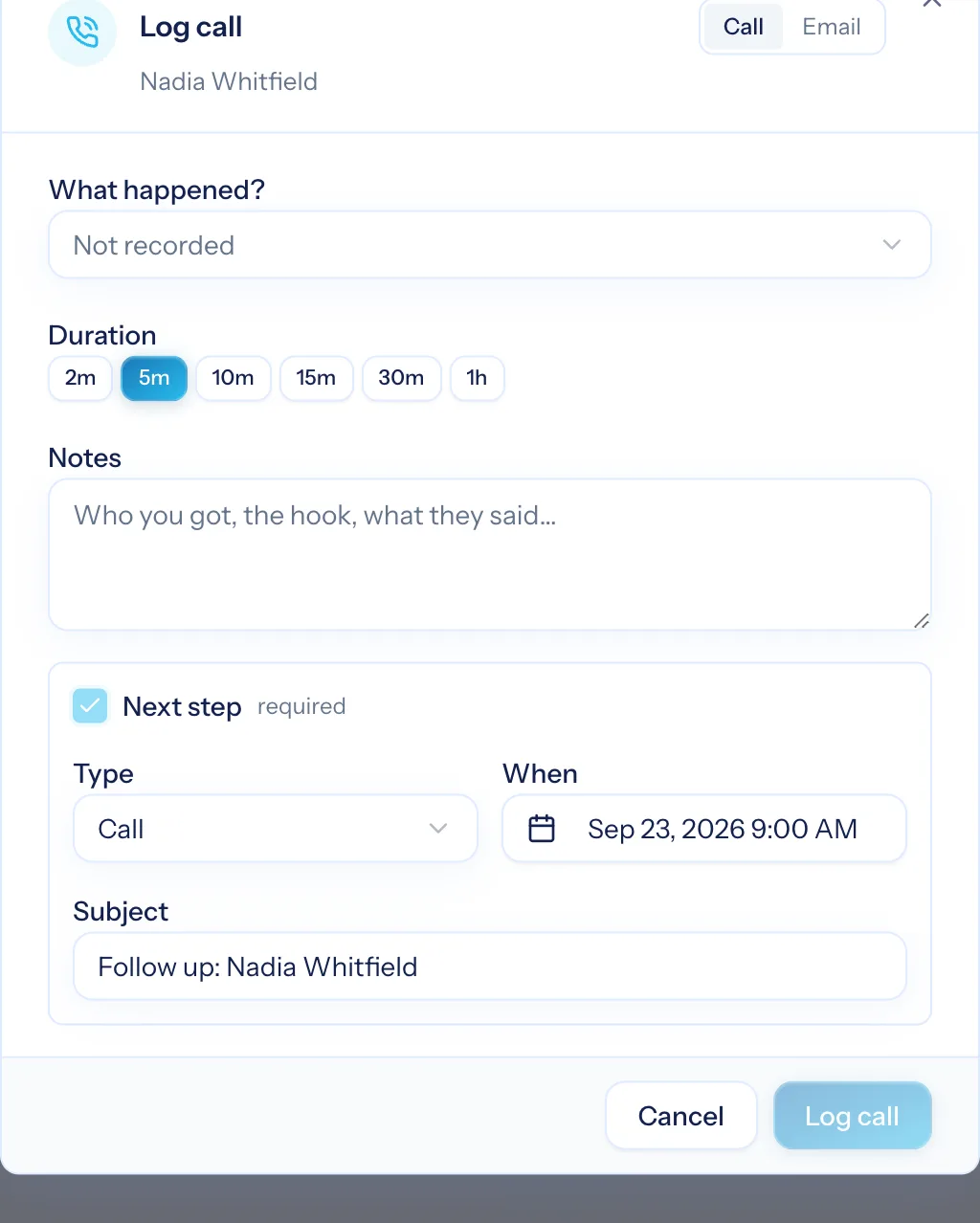
No next step, no save
A touch cannot be logged without a next step unless the outcome ends the conversation. That one rule is why the Overdue tab is short and nobody falls through.
Worked out from what was logged
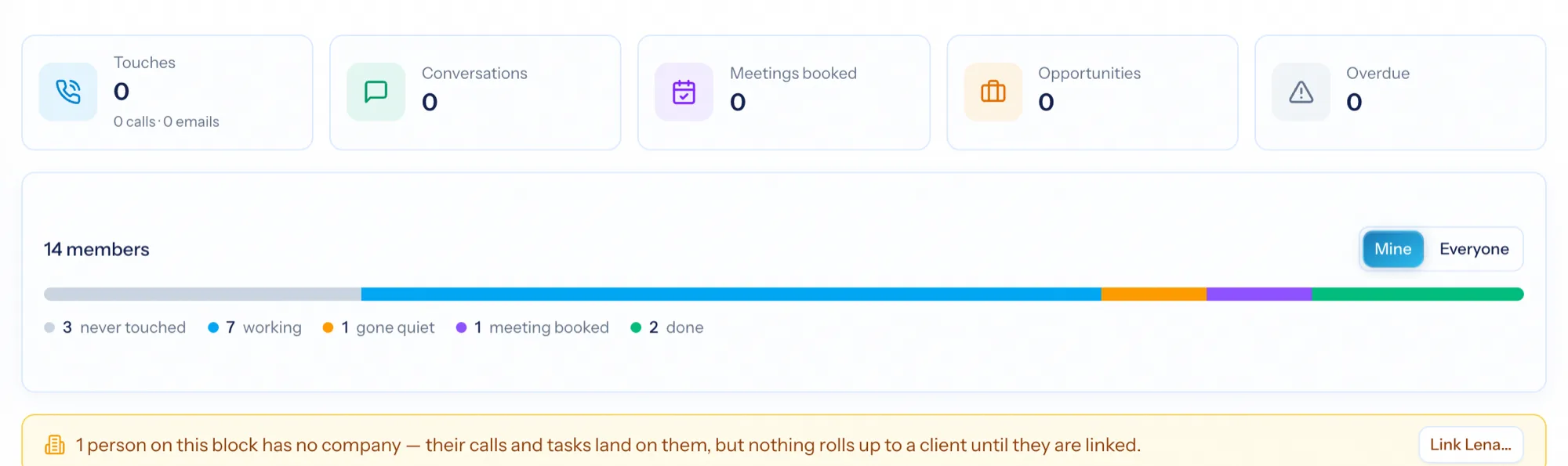
Never touched, working, gone quiet, meeting booked, done — computed from real touches, not a status somebody has to remember to update.
Give a list a purpose and it becomes a place to work
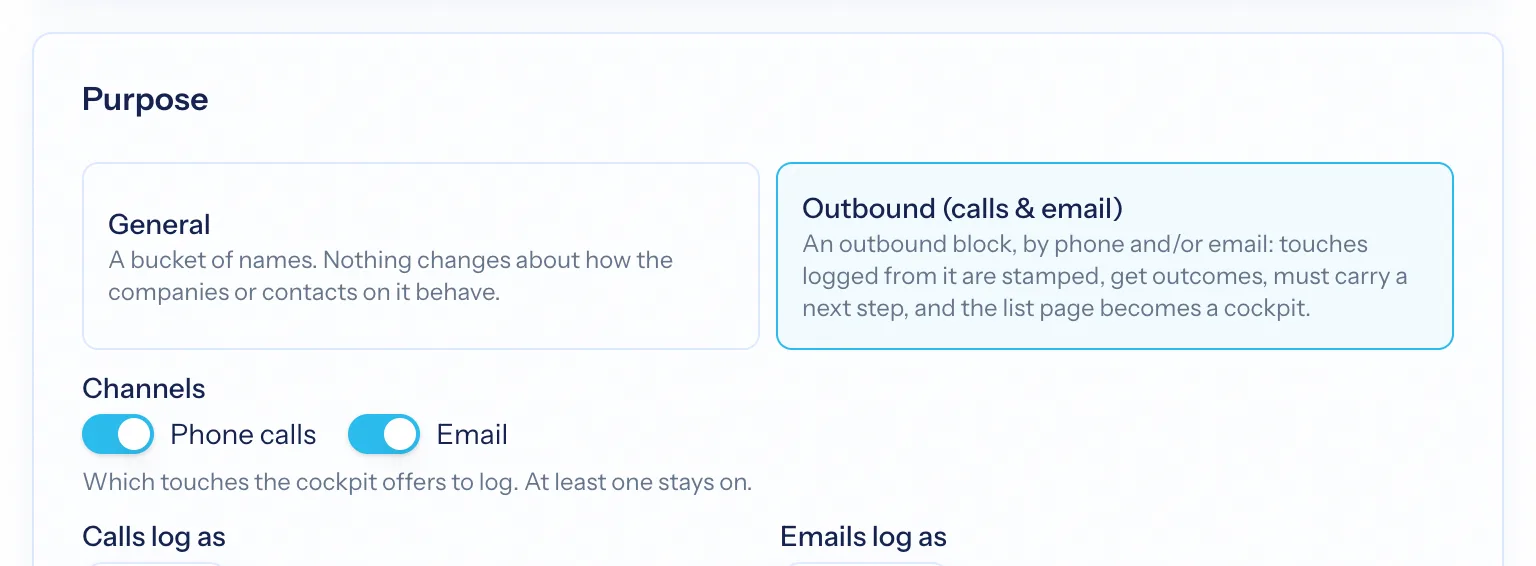
Any contact or company list can be switched to Outbound. Set the channels (phone, email, or both), how far ahead the next step is pre-filled, how many quiet days before someone is flagged, a do-not-contact tag that removes people from every queue, the lead statuses that mean done, and a daily target for the pace bar.
- Channels, activity types and next-step defaults per block
- Gone-quiet threshold and a skip tag for do-not-contact
- Daily target drives a pace bar on Today
- The pipeline, source and stage used when a call earns an opportunity
Today, Overdue, Upcoming, Unscheduled, All open
Five tabs, each with its count, each answering one question. Every person with open work is in exactly one of the first four, so the numbers add up. Unscheduled lists the people with no next step — never touched first, then gone quiet — the ones to pull from when today's list is done. Keyboard through it: j and k move, l logs a touch, x selects for bulk actions.
- Filter any tab by lead status, block state or HubSpot sequence
- Bulk disqualify, add to another list, or reassign
- HubSpot tasks appear in the same queue when connected
Everything a rep needs, none of what they don't
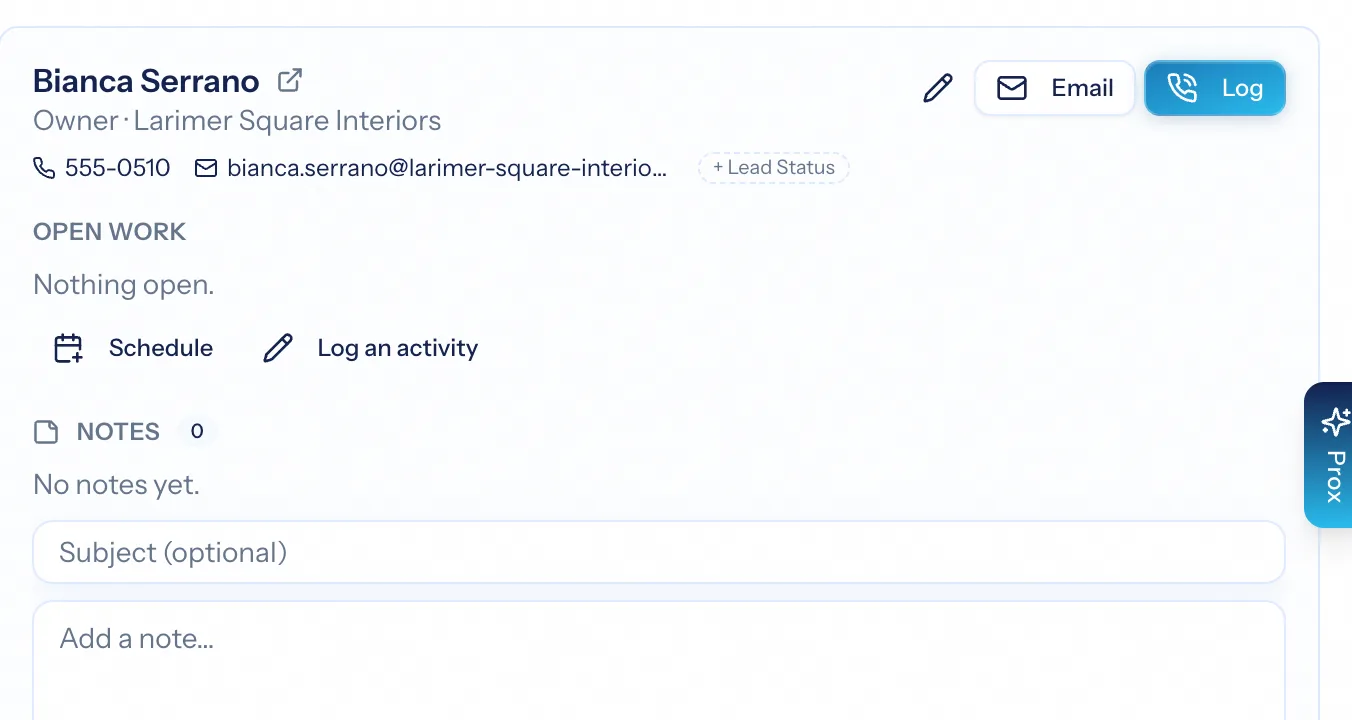
Pick a row and the panel beside the queue shows the contact trimmed for calling: every number with its kind and a click-to-call link, email, lead status changeable in place, the next few follow-ups with Complete and Snooze, notes, and recent activity on both sides — including anything mirrored from HubSpot.
- Typed phone numbers: mobile, work, direct, home — one marked default
- Complete or snooze open work without leaving the block
- Add a note, schedule the next step or email from the panel
Outcome, duration, notes, next step — one form
Press Log and record what happened: the outcome, a one-tap call duration, notes, and the next step pre-filled from the block's setting. Positive outcomes offer to create an opportunity in the pipeline you chose. Terminal outcomes — not interested, wrong number, do not contact — close the person's open work so they leave every queue.
- Outcomes you define, each marked positive, neutral or terminal
- Email from the block through your own connected mailbox; sends count as touches
- Everything logged from the block is stamped with it, so the cockpit counts it
Touches, conversations, meetings, opportunities
The top of the block is the numbers: touches split into calls and emails, conversations (connected calls and replies), meetings booked, opportunities created and overdue follow-ups — for you or for everyone. Beneath it, a bar shows where every member stands, so a manager sees a block's health without a report.
- Mine or everyone, one toggle
- Segment worth: conversations and meetings per touch by list
- Every member listed with lead status, block state, last touch and outcome
A block, start to finish
Build or import the list
By hand, by criteria, or mirrored from a HubSpot list. Set the purpose to Outbound.
Work today's queue
Call or email from the panel, log the outcome, set the next step. The queue re-ranks as you go.
Pull from Unscheduled
When today is done, the never-touched and gone-quiet people are waiting in one tab.
Read the cockpit
Conversations and meetings per touch tell you which lists deserve more time.
What Outbound Calling & Email connects to
Nothing here is a standalone tool — each of these reads the same clients, people and permissions.
Frequently asked questions
Is this a dialer?
How does it work with HubSpot?
What is 'no next step, no save'?
Can I send email from the block?
How are 'gone quiet' and 'done' decided?
Can a rep see only their own work?
Read the documentation
The full how-to for this module, written for the people who use it every day.
Bring your whole services business together
Stop stitching together five tools. Run sales, delivery, support, and billing from one organization — with an AI assistant on every page.