Know which clients are worth your team's time
Revenue is the easy half. This is the other half — what your team's time cost, each client's share of the work your team finished, and a return on time per client that tells you where the team's hours are really earning and where they are not.
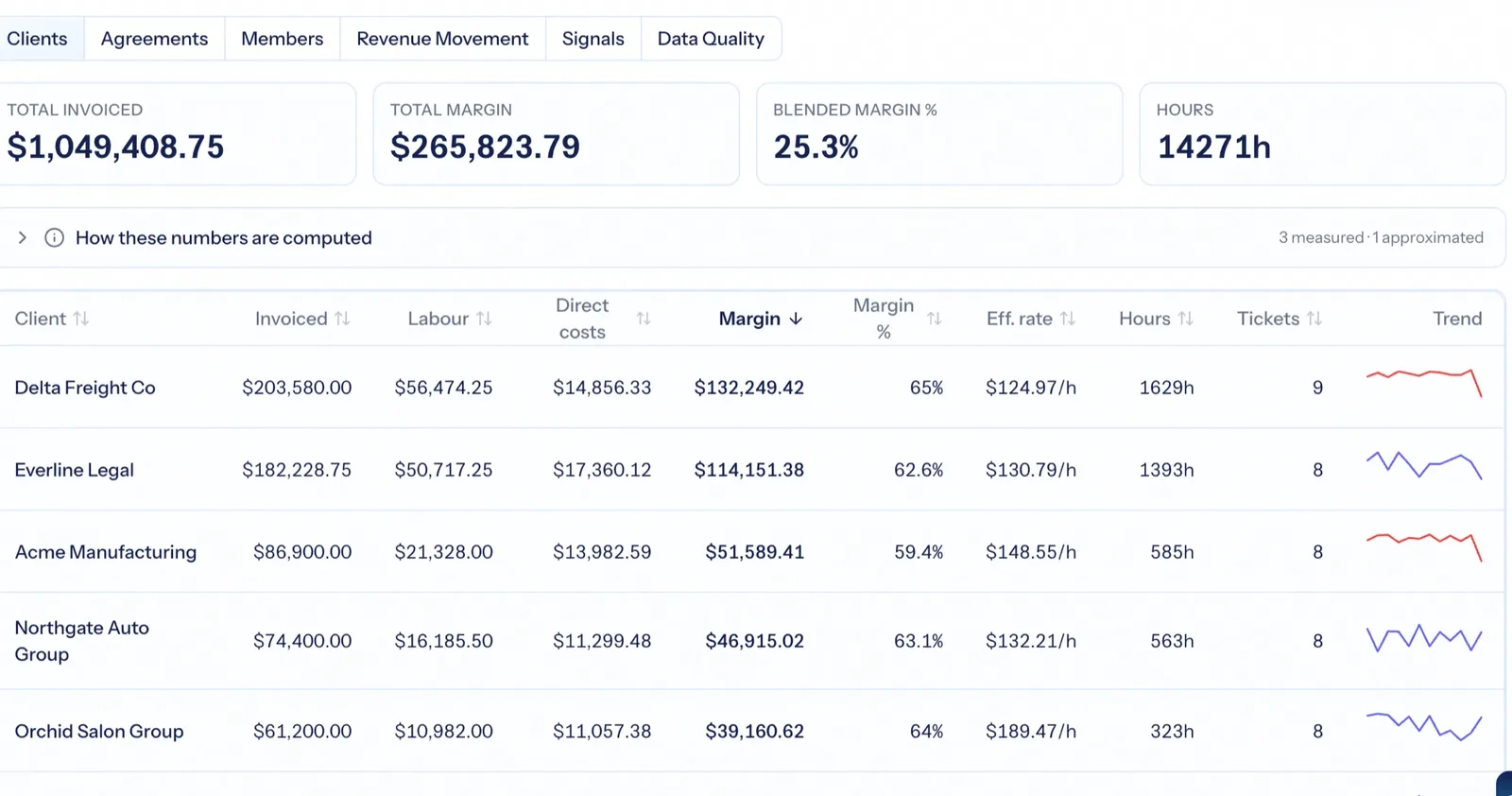
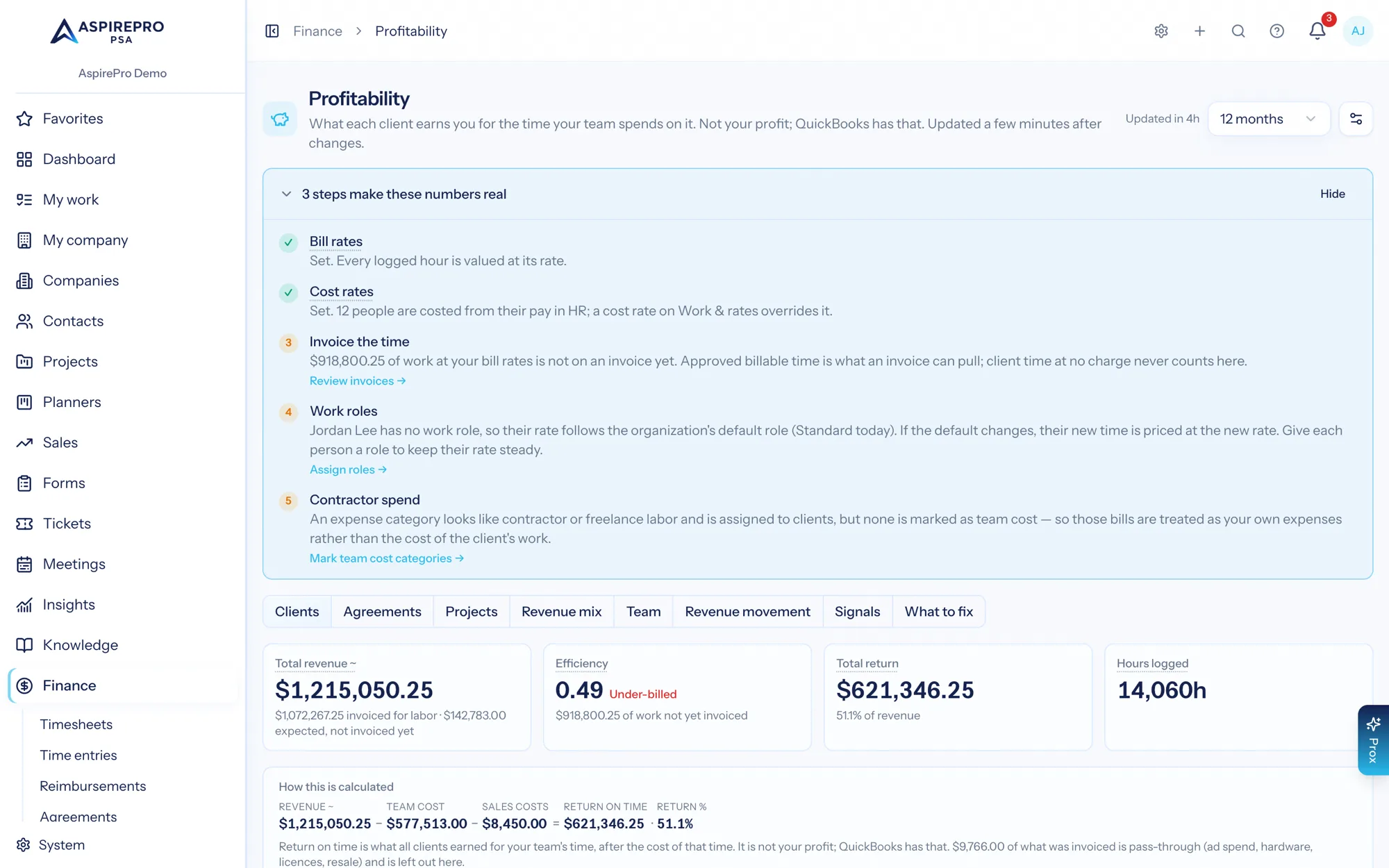
Client profitability software works out what an engagement earned for the time it took to deliver. For a services firm the cost is mostly people, so it needs the hours and the cost rates in the same system as the invoices. AspirePro builds a return on time per client and per agreement from records your team already creates — revenue minus the recorded cost of the team's time, with client expenses taken off too if you switch that on — adds each client's share of the work the team finished for the parts nobody timed, and keeps the picture current, updating it within a few minutes of a change. It is not your profit: that lives in QuickBooks, after every business expense. It answers a different question: is this client worth the team's time?
Return on time, not just revenue
Revenue counted the way you choose, minus the recorded cost of your team's time (and client expenses, if you count them) — with return percentage, dollars earned per hour, and share of work against share of revenue.
It says what it recorded and what it guessed
Every input is labelled, and where no cost was recorded the return percentage is hidden rather than shown as a flattering 100%.
The account to look at today
Revenue dropping two months running. More of your team's work than of your revenue. A poor return under a heavy ticket load. Steady work with no recurring agreement.
The client list that changes decisions
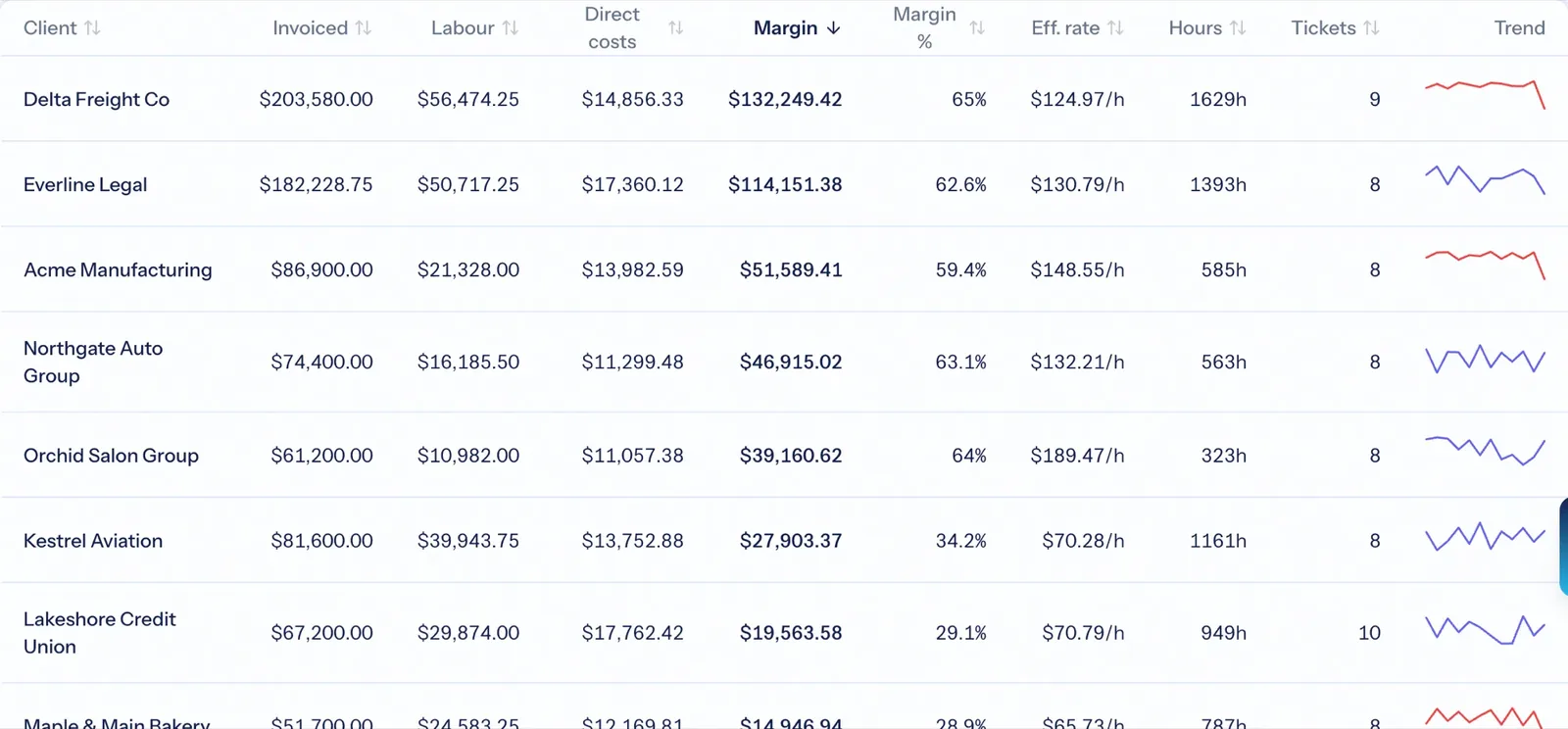
Every client, with their revenue, what your team's time cost, the resulting return on time and return percentage, share of work, and a trend line — with dollars earned per hour, hours logged, tickets opened and the work-versus-revenue gap a click away. Sort by return and the conversation about who to keep, reprice or fire has actual evidence behind it.
- Return on time and return percentage per client
- $/hour earned — what you really earned per hour on that account
- Share of work against share of revenue — the client taking 8% of the team for 3% of the money
- Trend lines so a slide is visible before it becomes a loss
You can present it, because it never dresses up a guess
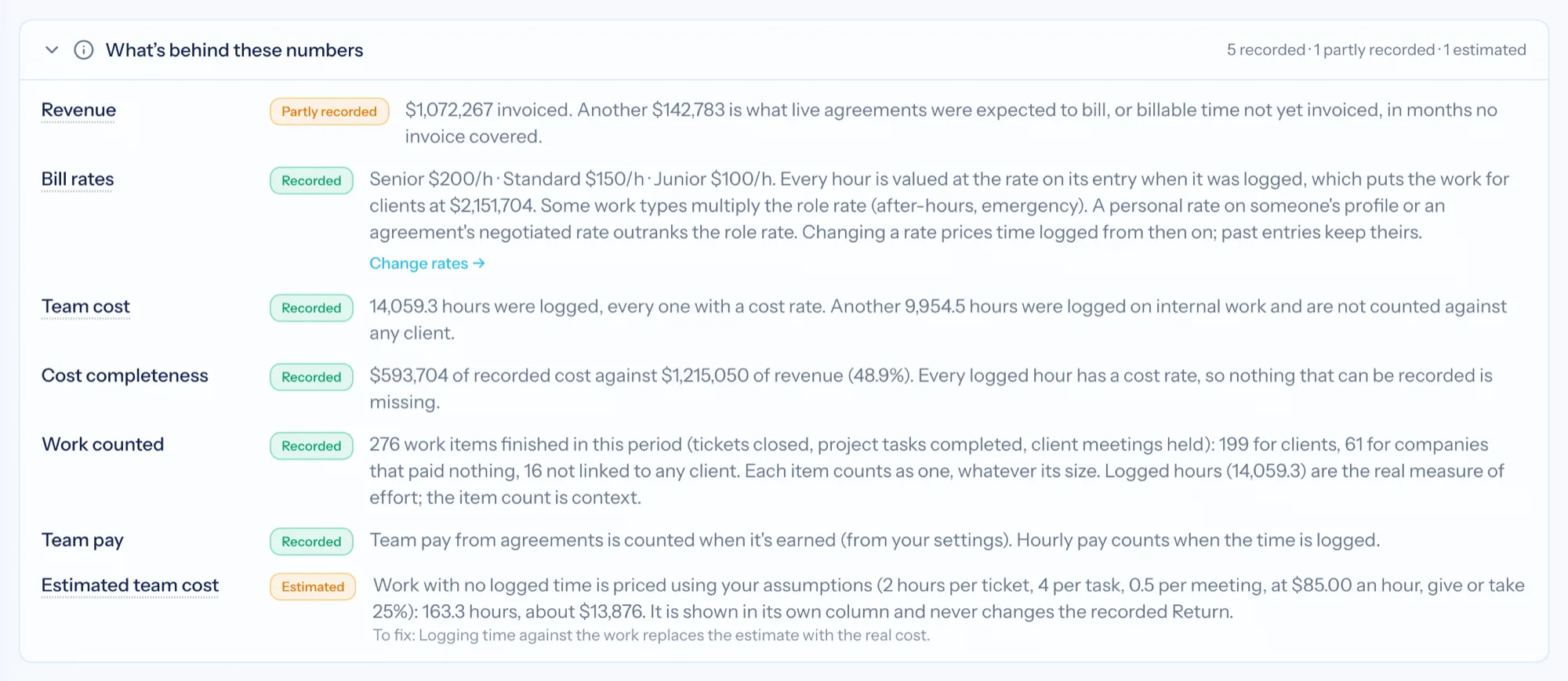
Revenue is recorded — it comes from issued invoices. Team cost is recorded where hours are logged against cost rates. Client expenses, if you count them, are recorded where spend is assigned to a client. A cost completeness row says how much of your revenue carries any recorded cost at all, and where it carries none the return percentage is hidden instead of printed as 100%. That is what makes the number safe to present.
- Every input badged Recorded, Partly recorded, Estimated or Not available, with one sentence on what was found
- Says plainly what would sharpen it — usually a cost rate, or logging more time
- A "What to fix" tab listing the specific gaps in your own data
It names the client, not the spreadsheet cell
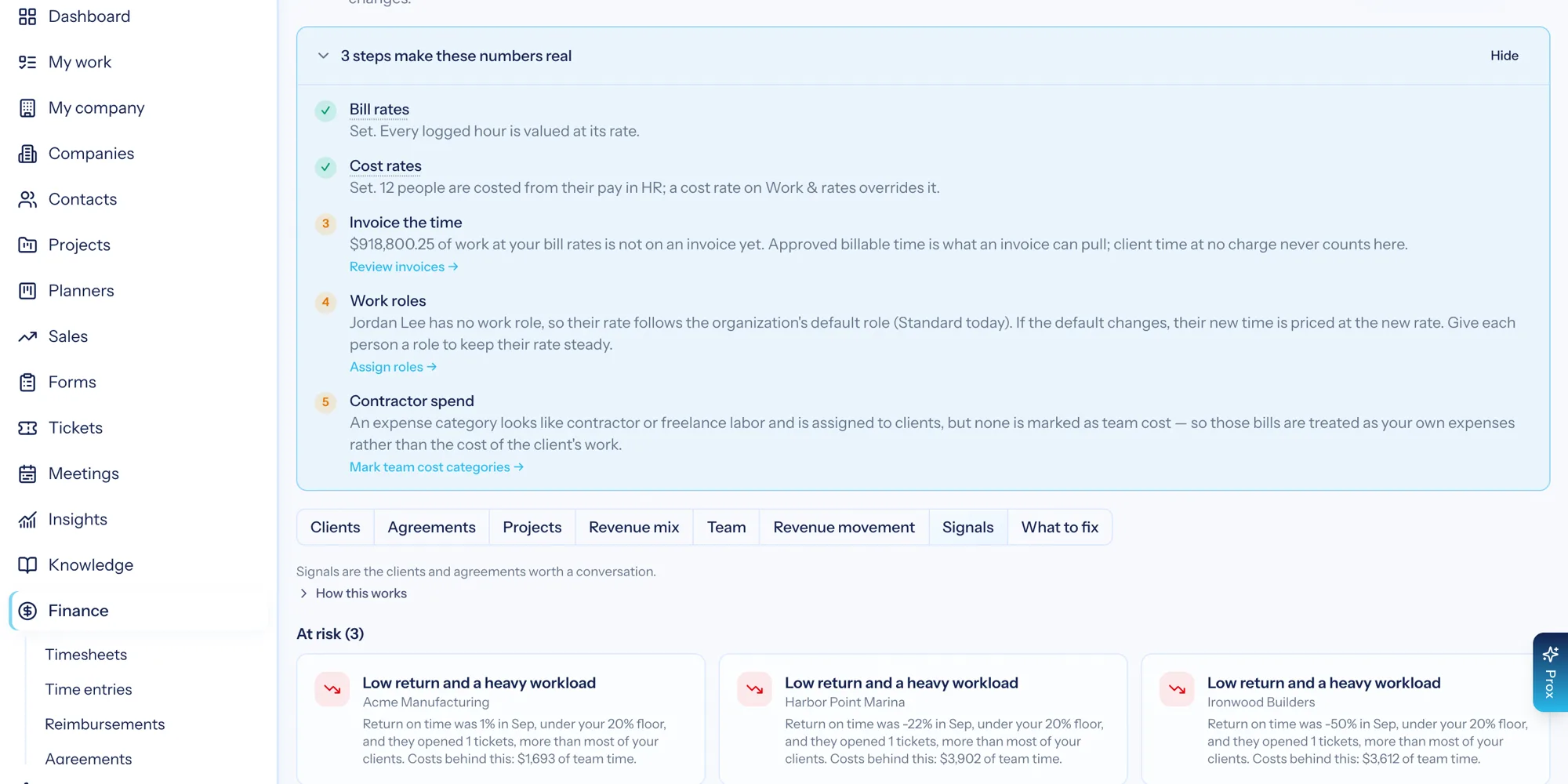
The engine reads the same data for patterns worth acting on and writes them as plain sentences with the arithmetic attached: this client got 17.9% of the work your team finished but paid 2.1% of the revenue; this one's monthly revenue fell 12% and then 15%; this agreement earns less per hour than your usual. Each names the client, the numbers and the limit it crossed — and every limit is yours to edit.
- Takes more than it pays — more of your team's work than of your revenue, needing no time tracking at all
- At risk — monthly revenue dropping two months in a row, the churn pattern before the notice arrives
- Low return under a heavy ticket load, raised only where cost was actually recorded
- Room to grow — steady hours or work with no recurring agreement
- A weekly Monday signal digest by email, so the list finds you
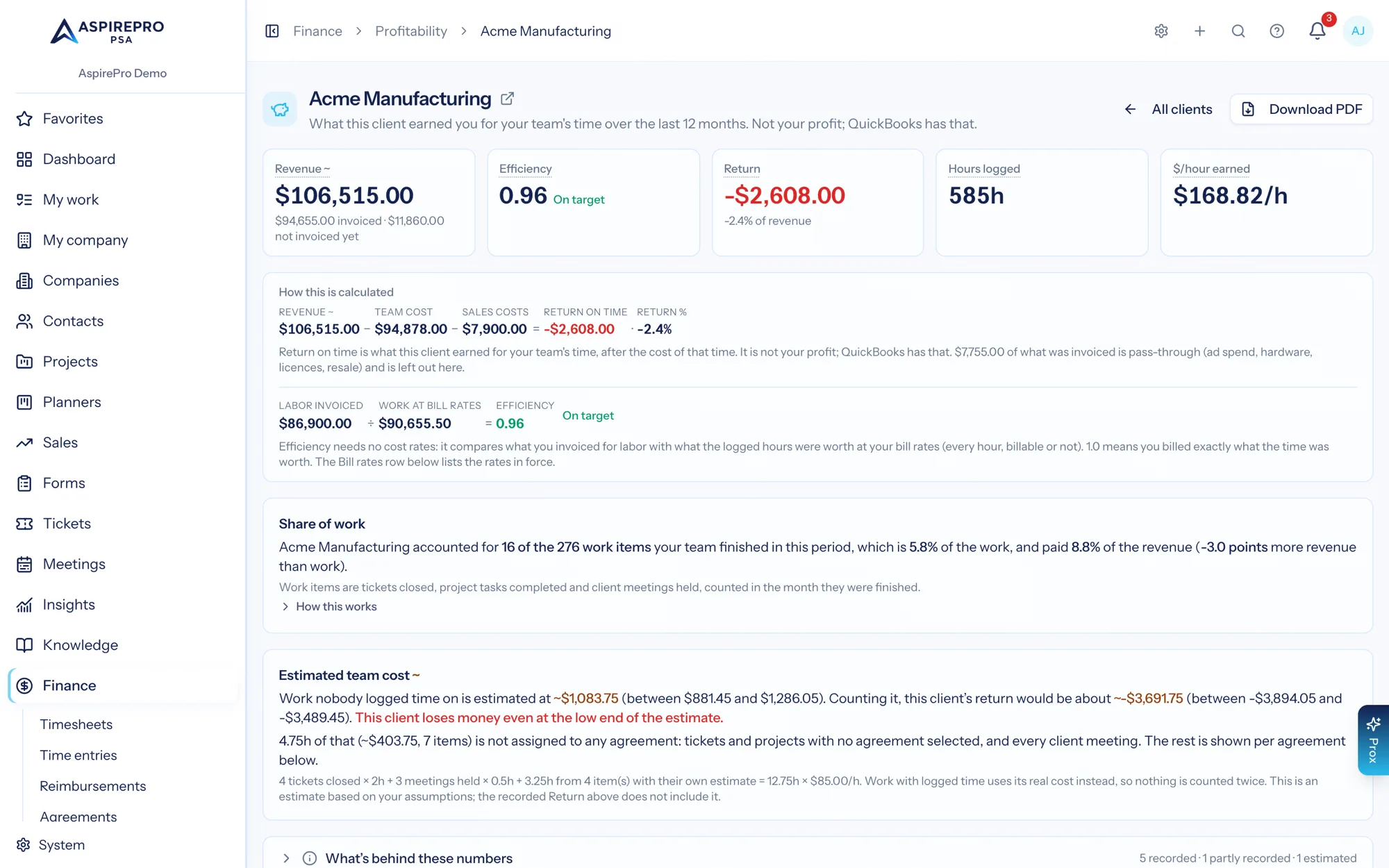
Open one client and see the whole story
A per-client report with revenue, return on time, return percentage, hours logged and dollars earned per hour at the top; a "How this is calculated" line with that client's real numbers; revenue, cost and return plotted month by month; that client's share of the work your team finished; the agreements behind it with their monthly value and return; and the signals specific to that account. Export it as a PDF for the account review, with the "What's behind these numbers" table travelling with it.
- Twelve months of revenue, cost and return on one chart
- Return per agreement — which contract is carrying the account
- PDF export for account reviews and partner meetings
It works before your data is perfect
Most firms do not track time on everything, and it still works — because the answer is not a guessed cost. Without a single timesheet you get each client's share of the tickets closed, project tasks completed and client meetings held, set against its share of the revenue. That comparison needs no assumptions at all, and it is the real answer to "who is draining us". If you want a cost figure beside it, set what an hour of your team costs and a few hours-per-item assumptions: the estimate appears in its own amber column, labelled, and never changes the recorded return.
- Share of work vs share of revenue needs no time tracking, no cost rates and no accounting integration
- Work that belongs to no client is named — companies that paid nothing, work not linked to any client — never dropped and never guessed onto an account
- An optional estimated team cost, always labelled, that never enters the return, dashboards or signals
How the return on time figure gets built
Revenue comes from invoices, counted the way you choose
Issued invoices first, before sales tax. By default, a month no invoice covered shows what the live agreement should have billed, marked with a ~ so it never reads as cash.
Team cost comes from hours × cost rates
Logged time priced at each person's cost rate becomes the team cost of serving that client.
Client expenses come off too, if you switch them on
Off by default, so the return is revenue minus team cost. Switch it on and approved billable expenses linked to a client, spend assigned to that customer in QuickBooks, and the processing fee on their card payments come off as well. Unassigned spend is overhead and stays out of every client's return.
Work is counted, and labelled
Tickets closed, project tasks completed and client meetings held become each client's share of the work — set against its share of the revenue.
What Profitability connects to
Nothing here is a standalone tool — each of these reads the same clients, people and permissions.
Frequently asked questions
What is client profitability software?
How is return on time calculated?
What does "recorded" versus "estimated" mean?
Does it work if we do not track all our time?
How fresh are the numbers?
Can I see return on time by agreement or by person?
How does it handle overhead?
Can I share it outside the app?
Read the documentation
The full how-to for this module, written for the people who use it every day.
Bring your whole services business together
Stop stitching together five tools. Run sales, delivery, support, and billing from one organization — with an AI assistant on every page.