The rules do the chasing, so people don't have to
Event-driven rules on tickets, deals and lists: when something happens, if conditions match, take actions. Escalate a ticket about to miss its target, nudge the owner of a deal that has gone quiet, create the first task when a contact joins a list — with a dry run before you commit and a log of every run.
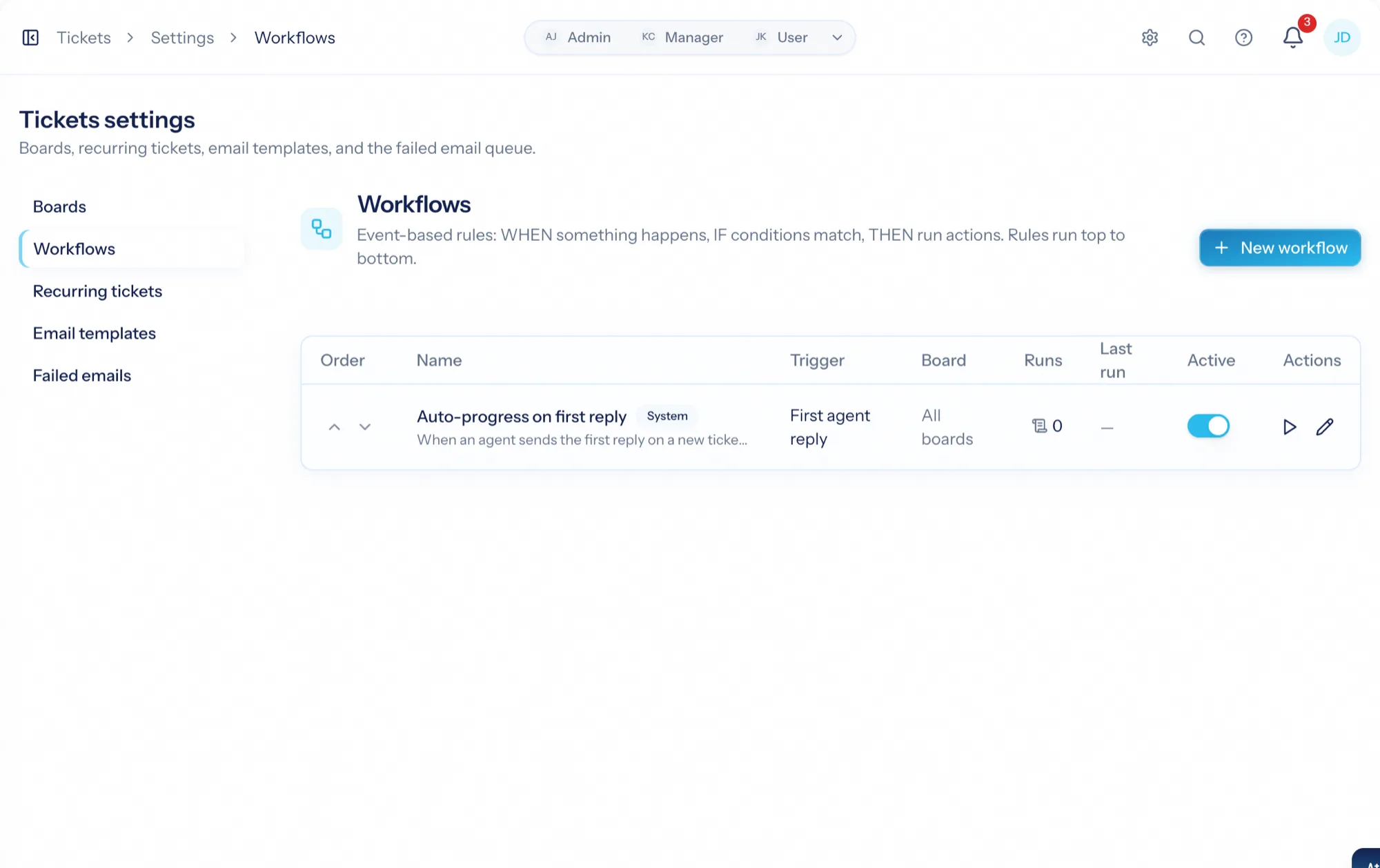
Workflow automation software runs the rules a team would otherwise keep in their heads: when a ticket is created from the portal, set the priority; when a deal sits idle for ten days, tell the owner; when a contact joins the outbound list, schedule the first call. AspirePro's automations live where the work does — ticket boards, CRM pipelines and lists — share one shape (trigger, conditions, actions), can be tested against real records without changing anything, and write a run log so a surprising change is always explainable.
When, if, then
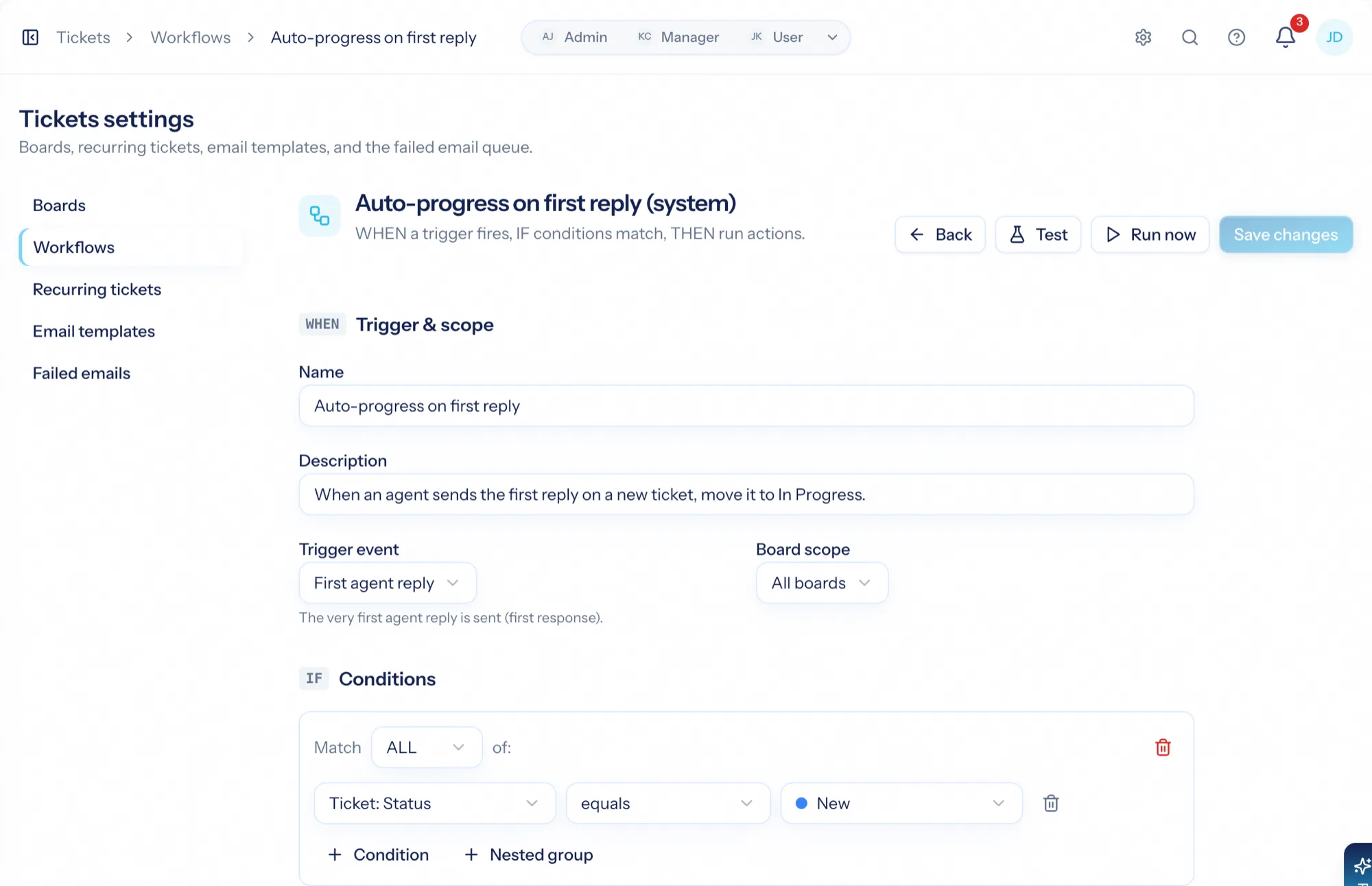
Every rule reads the same: a trigger, condition groups that match all or any, and actions in order. Learn it once on tickets, use it on deals and lists.
Dry run, then run now
Test a rule against your open records and see how many would match and what would happen — nothing changes until you say so.
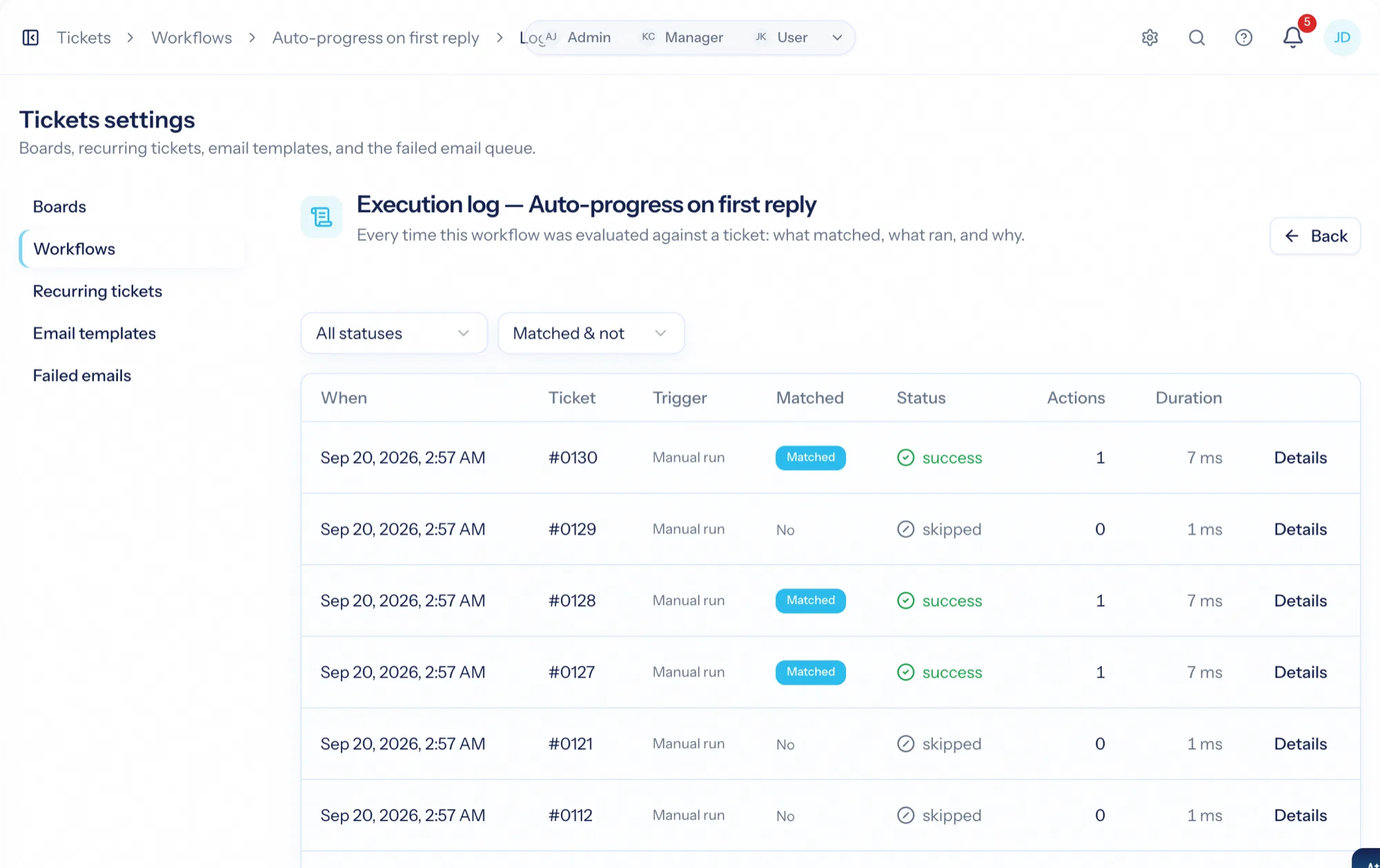
Every run logged
Each evaluation is recorded: the record, the trigger, whether it matched, which actions ran, and any error. Nobody wonders why a status changed.
Escalate, remind, route
Triggers include created (from any source), replied, first agent reply, customer replied, status, priority, type or board changed, reassigned, and response or resolution target approaching or missed. Conditions reach ticket, company and contact fields — and the company's agreement, so 'retainer clients skip triage' is one rule. Actions set status, priority or type, tag, move boards, assign, add a task or internal note, send an email, or let AI set the priority from the ticket's text.
- Response and resolution targets per priority, with a pre-breach warning lane
- Waiting-on-customer reminders and auto-close on a cadence you set
- Recurring tickets on a schedule
- Set priority with AI, guided by standing instructions
Keep the pipeline moving
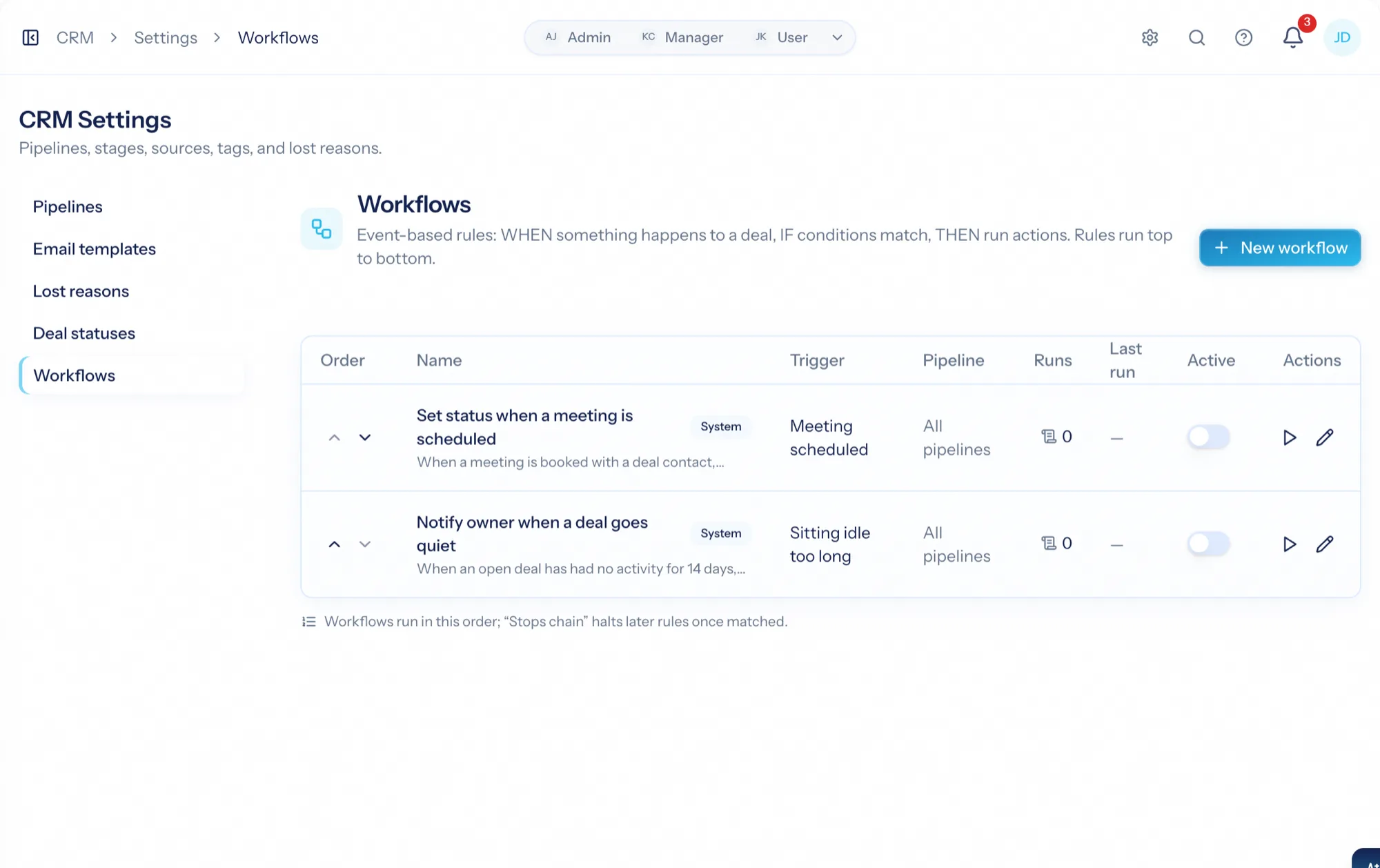
Rules on a pipeline fire on created, stage or status changed, won, lost, owner changed, activity logged, meeting scheduled, email sent, or sitting idle too long. Conditions test deal, company and contact fields in nested all/any groups. Actions move the stage, set status, tag, show a banner on the deal, assign an owner, create a follow-up task or call, or notify a person or role.
- Rules run top to bottom; a rule can stop processing so specifics beat catch-alls
- Idle-deal nudges checked periodically
- A banner on the deal while its conditions hold — 'high-value deal gone quiet'
The moment someone joins
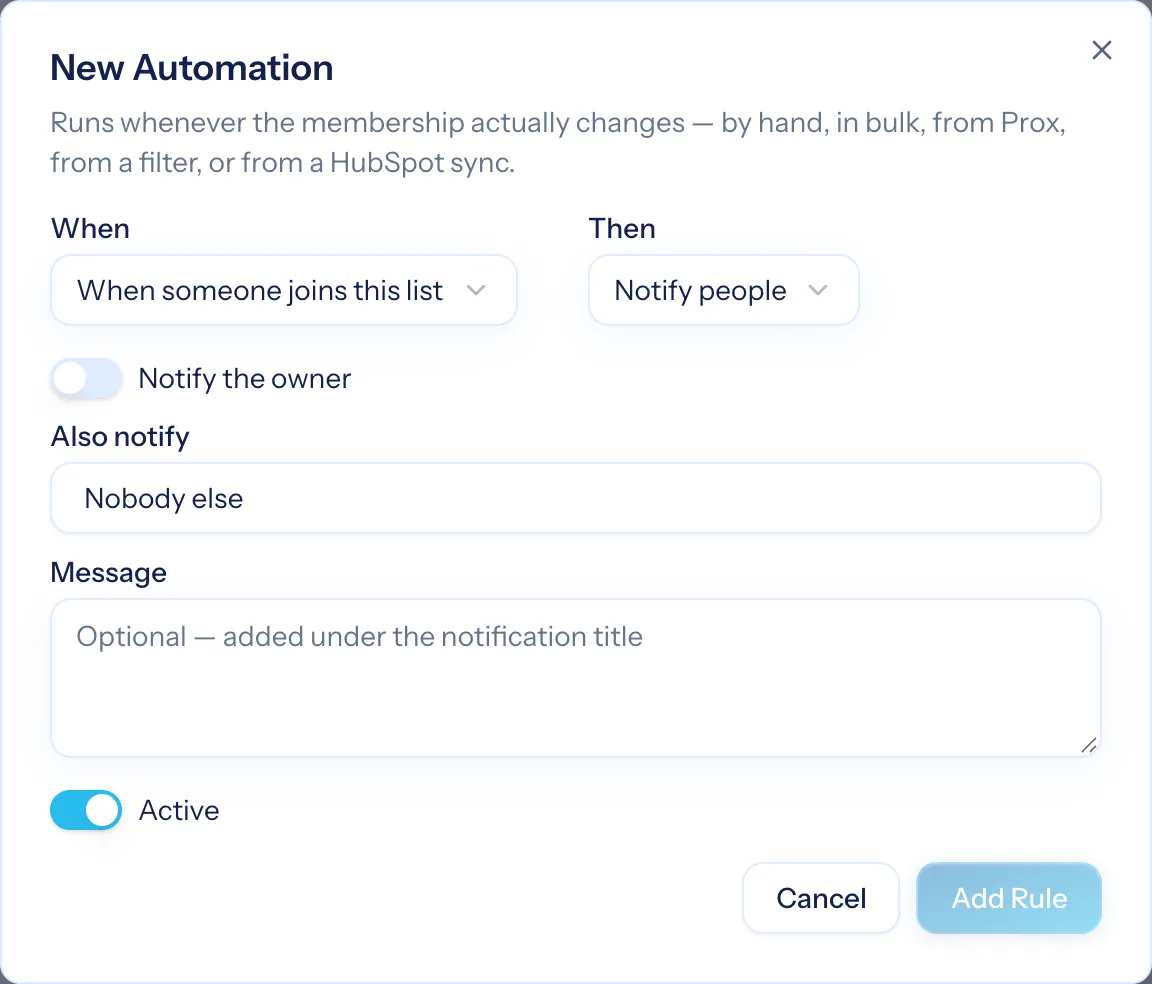
A list can carry rules that run when a record joins or leaves it — by hand, by criteria, by a dynamic list's own filter, or by a HubSpot mirror. Notify people or the owner, create a task in a planner, log a scheduled call or email, or add to and remove from other lists so segments feed each other.
- Runs for every way a record can arrive
- Each rule shows how many times it has run and whether the last run failed
- Pause a rule without deleting it
Dry run, run now, and the runs log
Test evaluates a rule against your open records and reports how many would match and how many actions would run, with a sample — nothing changes. Run now applies it, after a confirmation. Every evaluation is captured in the runs log: when, which record, the trigger, matched or not, actions executed, outcome.
- Dry run with a sample of matches
- Run now with confirmation
- Runs log per rule with success, error or skipped
Writing a rule you can trust
Pick the trigger
Created, replied, stage changed, idle too long, joined a list — the event that starts it.
Add conditions
All-or-any groups over the record, its company and contact — and the agreement, on tickets.
Choose actions
Set, tag, move, assign, note, email, task, notify — in order.
Dry run, then switch it on
See what would match, run it once by hand if you like, watch the log.
What Automations connects to
Nothing here is a standalone tool — each of these reads the same clients, people and permissions.
Frequently asked questions
What can automations act on?
Can I test a rule without changing anything?
How do response-time targets fit in?
Can a rule use the client's agreement?
What if two rules conflict?
Read the documentation
The full how-to for this module, written for the people who use it every day.
Bring your whole services business together
Stop stitching together five tools. Run sales, delivery, support, and billing from one organization — with an AI assistant on every page.