Revenue is only half the story. Expenses & Vendors brings the cost side of your books into AspirePro — every expense, vendor, and category from QuickBooks Online, brought in automatically and kept up to date — so spend lives right next to the clients and work it supports. Approved reimbursements land here too.
Both pages are gated by the View Expenses & Vendors permission, so you decide exactly who on the team sees spend.
What comes in from QuickBooks#
Once QuickBooks is connected (see QuickBooks), AspirePro brings in your spending every hour:
- Expenses — purchases, bills, and vendor credits, including split lines, so an expense divided across categories keeps its exact attribution.
- Vendors — everyone you pay.
- Categories — your expense accounts, with their COGS vs. expense classification and full parent/child hierarchy.
It's read-only — QuickBooks stays the source of truth, and every edit happens there. AspirePro doesn't change what it brings in; it just shows it where your team already works. (The one thing it can add to QuickBooks, and only when you press the button, is a bill for an expense claim — see QuickBooks.)
Finance → Expenses#
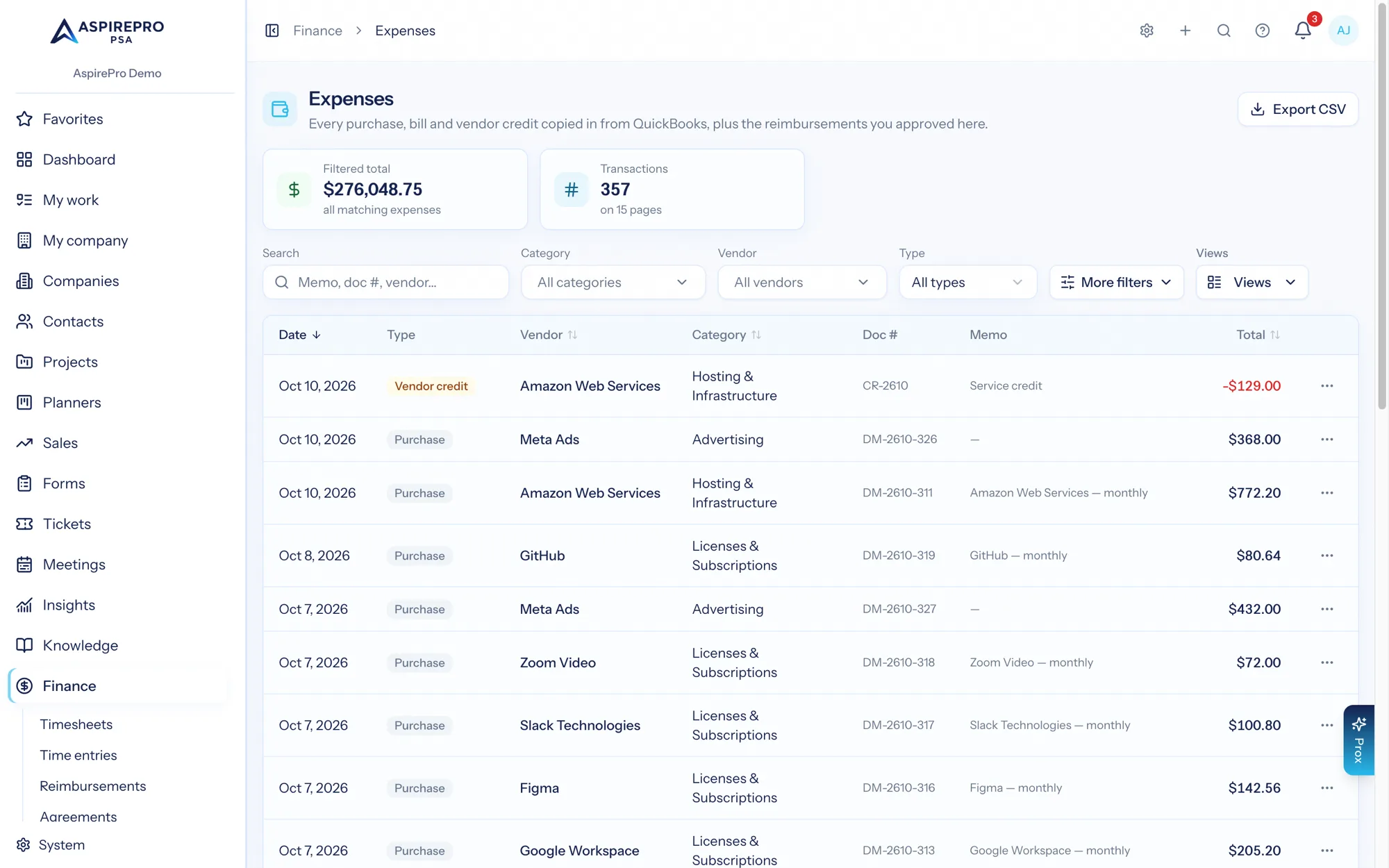
The expenses list works like every list in AspirePro: rich filters, saved views, and export.
- Filter by category (including a parent category, which rolls up everything beneath it), vendor, expense type, billable status, and date range.
- Save views for how you work — "This quarter's COGS", "Unbilled billables", "Software spend".
- Export to CSV — the export honors your current filters, so what you see is what you get.
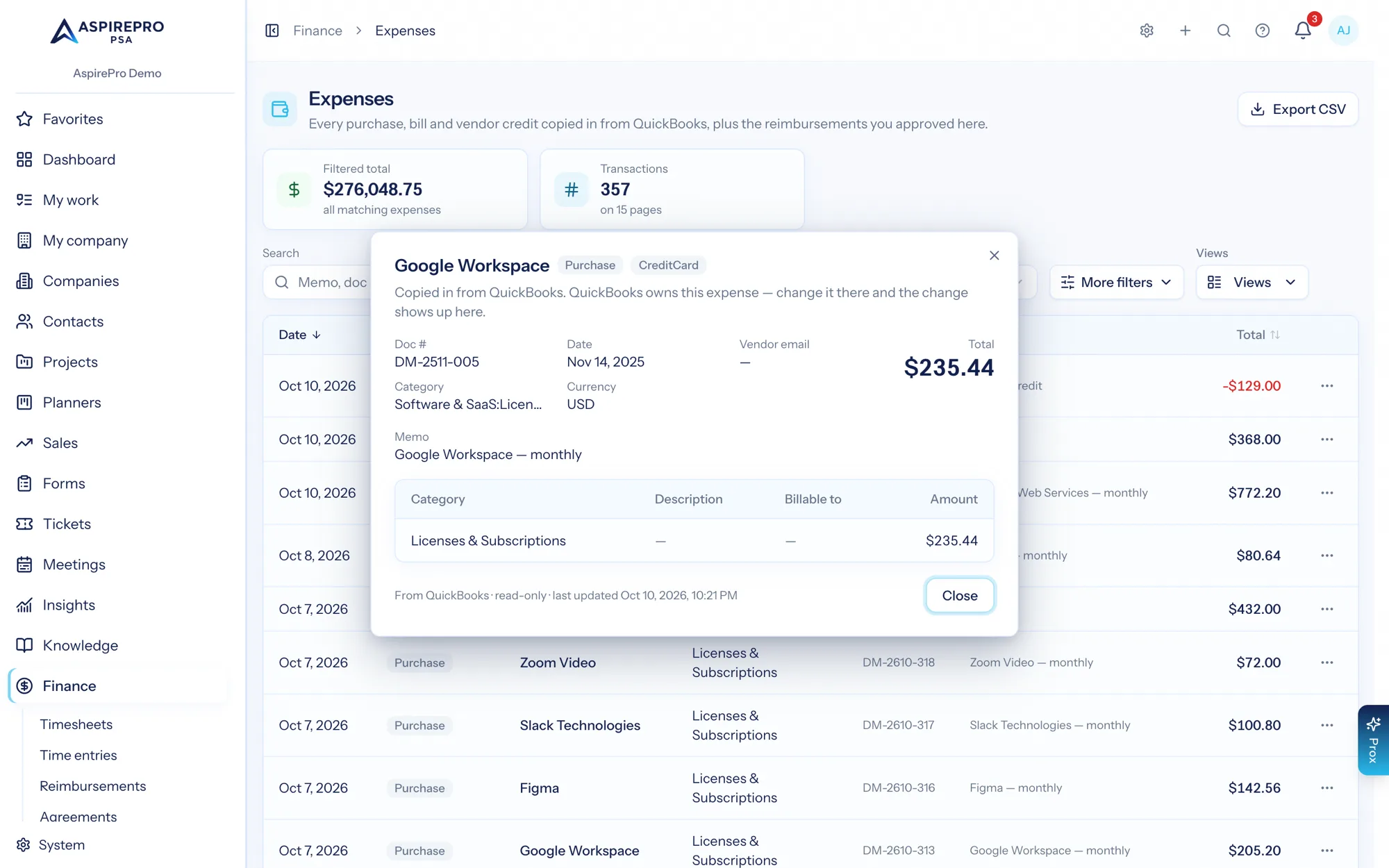
Click any expense for a read-only detail view showing its line splits — each line's category and amount — and any billable customer tags carried over from QuickBooks, so you can see which client an expense was incurred for.
Reimbursements land here too#
Spending in QuickBooks isn't the only cost your business has. When a reviewer approves an item on an expense claim, it becomes a real expense record — dated, categorized, at cost — and it appears in this list beside your QuickBooks spend, marked as a reimbursement rather than a vendor transaction. There's no vendor on the row, because the "vendor" was a person on your team paying out of pocket.
That's also why this page appears as soon as you have approved reimbursements, even with no accounting system connected. The rule is simple: the Expenses list shows whenever there's expense data to show — either QuickBooks connected, or expense records AspirePro created itself. Reimbursements are records AspirePro owns: submitted here, approved here, complete here. Hiding a page that lists data we're the system of record for would be strange.
The neighboring pages behave differently on purpose. Vendors and Statements come entirely from QuickBooks, so they only ever appear with QuickBooks connected — a P&L without a general ledger behind it wouldn't be a report, it would be a guess. AspirePro records the money events it owns and brings in the ones your accounting system owns, and it doesn't blur the two.
See Expense reimbursements for the submit-approve-pay flow and everything an approved item feeds.
Finance → Vendors#
Vendors answers "who are we actually paying, and how much?" Each vendor shows its trailing-twelve-month spend and expense count, so your biggest cost relationships surface immediately.
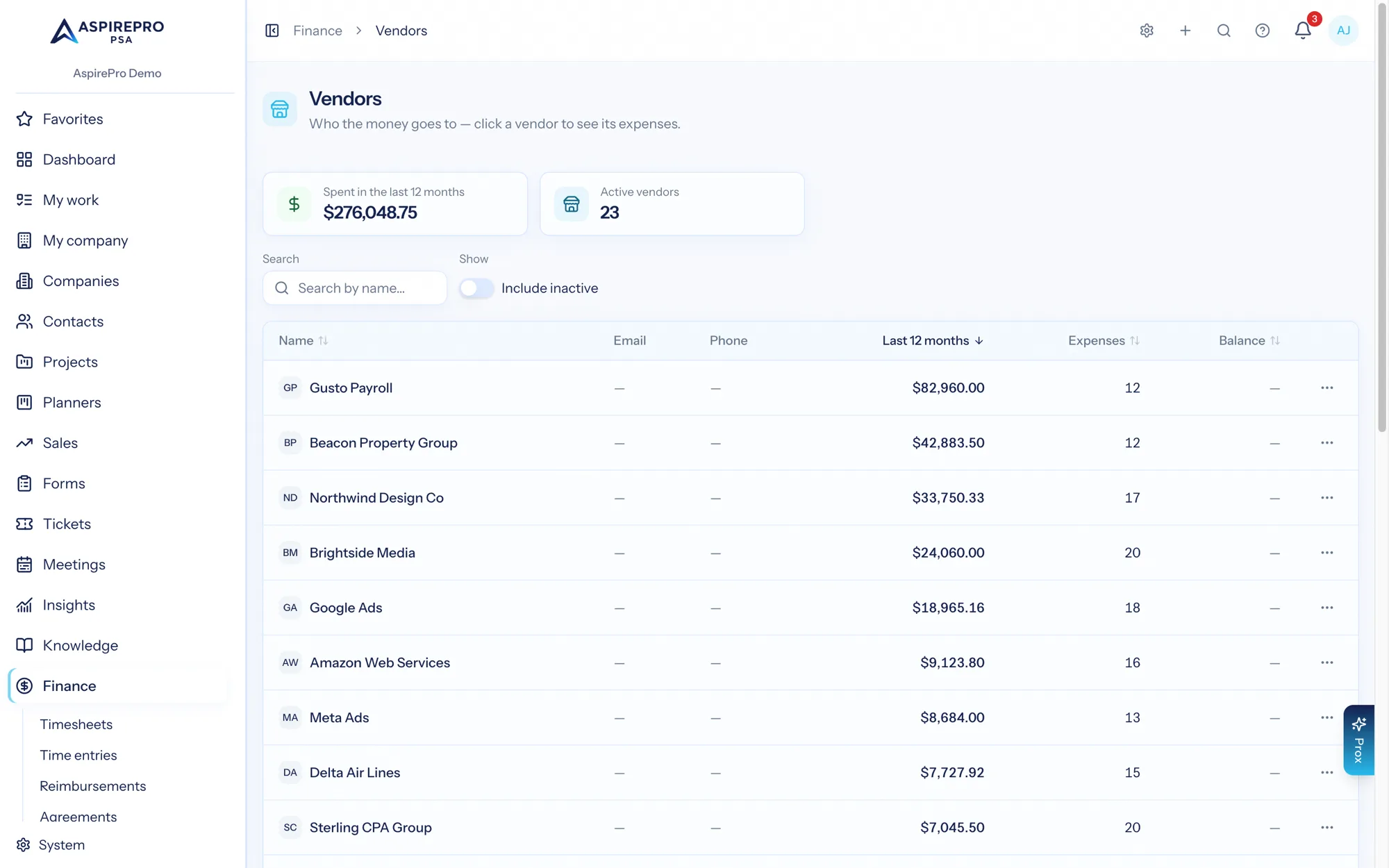
Click a vendor to drill straight into a pre-filtered expenses list — every transaction behind the number, one click away.
Customer-tagged expenses do double duty: beyond being visible here, they feed straight into Profitability as exact client costs — one of the three cost sources behind your margin numbers.