When you finish a job you know exactly what should be billed. Quick invoice raises a draft from the ticket or project you are already looking at, instead of making you go to Finance, find the client and find the same work again.
Where to find it#
- On a ticket — the ⋮ menu at the top right, on any tab: Quick invoice…
- On a project — the Quick invoice button on the Time tab.
It appears when the job has a client, your organization has Invoices switched on, and you hold Manage Finance (or the company-level finance permission) as well as access to the job itself.
What it shows#
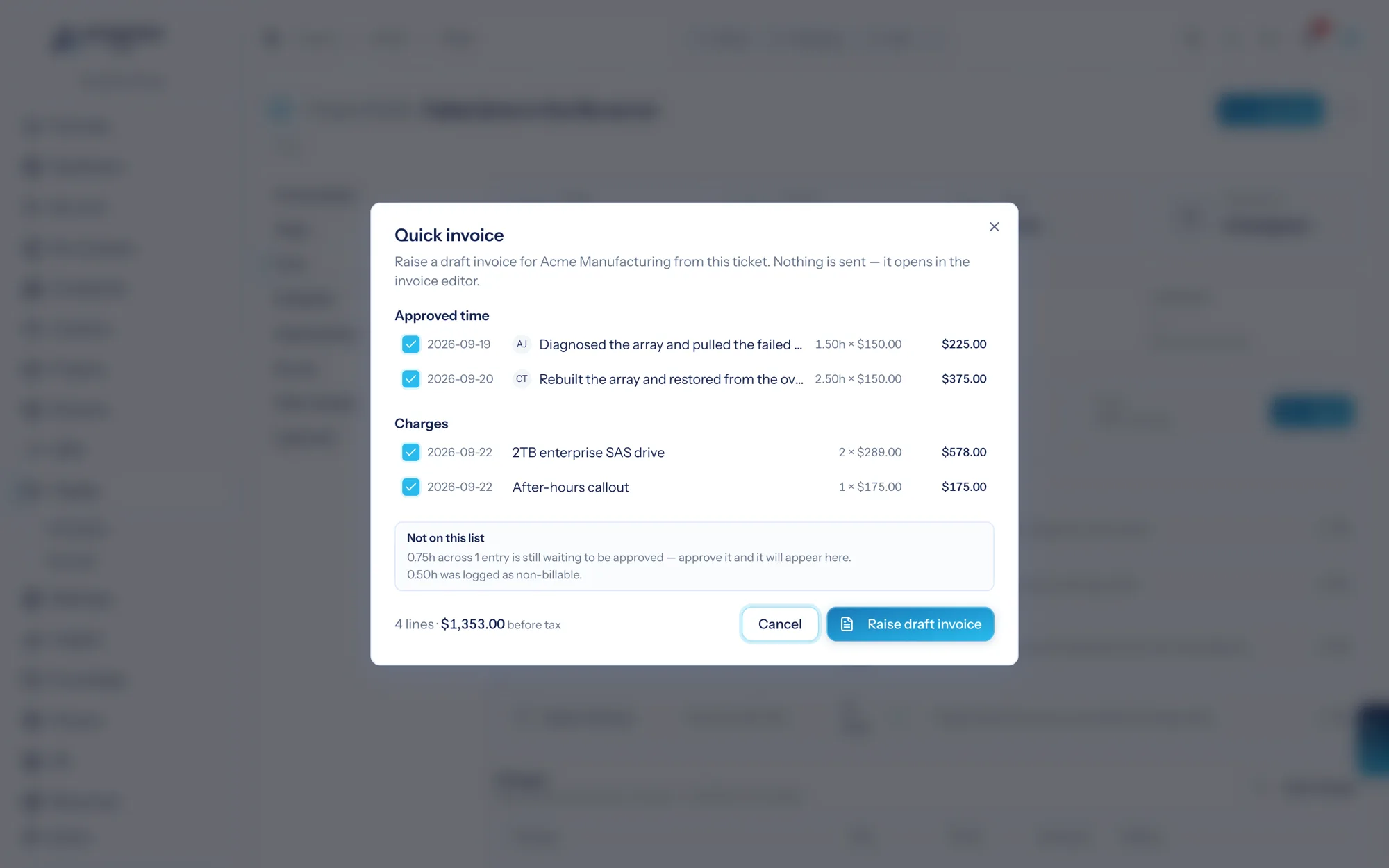
Three groups, everything ticked to start with — the common case is billing all of it, so you untick the exceptions rather than ticking the rule:
- Approved time — every approved, billable, not-yet-invoiced entry on the job, with who logged it, the hours and the rate.
- Charges — the parts, licences and fees recorded on the job, at the price they were recorded at.
- Expenses — approved billable reimbursements linked to the job, at cost plus your pass-through markup.
The footer keeps a running count and total as you tick.
"Not on this list"#
Underneath is the part worth reading: every reason some of the job's time is not on offer.
- Still waiting to be approved. Time has to be approved before it can be billed — that is the whole point of approval. Approve it and it appears here.
- Logged as non-billable. Somebody marked it as work you are not charging for.
- Already on INV-0142. The hours are billed, with a link to the invoice that has them.
So if a technician logged nine hours and you are being offered four, the screen tells you where the other five went rather than leaving you to wonder.
If the work is on a retainer#
When the job bills against a retainer, the dialog says so before you tick anything: how many hours the plan includes, how many are used this period, and how many are left. Billing hours here charges the client for them on top of the retainer fee.
That is a notice, not a block. There are good reasons to bill over a retainer — the point is that you decide knowingly.
What happens when you raise it#
You get a draft invoice, and land in the invoice editor with it open.
- Nothing is sent. Sending is a separate step, a separate permission and a separate decision. Check the draft, add anything else, then send it from the editor.
- The invoice is raised for the job's client and carries the job's agreement, so Agreement vs Reality files it against the right paper.
- Everything you billed is claimed. It disappears from the job, from the client's work in progress, and from anyone else's quick invoice, so it cannot be billed a second time.
If somebody else billed the same work between opening the dialog and clicking the button, you are told so and no invoice is raised at all — you will not be left with an empty draft.
What it deliberately does not do#
- Send. Drafts only.
- Approve time. Approval is the gate, and it stays in Timesheets.
- Bill several jobs at once. Quick invoice is one job. To bill a client's whole month, raise an invoice from Finance → Invoices and pull their time, charges and expenses there — or start here and keep adding in the editor, which is the same invoice either way.