A portal your clients actually open
A separate login, tied to a contact, that starts with no access at all. Switch on tickets, replies, project tasks and file uploads one at a time — and nothing else is reachable.
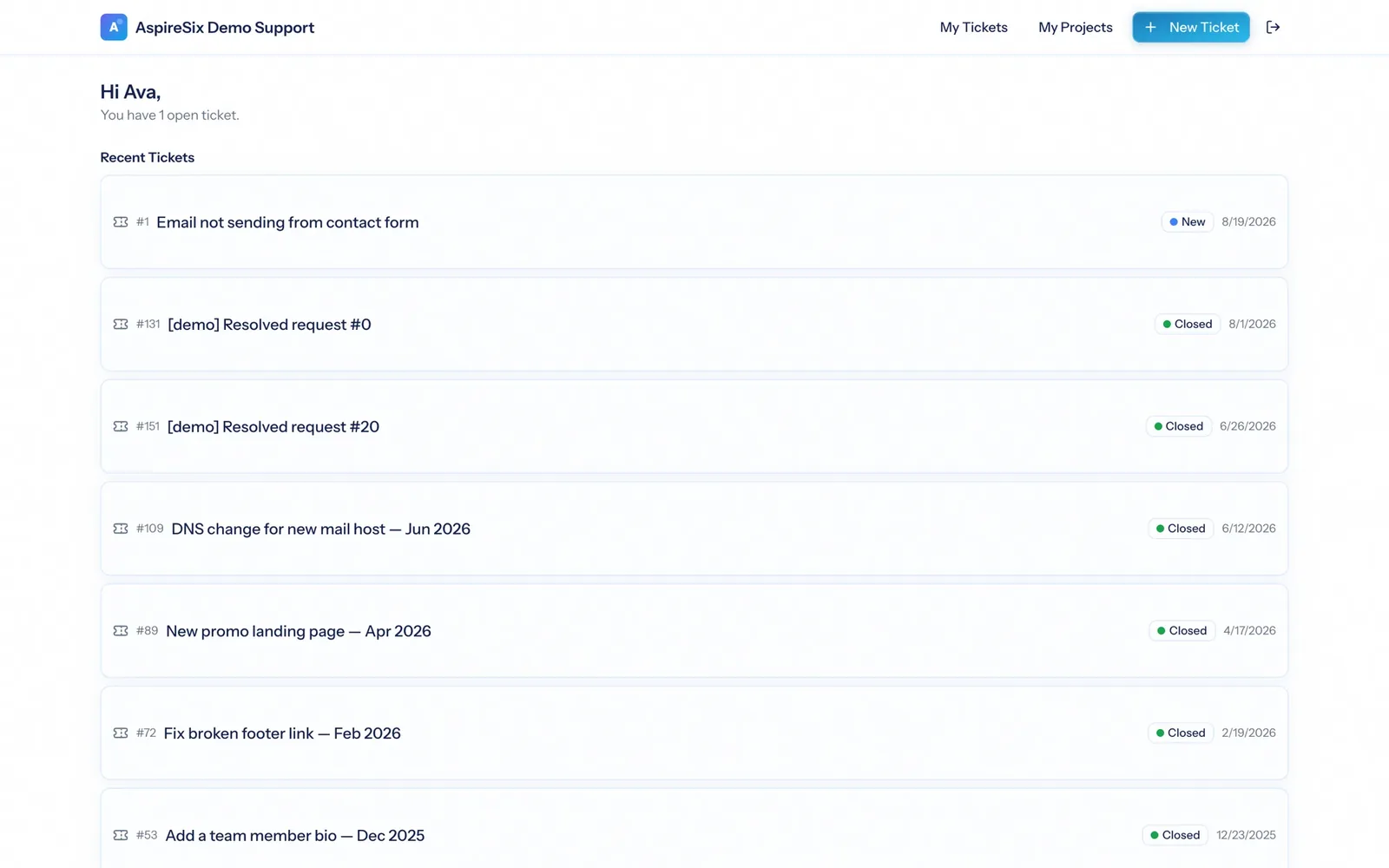
Client portal software gives your customers a place to sign in and work with their own records — requests, projects, files — without access to your internal system. The security model is the whole product: a portal that leaks another client's ticket, or your internal notes, is worse than no portal at all. AspirePro portal users are a separate kind of account that can do nothing until you allow it, limited to their own companies.
Off until you switch it on
A portal user starts with no abilities. Viewing, creating, replying, changing status and each project action are granted one by one.
Not a staff account with less access
Portal logins are a separate kind of sign-in. Staff logins cannot reach portal pages and portal logins cannot reach yours.
More than a status page
Clients can open tickets, reply, tick off tasks, comment and upload files — wherever you have allowed it.
Their tickets, and only theirs
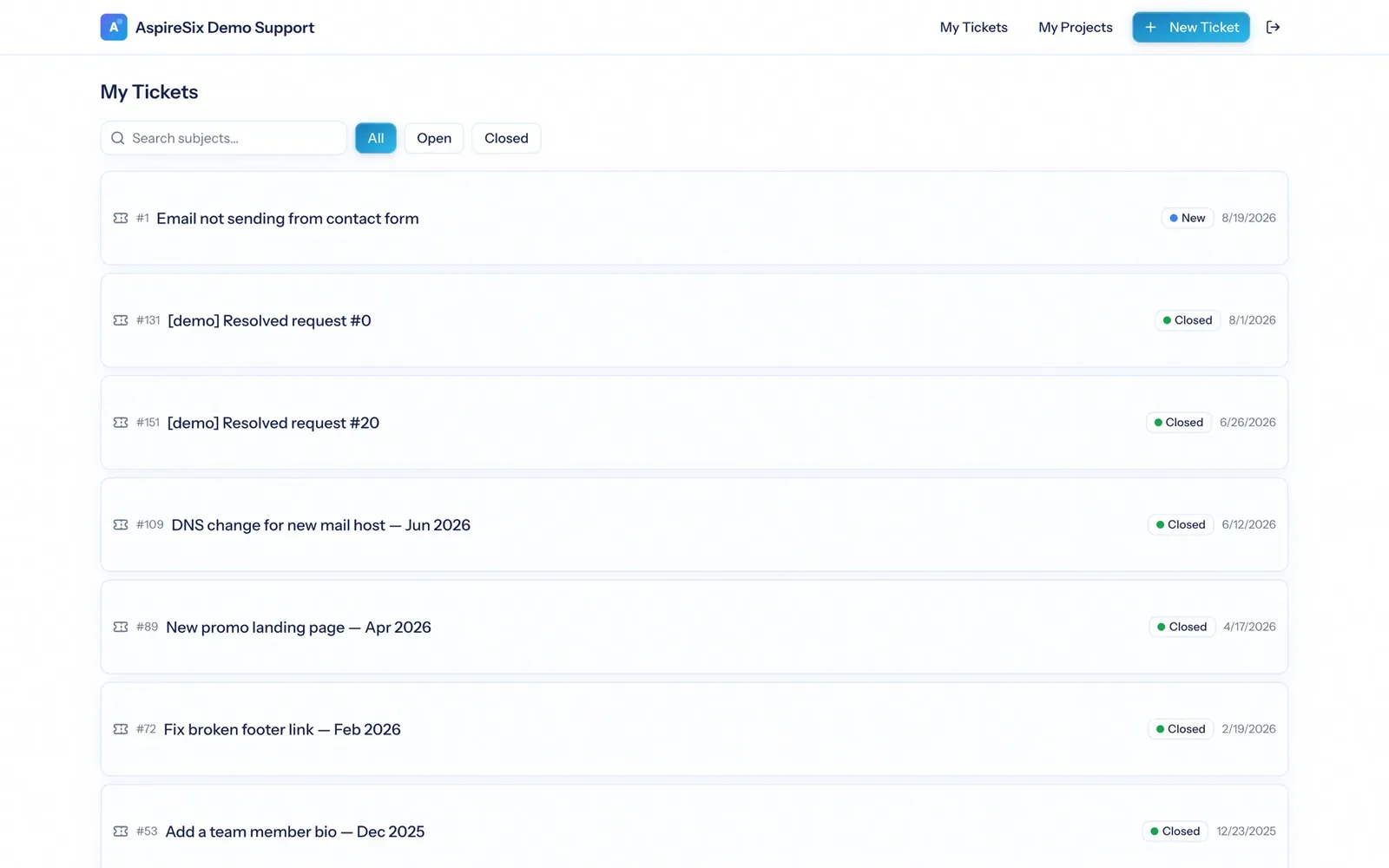
A client sees the tickets belonging to their own companies, on the boards you allowed — and nothing else. They can search, filter open and closed, open a ticket to read the customer-facing conversation, and reply into the same thread your team is working.
- Limited to the client's companies, and to the boards you list
- Internal notes never appear — only the customer-facing conversation
- Optionally limit a client to tickets they personally raised
- Their reply lands on the same ticket, in the same thread, in your queue
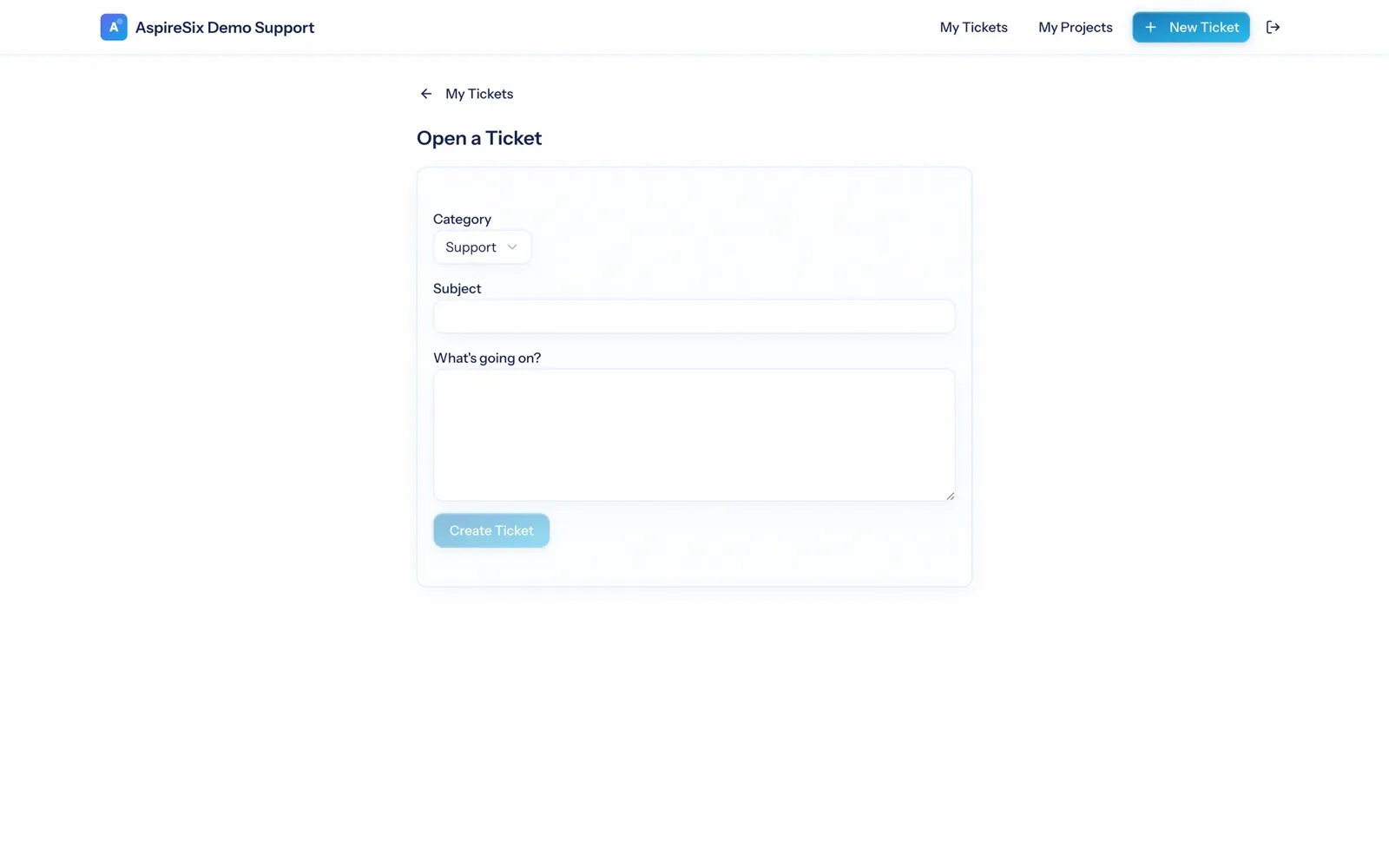
Let them raise a request properly
A short form — category, subject, description — creates a real ticket on the right board with the client already attached. No shared inbox, no "did anyone see this email?", no request that exists only in someone's sent items.
- Creates a real ticket on the board you route that category to
- The client and their company are set automatically
- Creating tickets is its own permission — allow viewing without creating if you prefer
A project view, not a progress bar
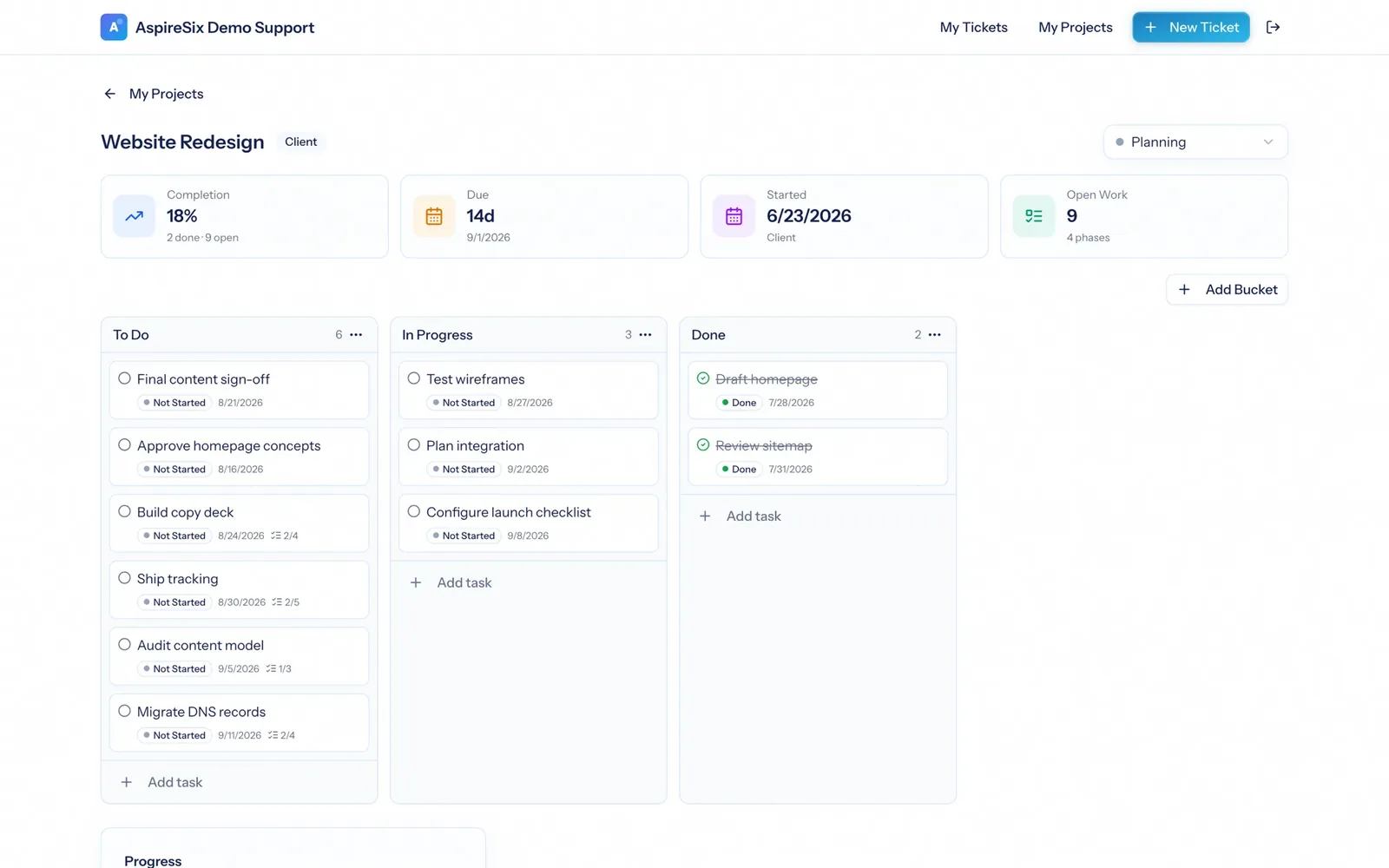
Where you allow it, the client gets a simplified board of the project tasks you marked visible: completion, due dates, open work and the columns. Depending on what you switch on, they can add tasks, tick them off, comment, run a checklist and upload files — and it all lands on the same task your team is working.
- Each task, comment and file is invisible until you mark it
- Separate permissions for creating, editing, completing and moving tasks
- Their comments and uploads appear on your side of the same record
Managed from the contact record you already keep
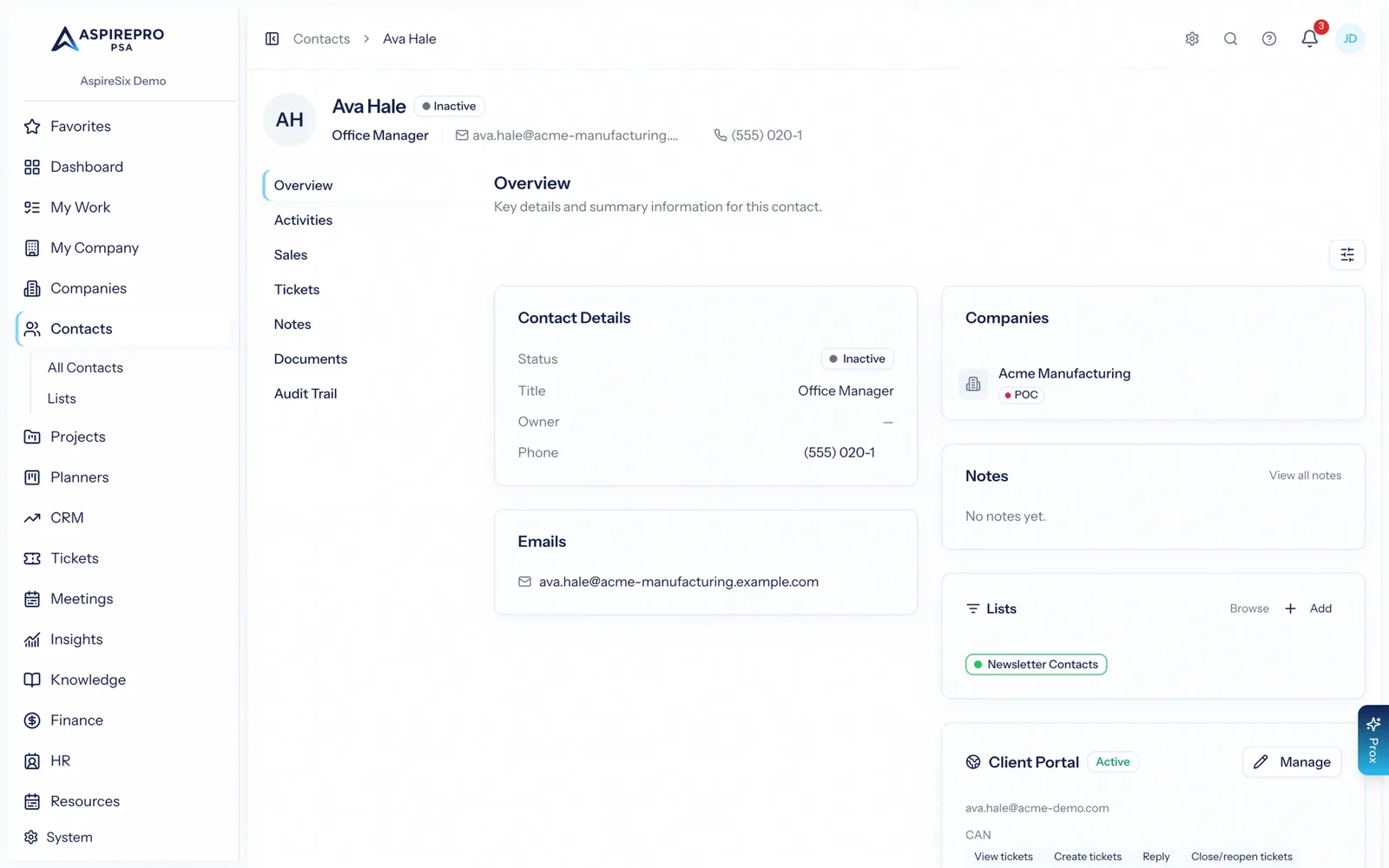
Your team grants portal access from the contact it belongs to: invite them, choose exactly what they can do, pick their boards and projects, and switch them off the moment they leave. It is a card on a record your team already maintains, not a separate admin chore.
- Invite by email with a one-time activation link — you never handle their password
- Abilities, boards and projects all set here
- Optionally show a client the hours used and left on a prepaid block
- Deactivate instantly; the company itself must also be portal-enabled
Your name on the door, and a wall between the two
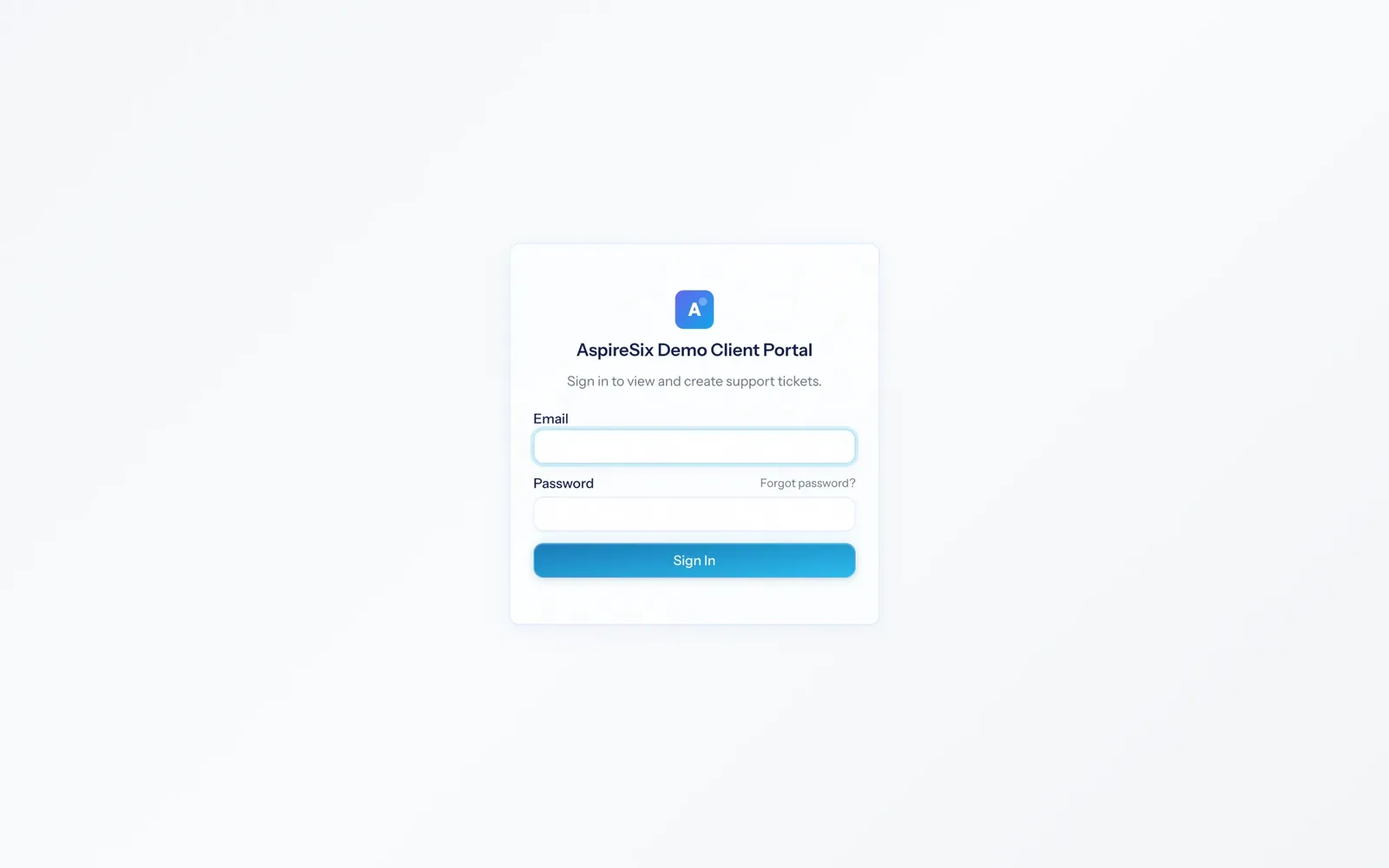
The portal signs in at its own address under your organization's AspirePro address, carrying your logo and name. There is no route from a portal session into your internal pages — the separation is enforced by a different kind of sign-in rather than by hiding menu items.
- Your logo and organization name on the sign-in page and throughout
- Self-service password reset that never touches your staff accounts
- A separate sign-in: portal sessions simply cannot reach staff pages
Standing a portal up
Switch the company on
Portal access is opt-in per client company, so turning the module on exposes nothing by itself.
Invite the contact
From their contact record, send an invitation. They set their own password through a one-time link.
Choose what they can do
Tick exactly what they may do — view tickets, reply, create, change status, and each project action.
Choose what they can see
Pick the boards and projects they can see, and mark the tasks, comments and files you want visible.
What Client Portal connects to
Nothing here is a standalone tool — each of these reads the same clients, people and permissions.
Frequently asked questions
What is client portal software?
How is the portal kept separate from our internal system?
What exactly can a client see?
Can clients do more than look?
How do clients get access?
Is the portal branded?
Do I have to give every client a portal?
Read the documentation
The full how-to for this module, written for the people who use it every day.
Bring your whole services business together
Stop stitching together five tools. Run sales, delivery, support, and billing from one organization — with an AI assistant on every page.