Every form on your website, landing on the right contact
Install the free AspirePro plugin on your WordPress site, switch on the forms you care about, and each entry finds or creates the contact and their company, adds itself to their timeline, and shows exactly what it changed.

Website forms are where most new business starts, and where most of it gets lost: an email to a shared inbox, a spreadsheet export, a contact typed in by hand weeks later. AspirePro connects to your WordPress site through a small plugin and turns the forms you already run — Gravity Forms, Contact Form 7 and WPForms — into contacts, companies and timeline entries the moment someone presses Send. Your forms keep working exactly as before; nothing leaves your site until you switch a form on.
Nothing to rebuild
The plugin finds the forms you already have and the pages they sit on. Switch on Capture for the ones that matter; the rest never send a thing.
Decide what a form may change
Fill blanks only, overwrite, add as another, or never — per field, so a typo on a form never replaces a good record.
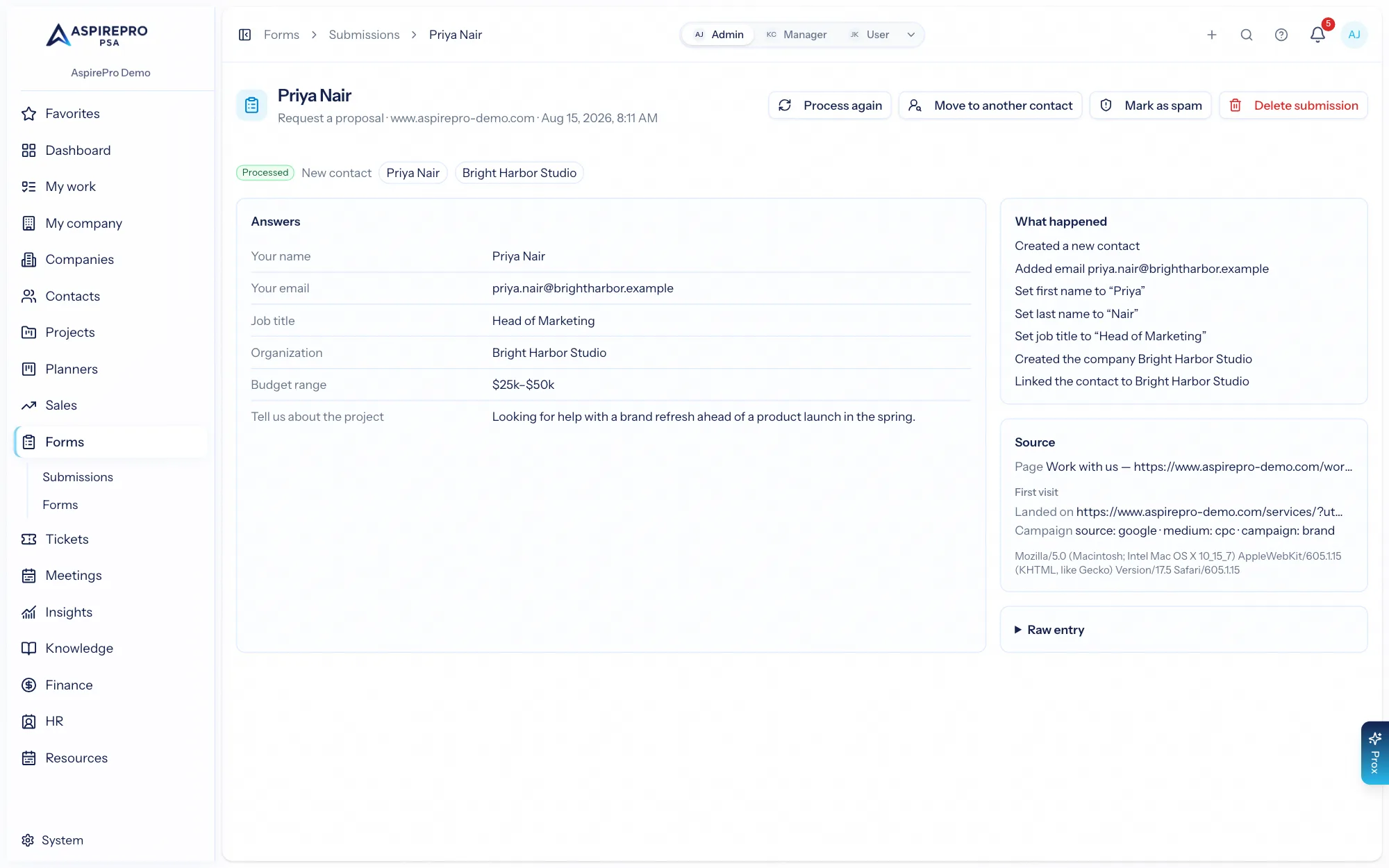
See exactly what happened
Every entry keeps its answers, its source campaign and a plain list of every change it made, skipped or held for review.
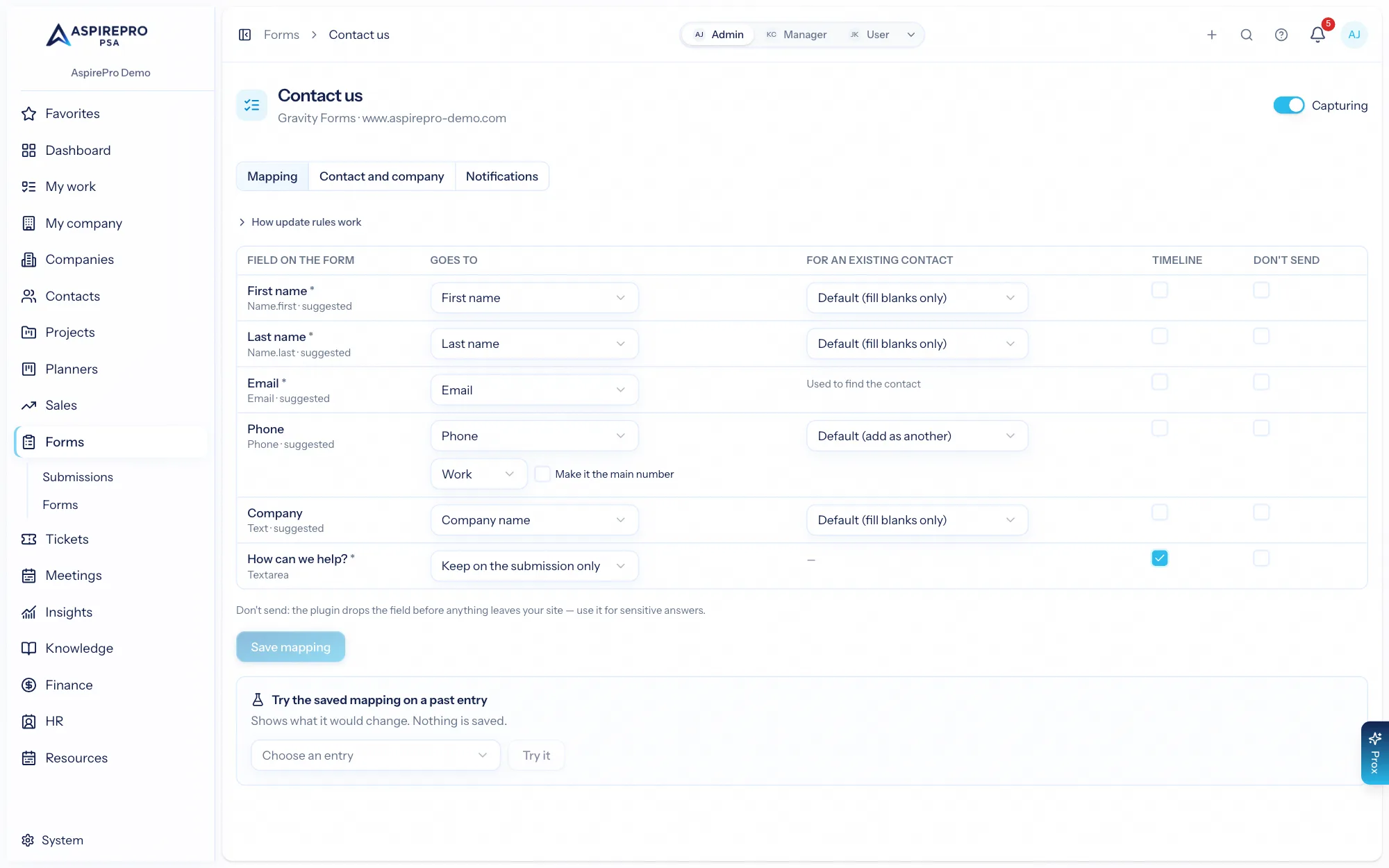
Tell each field where it goes
AspirePro suggests a home for every field — email, name, phone, company, job title, address — and you confirm or change it. For a contact who is already here, each field follows its update rule. Fields you mark Don't send, and password or payment fields always, are dropped by the plugin before anything leaves your site.
- Suggested mappings for every field
- Fill blanks only, overwrite, add as another, or never
- Choose which answers appear on the timeline
- Try the mapping on a past entry before saving
The right contact, and their company
An entry is matched by email, or by phone when there is no email. Its company is found by email domain or name, or created when you let the form do that. Entries that can't be matched safely — no email or phone, a number shared by two people — wait for someone to choose, instead of guessing.
- Match by email, then phone
- Find, create or skip the company, per form
- Archived contacts restored or held for review
- Your team's own records are never changed by a form
Where they came from, on every contact
Each contact and company gets a Forms tab and a Website forms card: the form they first used, the campaign or site that brought them, and their latest entries. Every entry is also a timeline item, so whoever opens the record sees what the person asked for and when.
- First seen: form, source and date
- A timeline entry per submission
- Merging contacts moves their entries too

One small plugin, and you choose what it sends
Download the plugin from Forms settings → Websites, install it like any other, and approve the connection in AspirePro. It lists your forms, queues each entry on your site and retries until AspirePro accepts it, so your form never waits on us and nothing is lost if a connection drops. It sends only the forms you switch on, only the fields you don't exclude, and the page and campaign the visitor came from.
- Gravity Forms, Contact Form 7 and WPForms
- Queued on your site, retried automatically
- Signed requests, one key per site
- Pause or disconnect a site at any time

From a website visit to a contact
Connect your site
Install the AspirePro plugin in WordPress and approve the connection.
Switch on the forms
Turn on Capture for the forms whose entries should become contacts.
Map the fields
Confirm where each field goes and what it may change on an existing contact.
Entries arrive
Each one is checked for spam, matched to a contact and company, and added to their timeline.
What Website Forms connects to
Nothing here is a standalone tool — each of these reads the same clients, people and permissions.
Frequently asked questions
Which form plugins are supported?
Will it slow down or change my forms?
What leaves my website?
Can a form overwrite good data?
What about spam?
Does it cost extra?
Read the documentation
The full how-to for this module, written for the people who use it every day.
Bring your whole services business together
Stop stitching together five tools. Run sales, delivery, support, and billing from one organization — with an AI assistant on every page.