Boards for the work that isn't a client project
Spin up a board in seconds for a backlog, a sprint, an internal initiative or your own week — with the same task cards, checklists and comments your delivery projects use.
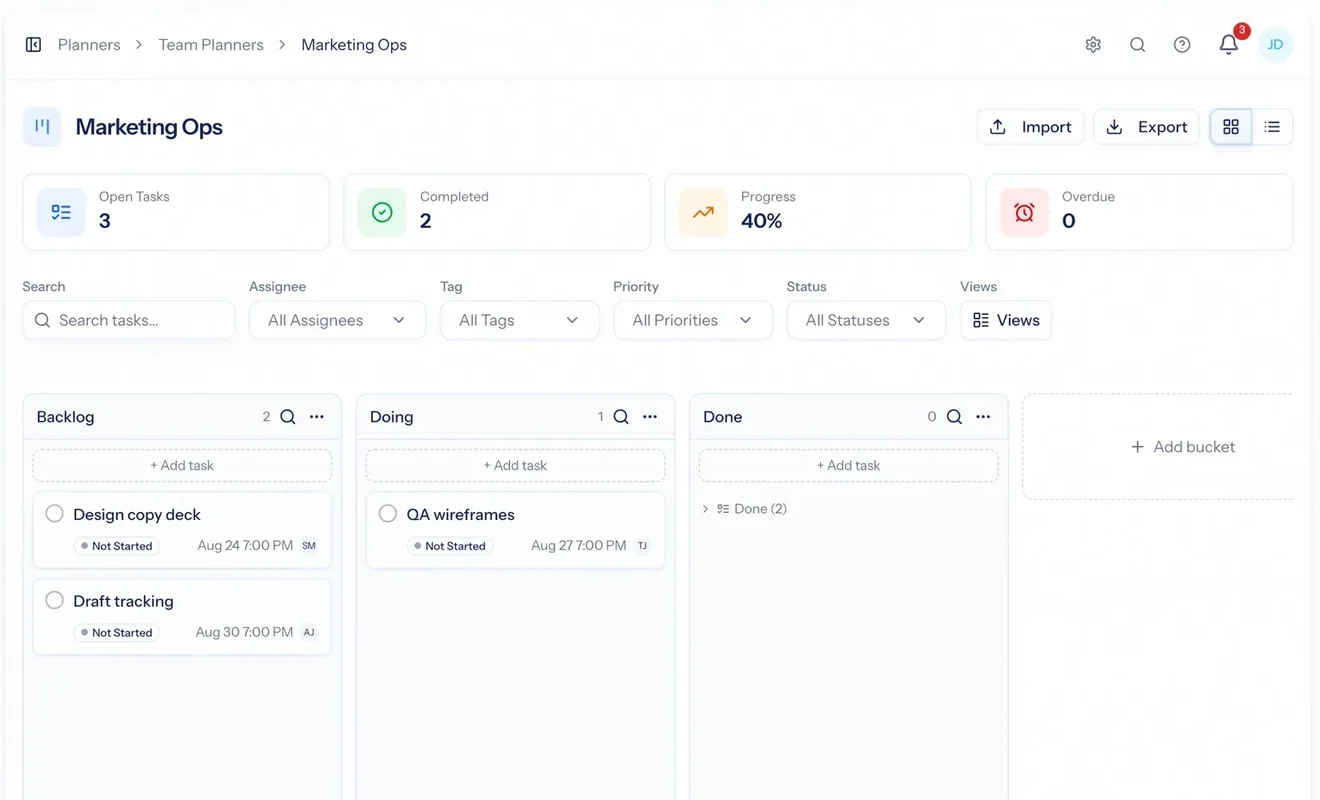
A Kanban board makes work visible: a column for each state the work passes through, a card per piece of work, and an honest look at how much is in flight at once. AspirePro planners are exactly that — built on the same task engine as client projects, so a card can carry a checklist, a dependency, files, comments and a repeat schedule without becoming a second tool to learn.
From nothing to a working board
Name it, add columns, start dragging. No project setup, no budget, no client — because internal work has none.
One task engine, everywhere
Checklists, subtasks, dependencies, comments, files, review and recurring cards work identically to projects.
Everything you own, in one place
All Tasks rolls every planner and project you can see into one filterable list of your work.
Your own boards, and the team's
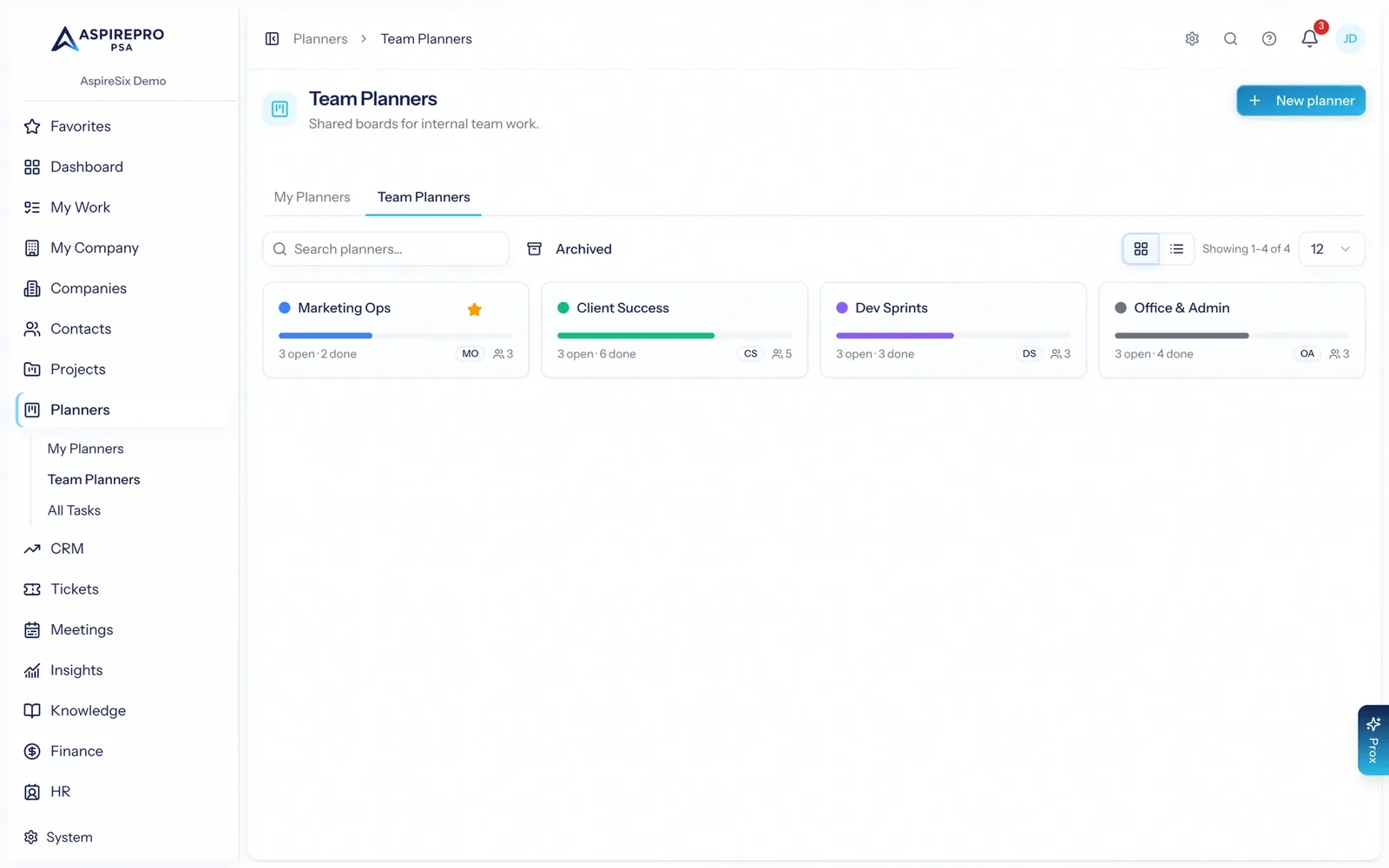
My Planners are yours alone — a full personal planning and to-do system, not just a place for internal work. A learning plan, the quarter's goals, the side project: nobody sees a personal planner but you, not even admins. Team Planners are shared boards for a group working the same queue. And for planning a single day out of everything on your plate, My Day picks from all your tasks, activities and tickets in one click.
- Add members to a team planner; personal boards stay private — even from admins
- Duplicate a planner to reuse a structure that works
- Plan today with My Day: one-click picks over every task, activity and ticket you own
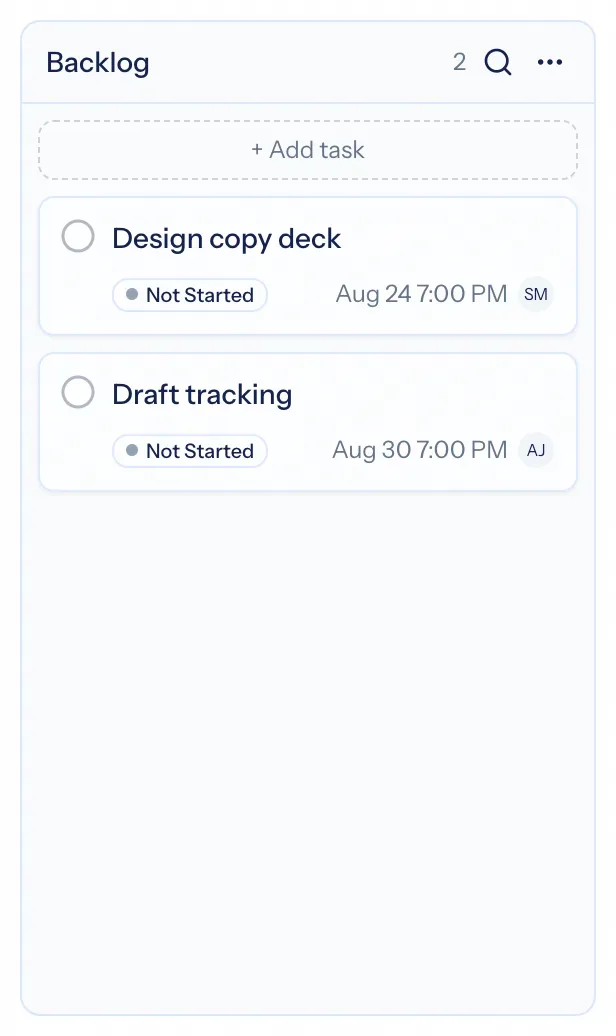
Cards that hold real work
A card is not just a title. Open it and you get the checklist, subtasks, assignees, priority, due date, comments with reactions, attachments, links, dependencies, a review step and recurrence — the same panel your delivery projects use.
- Multiple assignees, priorities and statuses you configure yourself
- Checklists for the steps inside a card, subtasks for the work that deserves its own card
- Recurring cards for the weekly and monthly rituals
Every task you own, in one list
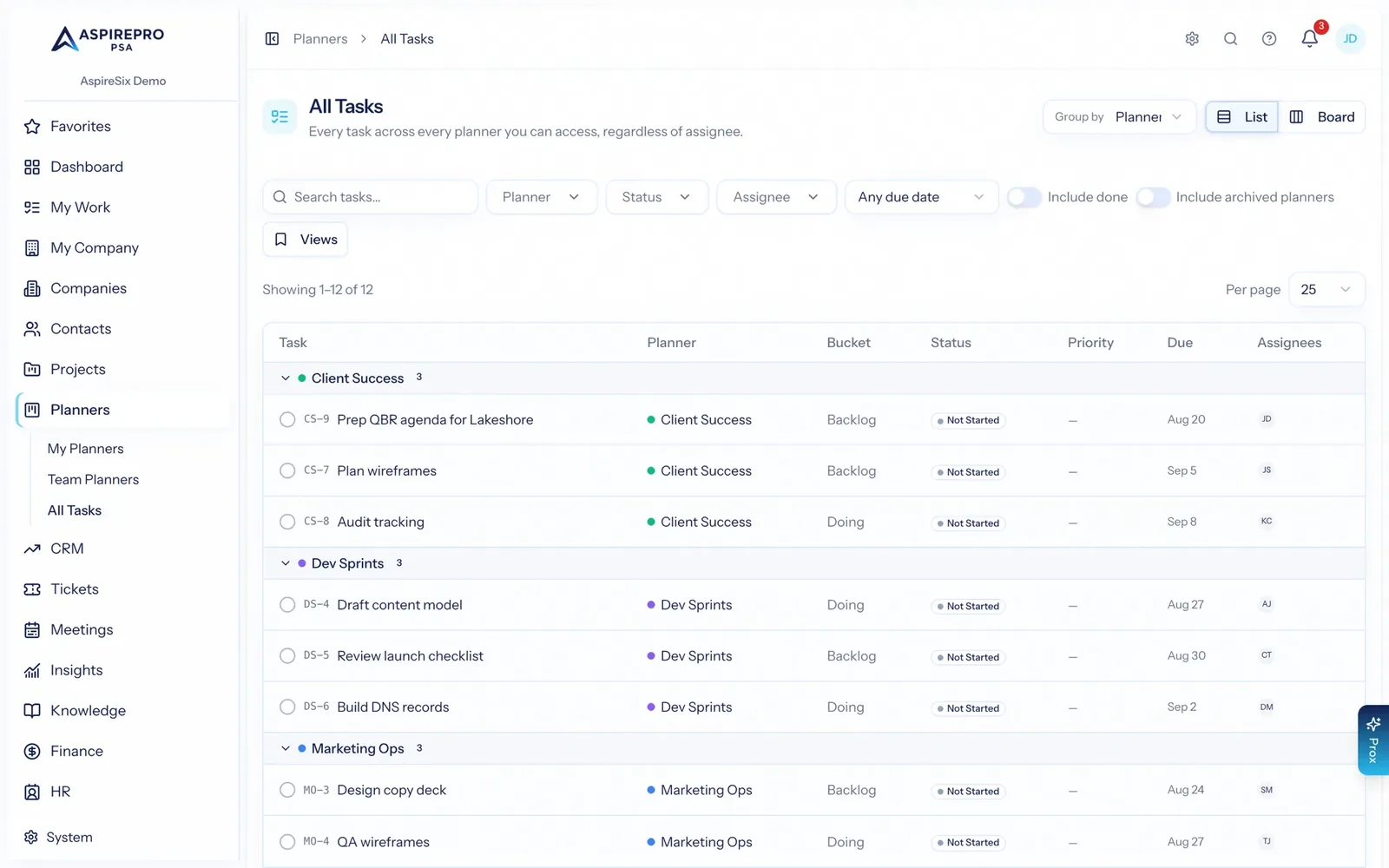
All Tasks flattens every planner and project you can access into one list you can filter by planner, status, priority, assignee and due date. It answers "what am I actually meant to be doing?", which no single board can.
- Group by planner or by status, switch to a board view of the same rows
- Filter to just yours, or just what is overdue
- Export the filtered list when someone wants it in a spreadsheet
When to reach for a project instead
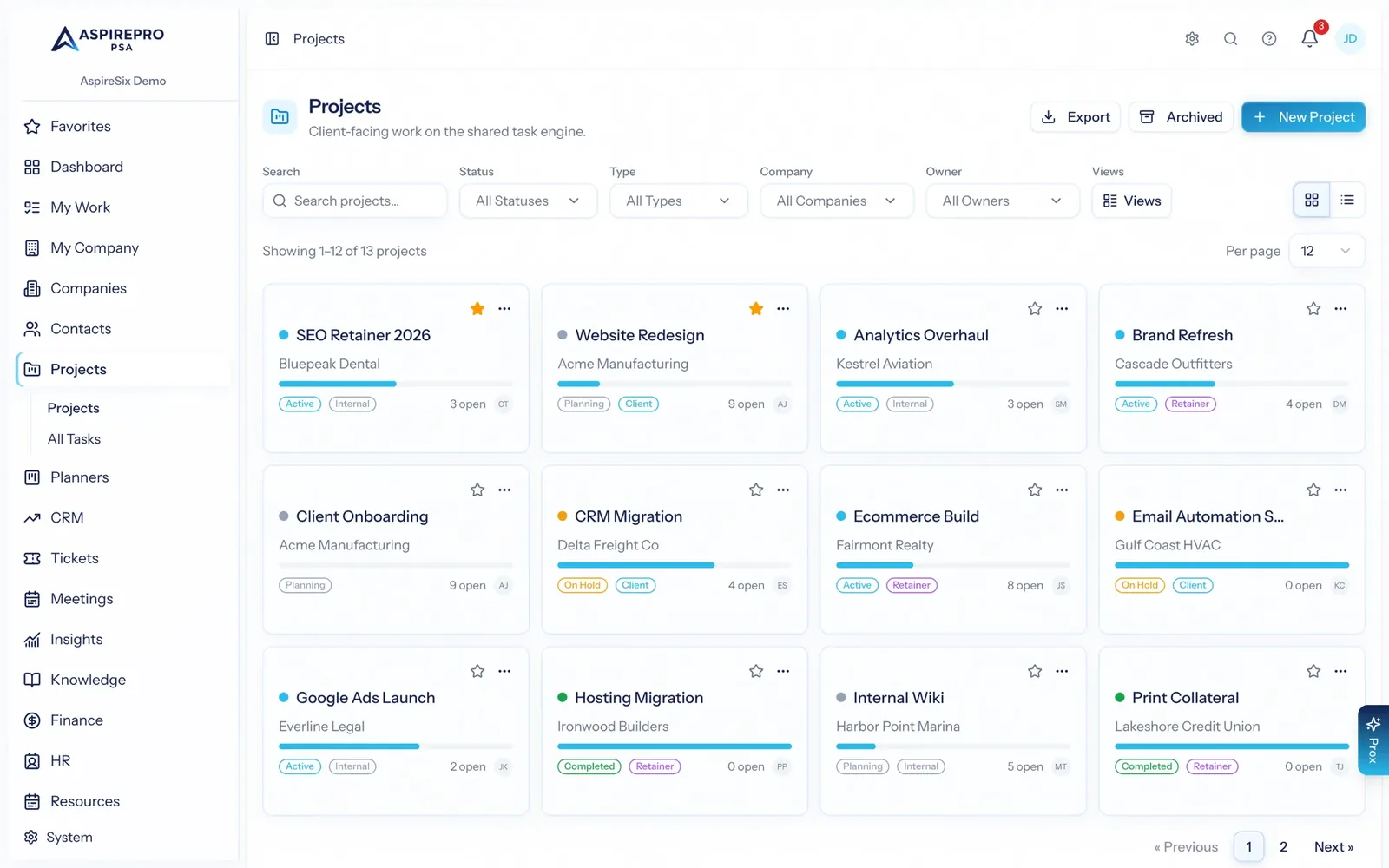
Use a planner when the work is internal, flexible and does not need a budget. Use a project when it is for a client and the hours matter — projects add the company, budgets, phases, allocations, time tracking, client-portal visibility and profitability on top of the same task engine.
- Planners: backlogs, sprints, initiatives, personal work
- Projects: client delivery with budgets, staffing and billing
- Either way, the cards behave the same, so nobody has to re-learn the tool
Getting a board running
Create the board
Personal or team. Name it, and add the columns that match how the work actually flows.
Set your labels
Statuses, priorities and tags per planner, so a sprint board is not stuck with the office board's labels.
Work the cards
Drag, assign, check off, comment. Recurring cards come back on their own schedule.
See it all together
All Tasks pulls every board and project into one list, so nothing hides on a board you forgot.
What Planners connects to
Nothing here is a standalone tool — each of these reads the same clients, people and permissions.
Frequently asked questions
What is Kanban board software?
What is the difference between a planner and a project?
Can I have private boards?
Do cards support recurring work?
Can I see tasks across every board at once?
Read the documentation
The full how-to for this module, written for the people who use it every day.
Bring your whole services business together
Stop stitching together five tools. Run sales, delivery, support, and billing from one organization — with an AI assistant on every page.