An agreement is the contract you bill a client under — a retainer, a fixed-fee engagement, a time-and-materials arrangement. Agreements define the recurring fees, the rates, the included hours, and the terms, so invoicing knows what to charge. They live under Finance → Agreements and on each company's Agreements tab.
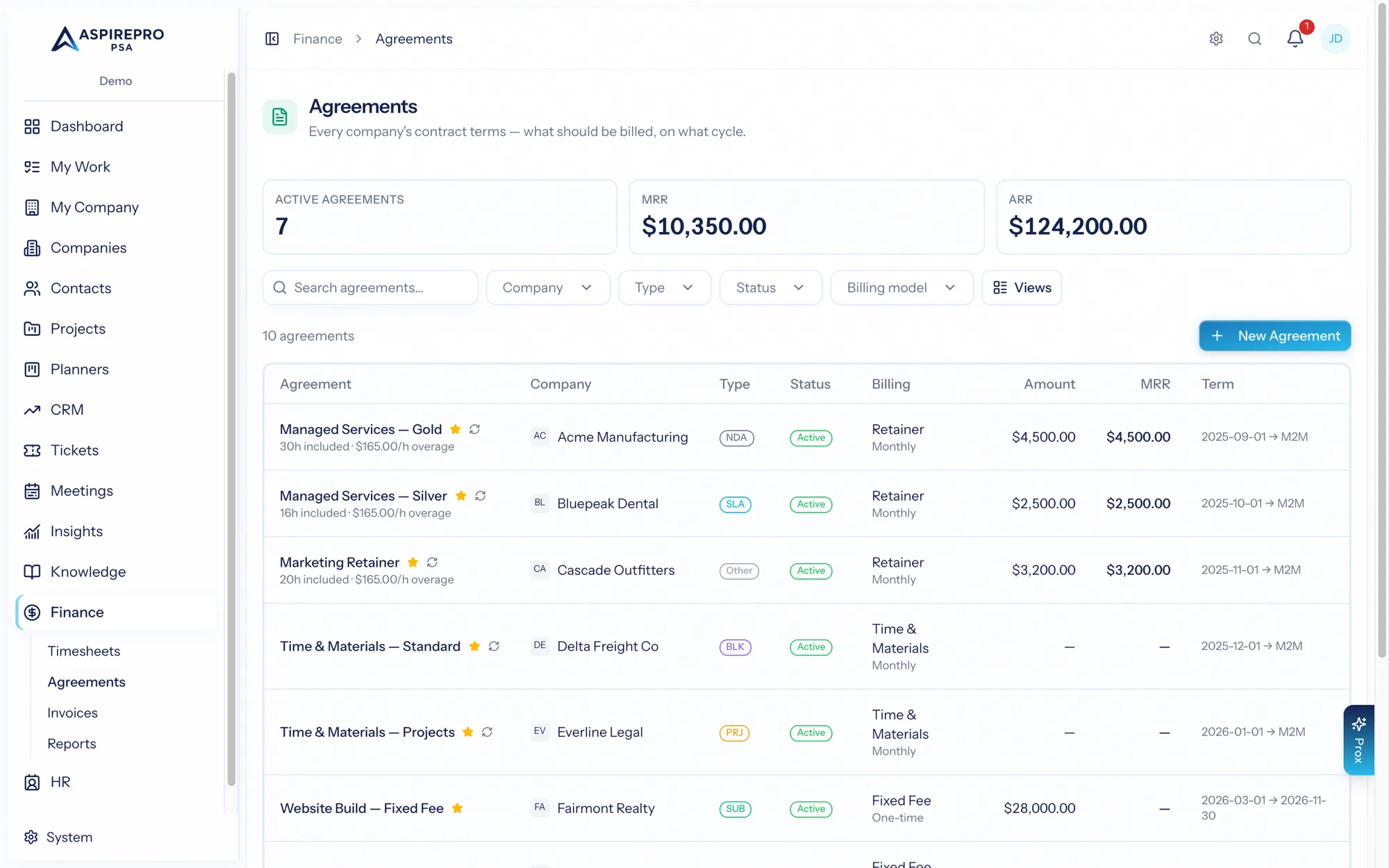
The agreements list#
The list shows your agreements with filters (company, type, status, billing model) and summary tiles for active count, MRR (monthly recurring revenue), and ARR (annual). Each row carries a state badge — normal, expiring, expired, extended, or completed — so renewals never sneak up on you. Save views for the segments you watch.
Creating an agreement#
An agreement captures a lot, because a real contract does:
- Client and type, name, description, and version; an optional parent agreement (for hierarchies).
- Dates — start, end, signed — and how acceptance was given.
- Term — length, auto-renew, and the terms it renews into; renewal and termination notice periods.
- Billing — the model (fixed-fee, retainer, or time & materials), the cycle, and the amount; an optional payment schedule (milestones, as a note). Money is USD throughout Finance — there is no per-agreement currency to set.
- Included hours and period, with overage rates and rollover rules for retainers.
- The responsible contact, SLA, and legal/billing details — including governing law, which the signed-state warnings can require.
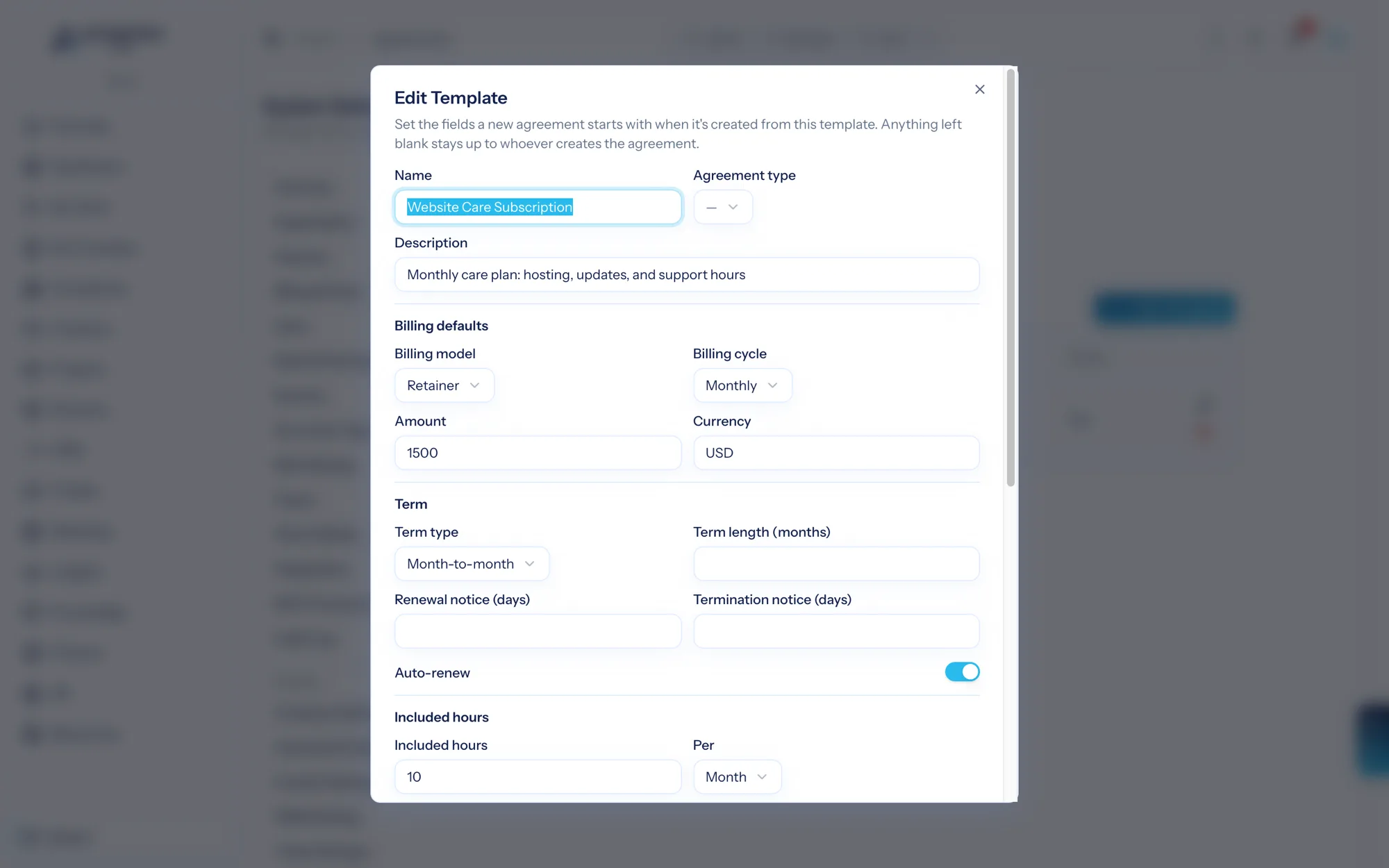
Templates (System → Agreement settings) pre-fill all of this — billing, term, included hours, line items, even client rate cards — so creating a standard agreement is one pick. The template editor is a real form: pick the billing model and cycle, set the amount, add line items and service rates row by row. Build a template per shape you sell ("Website Care Subscription", "Standard Retainer SOW") and adding it to a client takes seconds. Templates work on existing agreements too — Apply template on the edit form fills any field you've left blank without touching what's already set. Settings-driven rules can auto-calculate the end date, require key fields, and warn on mismatches.
Agreements paid in installments#
When the client pays the contract in parts — a 15-month, $75,000 renewal paid as three $25,000 installments — choose the billing cycle In installments. The amount becomes the agreement's total, and you list the installments: when each is due and how much, with an optional label. The form shows "$75,000 of $75,000" as you go and won't save installments that don't add up (leave the total blank and it's their sum).
- Billing one: on a new invoice or in the invoice editor, Bill an installment offers the ones no invoice bills yet — "Managed services — installment 1 of 3 ($25,000, due Oct 1)". The line is tied to that installment, so it can't be billed twice while that invoice stands. Cancel the invoice, or take the line off it, and the installment can be billed again — on a new invoice, or by re-opening the cancelled one (which happens only when someone settles a notice about it on Finance → Sync — a payment that arrived for it, say), as long as no other invoice has billed it since and the installment still has the amount and date that invoice billed. If the invoice has a copy in QuickBooks, Stripe or Xero, the installment stays held by it until that system confirms the cancellation, or you choose Release the work now on the invoice.
- The agreement's page lists each installment with its due date, the invoice that bills it, and whether that's paid.
- Agreement vs. Reality expects each installment in the month it's due, for its amount, and matches the invoice that bills it — whatever month that invoice is for. No phantom second payment in month 13.
- MRR is the total over the term: $75,000 over 15 months is $5,000 a month. Profitability expects the revenue in the month each installment falls due.
While an installment is billed, it stays as it is: it can't be removed from the agreement and its amount can't be changed (its invoice says what it is) — cancel that invoice, or take the line off it, first. Its date can be moved. An installment that a cancelled invoice still refers to can't be removed either, because re-opening that invoice would bill it again — keep the row and change its date or amount instead. (A cancelled invoice is re-opened only when someone settles a notice about it on Finance → Sync.) Once you change its amount or date, that cancelled invoice can't be re-opened any more (it would bill the old figure): issue a new invoice for the installment at its new amount. A deleted invoice doesn't hold an installment — a deleted invoice never comes back — so its row can be removed. The agreement can't leave installments while any of them is billed, nor while a child agreement that takes its billing cycle from it has a billed installment. Once the agreement is signed, the installments are part of its terms, and change only with Edit anyway.
A child agreement (an SOW under an MSA paid in installments) can leave its billing cycle to the family: with no price of its own, it's billed by the family's installments; with its own price, it has its own installments, and they're what Bill an installment offers for it. Payment schedules on agreements with other cycles are kept as a note (dated now) — they don't change what's expected.
Agreement types, explained#
Types are how the list reads at a glance — and a few of them carry real behavior:
- Master Services Agreement (MSA) — the umbrella contract: the legal terms a relationship runs under. Often long-lived or evergreen. MSAs can have child agreements hanging under them.
- Statement of Work (SOW) — a child document: a scoped piece of work under an MSA, usually carrying its own dates and amount. In AspirePro an SOW points at its MSA via Parent agreement.
- Addendum / Amendment — child documents that modify what came before. An amendment with an amount replaces the parent's financials; renewals, extensions, and amendments supersede the member they extend (the older one flips to Completed automatically).
- Renewal / Extension — child documents that carry the relationship into its next term. A family extended by a live renewal won't nag you about expiry.
- Subscription — a month-to-month recurring agreement, typically accepted online (terms of service + checkout) rather than signed. Cancel-anytime; its MRR feeds all the finance metrics like any other agreement.
- NDA / SLA / Partner / Referral — standalone documents tracked for the record.
Child-type documents (SOW, Addendum, Amendment, Renewal, Extension) appear in the type picker when you're creating a child; any parent-capable agreement can grow children — including a mid-chain addendum.
Families: parents, children, and inheritance#
An agreement family is a tree: an MSA at the root, SOWs/addendums/renewals beneath it, chains as deep as your paperwork goes. Three rules make it work:
- A blank field on a child means "inherit." Leave the child's billing model, rates, or terms empty and it uses the nearest ancestor's value — the record shows (from Parent) on every inherited field, and a banner counts the overrides.
- The family rolls up. MRR, ARR, and total contract value are computed across the family, so an MSA with three priced SOWs reports the whole relationship's value.
- Newer paper supersedes older paper. When a renewal/extension/amendment takes over, the member it replaces completes automatically — no stale "active" contracts.
Which shape fits your firm?#
Real firms paper client relationships differently. All of these work:
"Our MSA lives on our website — clients sign SOWs." Create one evergreen MSA per client (term: none, no amount, note the online terms in the description or legal details). Every signed SOW becomes a child of it, carrying the dates and the money. Continuing the relationship = adding the next SOW; the MSA never expires, and the family view shows the whole history.
"Our clients sign one document — MSA and SOW combined." That's a single MSA-type agreement with its own dates and amount. No child needed. If a later engagement adds scope, hang an SOW or addendum under it then.
"We do addendums to the original MSA — sometimes addendums to addendums." Exactly what the parent/child chain is for. Each addendum parents under the document it modifies; amendments with amounts replace the financials; superseded members complete automatically. Chains can go as deep as your paper trail does.
"We sell subscriptions — plan, checkout, terms of service." Use a Subscription-type agreement: month-to-month term, the plan's amount as the recurring fee, acceptance method online. Pair it with an agreement template so adding it to a new client is one click. And if the subscription is billed through Stripe, connect it (System → Integrations → Stripe) and link the Stripe subscription on the agreement record: its status and recurring value then stay in sync via webhooks, and a cancellation in Stripe cancels the agreement automatically. With Stripe disconnected, the subscription can't be cancelled or synced from the agreement, but Unlink still works — it only removes the link in AspirePro (the subscription carries on in Stripe).
Line items, exclusions, and rates#
- Line items — recurring, additional, or one-time charges, each with a quantity and unit price.
- Billing exclusions — date windows to skip (a paused month, a credit), with a reason. Agreement vs. Reality respects these.
- Work-role rate overrides — client-specific hourly rates per work role, plus free-form service rates, so this client's pricing can differ from your standard rates.
Statuses and automation#
Agreements move through Draft → Active → Expiring → Expired (plus Completed and Cancelled). With automation enabled in Agreement settings, drafts activate on their start date, active agreements flip to Expiring as they enter your notification window, and past-end agreements expire after your grace period — unless a live renewal or extension child is carrying the family forward. Auto-renewing agreements roll into their next term automatically, with reminders at the day-marks you configure.
Status is the truth, dates only drive the automation. An agreement is live — pickable, billable, and counted in MRR — for as long as its status isn't Draft, Completed, or Cancelled. Expired is still live, because in practice you keep working a client while the renewal sits on somebody's desk, and the work still has to be logged and billed. Dates decide when the automation moves a status; they never silently switch off a contract.
Lapsed agreements and revenue at risk#
An agreement that is live but past its paper — Expired, or past the family's end date — is lapsed. It keeps working, and it tells you it is:
- Every MRR figure carries an at risk number beside it: the agreements index, the company's agreements summary and overview card, the Finance report's by-type table, and the Insights MRR metric. The headline still includes lapsed revenue, so nothing disagrees; the second number says how much of it is uncontracted.
- The agreement picker on a ticket or project marks a lapsed option ("· expired Jun 15, 2026"), and unbilled time on the company Finance tab and in the invoice editor's pull dialog carries an agreement expired badge. What the client sees on the invoice is unchanged.
- Expired agreements show a renew or complete notice, and finance managers get a reminder once one has sat expired past your nudge threshold.
Whether lapsed work is allowed is your call: System → Agreement settings → Rules & automation → Work on expired agreements is either Allow with a warning (the default — expiry nags, never blocks) or Block until renewed, which makes expired agreements unpickable and refuses new work against them. Either way the money is reported at risk.
The default agreement#
One agreement can be the default — new billable time links to it automatically, so time flows toward the right contract without anyone choosing it each time. Only a selectable agreement can hold the flag: setting a Draft, Completed, or Cancelled one as default is refused with a reason, and closing a default hands the flag to another agreement on the same company in the same breath.
The agreement record#
Open an agreement for its Details, Invoices, Documents, and Audit Trail tabs. Details shows effective terms (including anything inherited from a parent), the family's MRR/ARR/total contract value, and retainer usage. Dismissible notices flag things that need attention — an expiring term, a missing field.
Agreement vs. Reality#
The most valuable piece: Agreement vs. Reality (on the company's Finance tab) compares what a fixed-fee or retainer agreement should have billed against what you actually invoiced — giving you a coverage % and flagging missing periods. It's your under-billing detector: it surfaces the periods you forgot to bill, before they're lost.
Expectations follow the agreement's billing cycle, not the calendar: a quarterly agreement expects four invoices a year, an annual one expects one, one-time agreements expect exactly one, and an agreement in installments expects each installment on its due date. Billing exclusions are skipped, and each occurrence is matched to the invoices actually linked to that agreement first, then filled from unlinked invoices that fit — so a single company-wide invoice can no longer make every agreement look covered. An occurrence reads invoiced, under, over, or missing against a ±2% tolerance, and invoices that fall outside every expected window are listed separately as unmatched rather than quietly absorbed.
Lapsed agreements keep expecting occurrences right up to today (flagged at risk); Completed and Cancelled ones stop at their end date.