A pay run is one payday's worth of pay, worked out for you. Before each payday AspirePro prepares a draft that shows what every person is owed and exactly how each amount was worked out. Someone checks it, holds or adjusts anything that looks wrong, and approves it. Each person then gets a statement, your payroll provider gets a file, and contractors can get a bill in your accounting system.
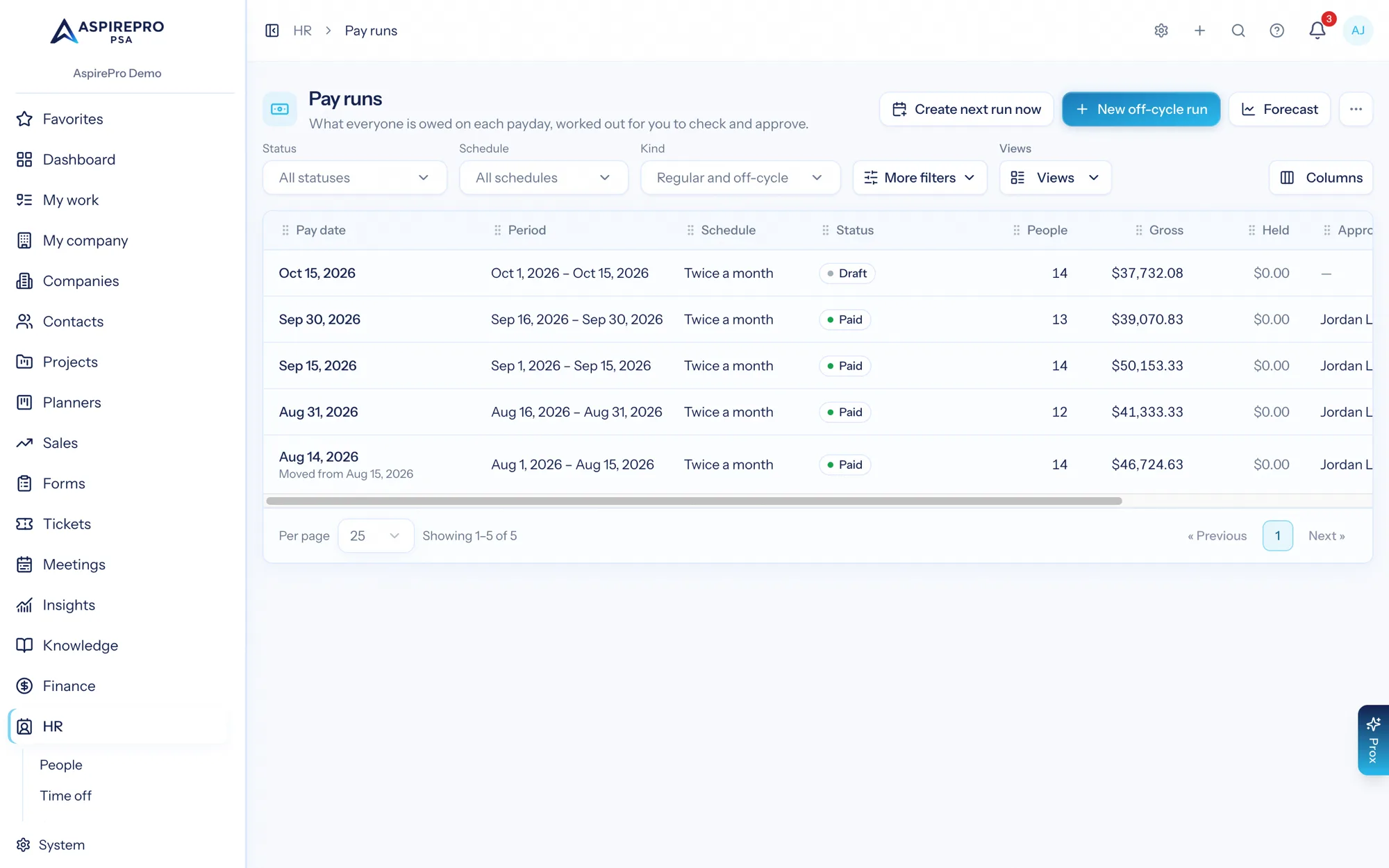
Find it under HR → Pay runs.
What a pay run is, and what it isn't#
AspirePro works out who is owed what and makes the paperwork: the statements, the payroll provider file and the contractor bills. It never moves money, withholds tax or pays anyone. Amounts are gross, before any tax or deductions your payroll provider applies. Mark as paid only records the date you paid everyone and an optional reference.
That's the same line the Payroll export draws, with one difference: a pay run also works out shares of agreements, commissions and recoveries, which the hours-and-rates export doesn't.
Who can see and do what#
Pay is sensitive, so pay runs have their own permissions:
- Seeing pay runs needs both View payouts and View compensation. A run shows salary and hourly pay as well as shares, so one without the other isn't enough. Manage HR includes both.
- Prepare pay runs lets you create runs, work them out again, hold and release lines, add or remove manual lines, mark a run ready, cancel one, download the payroll file, create bills and email statements. Manage HR includes it.
- Approve pay runs lets you approve, send back, unapprove and mark a run paid, and change the pay run settings. Nothing else includes it, not even Manage HR. The built-in Admin role has it; give it to others deliberately.
Changing your own statement is held to a higher bar: adding or removing a line on your own pay, or releasing a hold on it, needs Approve pay runs. Someone else changes your pay.
People who can't see pay runs can still see their own statements, once a run is paid. See What people see on their own.
Pay runs need HR switched on under System → Features. They work from the pay you've already recorded: salary and hourly pay on each person's compensation, and pay rules for shares, fixed amounts, commissions and referral fees.
Turning pay runs on#
Everything is set up under System → HR settings → Pay runs. Only people who can approve pay runs can change it; people who manage HR can look. Until you click Start pay runs, nothing is created and the page shows Not started yet.
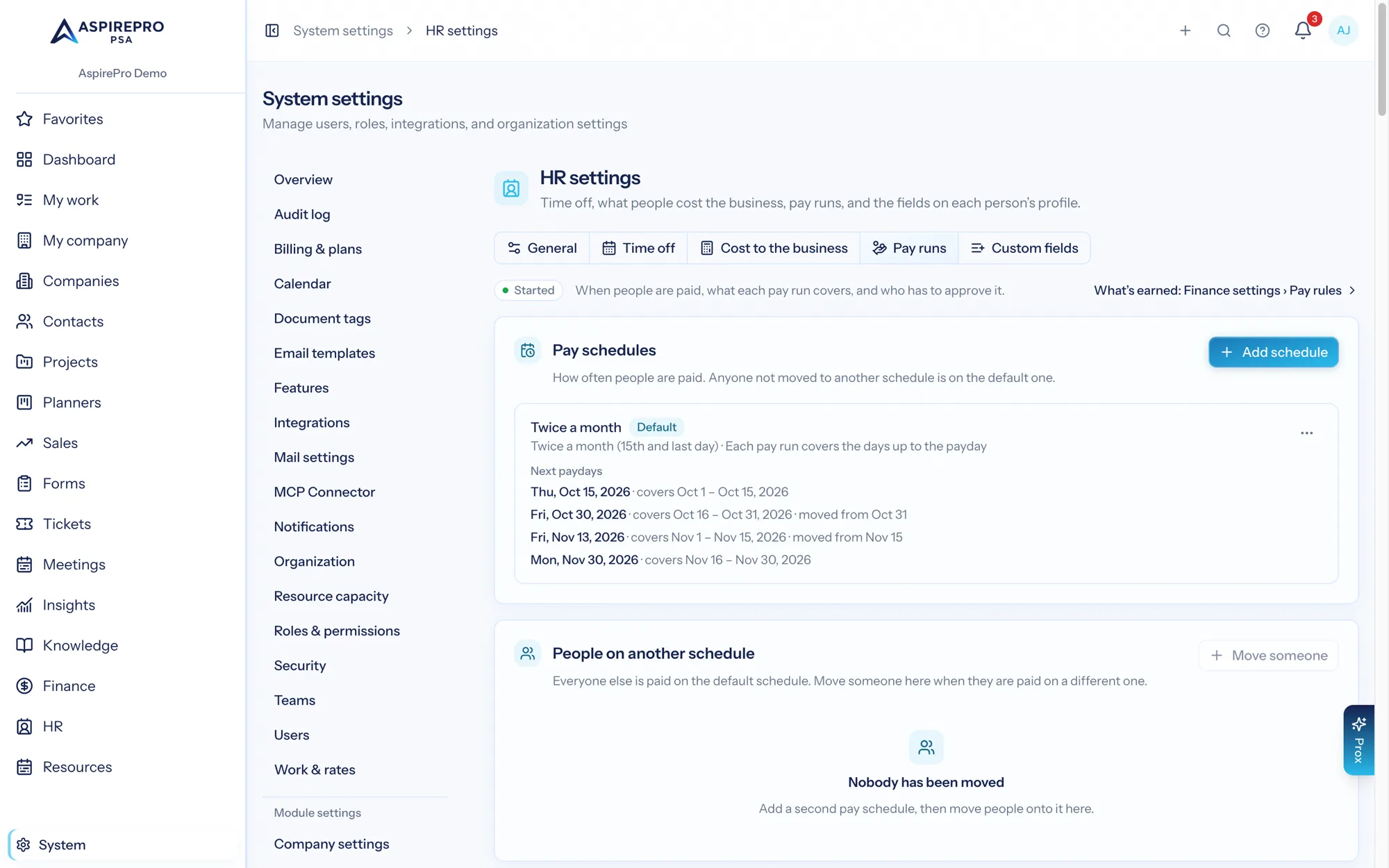
Pay schedules#
A pay schedule says how often people are paid. Add one with Add schedule:
- How often: Weekly, Every two weeks, Twice a month (15th and last day), or Monthly.
- One real payday: for weekly and every-two-weeks schedules, any payday, past or future. Every other payday follows from it.
- First payday and Second payday (twice a month) or Payday each month (monthly): pick a day of the month, or the last day.
- Each pay run covers: the days up to the payday, or up to a number of days before the payday, if you pay in arrears.
The dialog shows the next four paydays as you go. Everyone is on the default schedule unless you move them. Use Set as default to change which one that is. A schedule can't be deleted while people or pay runs use it.
Who is on which schedule#
Under People on another schedule, Move someone puts a person on a different schedule from a date you pick. Pay runs already approved don't change. Remove puts them back on the default. People without a sign-in, such as referral partners, are always on the default schedule.
Paydays and holidays#
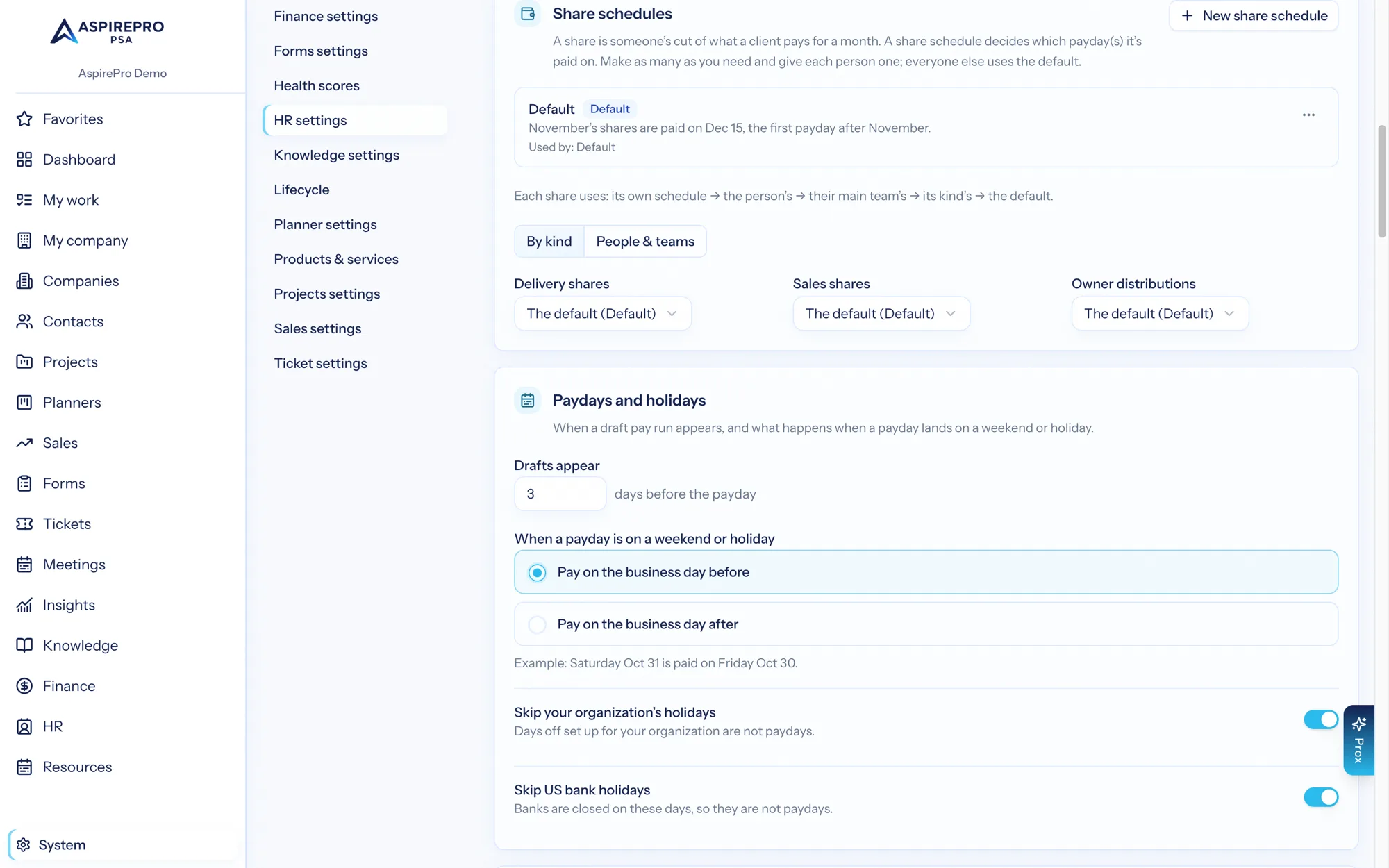
Drafts appear a number of days before the payday (3 by default). If a payday lands on a weekend or holiday, choose Pay on the business day before (the default) or Pay on the business day after. The page shows your next such payday, for example "Sunday Nov 15 is paid on Friday Nov 13". Two switches decide which days count as holidays: Skip your organization's holidays and Skip US bank holidays. Both are on by default.
A moved payday doesn't change which days a run covers; its period stays where the schedule put it.
Start pay runs#
When your schedule is ready, tell AspirePro what you've already paid people yourself, so nobody is paid twice:
- Under What's the first payday AspirePro should pay?, pick a payday from your default schedule, for example Oct 15. Pay runs start on the first day that payday pays for: Oct 15 pays Oct 1–15, so everything before Oct 1 counts as already paid. Shares look back to when they began, so AspirePro needs to know what was paid before then. Hourly time and salary simply start on Oct 1.
- Everyone is paid up to then is ticked. AspirePro records, for every share or fixed amount, what your share rule had paid by the last payday before the start. For example, with paydays on the 15th and the last day and "the first payday after the month", an Oct 15 first payday counts January–August as paid and leaves September to Oct 15. A line under the box sums it up: how many people, what was due before the start, what's marked as paid, and what carries into the first pay run.
- If someone is still owed money from before the start, or was paid more, untick the box. The editor groups shares by person with their totals, and you can search and show only the rows you changed. Enter what you really paid. A lower amount is paid in the first pay run, and the row says how much. A higher amount is taken back from the first pay run, and the row warns you.
- Choose Start pay runs and confirm.
From then on, pay runs cover everything from the start date. Time worked before it is never picked up, salary starts on the start date, and expense claims approved before it stay on the usual reimbursement path.
If you started with the wrong payday, Start over turns pay runs off. Its confirmation lists exactly what it deletes: the opening balances (how many people, and the amount marked as already paid) and every draft or ready pay run, with its lines and notes. You confirm by typing your organization's name. It's only possible before the first pay run is approved; after that, correct opening amounts with adjustments.
AspirePro creates the next draft by itself once it's within the number of days you set, one run per schedule at a time. Create next run now on the list page makes it straight away. Paydays that passed while pay runs were off are never filled in; what's owed simply shows up on the next run.
What goes on a run#
Each person gets one statement per run, made up of lines. Every line carries a plain sentence showing how the amount was worked out, for example "70% × ($14,000 − $2,000) for September".
Salary#
Salary is the person's yearly pay divided by the number of paydays in a year, for the days the run covers. When someone starts or leaves partway through a period, or their pay changes, the period is split and prorated by Working days or Calendar days: your choice under Part periods (salary). For example, $96,000 a year on 24 paydays, starting Wednesday Dec 9, pays $1,818.18 on Dec 15 by working days (5 of the period's 11) or $1,866.67 by calendar days (7 of 15); the page works the example out from your own calendar. A salary day is never paid twice, so a final pay run and the regular run can't both pay the same days, and days missed earlier (a cancelled run, say) are picked up on the next one.
In a year with 27 every-two-weeks paydays, salary is paid 27 times at the yearly amount ÷ 26, as payroll apps do.
Hourly pay#
Hourly pay is the hours someone logged times their pay rate, per time entry. Two settings and one rule shape it:
- Under Hours that are paid, choose Approved hours only (the default) or Any logged hours. If timesheet approvals are off in your organization, logged hours are paid and the run says so.
- Time approved late is included automatically on the next run, labelled as coming from an earlier period.
- If a person is paid a share for work on an agreement, their time there isn't also paid hourly. That would pay them twice.
If time changes after it was paid (reduced, rejected or reopened), the difference lands on the next run as an adjustment, not on the one already approved.
Shares and fixed amounts from pay rules#
A share is a person's cut of what a client pays for a month, and a fixed amount is the same figure every month. Both come from the pay rules on the agreement.
Each run works out what each person is owed so far, takes off what earlier runs already paid, and pays the difference. Because it's cumulative, late payments, refunds and backdated changes correct themselves on later runs without anyone chasing them.
When a month's share is paid. Under Share schedules you make named schedules, each saying which payday(s) pay a month's share. The first one you make is the default; Make default in a schedule's menu changes that. Each schedule shows one line from your own paydays, so you can see exactly when it pays. A schedule pays a month's share:
- On the first payday after the month: September's share is paid on the first payday in October.
- On the last payday of the next month: September's share is paid on the last payday in October.
- Spread over the next month's paydays: in equal parts, one on each payday in October.
- In the same month, after the client pays: October's share is paid in October, in equal parts on its paydays, and each part waits until the client has paid October's invoice. If the money comes in late, that part moves to the next payday after it arrives; if only part is paid, only that part is released. Which month an invoice is for follows the agreement's Invoices count for setting (for example, an invoice dated Sep 20 that counts for the next month pays October's share). On projects, shares are paid on schedule. The forecast says what a held-back share is waiting for.
- In the same month, on schedule: October's share is paid in October, in equal parts on its paydays, whatever the client has paid. Money that never comes in is taken back later.
- On two paydays I choose: pick two of the first or last payday of the month, the first payday after it, and the last payday of the next month, and how much goes on the first (for example 60%, the rest on the second). When a chosen payday is in the month itself, you also choose what happens if the client hasn't paid yet: pay only what the client has paid so far (the rest follows on the next payday after the money; this is the default), or pay it on schedule and take back any shortfall later.
- Each payday, for the days just worked: a fixed amount is paid like a salary, for the days in each pay period, whether or not the client has paid. Days are working days or calendar days, as Part periods (salary) is set. For example, $4,000 a month starting Oct 8, with a pay period of Oct 1–14, pays the share for Oct 8–14 on Oct 15. A percentage share on this schedule is paid on the first payday after the month.
- Each payday, from what the client has paid: each payday pays a percentage share of what the client has paid by then, so money that comes in early is paid early. Fixed amounts, and shares on projects, are paid on the first payday after the month. So is a share that has changed between a fixed amount and a percentage, on either of these schedules.
Who uses which schedule:
- By kind: delivery shares, sales shares or owner distributions can each use a schedule other than the default.
- People & teams: tick people or teams and Apply schedule… from a date. That replaces any schedule they had from then on, and the one running then ends the day before. Their usual puts them back on their team's, kind's or the default from that date. A team's schedule applies through each person's main team. The history button lists earlier rows; one that hasn't started can be removed, and one that has is ended today.
- One share: Share schedule in its pay rule's dialog. The list of pay rules shows which schedule pays each share and why.
A share uses its own schedule first, then the person's, then their main team's, then its kind's, then the default. A schedule that is in use can't be archived; the menu says what still uses it.
A run's line says which part it pays, for example "October share, 1 of 2".
What it waits for. Each share has a Paid on pay runs field in the pay rule's dialog on the agreement's Who's paid tab. It only appears once pay runs are on:
- As the months pass, never ahead of what the client has paid: the recommended choice. The share is earned month by month, but a run never pays more than the client has actually paid.
- When the client pays: the share follows the client's payments. This is the default for prepaid hours.
- When it's invoiced: the share follows invoices issued.
- As the months pass, whatever the client has paid: paid on schedule, regardless of payments.
A share held back because the client hasn't paid is flagged Waiting on a client payment, and the line says how much is still outstanding.
Caps and end dates set on the pay rule are respected.
When someone leaves decides what happens to a person's shares after their last day. There's a rule for each kind of share: Delivery shares (team pay), Commission and referral fees, and Owner distributions. Each one can:
- Stop on their last day
- Keep paying until the agreement's current term ends: on the agreement the share is on. A renewal that starts after they left pays them nothing. If the agreement has no end date, they're paid for 12 months after their last day (or the months you set).
- Keep paying for a number of months
- Keep paying
For an organization setting up pay runs now, delivery shares stop on the last day, commission keeps paying until the term ends, and owner distributions keep paying. An organization that set this up earlier keeps its one rule for every kind.
Work done before the last day is always paid, even when the client pays after it. Any single share can have its own rule: open it and choose If they leave. Salary and hourly pay stop at the leaving date either way.
One-time amounts, commissions and referral fees#
A one-time payout is paid once, on the run after it's earned. Commissions and referral fees are pay rules like any other. A payout on a deal is earned when the deal is won and paid on the next payday. If the deal later goes back from won to lost, the next run takes the amount back.
Owner distributions#
Pay rules of the kind Owner distribution appear in their own section of the statement and are left out of the payroll provider file by default.
Reimbursements#
With Pay approved claims in pay runs chosen under Reimbursements, a person's approved expense claims are added to their statement. When the run is marked paid, the claims are marked reimbursed too. Claims paid another way (a check, or a bill in QuickBooks) are never added, so nobody is paid twice. Once a run is approved, the claims on it can't also be paid by hand elsewhere. Contractors who get a bill instead keep the usual reimbursement path. See Reimbursements.
Refunds, recoveries and holds#
Sometimes someone was paid money that later has to come back, like when a client is refunded or paid time is deleted. The next run then shows a Recovery line. Under Taking back money that was overpaid:
- Should AspirePro take it back? Yes, from their next pay (the default), or No, we'll absorb it. If you absorb it, the person keeps the money and it stays a cost in Profitability.
- Can a payday leave someone owing you money?
- No (the default): their pay never goes below $0, and the rest is taken from their next paydays.
- Yes: it's taken all at once, even if their pay goes below $0.
- Most we'll take from one payday (shown under No): a share of what they're due that payday, 100% by default. For example, at 50%, someone due $1,500 who owes $2,000 is paid $750 now, and the rest comes off later paydays. Reimbursements are always paid in full and never used to take money back.
- Stop taking back after a while: money still being taken back after this many days is absorbed instead.
Whatever can't be taken this run carries forward on its own to the next, until it's taken back in full.
Forgive one take-back. On a draft run, an approver can open the person, open the Recovery line's menu and choose Forgive…, with a reason. The person keeps that money, now and on later runs; it shows under Not taken back (kept) and never moves money. Take it back after all undoes it while the run is still a draft. Nobody can forgive a take-back on their own pay.
If the client later pays the money back, the forgiven amount is used up, and nothing is paid twice. A later, separate refund is taken back again, following your settings.
When the money kept was paid above what someone is owed (for example, an opening amount above what they had earned, or a share whose end date was moved back), it stays kept: it is never taken from their later earnings, and changing the setting to take money back doesn't bring it back. If what they're owed for those months goes up again (the end date is moved forward, say), the kept amount covers it, so nothing is paid twice.
One-time and deal payouts can't be forgiven after the fact. A take-back on a one-off or a deal payout comes from the payout itself being changed (its amount, its date, or the deal no longer being won). It's always taken back, even under No, we'll absorb it, and Forgive… isn't offered for it. To let the person keep the money, change the payout back instead.
To set a different rule for one person, edit them in Finance → Payees and choose Money paid to them in error.
A hold keeps a line out of the pay without removing it. Open a person from the run, open the line's menu and choose Hold this line. Give a reason, then choose This pay run only or, for a pay rule's line, Every pay run until released. Held amounts show under Held (not paid this run). Release hold brings them back the next time the run is worked out, and a release on a pay rule pays everything accumulated since. If you'd rather it happen by itself, set If a share expects time and none was logged to Hold it until someone checks; the default, Pay it and show a warning, pays the share and flags it.
Manual lines#
For anything that isn't calculated, open the person and choose Add line: a Bonus, a Deduction, or a Correction (which can add to or take away from pay). A reason is required and shows on the statement. You can remove a line you added by hand; calculated lines are changed by fixing their source, or held.
Off-cycle runs#
New off-cycle run pays chosen people outside the regular schedule: a bonus, a correction, or a final pay. Pick a Pay date, Pay up to date and the People. Either let AspirePro work out everything owed up to that date, or tick Manual lines only (a bonus or a correction) and add the lines yourself.
For someone who has left, open their statement on the run and choose Create final pay run: you only pick a pay date, and it pays everything owed up to their leaving date, never paying the same days twice.
Flags#
Flags point out what needs a look. They never stop a run, and you can click one in Needs a look on the run page to show only the people it applies to.
Flag | What it means |
|---|---|
No time logged | A share on work the person logged no time on that month |
Waiting on a client payment | A share is held back until the client pays |
Unapproved time | Hours in the period that aren't approved and won't be paid this run |
No pay set up | Nothing to pay: no compensation recorded and no pay rules |
Left the company | The person's leaving date has passed |
On hold | A line is held |
Partly recovered and Recovery carried forward | A recovery was bigger than the statement could take; the rest follows |
Added by the person themselves and Set their own terms | A line or pay rule was created by the person it pays, for the approver to notice |
Below $0 | The statement is negative (only if you allow it) |
The flow: draft, ready, approved, paid#
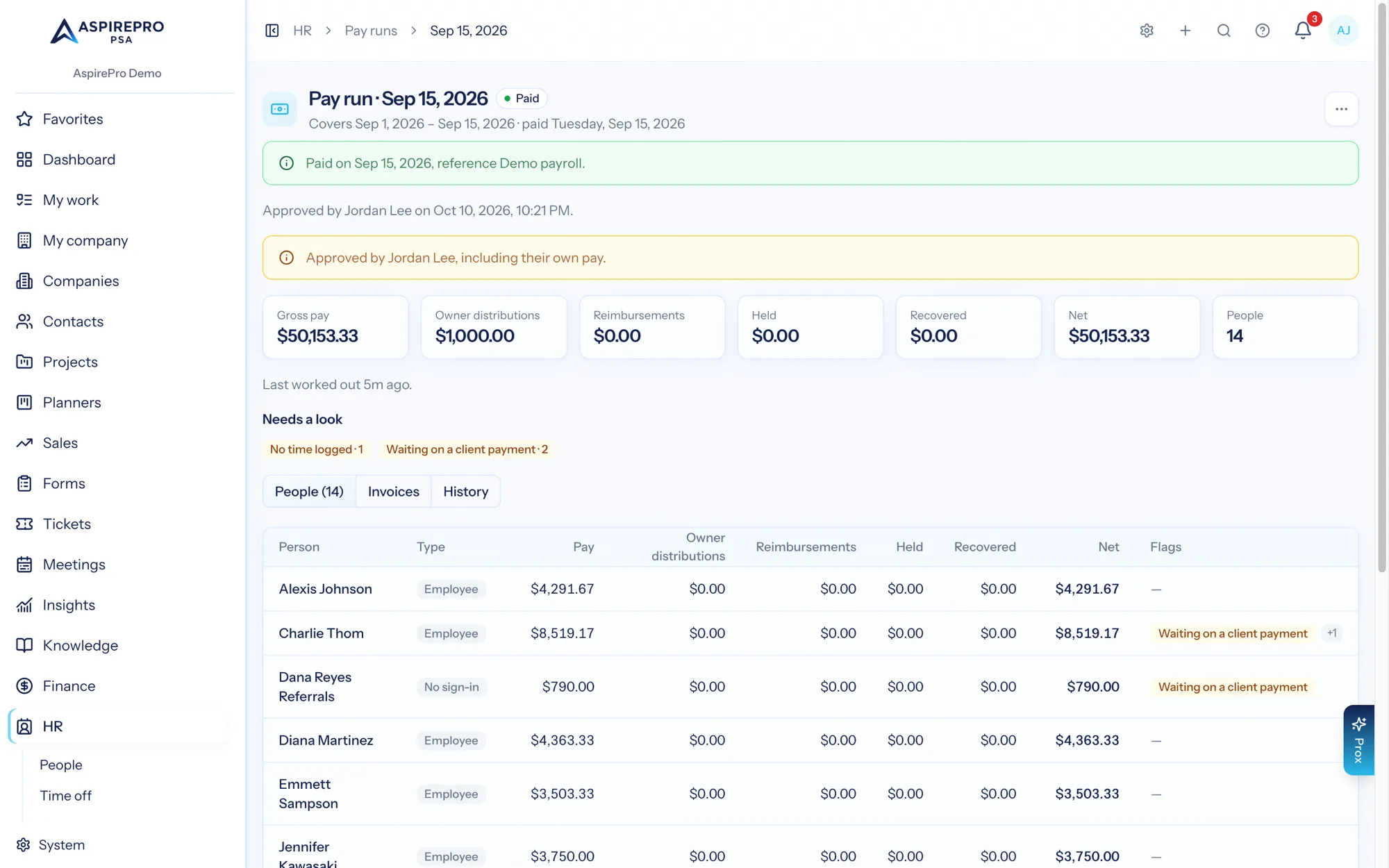
A run moves through these steps:
- Draft. AspirePro creates it and works the figures out in the background. Preparers are notified when it's ready to check. Review each person: open a row to see their lines and working, hold what's wrong, add what's missing.
- Ready for approval. A preparer chooses Mark ready for approval. Approvers are notified.
- Waiting for second approval (optional). If you've set a Second approver, the first approval isn't final. Choose Always, or Over an amount to need one only for bigger runs. A different person then chooses Approve as second approver, or Send back to return it to a draft with a reason.
- Approved. An approver chooses Approve pay run. The run is locked, statements and the payroll file become available, and bills can be made.
- Paid. An approver chooses Mark as paid, picks Paid on, and may add a Reference such as a batch number. Paid is final.
A run can also be Cancelled, which is only possible while it's a draft or ready for approval. Choose Cancel pay run from the ⋯ menu with a reason. Nothing is paid from a cancelled run, and the payday is free to create again.
Worked out again#
Releasing a hold, sending a run back or unapproving it works the figures out again, and Recalculate in the ⋯ menu does it on demand. Any change you make to a run that was ready, such as a hold or a line you add, sends it back to a draft. The page shows when it was last worked out.
Approval checks that nothing moved while you were looking. If a figure changed since you opened the page, or another pay run has since paid some of the same money, approval stops with "These figures changed since you opened the page. Review them again." Review the run once it has been worked out again, then approve it.
Approvers and your own pay#
Two settings under Approvals control who may approve:
- Whoever marks a run ready can't approve it makes approval always a second person's job. It's off by default, which lets an approver approve a draft directly.
- Approving a run that includes your own pay is Never, Only people who can manage HR (recorded) (the default), or Any approver (recorded). When someone approves their own pay, the run records that they did, and the page shows "Approved by …, including their own pay."
A second approval must always come from someone other than the first approver.
Unapprove#
Before a run is paid, an approver can choose Unapprove in the ⋯ menu, with a reason. The run goes back to a draft so it can be changed. If you already downloaded the payroll file, the dialog reminds you that your payroll provider has an older copy.
Unapproving isn't possible while bills for the run are in your accounting system. Bills still waiting in the queue are cancelled for you. Bills already created have to be deleted in QuickBooks or Xero first, then try again.
A bill someone confirmed by hand on Finance → Sync has no QuickBooks or Xero id, so AspirePro can't tell whether it's still there. On the run's Bills tab an approver can choose Enter the bill id (it's looked up and checked like any other bill) or It's not in the books (with a reason, which frees the run to be unapproved). Both are recorded in the audit log.
After approval#
An approved or paid run never changes. When something changes afterwards (a client is refunded, time is reopened, a pay rule is backdated), the difference appears as an adjustment or recovery on the next run.
The History tab#
The History tab lists every step with who did it and when, with the reason where there was one: marked ready, approved, sent back, unapproved, paid, lines added or removed, holds placed and released.
Statements#
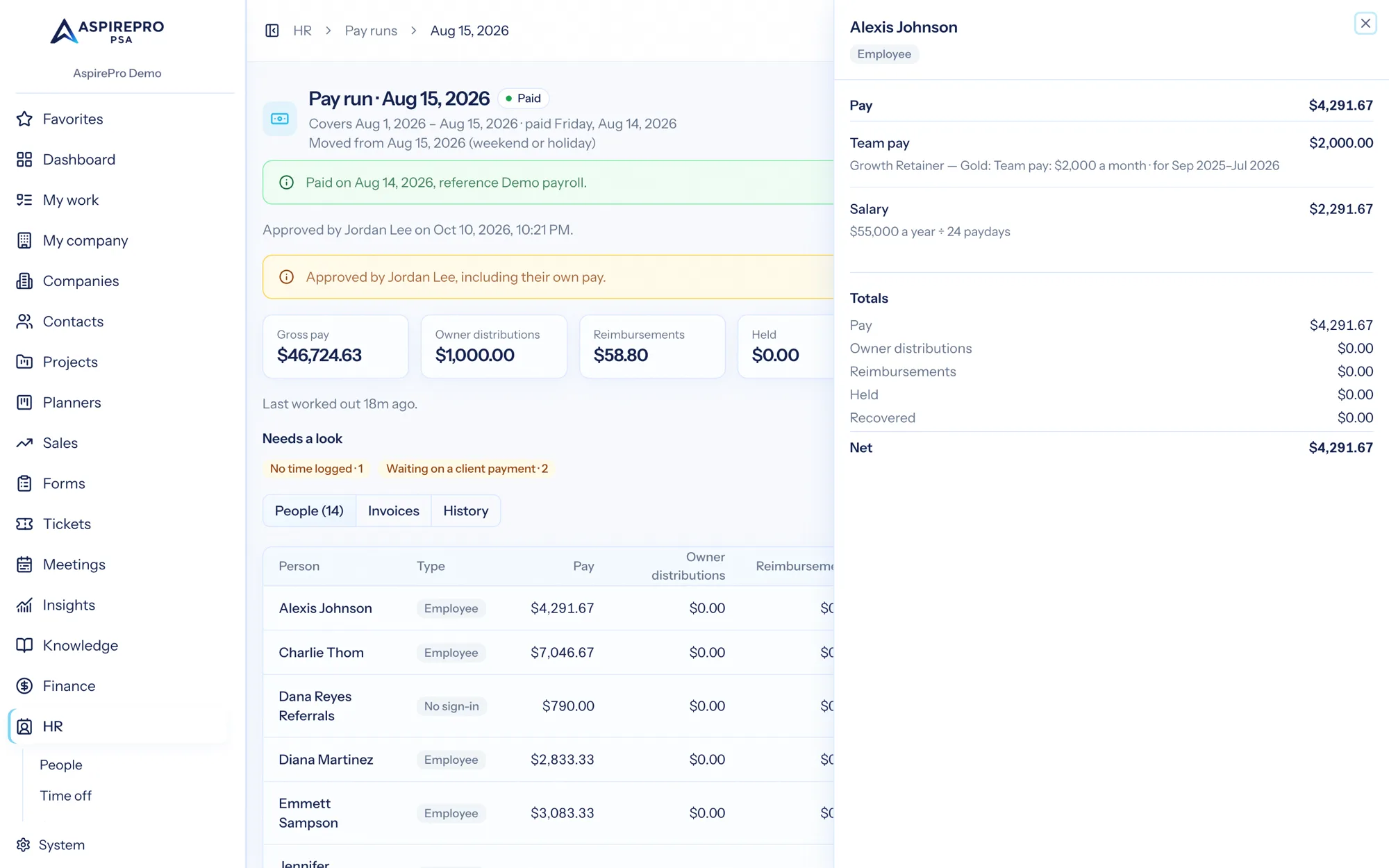
Each person on a run has a statement: the sections Pay, Owner distributions and Reimbursements, anything held, and totals (Pay, Owner distributions, Reimbursements, Held, Recovered and Net). It also notes any amount paid outside pay runs.
- From the run, click a name to open the statement in a side panel with every line and its working. Preparers can also hold, release, add and remove lines here.
- Open the full statement page and Download PDF for a printable copy.
- Download all statements (PDF) in the ⋯ menu gives one PDF with a statement per page in name order, for approved and paid runs.
- Each statement is labelled Employee, Contractor or No sign-in (a payee without a login, such as a referral partner).
What people see on their own#
When Let people see their own compensation is on in HR settings, each person finds their Statements on their own HR page under My pay, once a run is paid. They see only their own, and only after the run is paid. People who can see pay runs see every statement.
From a statement, a person can choose Ask about this line to send a question to the people who prepare pay runs. Preparers answer it from the person's panel on the run; the person is notified. Open questions show on the run page.
Emailing statements#
People without a sign-in have no HR page, so their statements go by email. Under Statements by email, choose Off (the default: nothing is emailed until you choose to), People without a sign-in, or Everyone (staff also need the setting above). Statements are emailed when a run is marked paid, as a PDF attachment; the email itself carries no amounts. Email statements in the ⋯ menu of a paid run sends any that haven't gone yet.
While people can see their own pay, they're also notified in the app when a line of theirs is held, when their statement is ready, and when a question of theirs is answered.
Consultant invoices#
When consultants send you an invoice for their work, you can check it against their statement on the pay run. The pay run is the source of truth: the invoice is compared with what the time and pay rules say, never the other way round.
Open the run's Invoices tab:
- Add invoice: pick the person, attach the PDF (or a photo), and fill in what you can see: invoice number, date, period, total and PO.
- Enter lines: one line per piece of work, chosen from that person's work on the statement (an agreement, a project or a deal), with the hours, the hourly rate and the amount. Use Other work for anything that isn't on the statement.
- AspirePro compares the two straight away.
Close match means the hours are within 15 minutes for each piece of work, the rate is exactly what the pay run pays, and the total is within $1. You can change those limits in System → HR settings → Pay runs → Consultant invoices (the rate is always exact). For example, 8 h 10 min invoiced for 8 h worked is a close match. A close match still needs a person: Approve it.
Anything else is Doesn't match, with each difference spelled out: hours, rate, total, work that isn't on the statement, work the invoice leaves off, a period outside the pay run, the wrong PO, or an invoice number used before. Then you can:
- Approve anyway, with a reason. Choose to pay the pay-run amount, or the invoiced amount. The invoiced amount adds a correction line for the difference to their statement, labelled "paid as invoiced", so it's always visible.
- Reject, with a reason. Their statement on this pay run goes on hold until the invoice is approved or the rejection is undone. The hold can't be released by hand.
- Add as a manual line next to work that isn't on the statement, if you agree to pay it.
- Undo decision puts the invoice back to review and removes anything the decision added.
Approving and rejecting invoices needs Approve pay runs. Adding invoices and entering lines needs Prepare pay runs. A decision on your own invoice follows the same rule as approving a run with your own pay.
If the run's figures change after a decision (for example someone logs more time and the run is worked out again), the decision is undone and the invoice goes back to review, so nobody approves out-of-date figures.
Which PO consultants quote is a setting: no PO check, the client's PO on the agreement, or a PO you give the consultant. Each payee can override it in Finance → Payees, where you also enter Our PO number for them.
Consultants can send their own invoices. Mark them Sends us an invoice each pay run in Finance → Payees. Then Request invoices on the run's Invoices tab asks everyone who hasn't sent one yet:
- People who sign in get a notification and send it from My invoices on their own HR page. They see the pay periods they can send for and where their invoices stand (with finance, approved, or rejected with the reason), never the pay run's figures.
- People without a sign-in get an email with a secure link. It works for that pay run only, once, for 14 days. Asking again replaces the old link.
- Anyone marked that way can also email their invoice to your organization's invoice address. Turn it on in System → HR settings → Pay runs → Consultant invoices. The email needs the invoice attached as a PDF or photo. It lands on their newest open pay run, marked Sent by email from their address. Emails from anyone else are ignored, and so are emails your mail server says weren't really sent from that address (a failed DMARC check). If the email has no file, or they're on no open pay run, whoever prepares pay runs is told. Change address gives you a new one; the old one keeps working until the next change.
An invoice a consultant sends lands on the run exactly like one you add, marked Submitted by them, and whoever prepares pay runs is told. When you reject it, a consultant who signs in is told why.
Missing invoices only warn for payees marked Sends us an invoice each pay run (Finance → Payees). The run shows No invoice yet for them. It never stops the run.
Invoices never block approving a pay run. Approve or reject them before you approve the run: once it's approved, invoices can't change until it's unapproved.
The payroll provider file#
For people you pay through a payroll provider, an approved or paid run has Download payroll provider file in the ⋯ menu. It's a CSV with one row per person: their employment details, approved hours and time off, and gross pay split into salary, hourly pay, shares and fixed pay, commission, referral fees, other pay, reimbursements, recovered and held amounts. It's one generic layout, not specific to any provider.
Two settings decide who's in it:
- Include owner distributions: off by default.
- Contractors in the file: All contractors, Only those not billed (the default) or No contractors.
A contractor who gets a bill is left out of the file, so nobody is paid twice. Anyone who should get a bill but isn't linked to a vendor yet isn't billed, so they stay in the file (unless you've chosen No contractors).
The Payroll export is the simpler hours-and-rates handover; this file is the fuller one built from a run.
Contractor bills#
If you pay contractors through your accounting system instead of payroll, AspirePro can create one bill per contractor for each run. Choose where under Bills → Where bills go: Don't create bills, QuickBooks Online, Xero, or QuickBooks Desktop — a file your bookkeeper imports.
Who gets a bill:
- Employees never do.
- Who gets a bill chooses Contractors and people without a sign-in or Contractors only.
- Owner distributions are billed only if you turn on Bill owner distributions too.
- Whoever is billed must be linked to a vendor (or contact). Who gets a bill is decided when the run is approved, and a person who is billed leaves the payroll file.
A bill's lines are the person's pay, with recoveries netted off so no line is negative. If a person's bill comes to nothing after recoveries, there's no bill that run.
QuickBooks Online and Xero#
- Link each person to a vendor or contact. On System → Integrations → QuickBooks, the Pay-run payees section lists everyone billed by pay runs and lets you link each to a QuickBooks vendor. On System → Integrations → Xero the same section links Xero contacts. You can also link from Finance → Payees. These appear once your organization has started pay runs. AspirePro never creates vendors or contacts for you. A staff contractor without their own pay-run vendor is billed to the vendor linked on the QuickBooks Payees list for expense claims.
- Choose the expense accounts. Under Bills, Expense accounts sets the account each kind of pay is recorded against, with a Default for anything without its own. Bills can't be made for a kind of pay that has no account and no default.
- Choose when. Make bills when the run is approved (the default) or marked paid. Optionally put the client on each QuickBooks line for job costing (Xero bills aren't tagged with the client).
Bills are made through Finance → Sync, one per contractor, and can't be made twice. On the run, the Bills tab shows each person's amount and status (Ready, Being made, In QuickBooks, Failed, Cancelled and so on) or what's stopping a bill, with a link to fix it. Create bills makes any that are still missing. To Try again now or Cancel change on one, use Finance → Sync.
Bills are authorised payables in your books. AspirePro doesn't mark them paid. These bills aren't pulled back into AspirePro as expenses; their cost is already counted from the pay.
QuickBooks Desktop#
QuickBooks Desktop has no connection AspirePro can call, so the bills come as a file your bookkeeper imports:
- Under Bills → QuickBooks Desktop names, enter each person's exact vendor name and each kind of pay's account name. QuickBooks Desktop matches names exactly and quietly creates a new vendor or account for a name it doesn't know. To avoid that, import your lists (in QuickBooks Desktop: File → Utilities → Export → Lists to IIF Files, choosing Chart of Accounts, Customer List and Vendor List) and AspirePro checks every name against them.
- On an approved or paid run, choose Download for QuickBooks Desktop in the ⋯ menu. AspirePro first checks names and amounts and lists anything to fix. Nothing downloads until it's clean.
- Download the .iif file. In QuickBooks Desktop, back up first, then File → Utilities → Import → IIF Files, and use the review screen. Also download all statements (PDF) for the paperwork.
Each bill carries the reference AP-PAY plus the run and person numbers. Downloading a second time warns you, because importing twice creates duplicate bills.
Finance is notified once a run is approved: "Pay run statements ready".
The forecast#
Forecast on the pay runs page shows what the next 3, 6 or 12 paydays are likely to cost, person by person. Switch between Next 3 paydays, Next 6 paydays and Next 12 paydays, expand a payday to see who's in it, and Export CSV to take it away.
It's an estimate, and the page says so:
- Shares and fixed amounts assume clients pay on time. Anything currently waiting on a client lands on the first payday.
- Salary is worked out as a run would.
- Hourly pay is each person's average approved hours over the last 8 weeks, at their current rate.
- Agreement end dates are tagged on the payday whose shares include them.
Nothing is stored. Anyone who can see pay runs can open it.
Insights#
Two metrics are added to Insights:
- Accrued payouts: what's been earned on pay rules but not yet paid on a pay run, as of a month end, per person and agreement. It's the amount your bookkeeper books as owed at month end. It needs View payouts.
- Pay by type: gross paid on approved pay runs by payday, split by type of pay or by month. Owner distributions and reimbursements are their own groups, recoveries count negative, and held money isn't counted. It needs View payouts and View compensation.
Prox and AI assistants#
Prox and connected AI assistants can prepare pay runs with the same permissions and audit trail as the screens:
- Create the next run or an off-cycle one, work a run out again, add or remove a manual line, and answer a question about a statement.
- Email a paid run's statements and create an approved run's contractor bills.
- Anyone who can see their own pay can ask Prox a question about a line on their own paid statement.
They can't approve, unapprove or mark a run paid, and can't mark it ready, hold a line or cancel it. People do those in the app.
Good to know#
- Pay runs, not payroll. AspirePro never moves money, withholds tax or does deductions. Overtime, paid time off, tax and direct deposit stay with your payroll provider.
- Amounts are gross. Statements show what's owed before tax.
- Rate changes aren't re-paid. A backdated raise doesn't automatically re-pay periods already paid; use a manual Correction line. Changes to share terms do correct themselves.
- Everything is audited. Each step is recorded in the audit log, with the reason where one was given. The log holds counts and reasons, never amounts.