Invoices are how you bill and get paid. An invoice pulls together approved unbilled time, the charges and expenses a job racked up, and agreement fees, goes out to your client as a branded PDF, and tracks payment through to collected.
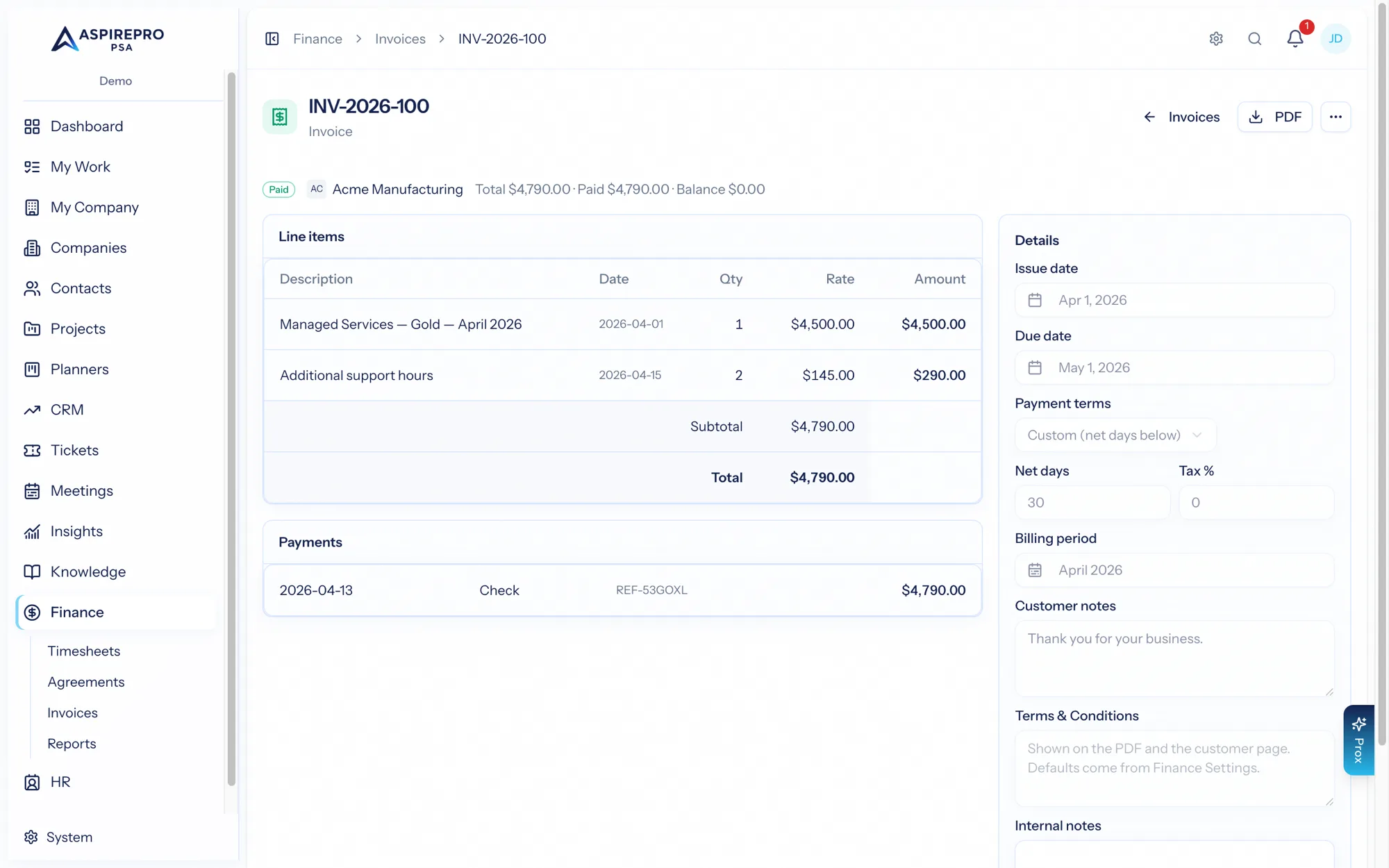
The invoices list#
Finance → Invoices shows every invoice with summary tiles — outstanding, overdue, draft count, and paid this month — and rich filters (company, status, billing period, amounts, dates). Statuses are Draft, Sent, Partial, Overdue, Paid, and Void. Select invoices for bulk duplicate, void, or delete. Save views for how you work.
Creating an invoice#
There are two ways to start one.
From Finance → Invoices, create an invoice for a company, optionally tied to a billing agreement and period. Set the issue date, payment terms (a named Net-N preset or a custom one), tax rate, and the customer/internal notes (defaulted from your settings). Then add the first line items:
- Manual line — anything, with a description, quantity, and unit price.
- From catalog — a line priced straight off your products and services list.
- Add agreement fee — pick the agreement and add its recurring fee line.
- Bill an installment — for an agreement paid in installments, add one installment of it (each is billed once).
Every line you add can be changed before you create the invoice, just as in the editor: its description, quantity and rate (a catalog product starts at its price — change it on the line), whether it's taxable (shown when the invoice has tax), its service date, and where it posts in QuickBooks or Xero. An agreement's fee can be reworded and repriced too — to bill one installment of it, for instance.
Time, expenses and charges are pulled once the invoice exists, from the editor (below) — a time-and-materials agreement has no fee to add here, so create the invoice and pull its time.
Or quick invoice a job — from a ticket or project, which gathers that job's approved time, charges and expenses for you and raises the same kind of draft.
The editor#
The invoice editor lets you refine everything — header fields and every line: description, service date, quantity, rate, taxable, and where it posts. A line saves when you leave the field. Add more with Manual line, Add from catalog, the agreement's fee or an installment, or Pull work (n) — one menu of what that client has waiting to be billed:
- Time (n) — approved, unbilled time (your WIP).
- Expenses (n) — approved billable reimbursements, at cost plus your pass-through markup.
- Charges (n) — the parts, licences and fees recorded on that client's tickets and projects, at the price they were recorded at.
Each opens a picker; the counts show what's waiting. Invoices stay editable even after sending (edits are audited); only Paid and Void invoices are frozen.
Under each line's description sits how Profitability counts its money: Counted as labor (your team's hours are behind it — time, agreement and service lines) or Counted as pass-through (money that moves through you — expense lines, products, and any catalog item marked pass-through, such as ad spend, hardware, licences or hosting resale). Click it to flip a single line; the catalog item's own setting (System → Products & services → Counts in Profitability as) sets the default for every invoice it lands on. Pass-through money is left out of Efficiency and $/hour earned, and out of Return while client expenses are switched off there. It changes nothing about the invoice itself, its tax or where it posts.
Anything you pull is claimed the moment it lands on a line: it leaves that client's unbilled pool and nobody else can bill it. Remove the line and it goes straight back. If two people pull the same entry at the same moment, one of them gets it and the other is told so — the client is never billed twice for it.
Sending#
An invoice is made as a draft when you click Create invoice; from the invoice you then send it now, or schedule it to go out later.
Send does one thing: it sends the invoice the way your organization sends invoices. Choose that once, in System → Finance settings → Invoices → Invoices are sent via:
- AspirePro emails them — AspirePro's PDF and email, with a Pay now button when Pay now is on. With QuickBooks connected, Put each invoice in QuickBooks too (on by default) makes or updates its QuickBooks copy, with the recipients as its email, as it goes.
- QuickBooks emails them — AspirePro puts it in QuickBooks with the recipients as its email, then QuickBooks emails it — QuickBooks' own email, PDF and pay link (set its wording in QuickBooks). If QuickBooks can't email it — or its copy can't be brought up to date first, so it would go out as QuickBooks has it — nothing is sent and you're told why.
- Stripe and Xero — Stripe's hosted payment page, or an approved Xero invoice (Xero can email it).
If the way chosen stops working because its login expired, invoices go out by AspirePro's email until it's reconnected, then go its way again by themselves. If it's disconnected, they go out by AspirePro's email from then on; choose the way again once it's reconnected. An invoice QuickBooks or Xero works out the tax for is never sent without that tax: while that system isn't connected, sending it stops and says why (see Sales tax). Sending happens in the background: the dialog closes at once, the button says Sending…, and it carries on if you leave or refresh the page. When it's done you're told how it went; if it couldn't go, or went with something to check (no tax where some was expected, QuickBooks' copy not updated), you're told here and in your notifications, and it's in the audit trail; a send that couldn't go is never tried again by itself. While it's going, Send later… and Delete wait too — the ⋯ menu says so. If the invoice mailbox is handed the email and doesn't answer in time, the send is neither a success nor a failure: the invoice stays a draft, nothing is sent again by itself, and you're told to check the mailbox's Sent folder before sending again. The invoice page says so to everyone who opens it ("Its last send may have gone …") until someone settles it: Mark as sent (it went) records it as sent to the people it went to — nothing is emailed again, and payments and reminders treat it as out — or It didn't go makes it an ordinary draft again. Mark as sent is only offered for such a send, needs the Send permission, and is refused if the invoice has changed since (send it again instead); both are on the audit trail. Until it's settled the draft can't be deleted. A send that waited so long to start that the page says "never started — send it again" doesn't go when the worker comes back; it's reported as not sent. Put in QuickBooks (or Update in QuickBooks) in the invoice's ⋯ menu makes or updates its QuickBooks copy and emails no one. The invoice stays a draft here, marked In QuickBooks, until you send it; sending then brings QuickBooks' copy up to date first.
Send it later — on a draft, the arrow beside Send offers Send now or Send later… (the Send dialog's Send it later box does the same): choose a date and time (in your organization's time zone) and the draft goes out then, exactly as it would now — into QuickBooks, Stripe or Xero first if that's how your invoices go, with any edits made in the meantime. The invoice shows Goes out … (and so does the list) until then; Don't send later takes it off. A scheduled draft can't be deleted until it's taken off the schedule, and while it's actually going the page says Sending now (scheduled)… — it can't be re-scheduled, stopped or deleted for those few seconds. It goes as the person who scheduled it. It goes the way invoices go at that moment, not the way they went when it was scheduled: if QuickBooks has been disconnected since, or How invoices are sent was changed, it goes the new way (AspirePro emails it, say) and the invoice keeps a note — "Scheduled to go through QuickBooks, but QuickBooks is disconnected, so AspirePro emailed it." — and you're told. A waiting draft says so ahead of time: "This will now go through AspirePro email, not QuickBooks." The exception is a send chosen with no email to the client — Stripe's Just create the payment page or Xero's Just create it in Xero: it's never switched to a way that emails the client. If Stripe (or Xero) is gone, or invoices now go another way, it doesn't go — it stays a draft, says why, and you're told — and the waiting draft says ahead of time that it won't go. If it can't go when the time comes — the client's mailbox refused it, say — it stays a draft, the invoice says why, and you're told; it isn't tried again by itself. Good for installments: bill the first and send it now, bill the next two on their own drafts and schedule them for their due dates.
Who it goes to — the dialog starts with whoever the invoice was sent to last — or, before its first send, the client's Billing contacts, else its point of contact; with neither, To starts empty for you to fill in — and lists the client's contacts with an email — tap one to add or remove it, or type any address. Up to ten. Cc copies anyone else (up to ten): they get AspirePro's email and its payment reminders, and QuickBooks' copy carries them as its Cc, so QuickBooks' own email copies them too. Stripe and Xero email only their own customer or contact, so there's no Cc when invoices go out through them.
Before anything goes out, the due date is set from the payment terms, so the PDF, the email and QuickBooks or Xero carry the same date (Net 0 is due the day it's sent; Stripe can't take a same-day due date, so its copy is due the next day, and you're told so). If QuickBooks or Xero works out the tax, it's worked out first; nothing goes out without it. AspirePro's email goes out through your invoice mailbox if you've connected one, else your organization email (System → Mail settings), else AspirePro's own address with your organization's name on it. Replies go to (Finance settings → Invoices) says where a client's reply to an invoice, a payment reminder or a quote lands — whoever or whatever sent it, a recurring schedule included. Left empty, replies go to the invoice mailbox, your organization email, your business email (System → Organization), or else the person who pressed Send; the Send dialog and the client's invoice page say which. You can preview the email and the PDF before sending.
Recurring invoices and reminders#
- To bill a client the same thing on a schedule, set up a recurring invoice — AspirePro makes each one on its date, as a draft or sent automatically.
- Unpaid invoices can get payment reminders — from AspirePro on the days you choose, or from QuickBooks, Xero or Stripe. An invoice's page lists the reminders it got.
Getting paid#
- Record payment — log a payment with its amount, date, method (cash, check, credit card, ACH, other), reference and memo. The invoice settles to Partial or Paid automatically. A manual payment can't exceed what's still owed, so an invoice never reads as over-paid because of a typo.
- Receive payment — on an invoice that's also in QuickBooks or Xero, the same dialog records the payment there too, with the choices the other system asks for: deposit to (QuickBooks' Undeposited Funds or a bank account; for Xero, the bank account) and QuickBooks' own payment method. The reference goes in as QuickBooks' reference number. It's recorded here straight away; if QuickBooks or Xero can't be reached, it waits on Finance sync and goes as soon as it can. Each payment shows whether it's in QuickBooks, sending, or needs a decision. An invoice that came from QuickBooks always sends its payment there — QuickBooks owns that invoice's balance — so you can mark a QuickBooks invoice paid without logging in to QuickBooks. So does an invoice whose QuickBooks copy carries a pay link: until the payment is in QuickBooks too, QuickBooks Payments keeps asking the client for the full amount.
- When Stripe is collecting the invoice — it was sent through Stripe, or a client has a Pay now page open for it — recording a payment here passes it on: the payment page is closed, and Stripe's copy is marked paid outside Stripe (paid in full, so Stripe's reminders stop) or credited down to the new balance (paid in part, so Stripe's page asks for what's still due). The dialog says which will happen. A payment QuickBooks or Xero reports does the same. If Stripe can't be reached it's retried from Finance sync; if Stripe refuses, it's a decision there.
- Marked paid in Stripe — if someone marks the Stripe copy paid outside Stripe in Stripe itself (a check arrived, say), that's recorded here as a payment (method Other), so the invoice stops being owed. When AspirePro made the mark itself, for money already recorded here, nothing more is recorded.
- Paid more than owed — if a payment provider takes money after the invoice was already settled (a client finishes a Stripe page in the minutes before it could be closed, say), the money is recorded as it happened — never capped — and the invoice shows a notice: refund the extra where it was taken, and the notice clears when the refund syncs back. The same item is on Finance sync until then.
- Remove payment — deleted the wrong amount into the wrong invoice? Remove the payment with a reason and the invoice recalculates: Paid falls back to Partial, Partial back to Sent or Overdue. Only payments somebody recorded by hand can be removed — anything Stripe or your ledger recorded stays as the provider reported it. A payment AspirePro put in QuickBooks or Xero is deleted there first; if they refuse (a closed period, say), nothing changes here and you're told why. A payment someone entered in QuickBooks themselves is never deleted from it. If Stripe is collecting the invoice, its copy is brought back up to the new balance. A copy that was marked paid outside Stripe for the payment can't be un-paid in Stripe: you're told, the invoice is listed on Finance sync until it's paid, and Pay now (through Stripe) opens a new Stripe payment page for the balance. Every removal is on the audit trail with who did it and why.
- Void — cancel an invoice with a reason; everything it billed — time, charges and expenses alike — is released back to the unbilled pool so it can be billed correctly later. Deleting a draft does the same. If the invoice also lives in Stripe, QuickBooks or Xero, it's cancelled there too, and its work is held until they confirm — see Finance sync. An invoice with money on it can't be voided.
- Payments from outside — Stripe payments and refunds, and QuickBooks payments (including edits, moves and deletions), come back on their own — right away, or within 15 minutes while the invoice is unpaid. Xero payments come back within 15 minutes while it's unpaid (overnight otherwise), new ones and deletions. See how soon payments show up. A refund still in progress at Stripe shows as pending and doesn't reopen the invoice until it goes through.
- Duplicate — spin up a fresh draft from an existing invoice.
The public payment page#
Every invoice has a branded public page at its own secure link, where the client can view the invoice and download the PDF without signing in — a clean, professional way to share a bill. With Pay now on, it also takes payment online.
On the company#
A company's Finance tab pulls it all together for that client: Agreement vs. Reality coverage, work in progress — unbilled time, unbilled expenses and unbilled charges, each with its own figure and list — their agreements and invoices, and anything mirrored from QuickBooks.
Account managers can be given that tab without giving them the whole ledger: the company Finance permissions let someone open their client's agreements, invoices, PDFs and payments from the company record — and, with the manage grain, author them — while the module-wide lists, reports, and Finance landing page stay behind full Finance access.
Deleting a company outright is refused once it has issued financial paper — an invoice or an agreement is a record you have to be able to produce later. Archive the company instead; its history stays, labeled.
An invoice whose client was archived still opens — read-only, with the client shown as archived. It can't be edited, sent or paid online, but payments can still be recorded against it. Restore the client to work on it again.
Because invoices draw straight from approved time and agreements, billing is largely assembling what the platform already knows — pull the WIP, add the agreement line, send. See QuickBooks to mirror it all into your accounting system.