Workflows let projects and tasks run themselves. Each workflow is a rule that reads: WHEN something happens, IF the conditions match, THEN do these actions. Use them to warn an owner before a budget runs out, chase a project that has gone quiet, or assign and tag tasks as they move.
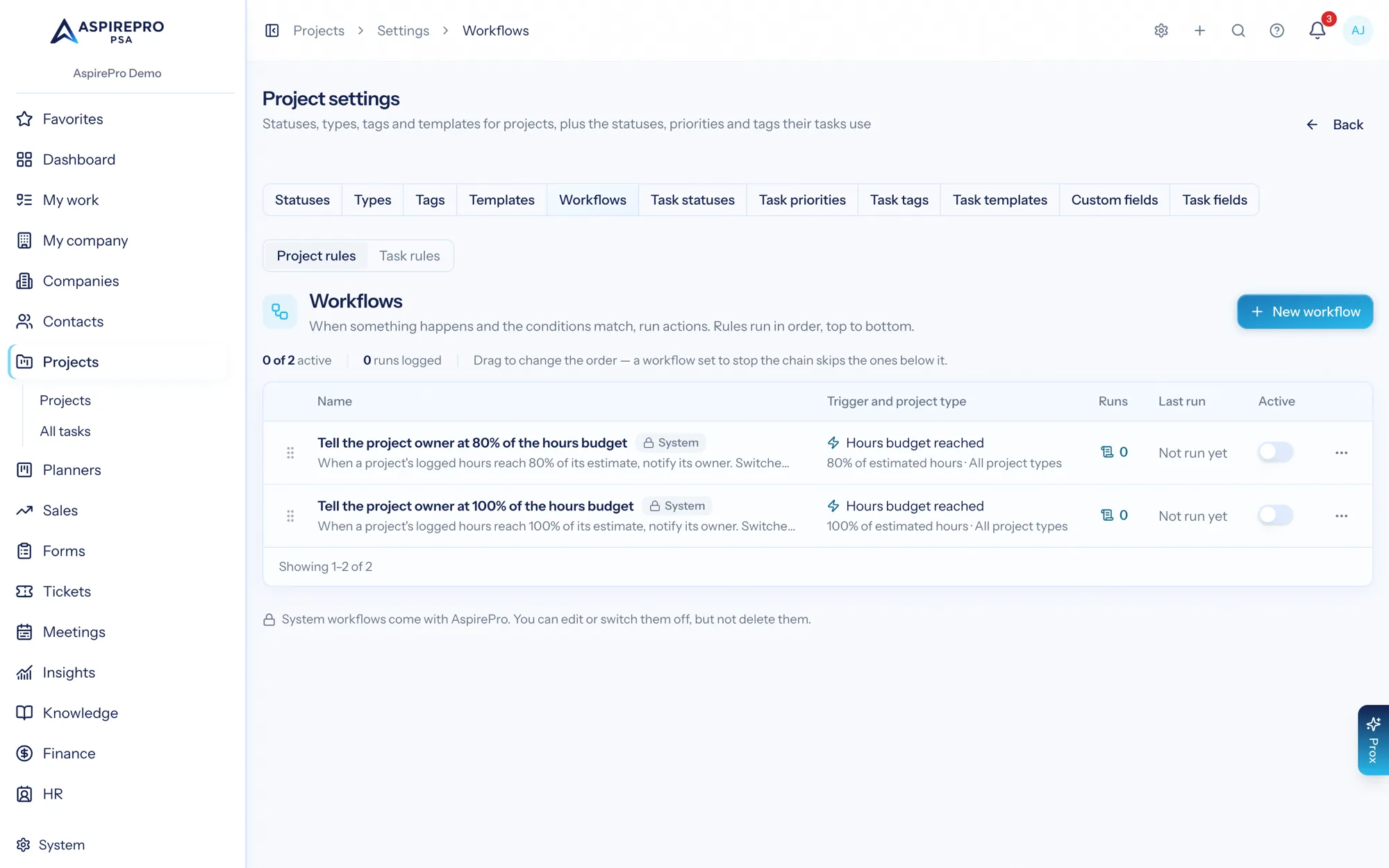
Open them under Projects → Settings → Workflows. There are two lists, and a switch at the top moves between them:
- Project rules act on whole projects.
- Task rules act on the tasks inside projects.
Workflows run on their own in the background. Nobody has to open a project for them to work.
Who can see and change them#
- View project automations lets someone see the rules, test them and read their run log.
- Manage project automations lets someone create, edit, reorder, switch on and off, run and delete rules. Anyone with Project settings has both.
- Adding an action that changes a project or task (a status, an owner, a tag, a note, an assignee) also needs someone who can see every project: Project settings or Manage all projects. A rule can't be limited to one project, so this stops it from writing to projects its author can't open. Send a notification is open to anyone who manages project automations.
A notification only goes to people who can open the project. Someone who can't is skipped.
How rules run#
- Rules run top to bottom in the order listed. Drag them to reorder.
- A rule can be set to stop later workflows when this one matches, so a specific rule can come before a catch-all.
- Each rule has an Active switch. Switch a rule off to keep its setup without running it.
- A rule can apply to all project types or to one project type. A task rule uses the type of the task's project.
- Rules never run on project templates or on the tasks inside them.
- Changes a rule makes are shown in the audit log as "Automation: rule name: what changed", with no person behind them.
Project rules#
When#
- Project created: from any screen, from Prox, or by another workflow.
- Status changed
- Project completed: the project moves to a status that counts as completed.
- Owner changed: the owner is set, changed or cleared.
- Project archived and Project restored
- Time logged: time is logged on the project or on one of its tasks.
- Phase completed: someone marks one of the project's phases complete. It runs once per phase: reopening a phase and completing it again doesn't run the rule a second time. Add a Phase condition to act on one phase only.
- A custom field changed: pick one field, or leave it empty for any. See Custom fields.
- Hours budget reached: logged hours reach a percentage of the project's estimated hours. Choose the percentage and whether to count all hours or billable hours only.
- No time logged: nobody has logged time on the project for a number of days.
- Gone quiet: no time logged and no task created, completed or commented on for a number of days.
- Overdue: the project is past its due date and not completed.
- Due soon: the project is due within a number of days (0 means on the day) and not completed.
The last five are time-based. They are checked every hour and fire once for each situation:
- Hours budget reached fires once per crossing. If the hours drop back below the line (time moved or deleted) it can fire again. Raising the estimate starts a new crossing.
- No time logged and Gone quiet fire once per quiet stretch. Any new time or activity starts the count again.
- Overdue and Due soon fire once per due date. Moving the due date starts again.
If#
Conditions decide whether the actions run. Build them as groups that match all or any of their contents. A project rule can test:
- the project's name, status, type, tags, owner, the phase just completed (Phase completed only), whether it is billable, start date, due date and age;
- estimated hours, hours logged, hours budget used (%), open tasks, overdue tasks and days since time was logged;
- whether it is overdue or archived;
- the company name and the point of contact;
- custom fields.
Leave the conditions empty and the actions run whenever the trigger fires.
Then#
A rule must have at least one action. Actions run in order:
- Set status
- Change owner: pick a person, or clear the owner. The new owner also becomes the project's owner member.
- Add tag and Remove tag
- Add a note: an internal note on the project with no author, titled "Automation".
- Send a notification: to the project owner, one person, or everyone with a role.
- Set a custom field
Task rules#
Task rules work on project tasks only. Tasks on planner boards never trigger them.
When#
- Task created: a task is added to a project. Tasks that arrive with a template or a copied project come with the project, not one by one, so they don't fire this.
- Task completed and Task reopened
- Status changed
- Moved to another column
- Priority changed
- Due date changed: set, moved or cleared.
- Time logged: time is logged on the task.
- A custom field changed
- Overdue: the task is past its due date and not done.
- Due soon: the task is due within a number of days (0 means on the day) and not done.
Overdue and Due soon are checked every hour and fire once per due date. Moving the due date starts again.
If#
A task rule can test the task's name, status, priority, column, tags, whether it has an assignee, due date, start date, estimated hours, whether it is overdue, whether it is a subtask or has subtasks, and its age. It can also test the project's name, type and status, and custom fields.
Then#
- Set status: a "done" status completes the task, and an open status on a done task reopens it. Both go through the normal rules, so blockers, required time and subtask rules still apply. If a completion is refused, the action fails and the run shows why. It is never forced.
- Set priority
- Assign: add one person, or clear every assignee.
- Add tag and Remove tag
- Add an internal comment: never shown to the client.
- Send a notification: to the task's assignees, one person, or everyone with a role.
- Set a custom field
Test before you commit#
Workflows are powerful, so check them first:
- Test checks the rule against your active projects (or the open tasks in them) without changing anything. It shows how many would match and how many actions would run, with a sample. A rule that uses "changed" conditions needs a real change to match, so a test can show zero even when the rule is fine.
- Run now applies the saved rule to all matching projects, or to the open tasks in them. This does make changes, so it asks you to confirm. It runs in the background, and you get a notification when it is done, with how many matched and how many actions ran. The notification links to the rule's run log.
- The Run log lists every run: when it happened, which project or task, the trigger, whether it matched, the outcome and how long it took. Open a run for the detail, including any error.
Archived projects are left out of Test and Run now.
Ready-made rules#
Every organization starts with two project rules, switched off:
- Tell the project owner at 80% of the hours budget
- Tell the project owner at 100% of the hours budget
Switch one on to use it, or edit it first. They can be switched off but not deleted.
Good to know#
- Workflows can set each other off, for example a deal rule that creates a project whose rule adds a task. System → Organization → Automations sets how many can follow each other, and how long run history is kept. See Organization.
- A rule on Project created or Task created waits a few seconds before it checks, so details added right after (like assignees and tags) are there. That wait is also set under Automations.
- Prox and your AI tools can read, create, edit, test, switch on and off, and delete these rules, using the same permissions and checks as this page.
- Deal workflows can create a project from a template and add tasks to it. See Workflows & automations.
- If the server fails part-way through a rule, the actions it already did can run again when it retries. Creating a project from a won deal and the Phase completed trigger are protected against running twice.
- Run now changes records like any other rule run, so its changes can set off other rules (up to the organization's limit on automations in a row).