Open a project to see its record. The Overview is the landing page; tabs across the top open its other facets.
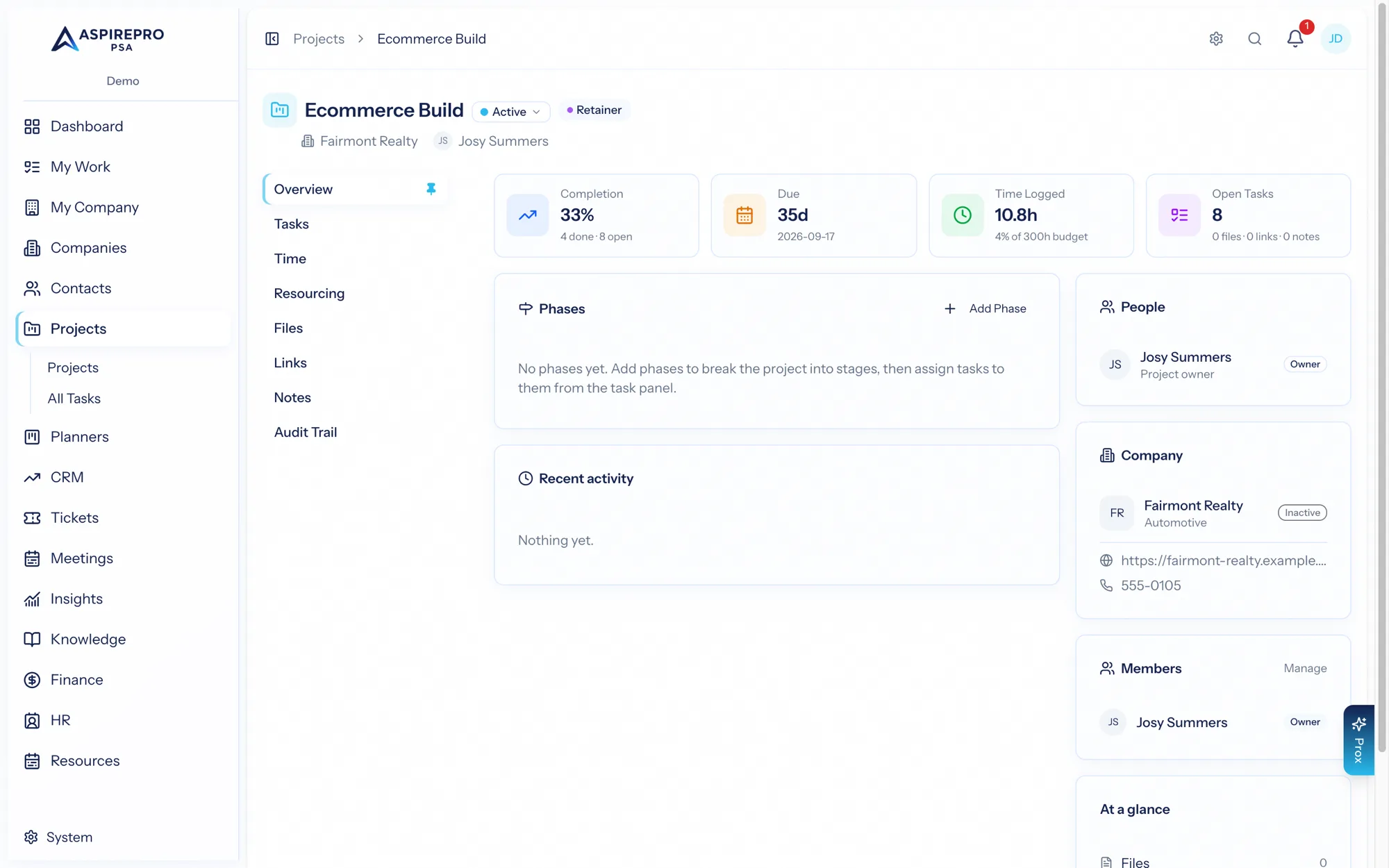
Overview#
The overview summarizes the project at a glance with stat tiles — completion %, due (days remaining), time logged (against budget), and open tasks — alongside cards for the latest notes, the point of contact, the company, and the project's phases. From here you can jump to the board or any tab, and change the project's status inline.
Members and access#
A project has members, each with a role (Viewer, Editor, or Admin) that governs what they can do on this project — on top of their overall permissions. Add and remove members and set their roles from the project's settings.
You can also flip a project to all-users access, giving your whole organization visibility without adding everyone individually — useful for internal or company-wide projects.
Tickets#
With the Tickets module on, the Tickets tab lists the support tickets linked to this project (linking happens on the ticket's conversation page). Tickets on boards you can't access are counted but not shown — the tab tells you they exist without leaking them.
Files#
The Files tab gathers documents attached to the project and every file attached to its tasks, labeled by where it came from — so the project's whole document trail is in one place.
Links#
The Links tab does the same for URLs — project links and task links rolled up together.
Notes#
Rich-text notes for the project — decisions, context, meeting takeaways. Each note records its author, and you can edit and remove them.
Resourcing#
The Resourcing tab shows how people are allocated to the project, connecting delivery to the Resource Management picture.
Time#
The Time tab shows time logged against the project — by whom, against which tasks, and how it tracks to budget. Time flows from task work sessions and timers into billing when the Finance module is on.
Underneath the entries, Charges records what the project cost the client besides time — hardware, licences, fees — priced from your products and services list or written as a one-off line. See Charges on a job.
With Finance on and a client on the project, Quick invoice raises a draft invoice from the project's approved time (including time on its tasks), its charges and its expenses. See Quick invoice a job.
Audit#
An immutable log of every change to the project — status changes, membership, edits — with who and when.
Editing a project#
The project's edit screen is where you set its name, status, type, owner, point of contact, agreements, members, and access, and where you enable Git integration and manage recurring tasks. The point of contact must be a contact at the project's company.