At the heart of both Projects and Planners is a single, powerful task engine — the board you organize work on and the panel you manage each task from. Learn it once here and it works identically in Planners.
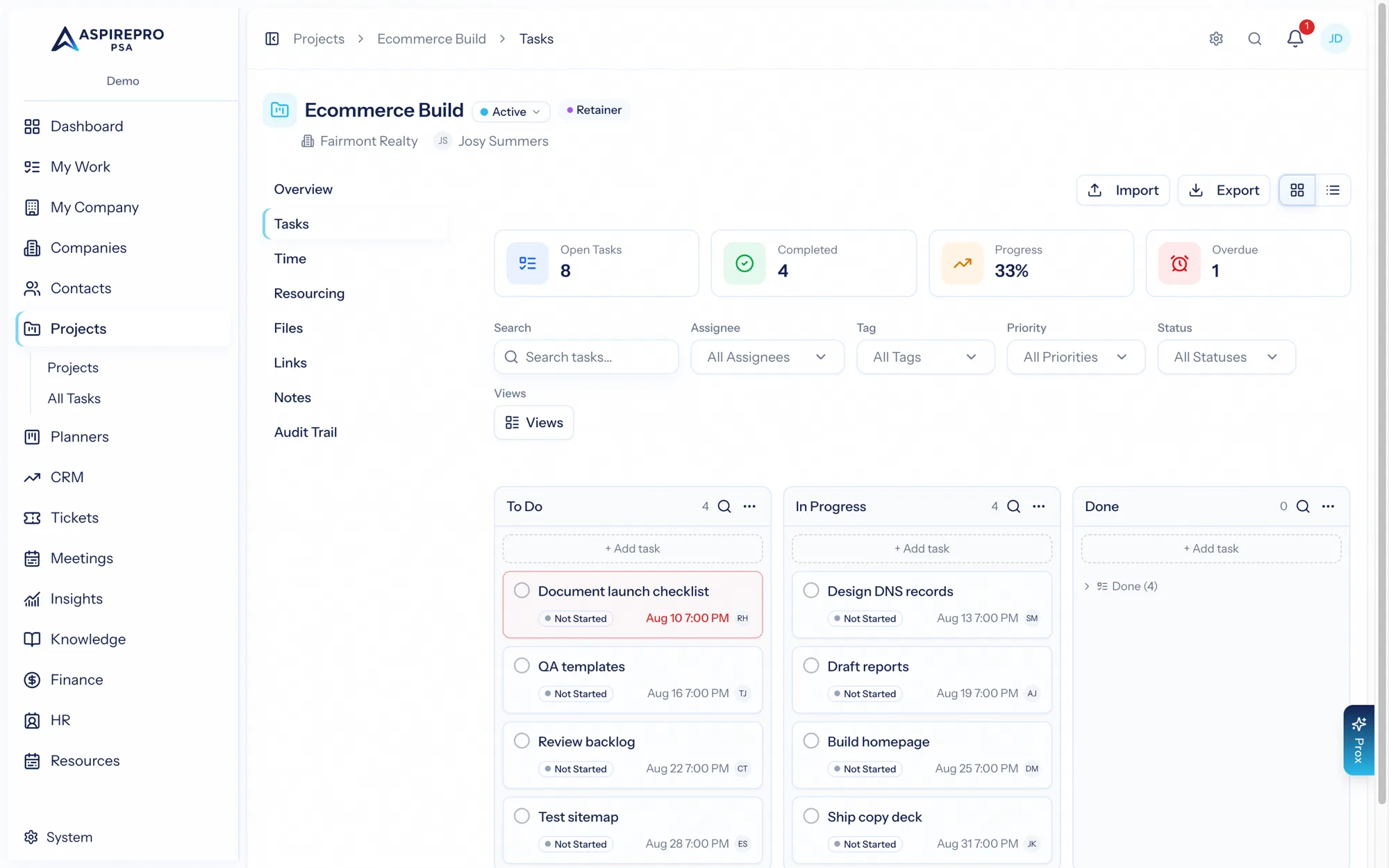
Buckets and the board#
Work is organized into buckets — the columns on the board. Create, rename, reorder, and remove them to model your workflow (stages, workstreams, sprints — whatever fits). Each bucket keeps its completed tasks tucked away in a collapsible list.
The board has two views:
- Board (Kanban) — cards in columns you drag between.
- List — the same tasks as a table.
You can group by bucket, status, or priority, edit cells inline, search and filter, and save views. The board also supports CSV export and Markdown import (below).
Tasks#
Create tasks in any bucket, then move, complete, and reopen them. A task carries a name and description, a status and priority, start and due dates, a progress slider, an estimate, assignees, and tags — plus a phase on projects (see Phases).
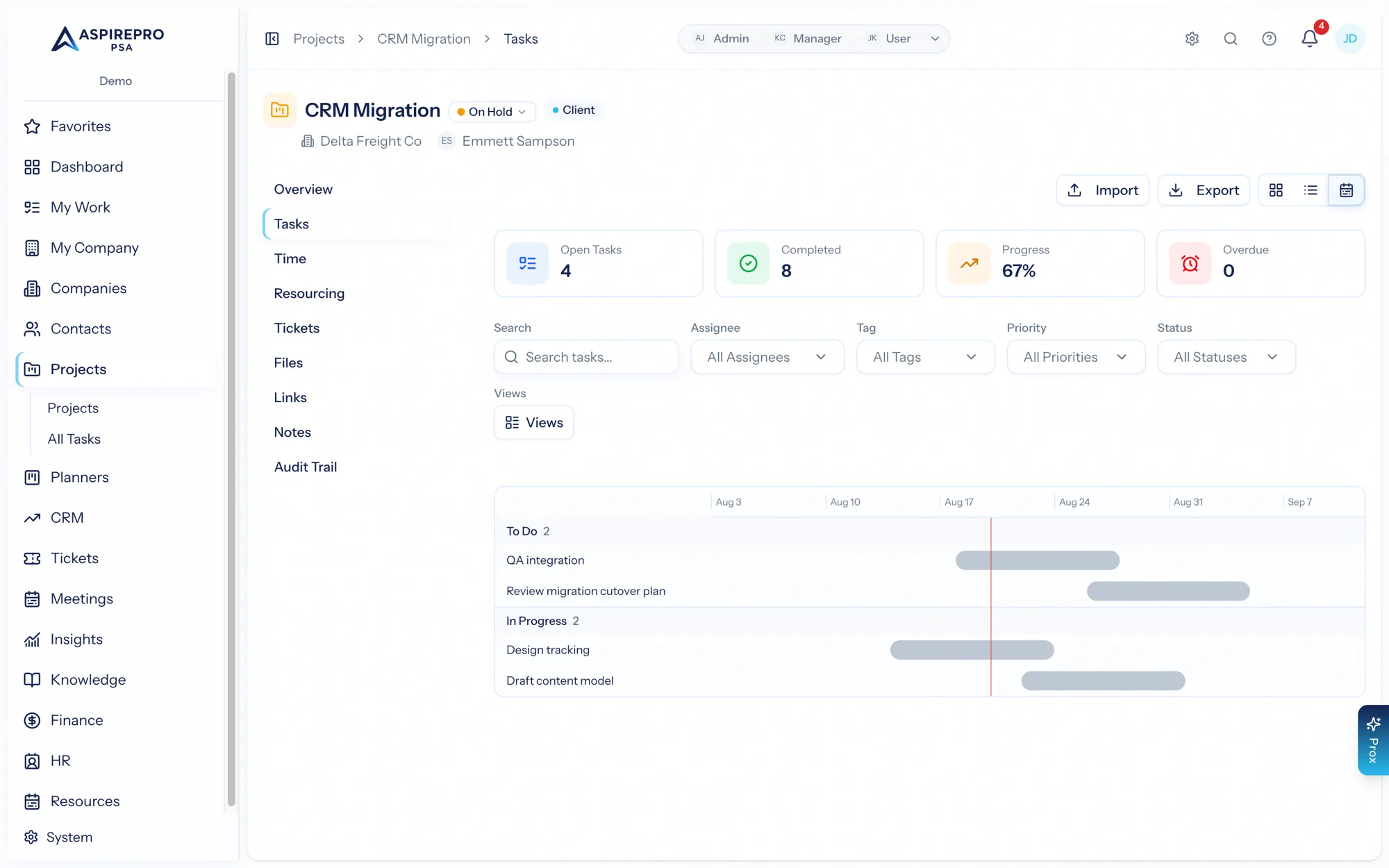
Beside the board and list views sits the timeline view: every dated task plotted as a bar on a shared week axis, grouped by bucket, with a today line and overdue outlines — the campaign-at-a-glance view for layered work. Unscheduled tasks list beneath it, one click from getting dates.
From a task's ⋯ menu you can duplicate it or move or copy it to any planner or project you can edit — subtasks come along, the task keeps its token, and its status maps into the destination's vocabulary. Copy leaves the original in place (checklist, tags, and assignees carry over); move relocates it. The bucket headers also show open/total counts so a column's real workload reads at a glance.
The ⋯ menu also offers Start timer and Add time entry (a quick date-duration-note dialog, no need to open the full panel) and, on busy boards, Move to bucket as its own submenu. Right-click any card or list row to open the same menu without hunting for the ⋯.
The task panel#
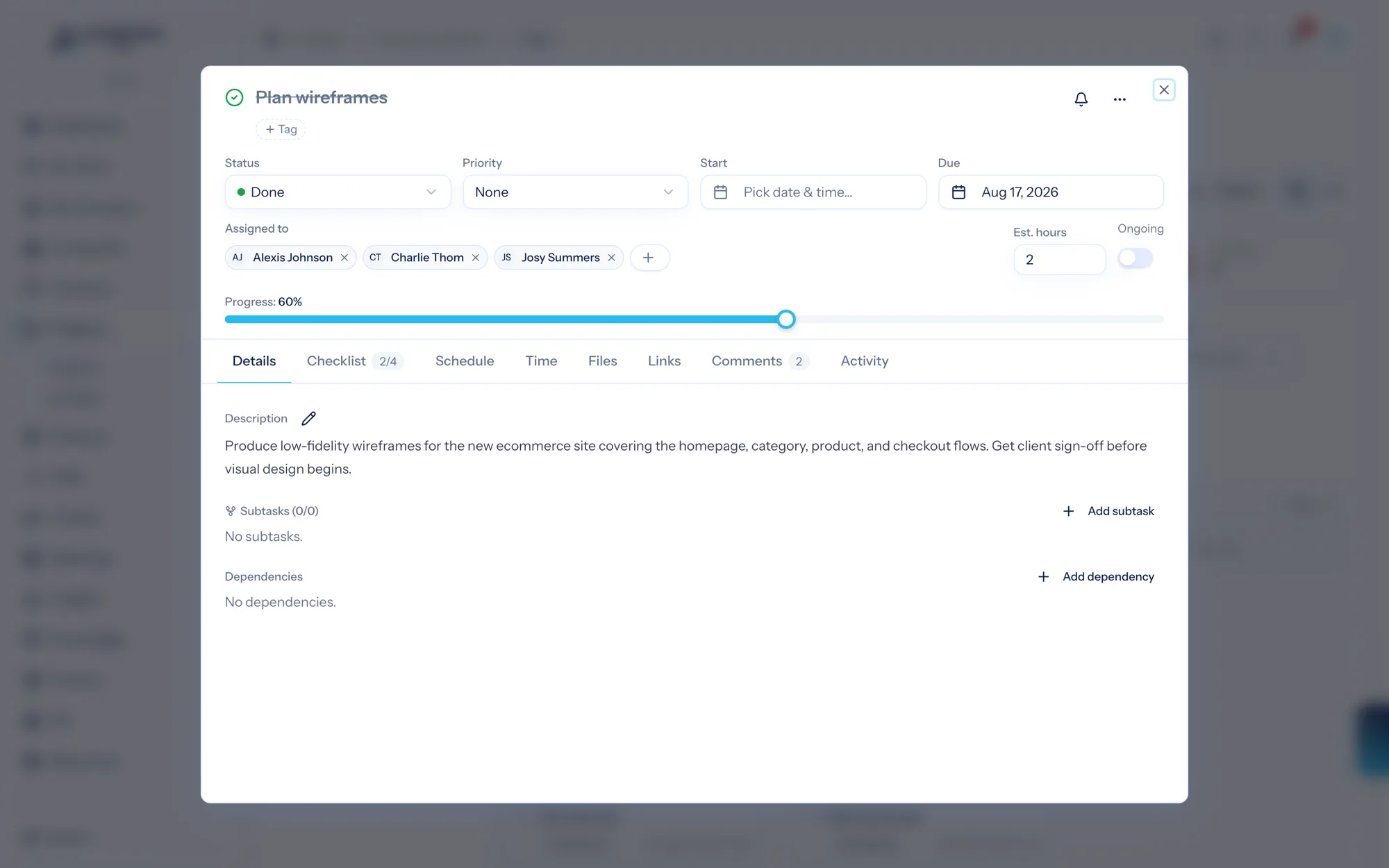
Open a task to work it in a rich side panel with tabs:
- Details — all the task's fields.
- Checklist — a sub-list of steps to tick off.
- Schedule — book work sessions (scheduled blocks) that appear on the My Work calendar.
- Time — log time against the task.
- Files — attachments.
- Links — related URLs.
- Comments — discussion, with reactions, editing, and (on projects) the option to share a comment with the client.
- Activity — the task's change history.
Dependencies#
Mark a task as blocked by another. AspirePro prevents circular dependencies and treats a task as blocked while any dependency (or a required subtask) is still open — so the board reflects what's genuinely ready to work.
Subtasks#
Break a task into subtasks, or make an existing task a subtask of another. Subtasks show as nested cards, and the parent's card wears a small done/total badge (green once every subtask is finished).
The parent task's own progress bar stays yours — subtasks never overwrite it. Their state shows in a separate read-only rollup ("3/10 · 42%") above the subtask list, and when the last subtask completes, the panel offers a one-click "All subtasks done — complete this task?" nudge.
Review workflow#
Send a task for review to one or more approvers with a note. Each reviewer can approve or request changes (with a required comment), and the task's status reflects where it stands. Great for work that needs sign-off before it's done.
Recurrence#
Set a task to recur on a schedule — preview the upcoming occurrences, and run the next one on demand. Ideal for repeating delivery work.
Markdown import#
Have a plan in a document? The Markdown import turns a markdown outline — headings, list items with optional due dates and assignees, nested checklists — into tasks and subtasks. Preview what it will create, then commit.
Bulk actions#
Select multiple tasks to update them together — status, priority, assignee, and more — up to a couple hundred at a time.