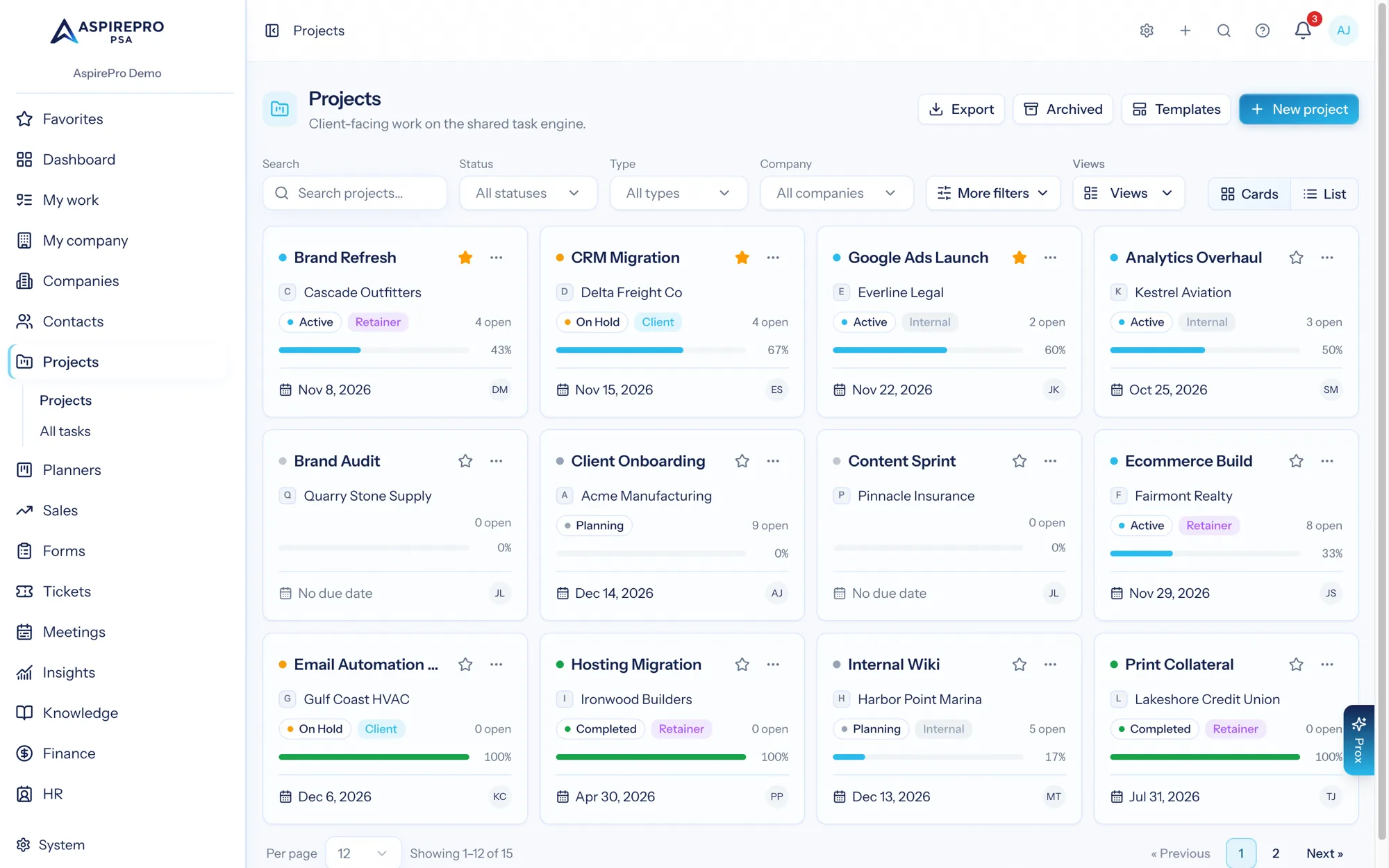
The Projects list doubles as your portfolio: switch it to List view and each project shows where it is, how much of its hours budget it has used and what's due next. The same rows are available as the Project portfolio dashboard widget, so the view you check on Monday can sit on a dashboard and go out in a scheduled report.
The delivery columns#
Five columns sit beside the usual ones. Phase, Hours burn and Next milestone show by default; Reviews and Agreement are one click away in Columns. If you saved your own column layout before these existed, the first three appear once and the last two stay hidden until you turn them on.
Column | What it shows |
|---|---|
Phase | The current phase — the first active one, or the first upcoming one when none is active — with how many phases are done and who owns the current one. "All phases complete" when every phase is done. Blank on a project without phases. |
Hours burn | Hours logged against the project's hours budget (its estimated hours), as a bar and "46 of 120 h". The bar turns red once the project has logged more than its budget. A project with no hours budget says so and shows the hours logged. |
Next milestone | The earliest end date among phases that aren't complete. With no dated phase, the earliest due date among open tasks (ongoing tasks never count). Shown in red with "Overdue" once the date has passed. |
Reviews | Open tasks waiting in review: how many are in review and how many have changes requested. |
Agreement | The agreement the project's time is billed through, with its client PO. Offered to the people who can open the agreement pages: View agreements or View client finance, while Finance → Agreements is on. |
How hours are counted. Hours burn uses exactly the project page's rule: time logged on the project and on its tasks, with rejected time and time on deleted tasks never counted. The list and the project's Overview always show the same number.
Filtering by health#
The Health filter (under More filters) narrows the list to projects in one or more of these states. A project is in exactly one of the first four; "Over budget" can overlap them.
- Complete — its status is a completed status.
- Late — it is past its due date.
- At risk — it has overdue tasks (open, not ongoing, past their due date) or has logged more hours than its budget.
- On track — none of the above.
- Over budget — it has logged more hours than its hours budget.
Health looks at live projects, so it returns nothing while Archived is switched on. The filter is saved with a saved view like any other filter.
The Project portfolio widget#
On a dashboard, Add widget → Projects → Project portfolio lists your live projects with the same phase, burn and next-milestone summary, each colored by its health. Choose whose projects (yours, your team's or everyone's you can open) and narrow by health. The bar is the share of the hours budget used; a project with no budget shows 0 and says "No hours budget". Click a project to see its open tasks.
You only ever see projects you can open. Prox and AI clients can read the same widget through the Insights tools.