A project's Status reports tab is where you tell the client how things stand: the overall status, a short summary, the phases, what's coming up, what got done and what needs attention. Each report has two copies:
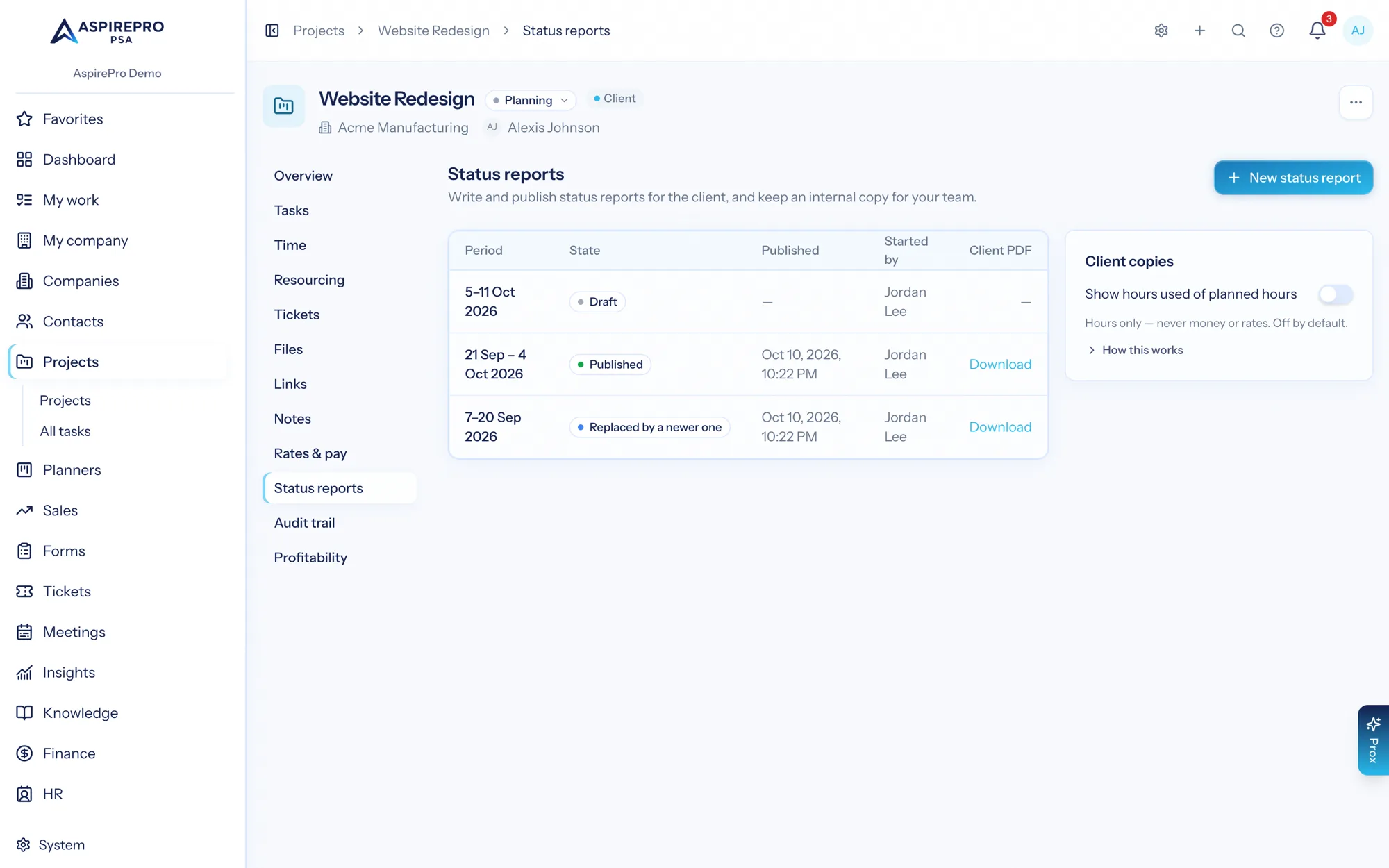
- the client copy, which is what the client gets, and
- the internal copy, for your team, which adds the detail clients never see.
The tab appears when Dashboards & Reporting → Reports is turned on for your organization.
Writing one#
Click New status report. A new draft picks up the day after the last published report ended (or covers the last 7 days if there isn't one), up to today. You can change that. On the right you set:
- First day / Last day: the period the report covers (a year at most). "Done in this period" counts the tasks finished between those days.
- Status: From the numbers uses the health the Projects list shows (Off track once the project is past its due date, At risk with overdue tasks or hours over plan, otherwise On track). Pick On track, At risk or Off track yourself when you know better, and say why. The reason shows on the internal copy only.
- Summary: a few lines in your own words.
- Name the tasks: when it's off, the report gives counts ("4 tasks finished") without task names.
- Coming up looks ahead: how far ahead "Coming up" looks, from 7 to 90 days. Anything overdue is listed first.
Click Save to see both copies update. Switch between Client copy and Internal copy above the report.
Anyone who can edit the project (Edit projects plus an editor or higher role on it) can start, change and delete drafts. Everyone with a role on the project can read the reports and download the internal PDF.
Draft with AI#
When AI is on for your organization (System → Features → AI) and the project has a client, Draft with AI next to Summary writes the summary for you. If the box already has text, AspirePro asks before replacing it.
- The AI sees only what's in the client copy: the status, phase progress, what's done, what's coming up and what needs attention, task names (when the report names tasks), and hours only if the client copy shows them. It never sees money, rates, people's hours, stakeholders or internal notes.
- Every sentence it writes is checked against those numbers. A sentence with a figure that isn't in the report is dropped. If none survive, nothing changes and you're told to write it yourself or try again.
- An AI-written summary is marked as not checked, and the report can't be published until someone who can edit the project reads it and clicks It's right to send, or edits it. Edited text counts as your own words. Changing the text after checking it clears the check.
- The internal copy says whether the summary was written by AI, edited, or checked and by whom. The client copy never does.
Each request to the AI is recorded in the audit log (what it was for and how many facts it was given, never the text or the figures).
What the client copy never shows#
The client copy is built from a fixed list of what may go to a client. Money, rates, budgets, billable hours, each person's hours, stakeholders, the reason for a status you set by hand, and record numbers are never part of it. Before anything is published, AspirePro checks the client copy against that list, and it refuses to publish one that holds anything else.
The only people it names are whoever prepared the report and each phase's owner.
Hours. The client copy shows "46 of 120 planned hours used" only when Show hours used of planned hours is on for the project (the switch on the Status reports tab, off by default). Only the project's owner or admins can change it. A prepaid hours block the project draws on appears only if that block is shown in the client portal.
Publishing#
The project's owner or admins click Publish to the client. Publishing:
- saves the client copy exactly as it is at that moment. It never changes afterwards, even if the project does;
- makes the client PDF in the background (Download client PDF once it's ready, usually within a minute);
- replaces the last report you published for the project, which is then marked Replaced by a newer one.
A published report can't be edited or deleted. To change something, start a new one. If the PDF couldn't be made, you get a notification; click Make the client PDF again on the report.
The project needs a client to publish. A project without one can still have internal status reports.
Withdrawing#
Withdraw takes a published report back, with a reason that's kept in the project's audit trail. Its client PDF can't be downloaded or printed again. The report stays on the tab, marked Withdrawn, so you have a record of it.
Turning Show hours used of planned hours off doesn't change reports already published, since they stay exactly as they were sent. If any of them show hours, AspirePro asks whether to keep them or withdraw them at the same time.
The internal copy#
The internal copy adds the detail your team needs: why the status is what it is, billable hours, each phase's planned and logged hours, booked against logged hours per person in the period (when Resource management is on) and the project's stakeholders. Download internal PDF prints it as it is now. Only the person who asked can download that file.
Deleting a project#
A project in the trash keeps its status reports, and they come back with it. When a project is deleted for good, its status reports, published copies and their PDFs are deleted too.