A milestone is a checkpoint someone signs off — "Pen test report accepted by the client", "Kickoff held", "First payment released". It is not the same as a phase: a phase is a stretch of work ("Testing, Oct 1–20"), a milestone is the moment a piece of it counts. A phase can hold two milestones, a milestone can sit on no phase at all, and a project with no phases can still have milestones.
Milestones are optional. Add them to any project from its Milestones card on the Overview, beside Phases.
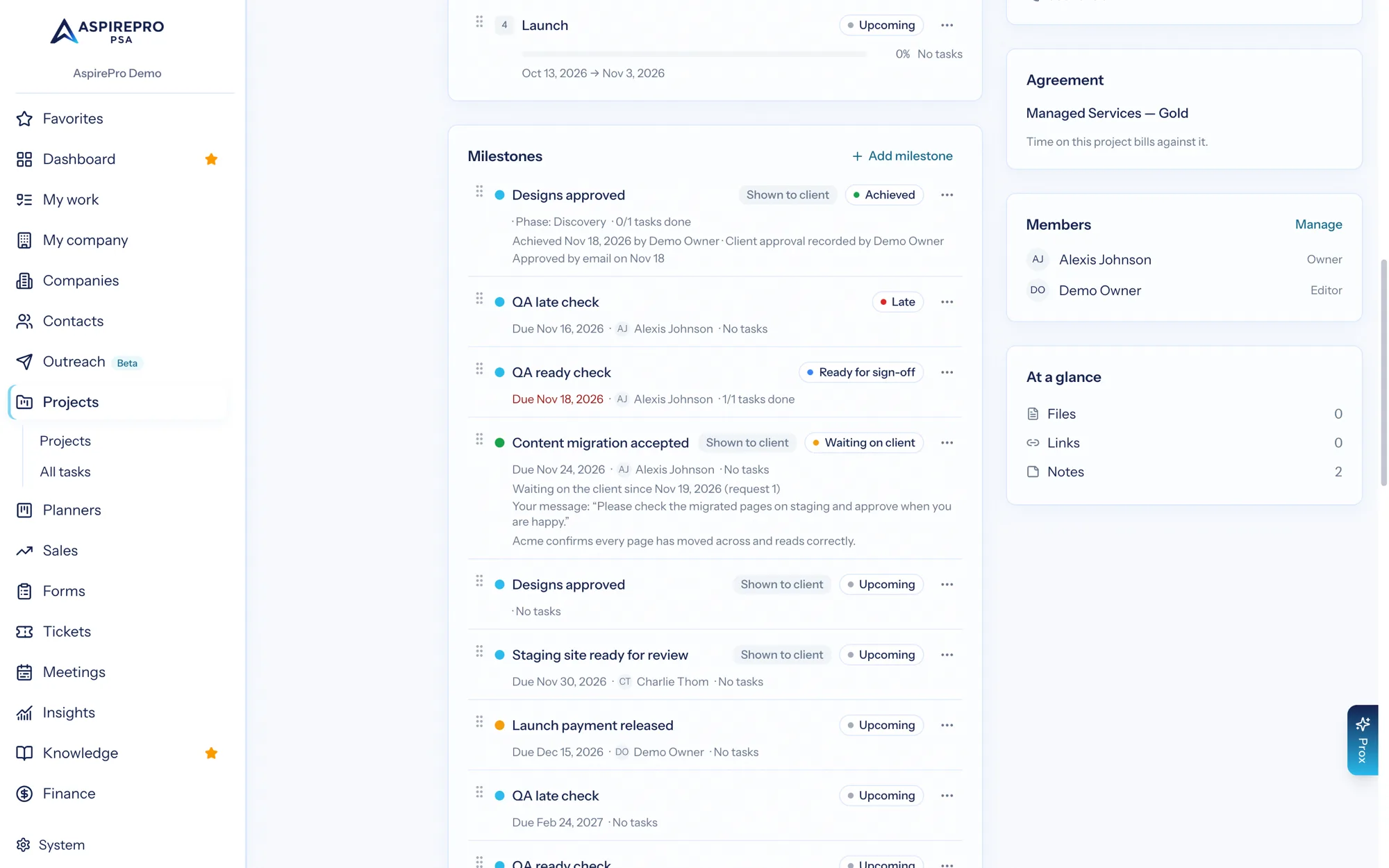
What a milestone has#
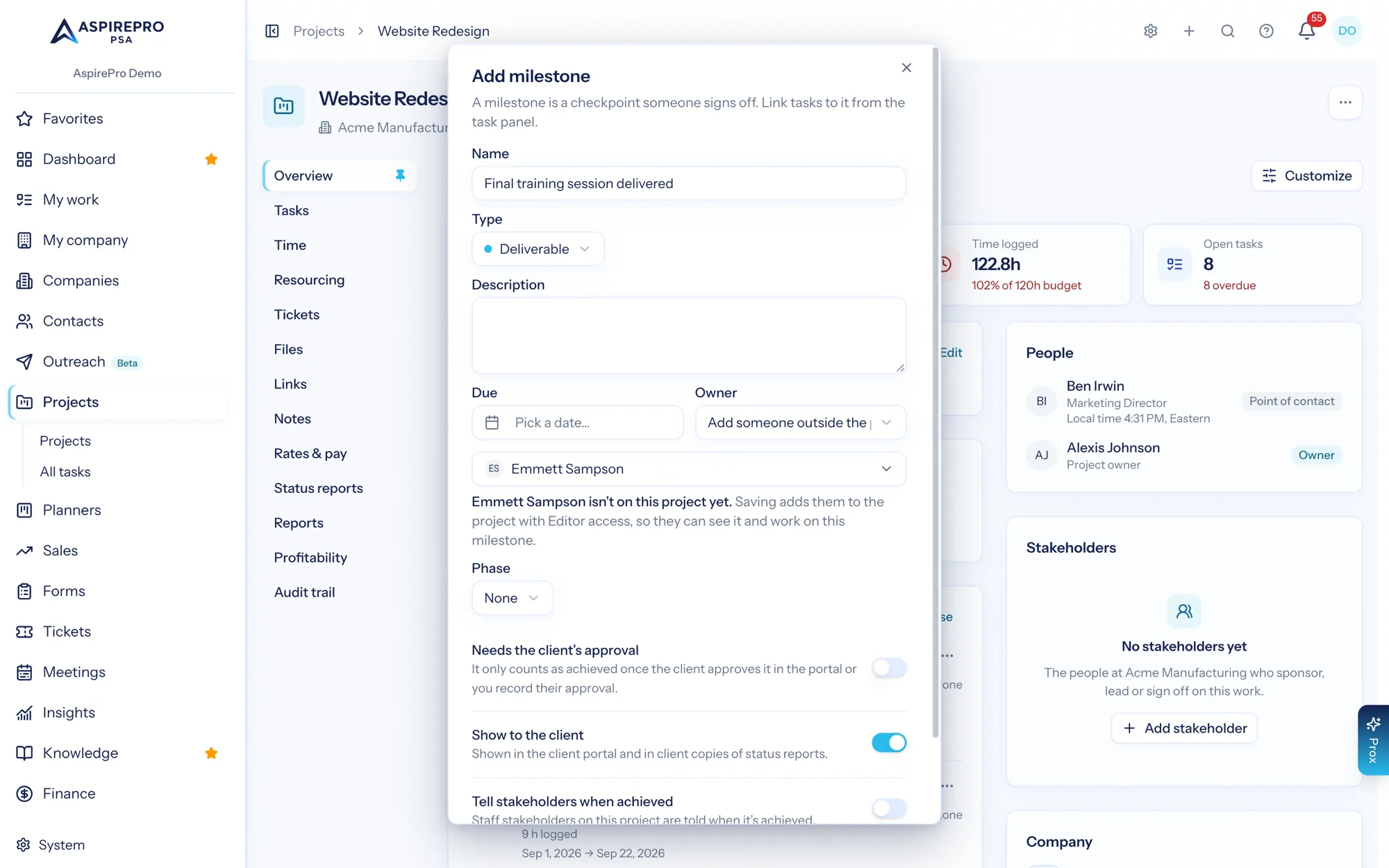
- A name and an optional description.
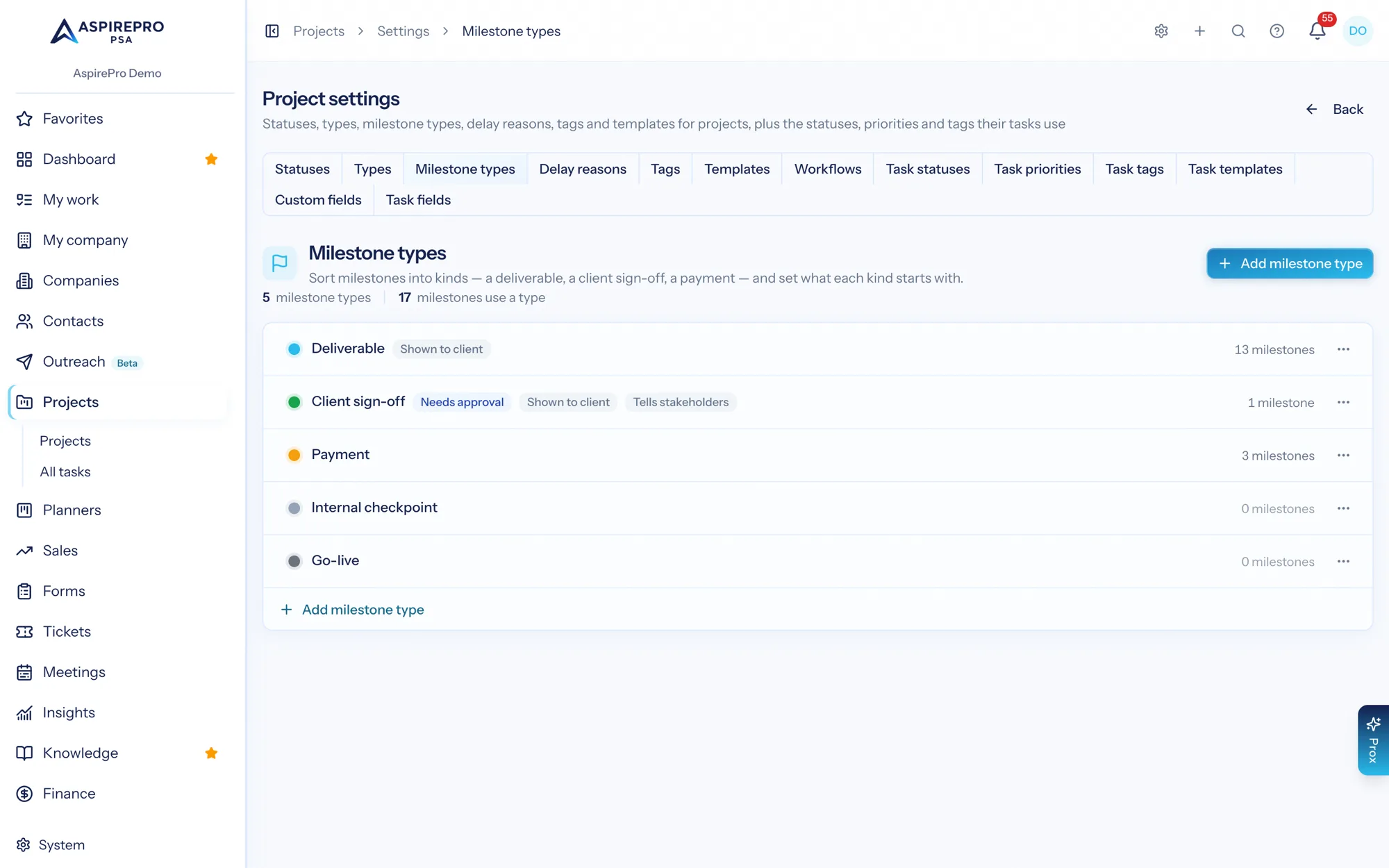
- A type: Deliverable, Client sign-off, Payment or Internal checkpoint to start with. Your organization defines the list (see below).
- A due date and an owner, the person who answers for it. Both are optional. The owner list shows the people on the project. To pick someone who isn't on it, choose Add someone outside the project… (only project admins see it). Saving then adds them to the project as an Editor, so they can see the milestone and work on it, and the dialog tells you before you save.
- An optional phase it sits on.
- A Needs the client's approval setting that starts from its type and can be changed on each milestone: it only counts as achieved once the client approves it in the portal or you record their approval.
- A Show to the client setting that also starts from its type. It reads "Shown in the client portal and in client copies of status reports": when it's on, the milestone is listed in the client portal and included in client copies of status reports and on a client's dashboard. A milestone that isn't marked never shows up in any of them, not even as a count.
- A Tell stakeholders when achieved setting that also starts from its type (see Who is told).
- Any tasks you link to it. Open a task and pick the milestone next to Phase. A task counts toward one milestone at most, and only a milestone on its own project. The milestone row shows how many of its linked tasks are done, and moving or copying a task to another project or a planner clears its milestone, just as it clears its phase.
Achieving a milestone#
Open the ⋯ menu on a milestone.
- Mark achieved sets it to achieved today and lets you add a note. It isn't offered for a milestone that needs the client's approval.
- Record client approval is for a milestone that needs the client's approval. When the client approves it by email or on a call, write down how and when, for example "Approved by email on Nov 18". The note is required. The milestone is achieved, and it shows Client approval recorded by your name. It's offered while you're waiting on the client too, if they answer you outside the portal.
- Request client approval and Withdraw request ask the client to approve it in the portal, see Asking the client to approve.
- Reopen milestone moves an achieved milestone back to upcoming and clears who achieved it and the approval. The project's activity keeps what was undone.
If a milestone sits on a phase and Achieve when the phase is marked complete is on, marking the phase complete achieves the milestone. If the phase is already complete when you save the milestone, it is achieved right away. A milestone that needs the client's approval is never achieved this way. Marking its phase complete makes it Ready for sign-off instead, and it is achieved when the client approves it or you record their approval.
Ready for sign-off and Late#
Two states are worked out for you; you never set them.
- Ready for sign-off means the milestone is upcoming and either every task linked to it is done (it needs at least one linked task), or it needs the client's approval, is set to achieve with its phase, and that phase is complete. It is the cue for the owner to sign it off: Mark achieved, or Record client approval when the client has agreed.
- Late means the due date has passed (by your organization's calendar day) and the milestone isn't achieved. When a milestone is ready for sign-off and also past due, the chip says Ready for sign-off and the date turns red.
The Milestones card and the line under each phase show one chip: Achieved, then Waiting on client, then Ready for sign-off, then Late, then Upcoming. A late milestone that is waiting on the client keeps its red date. A milestone moves out of these states by itself: reopen a linked task and it is no longer ready, move the due date and it is no longer late.
Asking the client to approve#
For a milestone that needs the client's approval and is shown to the client, open its ⋯ menu and choose Request client approval. If Show to the client is off, the item is greyed out and says why: the client can't approve what they can't see.
- A box opens with an optional Message to the client and the line Emails go to: Pat Lee, Sam Ortiz. Those are the client's people who can sign in, can open this project and have Approve milestones ticked under their portal access. If there are none, it says so (No one at {company} can approve milestones yet) and still lets you send: the request shows in the portal for anyone who is given the permission later.
- Choose Send request. The milestone shows Waiting on client since {date} (request 1) and each of those people gets one email with a link straight to the milestone's page in the portal. The email carries your message. It is sent once per person for each request, even if the email system retries.
- In the portal, the client sees your message and the buttons Approve and Request changes. Request changes needs a comment.
What happens next:
- The client approves. The milestone is achieved, by the client (the row says Approved by Pat Lee in the portal on Nov 19, and nobody on your team is named as achieving it). A payment tied to it becomes ready to bill and finance is told, exactly as for any achievement. The milestone's owner and the project's owner get a notice Client approved a milestone.
- The client asks for changes. The milestone goes back to Upcoming and shows Changes requested by Pat Lee on Nov 19: "…". The owner and the project's owner get a notice Client asked for changes with what the client wrote. When it's fixed, choose Request client approval again.
- You withdraw the request (⋯ → Withdraw request). The milestone goes back to Upcoming.
Each request is numbered. The client's page remembers the number it was showing, so a page opened before you withdrew or asked again can't answer the newer request: they see "This was changed after you opened it. Reload to see the latest." and nothing changes. Two answers at once work the same way: the second one is refused. The milestone's history keeps every request, answer, withdrawal, recorded approval and reopening, and a copy of a milestone or a template starts at request 0 with none of it.
While the client is being asked, the milestone can't be hidden from them or switched to "no approval needed": the two settings are locked on its Edit dialog with "Withdraw the approval request first." Everything else on it can still be edited.
A client's answer is checked again at the moment it arrives: the person must still be active, still have Approve milestones, still be able to open the project, and the milestone must still be shown to the client. If not, the page simply isn't there for them.
Who is told#
Milestone notices go to your colleagues, never to the client. Each can be switched off under Projects & tasks in your notification settings.
- Ready for sign-off goes to the milestone's owner, once, when the last linked task is done or the phase completes. Saving the milestone again doesn't send it again.
- Milestone late goes to the owner and the project's owner. A scan runs each morning, and it says each due date once. If you move the date and it is missed again, it says so again. Archived and completed projects aren't scanned.
- Milestone achieved goes to the colleagues who get the project's status reports (the people added under the project's status report schedule, who still have access to the project), when Tell stakeholders when achieved is on. It isn't sent to the person who achieved it. Set the starting value for each type under Projects → Settings → Milestone types, and change it on any milestone.
Someone who can't open the project is told the milestone happened but never the project's name.
- Client approved a milestone and Client asked for changes go to the milestone's owner and the project's owner, once per answer, with the client's name and (for changes) what they wrote, cut to 200 characters.
Project workflows can also react: Milestone achieved, Milestone waiting on client, Client requested changes, Milestone due soon and Milestone late.
Two people clicking at once is safe: the second sees "This milestone was changed by someone else. Reload to see the latest." and nothing changes twice.
Every change is recorded in the project's activity: added, changed, achieved, reopened, client approval recorded and removed, plus approval requested, withdrawn, approved or changes requested by the client (filed as the client, never under a team member), and each approval email that was sent.
Who can change milestones#
The same people who can edit phases: you need Edit projects and the Editor role (or higher) on the project. Everyone else who can open the project sees the milestones but no buttons.
Deleting a milestone#
Delete keeps its linked tasks. They just lose the link and stay on the board.
Milestone types#
Projects → Settings → Milestone types (needs Project settings) is where you define the types. Each has a name, a color, whether new milestones of that type need the client's approval, whether they are shown to the client, and whether they tell stakeholders when achieved.
- Changes apply to milestones added from now on. Existing milestones keep their own settings, so changing a type never switches approval on work already under way.
- A type you make inactive stays on the milestones that have it but can't be picked for new ones.
- You can't delete a type while milestones use it ("This type is used by 3 milestones. Move them to another type first."). Milestones on templates count.
Templates#
A project template can hold milestones too. On a template a milestone has a Day N instead of a date, and no owner, status or approval. A template is never achieved, so it has no Mark achieved, Record client approval or Reopen. Anyone who can edit the template (Project settings) can add, change, reorder and delete its milestones.
When a project is created from a template, or a template is saved from a project, or either is duplicated, the milestones come along: dates follow the Day N rules phases use, links to phases and tasks are carried over, and every copy starts upcoming with no owner, achievement or approval. When a sold service is added to a project as its own phase, its milestones sit on that phase.
Billing: payments wait on milestones#
An agreement installment ("Kickoff 50%, $21,000") waits on a milestone, not a phase. Tie it on the agreement: beside each installment, pick a milestone of this client's projects (Agreements paid in installments). When the milestone is achieved, the installment is ready to bill and finance managers get a notice with a Bill it link. Nothing is billed until someone saves the invoice.
- On the project, the milestone's row says Bills when achieved: Kickoff 50% ($21,000.00) on Website SOW. Only people who can see agreements see the payment and its amount.
- A milestone that needs the client's approval is achieved only when the client approves or staff Record client approval, so a payment tied to "Client acceptance" can never be billed before the acceptance. Completing its phase only makes it ready for sign-off.
- Reopening an achieved milestone doesn't take back a payment it already released: it stays ready to bill, because finance may already have invoiced it. The reopening is on the project's audit log.
- A milestone with a payment tied to it, billed or not, can't be deleted: "It's tied to a payment on Website SOW. Untie it there first." Untie it on the agreement, then delete it.
- Tied to a milestone that is already achieved, a payment is ready as soon as you save the agreement.
If you had payments waiting on phases. They were converted for you: each phase that had a payment got a Payment milestone named "{phase} complete", set to be achieved when the phase completes, so marking the phase complete still tells finance. The numbers don't change: what was ready stays ready, what was waiting stays waiting, and dates, amounts and invoices are untouched. A payment tied to a phase on a template, or one that couldn't be converted, keeps waiting (it is never treated as due on its date) until someone ties it to a milestone on the agreement.
Milestones in reports#
Milestones are counted as milestones, never as phases (the older "milestone" reports counted phases and are now called Phases ending soon, Phases overdue and Phase list; they work as before).
- Milestones due, Milestones late, Milestones waiting on the client and the Milestone tracker are Insights metrics under Projects. Late means the date has passed in your organization's time zone and the milestone isn't achieved.
- The Projects list has a Next milestone column (the earliest milestone not yet achieved) and a Next due column (the earliest phase end or task due date, which is what the old "Next milestone" column showed). See Project portfolio.
- The Client PO tracker shows each PO's next milestone with a payment still to bill, how many of its milestones are achieved, and the next payment. See Agreements.
- A status report has a Milestones section.