The board is a third way to look at Projects, beside cards and the list. Each column is a project status and each project is a card in the column for its status. Move a project to another column and its status changes. It's the view to run a delivery stand-up from: where is everything, and what is stuck?
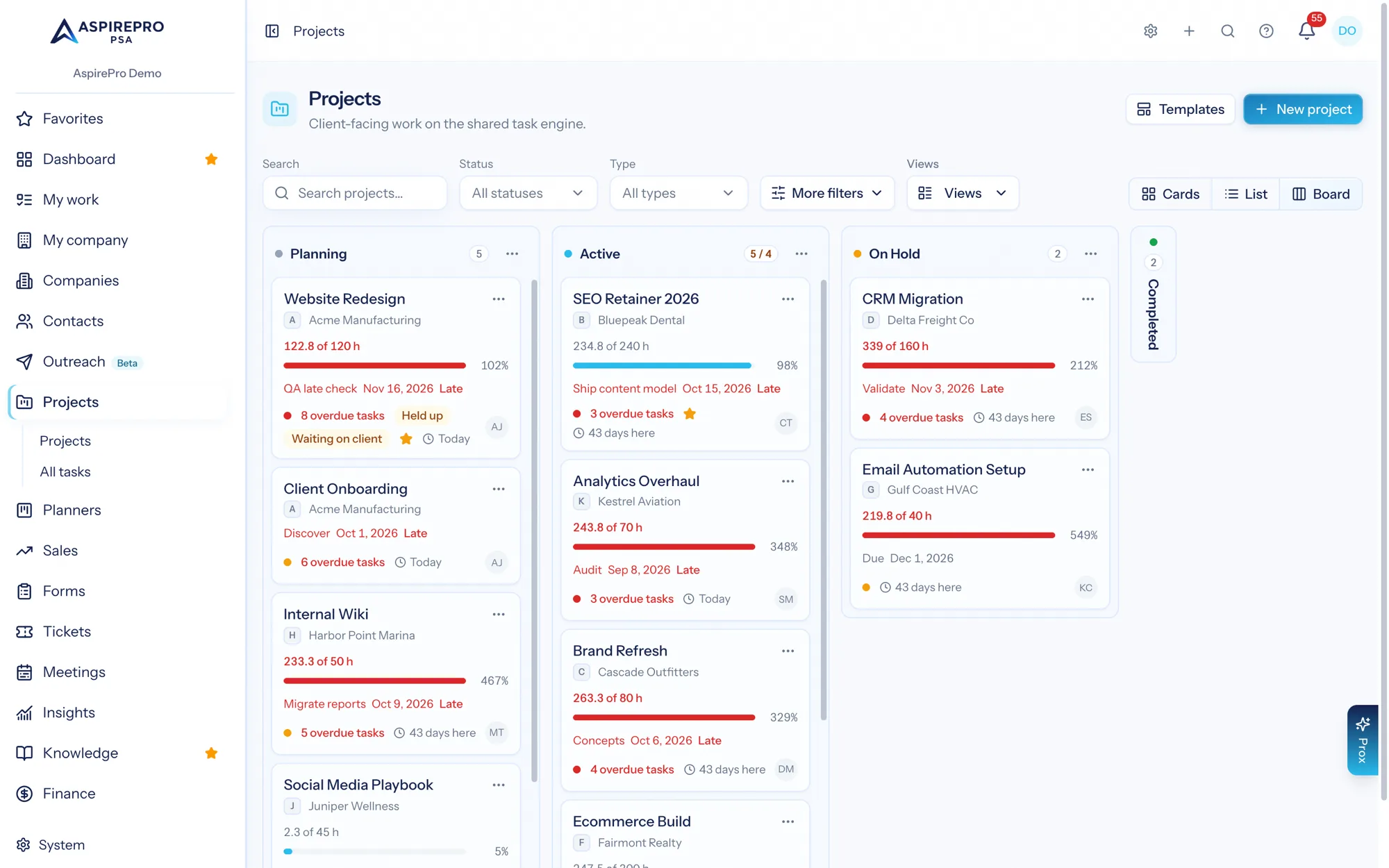
Switch to it with Board in the layout switcher at the top right of Projects. The board uses the same search, filters and saved views as the other two layouts. A filter narrows the cards in every column, and the number on each column follows it. AspirePro remembers the layout you used last, so Projects opens on the board the next time.
The columns#
- One column for each active status, in the order of Projects → Settings → Project statuses. A status with no projects still gets its column.
- No status comes first, but only when a project that matches your filters has no status. You can drag a project out of it, but not into it.
- A switched-off status that still holds projects gets its own column at the end, titled with "switched off" after its name, so those projects never disappear from the board. Drag them out; nothing can be dropped in.
- Archived projects aren't on the board. If the page was filtered to archived projects before you switched, the board says so. Use List to see them.
People with the Project settings permission can drag a column by its header to reorder the statuses. That changes the order everywhere statuses are listed, and it's recorded in the audit log.
Each open column shows its first 50 projects, then Show 50 more. Columns for finished statuses show the 25 most recently moved, then Show 25 more.
Column limits#
A status can have a column limit: the most projects that should be in it at once. Set it in Projects → Settings → Project statuses, in the status's Column limit field, or leave it empty for no limit.
With a limit the column's count reads "7 / 5", and turns amber when the column holds more than the limit. The limit never stops anyone from moving a project in. It's a signal that work is piling up.
Fold a column#
The ⋯ menu on a column has Collapse column. A folded column becomes a narrow strip with its name and count. Select the strip, or choose Expand column, to open it again. You can still drop a card on a folded column.
Columns for finished statuses start folded. Which columns you have folded or opened is remembered in this browser, for you only.
The cards#
A card shows:
- The project's name, key and company, and its owner's picture.
- Hours as "42 of 80 h" with a bar, red when the project is over budget. Projects with no hours budget show no bar.
- The next date: the next milestone and its date, or what's next due, or the project's due date. It turns red and says Late when it has passed.
- Flags: a health dot (on track, at risk, late or complete, as in the portfolio), how many tasks are overdue, whether the project is held up by a delay, an amber Waiting on client tag when a milestone is waiting for the client's approval (hover it to see which milestone and for how long), a star if you starred it, and how long it has been in this status: "Today", "1 day here", "12 days here".
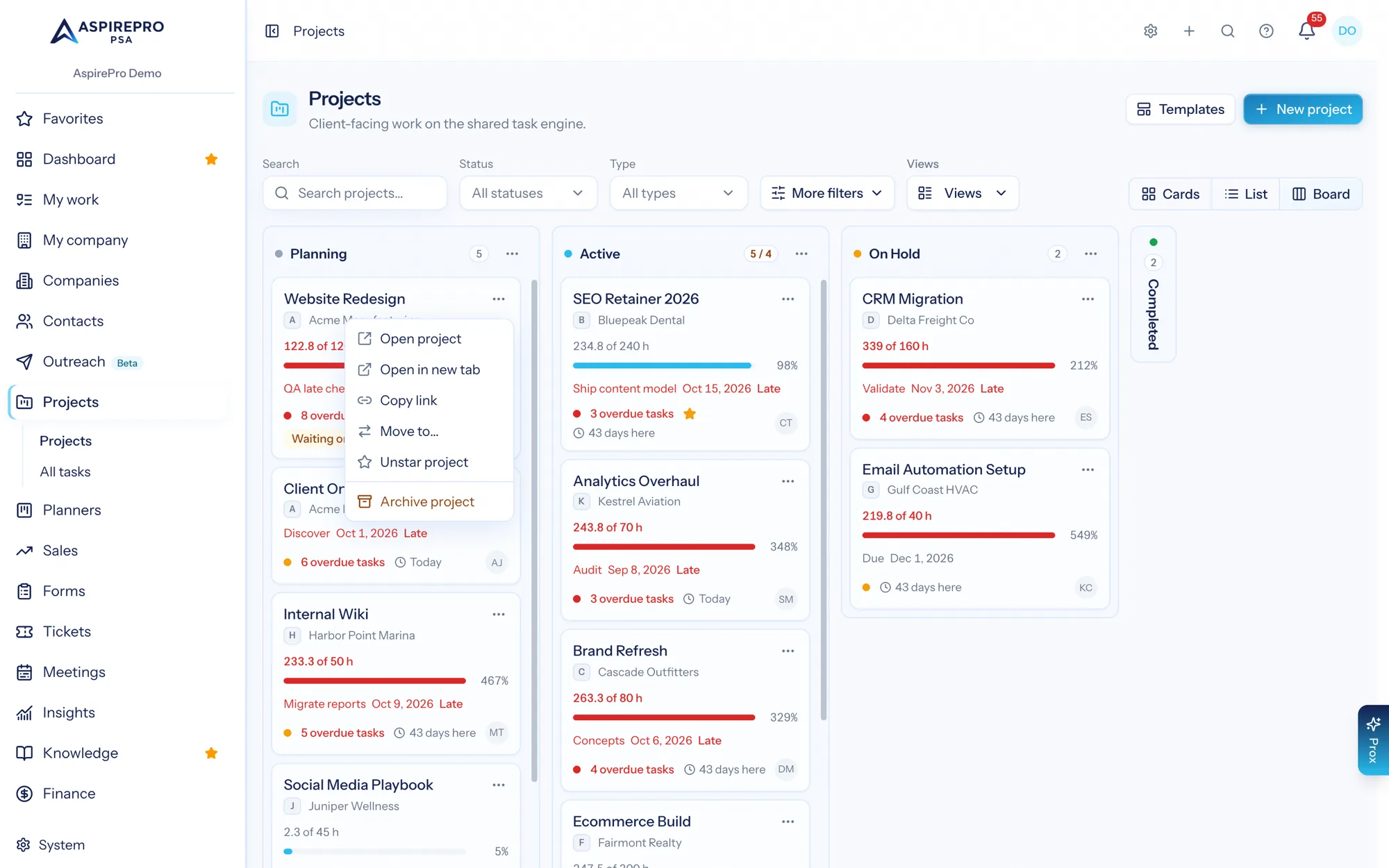
Select a card to open the project. The card's ⋯ menu has:
- Open project, Open in new tab and Copy link.
- Move to…, which asks for the status. This is the way to move a project on a phone or with the keyboard.
- Star project or Unstar project.
- Archive project, which asks first.
Move to… and Archive project only appear for people who can edit the project.
Moving a project#
Drag a card to another column, or use Move to…. You can move a project if you could change its status from the project page: you have the Edit project permission and you're an Admin on that project. Anyone else sees the card but can't drag it.
Before it moves, AspirePro checks which workflows the move would run: ones that run when a project enters the new status, leaves the old one, or has its status changed, plus project completed when the new status counts as completed. Only workflows that are switched on and apply to the project's type count.
- If none of them emails anyone outside your organization, the project moves straight away. The message says "Moved to Kickoff." and, when workflows run, how many: "2 workflows will run." People who can see workflows also see their names.
- If one emails the client, you're asked first: "Moving Pen test to Kickoff runs 2 workflows, and one emails the client. Move project?" Choose Move project to go ahead, or Cancel and the card goes back. People who can see workflows see which ones.
- If AspirePro can't check, it asks as well. A project never moves without you knowing.
When a move runs no workflow, the message has Undo, which moves the project back. There's no Undo after a workflow ran, because undoing can't unsend an email or take back tasks it created.
A project can't be moved into a switched-off status, and it can't be moved to No status. A move made by a workflow's own Set status step doesn't run the new column's workflows. See Status triggers.
If someone else moved the project while you were looking, your move doesn't happen and you're told where it is now ("Pen test moved to Escalation since you looked. Check it and try again."). The project's Edit form works the same way: a status you changed is checked first, and a status you left as it was is never saved over someone else's move. Prox checks too when it changes a status it read earlier.
Change status on a selection in the list or cards view does the same check. The dialog says how many workflows the change runs across how many projects, and whether one emails the client, before you apply it. It only changes the projects you could move one at a time; the others are left as they are, and the message says how many.
Workflows on a column#
A column's ⋯ menu is the front door to workflows for that status:
- Workflows opens a side sheet with every workflow that names the status, in three groups: When a project enters, While it sits here (with how many days) and When it leaves. Each row has the workflow's name, the project types it's limited to, its steps in one line, and when it last ran. Select a row to open it. People who can manage workflows also get a switch on each row to turn it on or off. The item needs the View project automations permission.
- Add workflow opens a new workflow with the status already filled in. It needs Manage project automations.
- A column with no workflows offers a few places to start, each opening a new workflow with the trigger and status filled in. Choose what the workflow does after that.
If the status is switched off, the sheet says so. Workflows for projects that are already in it still run.
Time in a status#
How long a project has been in its status is exact from November 19, 2026, when AspirePro started recording every status change. For projects that were already in a status before then, it's estimated from earlier activity.
On a phone#
Columns snap into place as you swipe. To drag a card, press and hold it first, so a swipe still scrolls. Move to… in the card's ⋯ menu is the simplest way to move a project on a phone.