A delay records time a project lost while it was held up: three business days waiting on a client's access, a week waiting for a vendor, an internal handoff that stalled. Logging delays turns "we lost days on that one" into numbers you can count by reason, by whose side caused it, by client and by consultant.
Delays are internal. They never show in the Client Portal or on a client status report.
Log a delay#
Open the project and choose Log a delay. It is in the project's actions menu, and on the Delays card once the project has one. Fill in:
- Reason, picked from your organization's list (see Delay reasons).
- Whose side caused it: Client, Our team or Third party.
- Started, and Ended if it's over. Leave Ended empty while the project is still held up.
- Business days lost. This fills itself in from the dates, counting your organization's working days, so weekends and holidays don't count. Change it if the real figure differs, for example when only part of each day was lost.
- An optional phase or task the delay held up, and a short note.
Anyone who can edit the project can log, edit, resolve and delete its delays. Everyone who can open the project sees them.
Due dates don't move on their own#
Logging a delay doesn't change the plan. To move the plan, tick Push the remaining dates in the same dialog and say by how many business days. That moves the dates of unfinished tasks, phases and milestones, and the project's due date, that fall on or after the delay's start date. Finished items and anything dated earlier stay where they are. Only a new delay offers this; editing one never moves dates.
Log delays automatically#
A project workflow can log a delay for you with the Log a delay step, for example when a project enters a "Waiting on client" status. The delay starts that day and stays open until someone marks it resolved. It never moves dates, and a project already held up for the same reason isn't given a second one.
The Delays card#
Once a project has a delay, its Overview shows a Delays card. The card shows:
- the business days lost in total and how many delays are still open;
- the split by side;
- each delay, with its reason, side, days and dates.
A delay with no end date shows as still held up.
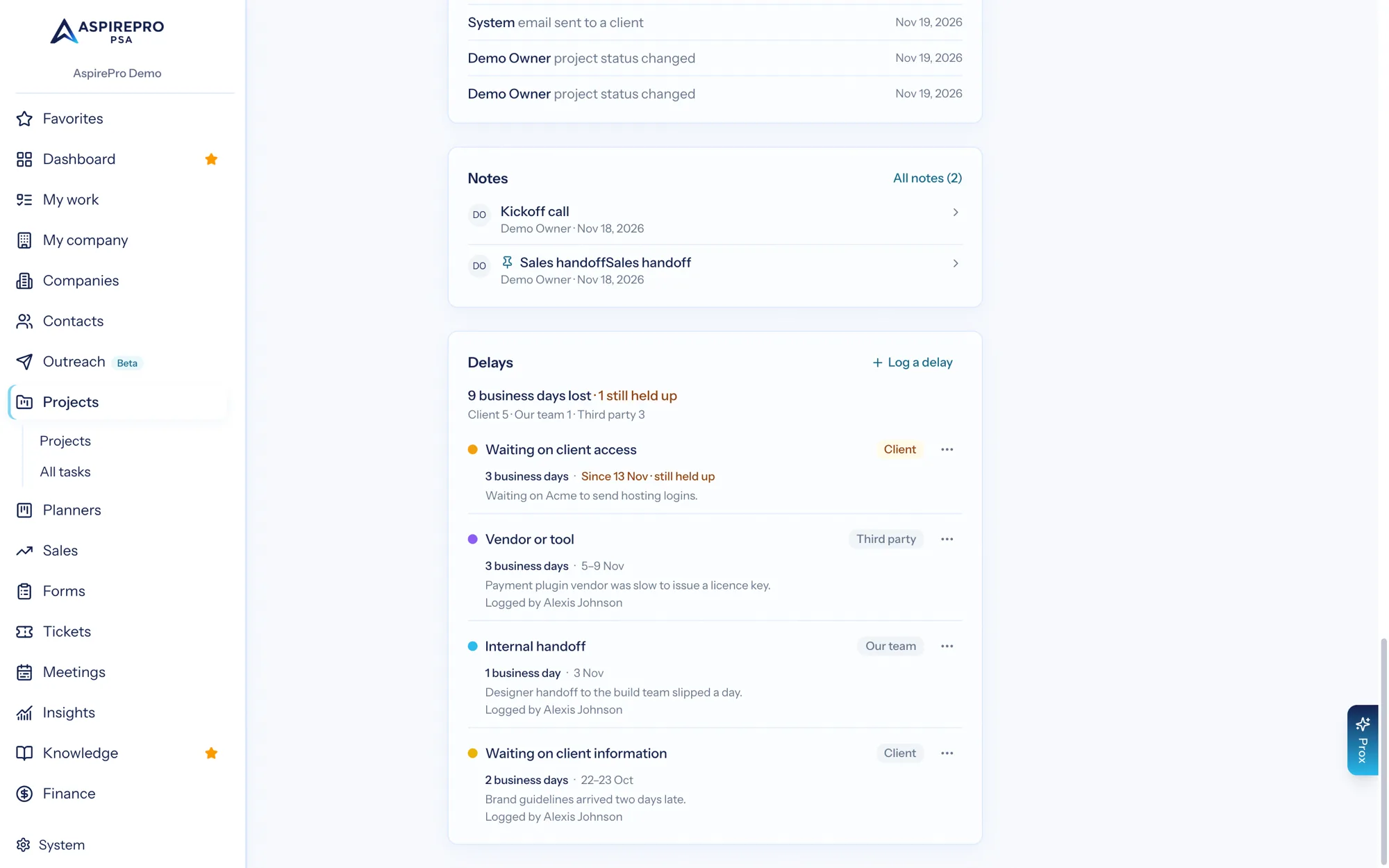
From a delay's ⋯ menu you can:
- Edit delay.
- Mark resolved. This ends the delay today and counts its business days from the dates again.
- Delete delay, which takes its days off the project's totals and reports.
Each of these, and pushing dates, is written to the project's activity.
Which projects are held up right now#
On Projects, the Held up now filter shows the projects with an open delay, and each of them carries a Held up tag. It saves with your views like any other filter.
Reports#
Three measures in Insights work in any dashboard:
- Days lost to delays: business days lost in the period, grouped by reason, side, client or consultant (the project lead). It can be filtered to one side.
- Projects held up now: live projects with an open delay, by reason or side.
- Delivery scorecard: one row per consultant, with their on-time rate beside the rate excluding client and third-party delays, and days lost by side. When a delay moved the remaining dates, those days aren't forgiven a second time.
The first two count only projects the viewer can open. The scorecard shows real numbers for the people you can see, and lists only projects you can open. See the metrics catalog.
Delay reasons#
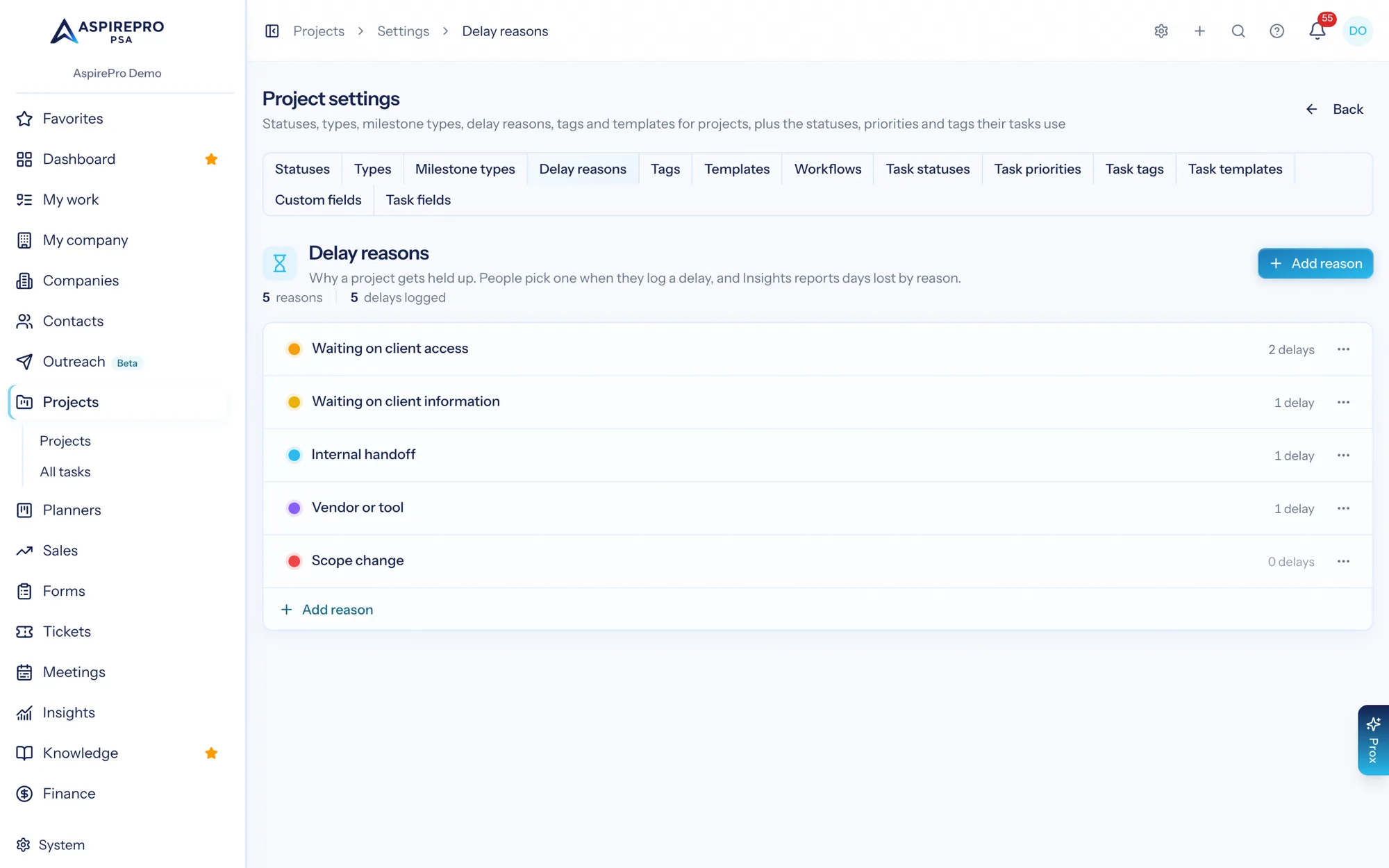
Projects → Settings → Delay reasons holds your organization's list. Managing it needs the Project settings permission. You start with five reasons:
- Waiting on client access
- Waiting on client information
- Internal handoff
- Vendor or tool
- Scope change
You can rename a reason, change its colour or add new ones. Switch a reason off to stop it being picked: past delays keep it. A reason that delays use can't be deleted, so switch it off instead.
Working days#
Business days come from System → Organization → Business hours: a weekday with open hours is a working day. Holidays come from both holiday lists, the one under Business hours and the one under Resource capacity. A day off in either is not counted.