The Client Portal gives your clients a secure place to sign in and work with their tickets and projects — a genuine working surface, not just a status page — completely walled off from your internal organization. It's how you give clients visibility and self-service without giving them access to anything they shouldn't see.
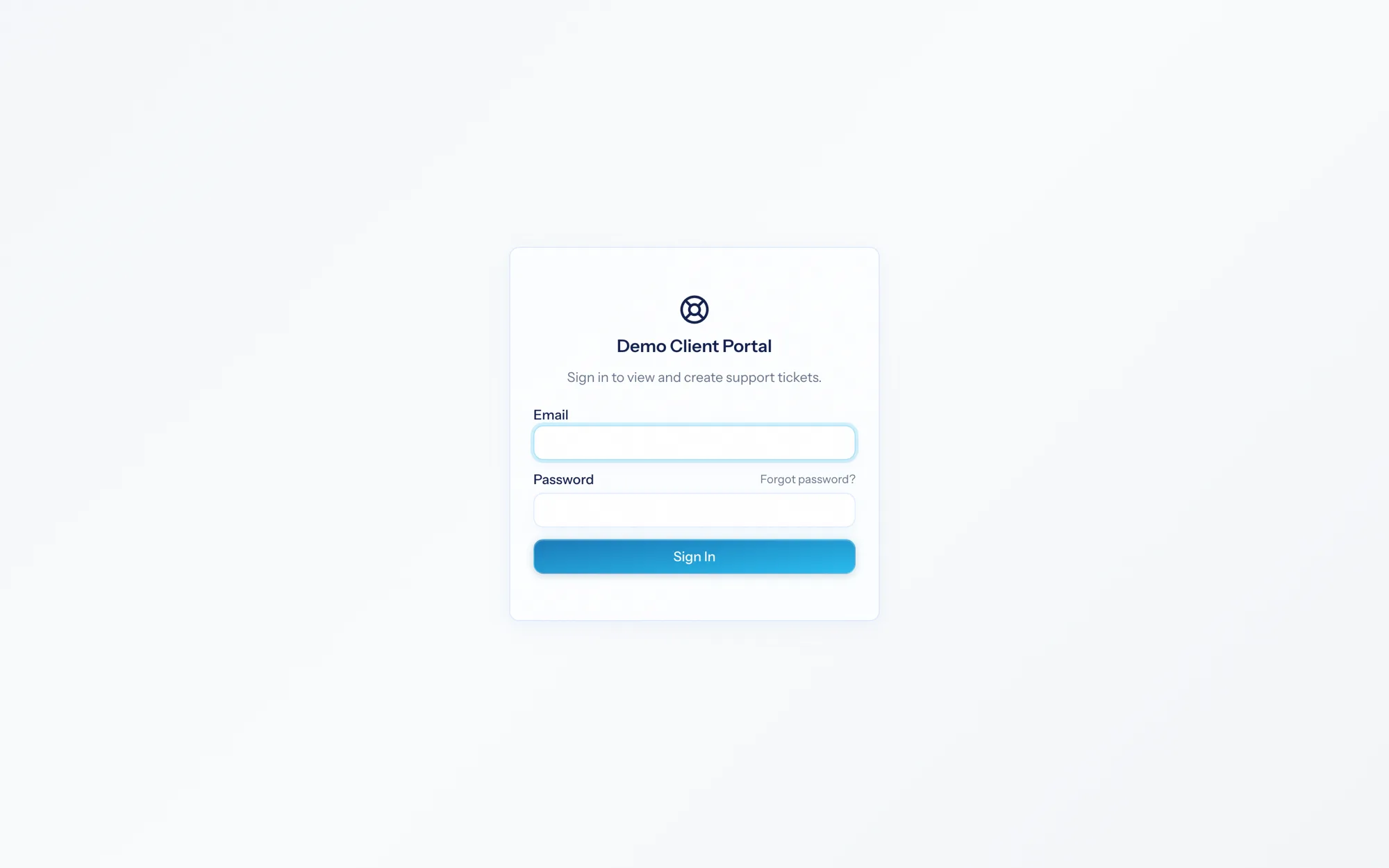
Client Portal is a toggleable module; an administrator turns it on under System → Features.
Two sides, one wall#
The portal has two sides, kept strictly separate:
- The staff side — your team grants and manages client access from within AspirePro (from a contact's record). Covered in Managing access.
- The client side — your clients sign in to a separate portal to see their work. Covered in The client experience.
These run on different sign-ins: a client is a portal user tied to a contact, never a staff account. Staff logins can't reach portal pages and portal logins can't reach staff pages — the wall between them is built into the system, not just configured.
What a client can do#
Depending on what you grant, a client can:
- View their tickets, open new ones, and reply.
- View their projects as a simplified organization — tasks, checklists, comments, files.
Everything is default-deny: a client starts with no access, and sees only what you deliberately turn on, scoped to their own companies. See What clients can see.
What's in this section#
- Managing access — granting, updating, and revoking client access.
- The client experience — what clients see and do in the portal.
- What clients can see — the capability and scoping model.
The portal turns "can you send me an update?" into "log in and see" — while the default-deny model and the hard wall between client and staff sessions mean a client only ever sees their own work, and only the parts you chose to share.