Open a ticket to work it. Tabs across the record organize everything: Conversation, Tasks, Time, Schedule, Attachments, Survey, Other Tickets, and Audit Trail. The header stays with you on every tab.
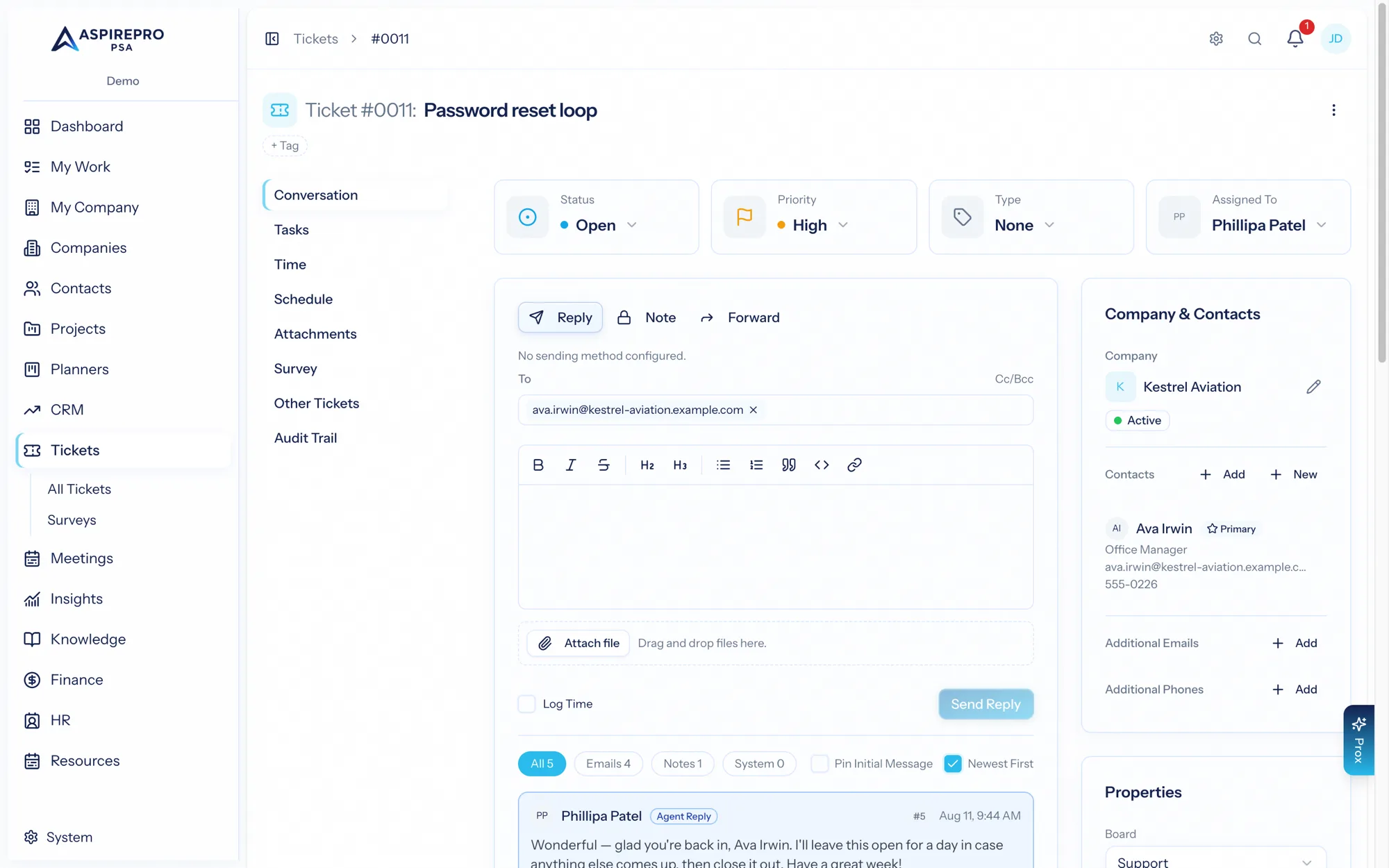
The header#
The header shows the ticket subject and number, plus three always-editable controls — Status, Priority, and Assignee — that update instantly. You'll also see an Overdue badge when a target has passed, the ticket's due date (a manual promise-to-customer date, separate from SLA timers), any workflow banners a rule has raised, and a menu with Delete ticket.
Conversation#
The Conversation tab is where you talk to the customer. One composer handles three modes:
- Reply — respond to the customer (pre-addressed to the ticket's contacts, with Cc/Bcc chips you can drag between).
- Forward — send the thread to someone else.
- Note — record an internal note; a checkbox controls whether a note is internal-only or public.
The composer also offers a template picker, attachments (upload or attach existing files), inline Log Time, and a "pick a time" scheduling invite — add it to a reply and the customer gets a link to book time on your calendar from your live availability, with the booking (or cancellation) landing back on the ticket. Each message in the thread is labeled as an agent reply, a customer reply, or a note, and outgoing email shows its delivery state (sending, sent, or failed) — you can even download the original .eml.
A sidebar keeps the context handy: Company & Contacts (change the company, add or create contacts, set a primary), a classification card (type, status, priority, source, subtype, due date), the assignee, attached Pro Cards (the ticket company's cards), linked Projects, and tags.
Linking a ticket to a project (Projects module) connects support work to delivery work: the ticket appears on the project's Tickets tab, and checklist tasks can be copied or moved onto the project's board.
Tasks#
Break a ticket into a checklist of tasks — add, reorder, and check them off as you work through a request that takes several steps.
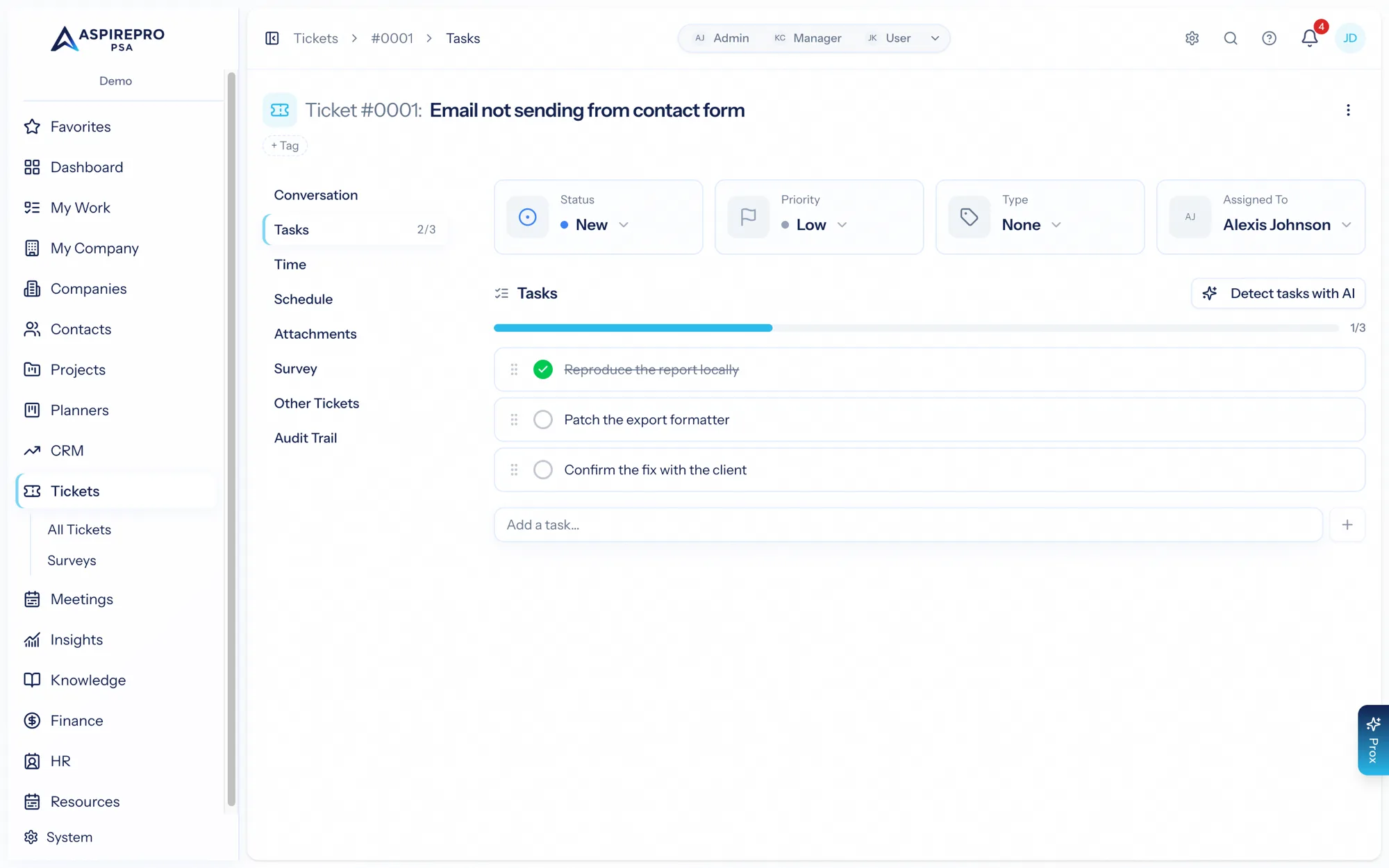
Detect tasks with AI reads the entire conversation and proposes the tasks that are still open — it traces each candidate through the whole thread, so a request made early and resolved later never comes back as a task, and it never repeats something already on your checklist. Each proposal comes with the quote that shows it's still outstanding; untick anything you disagree with before adding. Nothing is written until you confirm.
When a checklist item turns out to be real project work, copy or move it to a project: it becomes a full task on the project's board (linked back to the ticket), and moving completes the checklist item here so the thread keeps its record.
Time#
Log time against the ticket. Entries capture who, how long, and notes, with options for start/end times, a deduction (for example a lunch break) with a reason, and whether the time is billable. Depending on the board's settings, timers can start and stop automatically as the ticket changes status.
Charges#
Underneath the entries, Charges records what the job cost the client besides time — the part you fitted, the licence you bought, the callout fee. Pick something from your products and services list or write a one-off line; either way the price is copied across and stays put. Anyone who can edit the ticket can add one. See Charges on a job.
Billing it#
With Finance on and a client on the ticket, ⋮ → Quick invoice… raises a draft invoice from this ticket's approved time, charges and expenses without leaving it. See Quick invoice a job.
Schedule#
Book yourself or teammates onto the ticket as work sessions — scheduled blocks that show up on the My Work calendar. Toggle them complete as they're done.
Attachments#
Files attached to the ticket, with tags — including anything that arrived by email or was added from the composer. Upload, download, and preview here.
Other Tickets#
The other tickets from this ticket's company and contact — useful context for spotting a recurring issue or a bigger pattern.
Merged Tickets#
Duplicate threads happen — the same customer emails twice, or two people report the same outage. Merge (in the ticket's ⋯ menu) moves this ticket to the dedicated Merged status — closed, but silent: no closing email, no satisfaction survey — and links it into the one you pick: search the company's open tickets (newest first), pick the survivor, and confirm. The merged ticket stays intact — its time entries, files, and history remain on its own record — but its conversation messages appear in the parent's feed, each badged From #NNNN, so the parent reads as one unified thread. A customer replying to an old email on the merged ticket lands on the parent automatically.
A parent with merged children grows a Merged Tickets tab (with a count) listing them; open a child to Unmerge it if the merge was a mistake (it reopens to the board's default status). Merges are same-company only, and a ticket that has absorbed others can't itself be merged away.
Split goes the other direction: from any message's ⋮ menu, Create new ticket from this message opens a fresh ticket with that message as its initial message — nothing moves, and the original message gets a Split to #NNNN pill linking the two.
Survey#
If the ticket triggered a satisfaction survey, this tab shows its status and rating, and lets you send a survey now manually. See Satisfaction surveys.
Audit Trail#
A searchable, immutable log of every change to the ticket — status changes, reassignments, edits — with who and when.