Email-to-ticket is reliable, but occasionally an inbound message can't be processed — a malformed email, an unexpected format, a transient hiccup. Instead of losing it, AspirePro captures it in the Failed emails queue so nothing disappears silently.
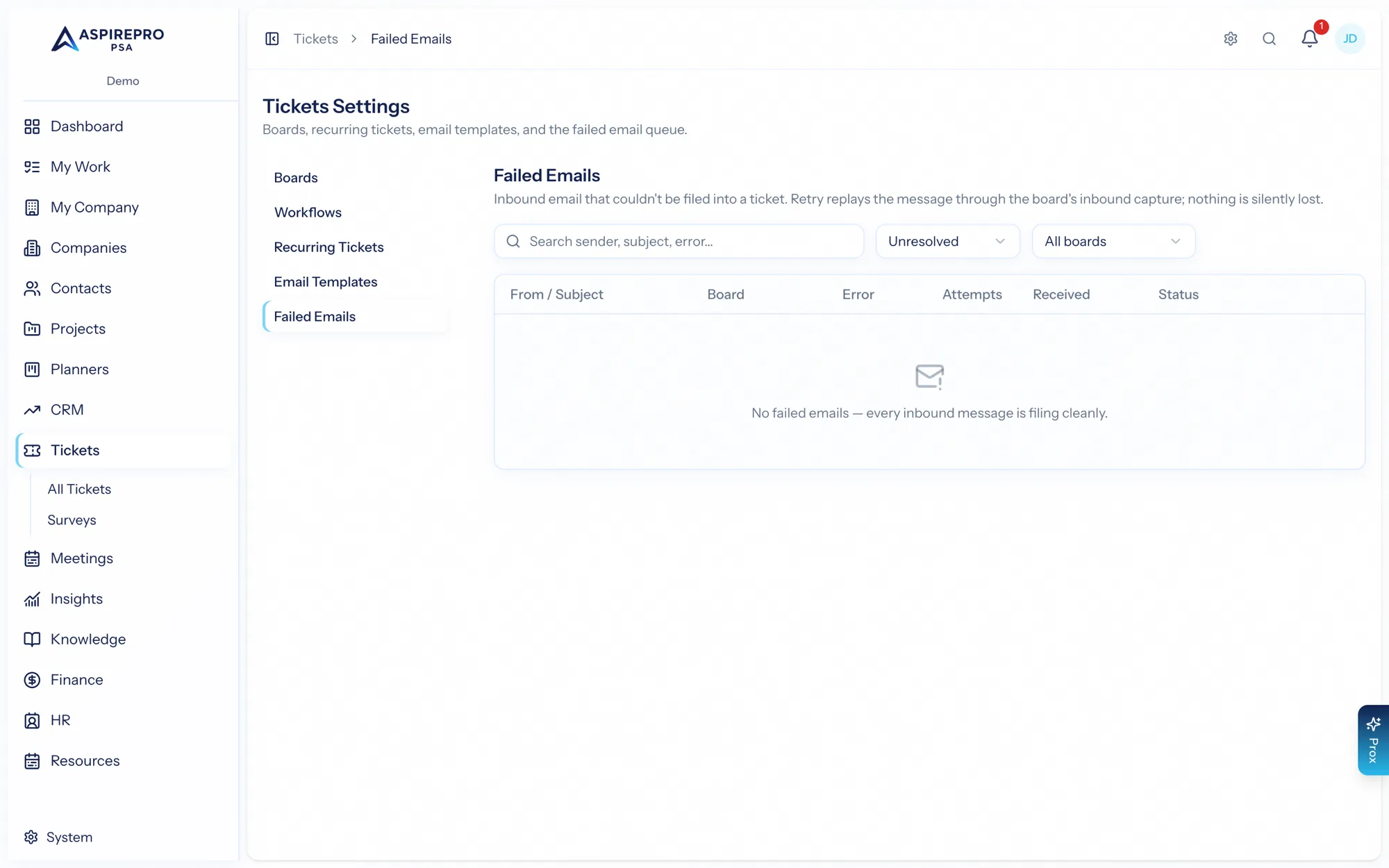
Find it under Tickets → Settings → Failed emails.
What lands here#
Any inbound message that throws an error while being turned into a ticket is saved here (minus its binary content), with the sender, subject, and the error that occurred. Filter by unresolved, resolved, or all, and by board, and search by sender, subject, or error text. Open a row for the full detail.
What you can do#
- Retry — reprocess the message. If it succeeds, it becomes (or updates) a ticket; if it fails again, the row stays with the new error.
- Dismiss — mark it resolved when it doesn't need to become a ticket (spam, a duplicate, something you handled another way).
- Delete — remove it entirely.
Check this queue occasionally, especially after changing a board's mailbox or inbound settings. A short list here is normal; a growing one is a signal worth investigating.
Ask Prox#
Prox (and any MCP client connected to your organization) can work this queue too: ask it to list failed emails to see what's waiting and why, or to retry a failed email — the same retry the button runs, with the same audit trail.