My Work is your personal command center. Instead of checking each module for what's on your plate, My Work gathers everything assigned to you — across projects, planners, tickets, and more — into one place, with views for the different ways you plan your day.
Views#
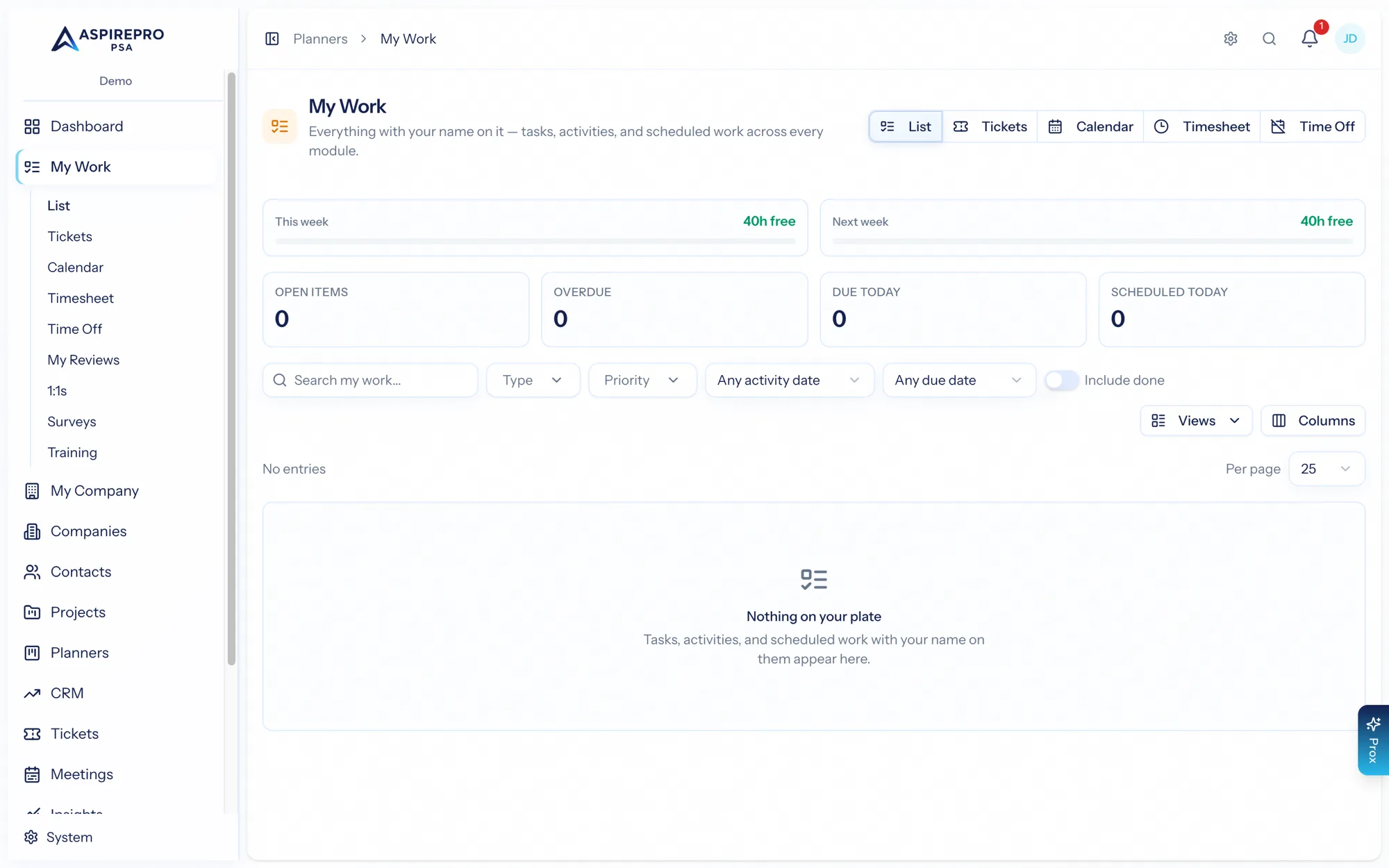
My Work opens on a unified List of your tasks, with additional views along the side:
- My Day — your hand-picked plan for today (see below).
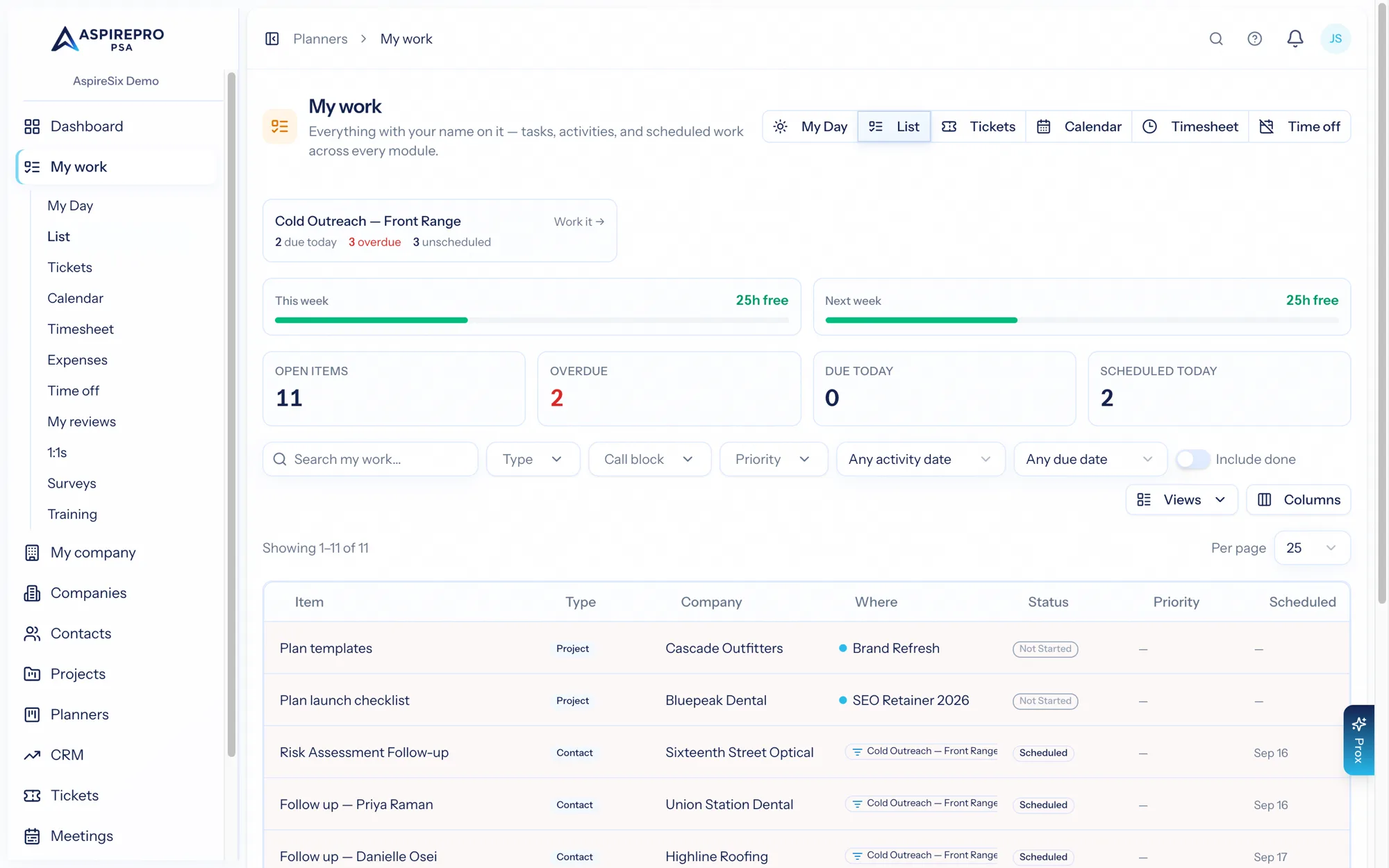
- List — all your assigned tasks across every project and planner, filterable and sortable, with saved views of your own.
- Tickets — the tickets assigned to you, without leaving My Work. (Requires the Tickets module.)
- Calendar — your schedule, including meetings from your connected calendar. You can view event details, respond to invitations, and even convert an event into a task.
- Timesheet — log and review your time for the week, then submit it for approval.
- Time off — your time-off requests and balances.
If HR is enabled, My Work also surfaces your personal HR items — reviews, 1:1s, surveys, and training — so everything expected of you lives in one list.
When you're working an outbound block, the block comes to you: a card per block at the top of the list — due today, overdue, unscheduled — and Work it opens the block. The promised follow-ups also land here alongside your tasks: each row carries the block it came from, a Call block filter narrows the whole list to one campaign, and an optional Phone column shows the number to dial (the person's, or their company's line). The list shows up to a thousand open activities and says so when there are more.
My Day#
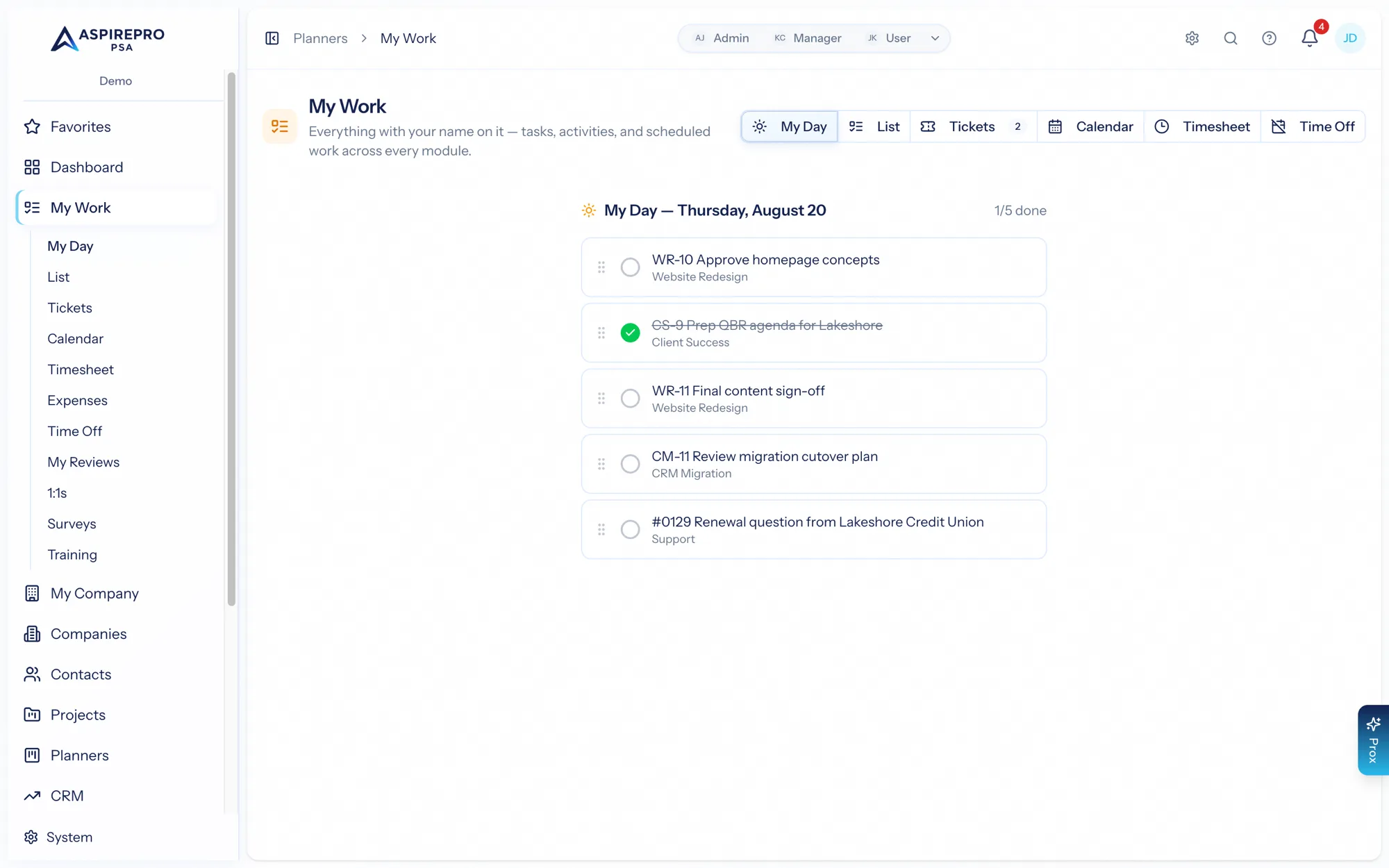
You can have dozens of tasks, activities, and tickets across the whole app — but a day only fits a handful. My Day is where you pick them: hover any row on the List or Tickets view and click the sun button to add it to today's plan. Picked rows keep a filled amber sun, so you can scan any list and see what's already on today's plan — click the sun again to take it off.
My Day is deliberately not another task list. Each entry points at the real task, activity, or ticket — completing it completes the real record wherever it lives, and removing it from My Day never touches the underlying work. Drag entries to set your order for the day, and when yesterday's plan didn't quite finish, the banner offers to bring the unfinished items forward — click it to expand the list and carry items over individually, or bring them all at once.
- Tasks complete right from My Day.
- Activities and tickets open on their own record — they have richer completion flows (outcomes, statuses) that belong there.
Schedule Myself#
Next to the sun on task and ticket rows is a calendar button — Schedule Myself. It opens a small dialog (date, optional start/end time, a note) and books you onto the real record as a work session: the session shows on the record's own Schedule tab, on your My Work calendar, and syncs out to your connected calendar — exactly as if you'd scheduled it from the record itself. My Day answers "what am I doing today"; Schedule Myself answers "when am I doing it."
The task list#
Your tasks come from every project and planner you're part of. From the list you can filter (by due date, status, priority, project), sort, and save views — the same list pattern used across AspirePro. Open a task to see its full panel: checklist, comments, attachments, links, subtasks, and time tracking. Each row also carries a ⋯ menu (or just right-click the row) with Open and Add time entry — a quick date-duration-note dialog for logging time without opening the record.
Calendar#
The Calendar view shows your meetings and scheduled work together. Connect your Microsoft or Google calendar under Account settings → Calendar to see your real meetings here and keep events in sync both ways. From an event you can:
- See its details and attendees.
- Respond to an invitation (accept/decline).
- Convert it into work: log the time, create a task, or log a client activity.
- Start a 1:1 from it — when the other attendee is a colleague on AspirePro, one click turns the meeting into a 1:1 with an agenda. It keeps the meeting's time (no new invite is sent), your colleague is notified in-app and by email, and both of you get the shared agenda and notes under My Work → 1:1s.
Timesheet#
The Timesheet view is where you record time against the work you did during the week and submit it. Submitted time flows into approvals and, with the Finance module, into billing. You can filter your entries and see contacts and projects you've worked on. For the approval and billing side, see the Finance module documentation.
Time off#
Request time off and track your balances from the Time off view. Requests route to the appropriate approver; you'll be notified as they're decided. (Time-off policies and approvals are part of the HR and Resource Management modules.)
My Work is intentionally personal — it's the answer to "what should I be doing?" For team- and project-level planning, use the Projects, Planners, and Resource Management modules directly.