When you resolve a ticket, a short satisfaction survey can ask the customer how you did — giving you a real CSAT signal and a chance to turn a great outcome into a public review or catch an unhappy one before it festers.
How a survey is triggered#
A survey is sent when a ticket enters a status flagged "Requests happiness rating" (set on the board's statuses — see Boards). AspirePro sends it carefully: once per ticket at most, only if the board's survey is enabled, only if the contact hasn't opted out, and not more often than a per-contact frequency window allows.
The survey's exact wording and scale are snapshotted when it's sent, so it always renders the way it did at that moment, even if you change the config later.
Configuring the survey#
Under Board Settings → Happiness survey you set:
- Scale and style — 2, 3, 5, or 10 points, shown as numbers, stars, or smileys.
- Labels and wording — the question and rating labels.
- The satisfied threshold — what counts as a positive score.
- Rate agents — optionally let customers rate the specific people who helped.
- Review gating — happy customers are nudged toward your public review platforms; unhappy ones get an apology and a comment box instead of a public prompt.
A live preview shows exactly what the customer will see.
The customer's experience#
The survey lives on a clean, public page at its own link — no sign-in needed. It shows your logo, the ticket number and subject, the rating scale, optional per-agent ratings, and a comment box. After they answer, a happy customer sees a thank-you (and review links if they qualify); an unhappy one gets an apology and a chance to tell you more.
Sending a survey manually#
From a ticket's Survey tab you can send a survey now — handy when you want feedback on a specific ticket. If a guard would block it (already sent, contact opted out), you're told why.
Seeing the results#
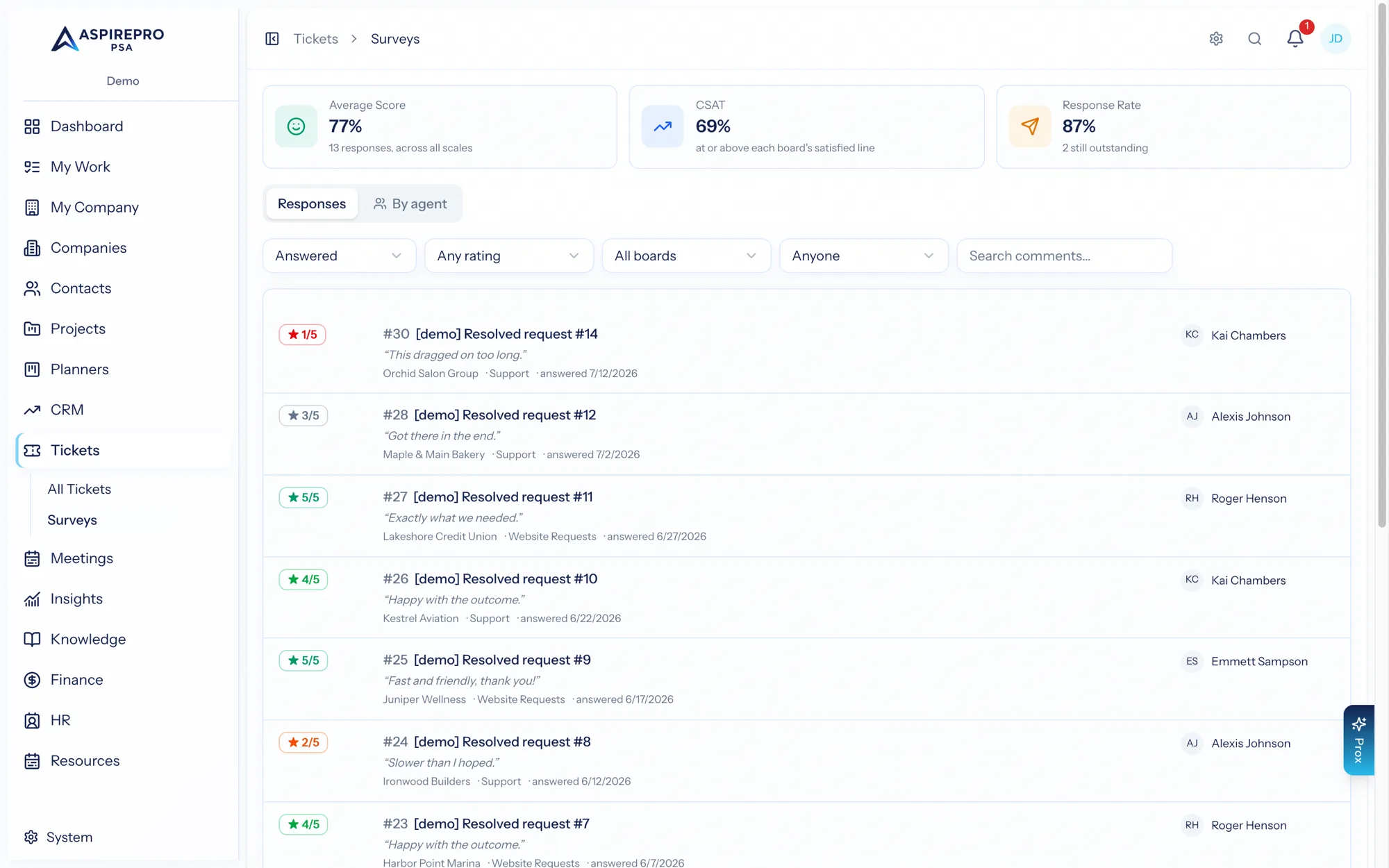
- Tickets → Surveys lists every survey with Average Score and CSAT tiles, filters for answered/outstanding, and search across comments and agents.
- CSAT also flows into Insights as metrics — satisfaction overall, by board, by agent, by team, and by client — so you can put it on a dashboard or in a scheduled report.
Surveys close the loop on support. Flag the right "resolved/closed" status to request a rating, keep the scale simple, and turn on review gating to grow your public reputation from your best interactions.