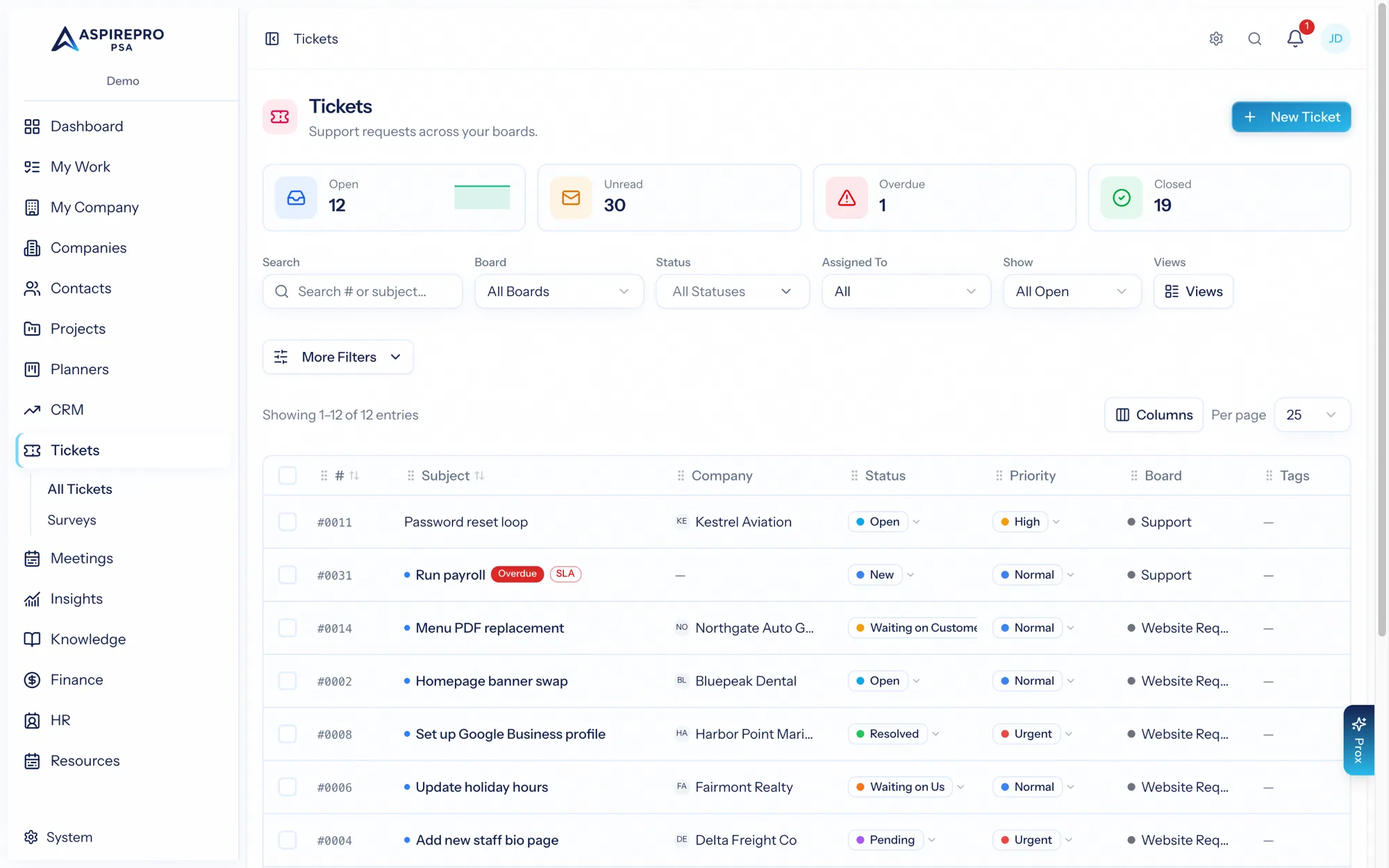
The ticket list is a working queue, and it flexes to how your team triages. It uses the same filter/view/bulk pattern as the rest of AspirePro.
Board switcher#
At the top, switch between All Boards and any single board. All Boards shows every queue together; a single board narrows to just that one. Even in All Boards, the inline Status/Priority/Assignee controls respect each ticket's own board taxonomy.
Columns#
Choose which columns to show, and reorder or resize them — number, subject, company, contact, status, priority, type, board, tags, assignee, due, created, updated. Your layout is remembered. Tickets on Urgent priority show a red ! in front of the subject (High shows an amber one), so the queue's loudest work is visible before you read a single status pill.
Filtering and sorting#
Filter by status, priority, type, board, assignee, tags, and more, and search across tickets. Sort by any column and set the direction. Clear filters resets the view.
Quick Preview#
Hover a ticket's subject for the eye icon — or simply right-click the row — to open a quick preview without leaving the queue: status, priority, overdue and tag chips up top, a labeled summary (company, contact, assignee, board, type, opened), and the last few messages as a compact thread — customer messages on the left, your team's on the right, internal notes in amber — with message and attachment counts. Open the full ticket in place or in a new tab.
Saved views#
Save a filter/column combination as a view (personal to you), rename or delete your views, and set a default that applies automatically. Views make recurring triage — "My open tickets," "Overdue on Support" — a single click.
Bulk actions#
Select tickets to act on all of them at once:
- Status — move them along.
- Priority — set or clear priority.
- Assignee — assign or unassign.
- Board — move tickets to another board.
- Color — set a row color to flag or group visually. Colors render as a soft tint plus a solid accent bar, so text stays readable on any hue (even black), and the status/priority pills keep a solid background on top of the tint.
- Read / unread — mark as read or unread.
- Delete.
Bulk actions respect your permissions and are recorded in each ticket's audit trail.
The Open, Unread, Overdue, and Closed tiles at the top of the list are one-click filters — a fast way to jump to what needs attention right now.