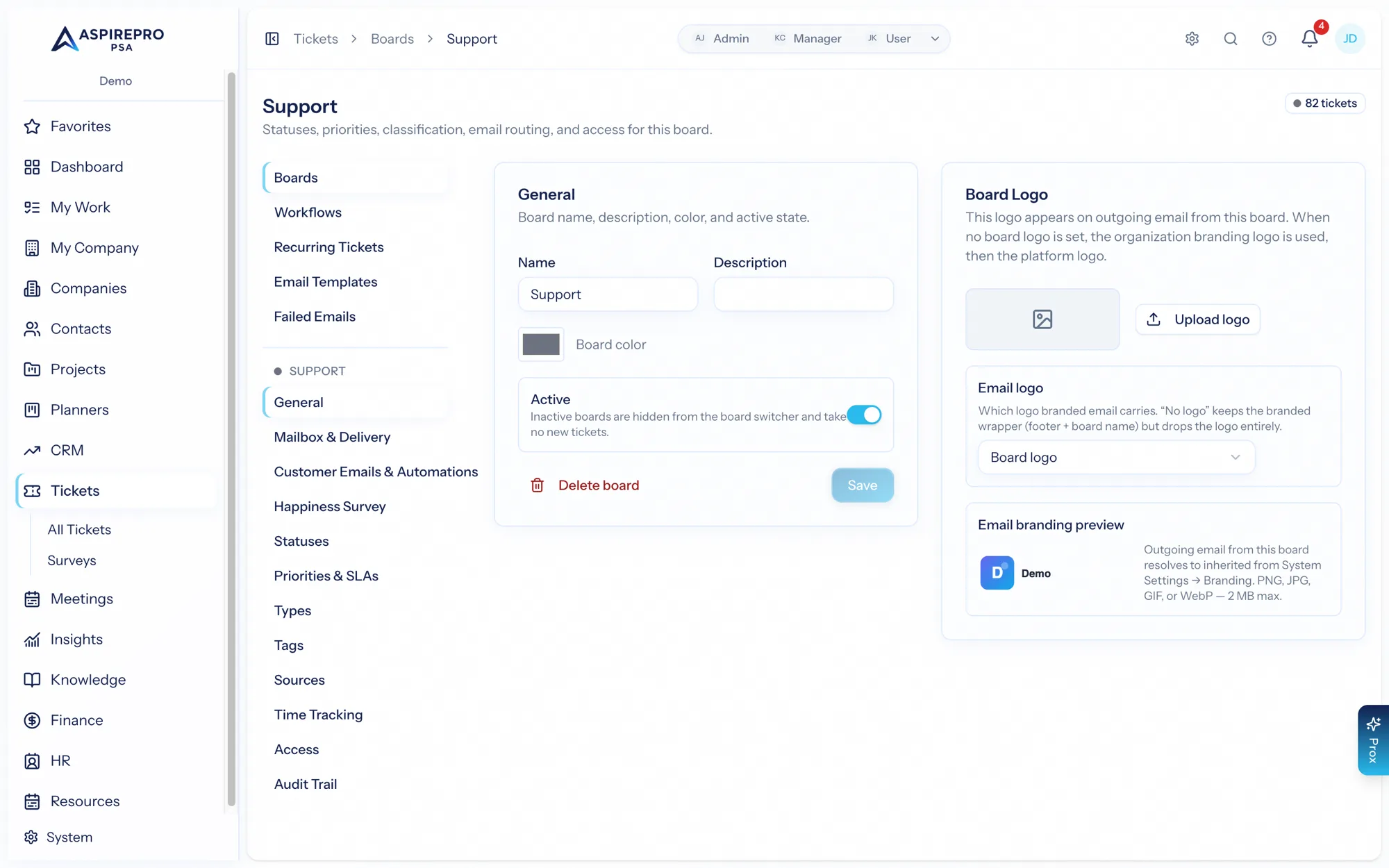
A board is a self-contained queue. Everything about how a board behaves — its vocabulary, its mailbox, the emails it sends, its survey and SLAs — is configured on the board itself, under Tickets → Settings → Boards. Open a board to find these sections.
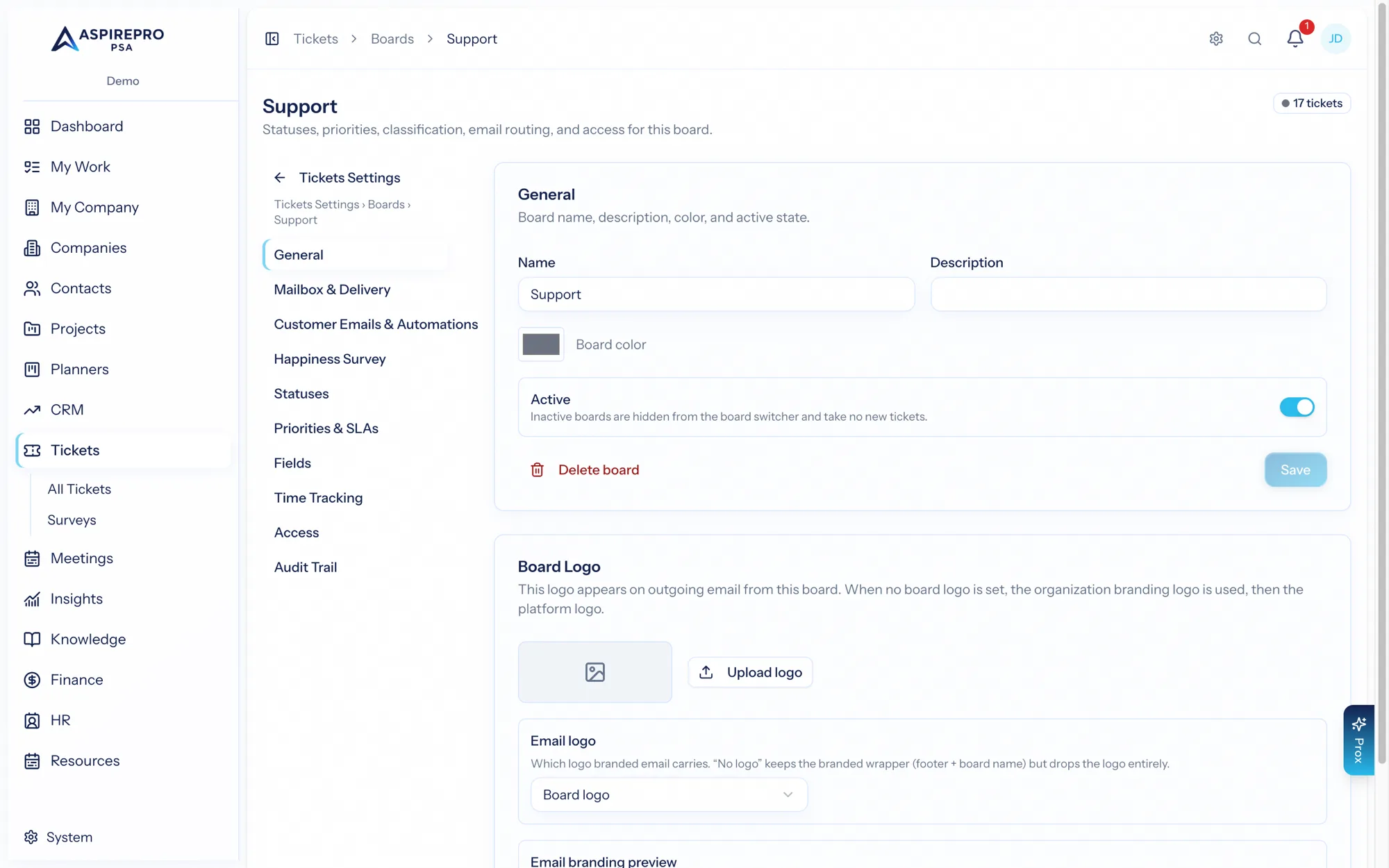
General#
The board's name, description, color, and an Active toggle (inactive boards are hidden from the switcher and take no new tickets). You can delete a board that has no tickets. A board logo can be set here for outbound email branding.
Mailbox & delivery#
Connect the board's own mailbox so it can send email as itself, and choose how email gets in: a Microsoft 365 mailbox is read directly; a Google mailbox (or SMTP, or the organization mailer) sends only, and incoming email arrives through the board's forwarding address. You can connect, disconnect, and test the connection, regenerate the forwarding address, set the from-name (mailbox, the acting user, the board, or a custom string), control whether inbound email creates contacts and how it matches companies, and choose the email format and branding. See Email to ticket.
Customer emails & automations#
The automatic emails a board sends across a ticket's journey — acknowledgement, waiting reminders, resolved check-ins, and closing notices — combined with the automation knobs that drive them: reminder cadence, maximum reminders, auto-close behavior, and the statuses that mark customer replies and first replies. See SLAs & automations.
Happiness survey#
Enable and shape the board's satisfaction survey — the trigger statuses, the scale and style, the wording, and a live preview. See Satisfaction surveys.
Statuses#
The ordered statuses a ticket can move through. Each status carries behavior flags that make the board smart:
- Default and Closed
- Marks resolved — stops the SLA resolution clock without closing the ticket
- Pauses SLA clock — both SLA timers freeze while a ticket sits here (think "Waiting on Customer") and resume on exit
- Waiting on customer (can trigger reminders) and Moved on customer reply
- Starts timer / Stops timer (for time tracking)
- Email flags — sends a closed notification, a waiting reminder, a resolved check-in, or requests a happiness rating (this last one is what triggers the CSAT survey).
Every board also carries a Merged status — where tickets land when they're merged into another. It closes the ticket silently (no closing email, no survey), so a folded duplicate reads as moved, never resolved here.
Priorities & SLAs#
Ordered priorities, each with a color and two SLA targets: response and resolution (in minutes). When a ticket is created, these stamp response/resolution due dates; an hourly scan flags breaches and notifies the assignee — plus anyone on the board's standing breach-notification list. Each board also picks the clock its SLA timers run on: 24/7, the org's business hours, or a custom board schedule. See SLAs & automations.
Types, Tags & Sources#
The board's taxonomy, each with its own section in the left nav:
- Types — a two-level Type → Subtype classification (with starter packs to seed common sets).
- Tags — colored labels.
- Sources — where tickets come from, with one markable as the default for inbound email.
Time tracking#
Board-level time behavior: auto-start and auto-stop timers on status change, require time to be logged before closing, and default new entries to billable. See The ticket record.
Access#
Allow all users to access the board, or restrict it to a chosen list. Administrators always have access.
Audit trail#
A filterable log of changes to the board's configuration.
Setting up a board well — clear statuses with the right flags, honest SLAs, a tidy type list — is what makes everything downstream (automations, surveys, reporting) work. Spend time here when you create a board.