The service desk can keep itself moving: response and resolution targets, automatic customer emails, and workflow rules that react to events all work together so the right things happen on time without anyone remembering to do them.
SLAs: response & resolution targets#
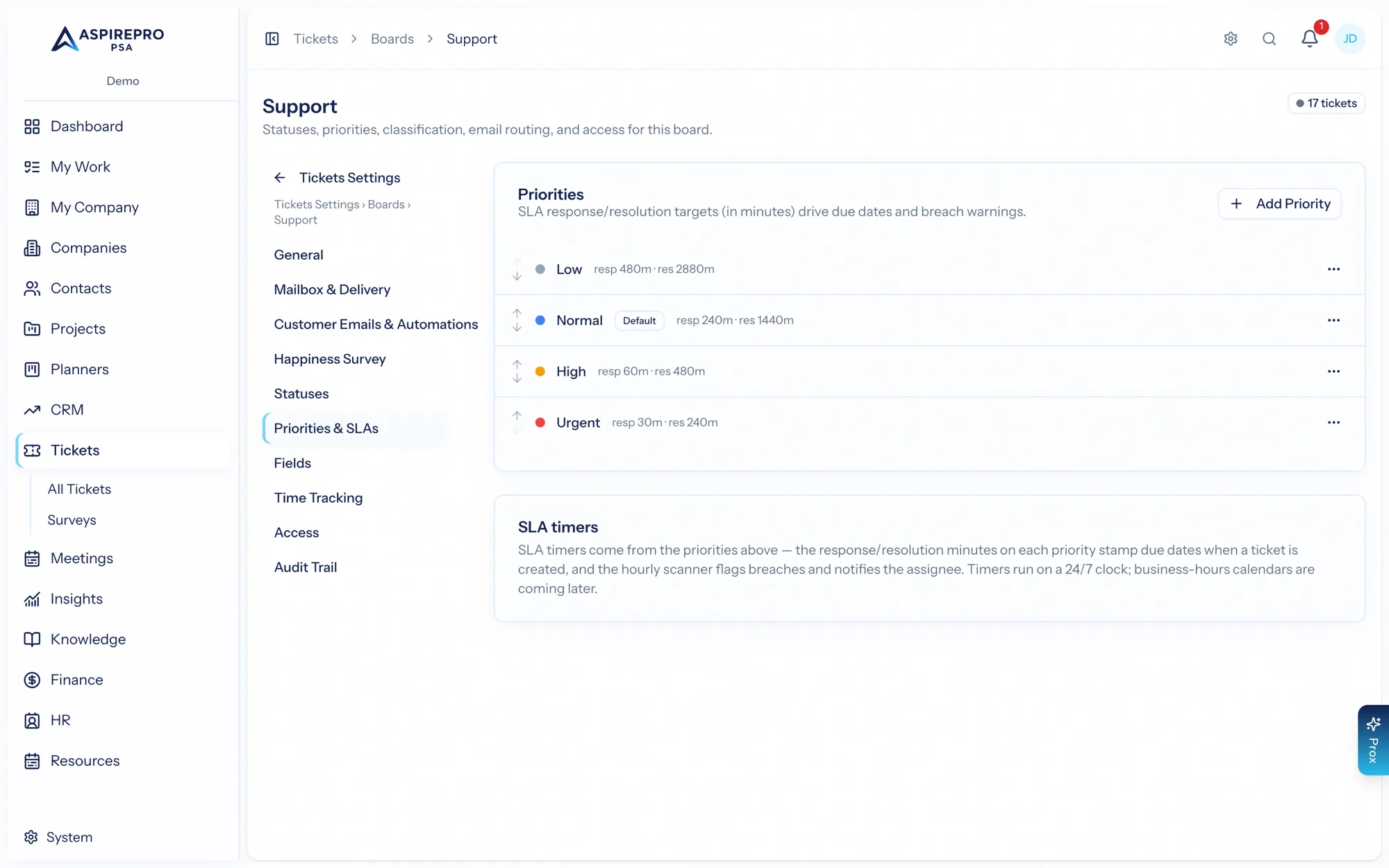
An SLA in AspirePro is defined per priority. Each priority carries two targets — a response time and a resolution time, in minutes. When a ticket is created, those targets stamp a response-due and resolution-due date onto it. An hourly scan then checks for breaches, flags the ticket, and notifies its assignee once.
A few things to know:
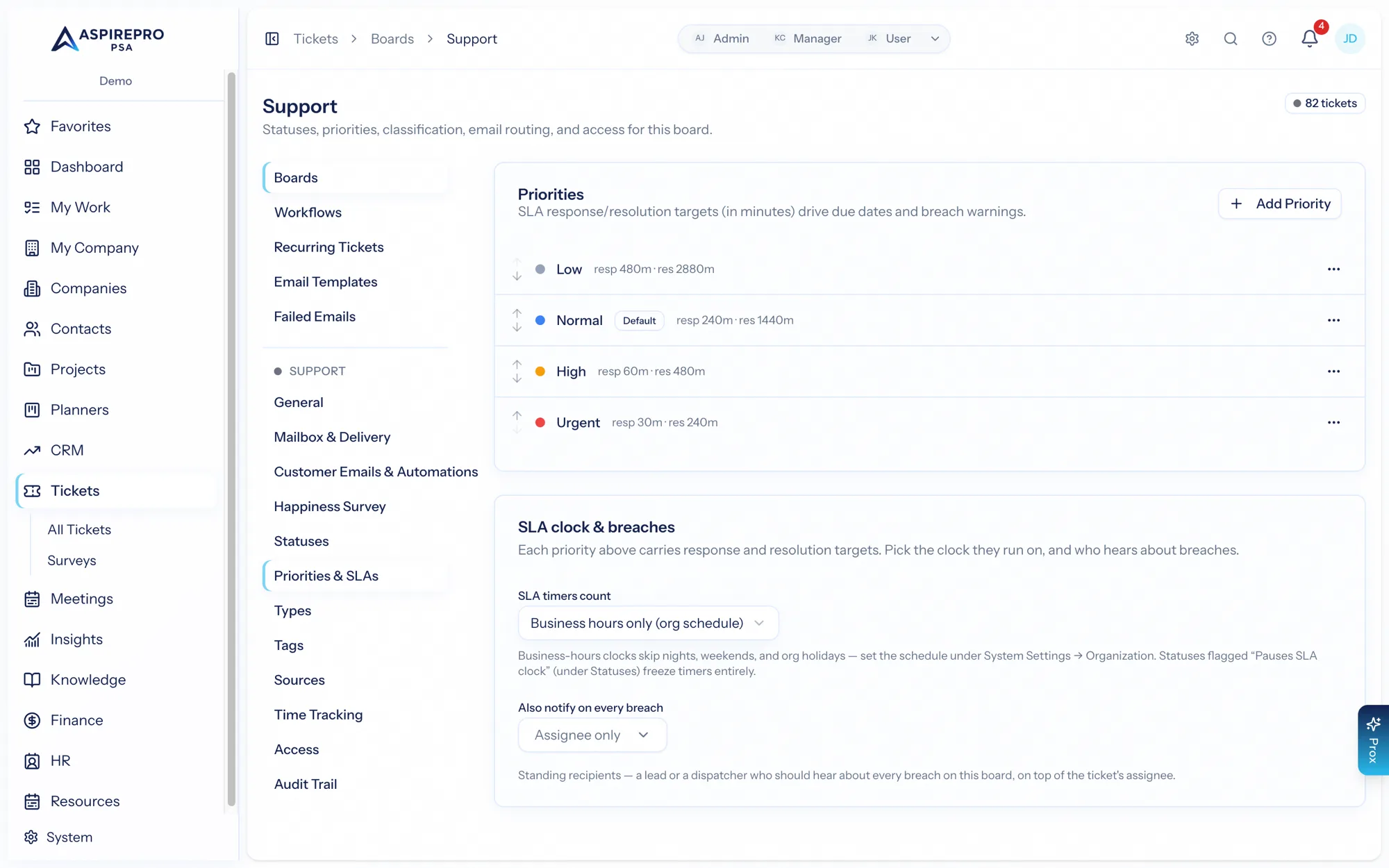
- Each board picks the clock its SLA timers run on (Board Settings → Priorities & SLAs): 24/7 wall time, business hours (the org-wide schedule from System Settings → Organization → Business Hours & Holidays — weekly hours plus a holiday list, in the org timezone), or a custom board schedule. On a business-hours clock, nights, weekends, and holidays don't count against the target — a 4-business-hour SLA on a ticket filed Friday at 4pm is due Monday morning, not Friday evening.
- A status flagged Pauses SLA clock (under Statuses — think "Waiting on Customer") freezes both timers while the ticket sits in it; when the ticket moves on, the due dates shift by exactly the time spent paused.
- Tickets inside the final stretch of a target (under 20% of the SLA left, or under an hour) show an amber SLA soon chip on the list — your pre-breach warning lane.
- A ticket's due date in the header is a separate, manual "promise to the customer" date — not the SLA timer.
- The response clock stops at the first agent reply. The resolution clock stops when the ticket enters a status flagged Marks resolved or any closed status — so a "Resolved" ticket left open for a check-in never false-breaches.
Configure targets under Board Settings → Priorities & SLAs.
Customer email automations#
Each board sends timely, automatic emails across a ticket's life — configured under Board Settings → Customer emails & automations:
- Waiting reminders — tickets sitting in a "waiting on customer" status get a gentle threaded nudge on a cadence you set (for example every 24 hours), up to a maximum number of reminders.
- Auto-close — after the last reminder and a final wait, a ticket can close itself, optionally with a goodbye email (off by default).
- Acknowledgements, resolved check-ins, and closing notices — driven by the email flags on your statuses.
- What a customer reply does — a reply always resets the reminder clock. Whether it also changes the status is up to the board: either only the statuses you tick as reply-triggers (the default — tick as many as you like, for example both "Waiting on Customer" and "Resolved"), or any open status. You choose the status a reply lands the ticket in separately. Closed statuses never auto-reopen unless you tick them individually.
Workflows#
For anything beyond the built-in email cadence, workflows are event-driven rules: when something happens to a ticket, if conditions match, then take actions. Manage them under Tickets → Settings → Workflows.
- Triggers include: created (from any source — agent, email, portal, or a recurring schedule), replied, first agent reply, customer replied (email or portal), status/priority/type/board changed, reassigned, SLA breached, and gone stale. Bulk edits fire the same triggers as single edits.
- Conditions test ticket, company, and contact fields with ALL/ANY groups (nestable) and a rich operator set. Changed to / changed from operators are offered only on the field the trigger actually carries — on SLA breached, the Breached SLA field tells response and resolution breaches apart.
- Conditions can also reach into the company's agreement — has one at all, its name, type, status, or billing model — plus the ticket's hours logged, so "VIP retainer clients skip triage" is one rule.
- Actions include: set status/priority/type, add or remove a tag, move to another board, set the row color, show a banner on the ticket, assign, add a task, add an internal note, send a system email or a reply template, send a notification, set an SLA override — and, for spam rules, delete the ticket (which ends the action chain).
- Set priority with AI is an action too: it reads the ticket and picks from the board's own priority list, optionally guided by standing instructions ("server-down reports are always Urgent"). By default it only fills tickets that don't have a priority yet — a human's pick always wins — and it can leave an internal note with its one-line reasoning.
Rules can be tested with a dry run (no changes — the dialog warns you when a rule depends on a change payload a dry run can't simulate), applied on demand with run now, and every evaluation is captured in a runs log that spells out, in plain words, which conditions matched and which actions ran. See Settings for the workflow editor.
Together these give you a service desk that escalates, reminds, and routes on its own — with SLAs as the safety net and workflows as the flexible layer on top.