Give a board its own mailbox and it becomes a shared support inbox: email sent to it becomes tickets, customer replies land on the right ticket automatically, and everything you send goes out as the board — never from an individual agent's personal address.
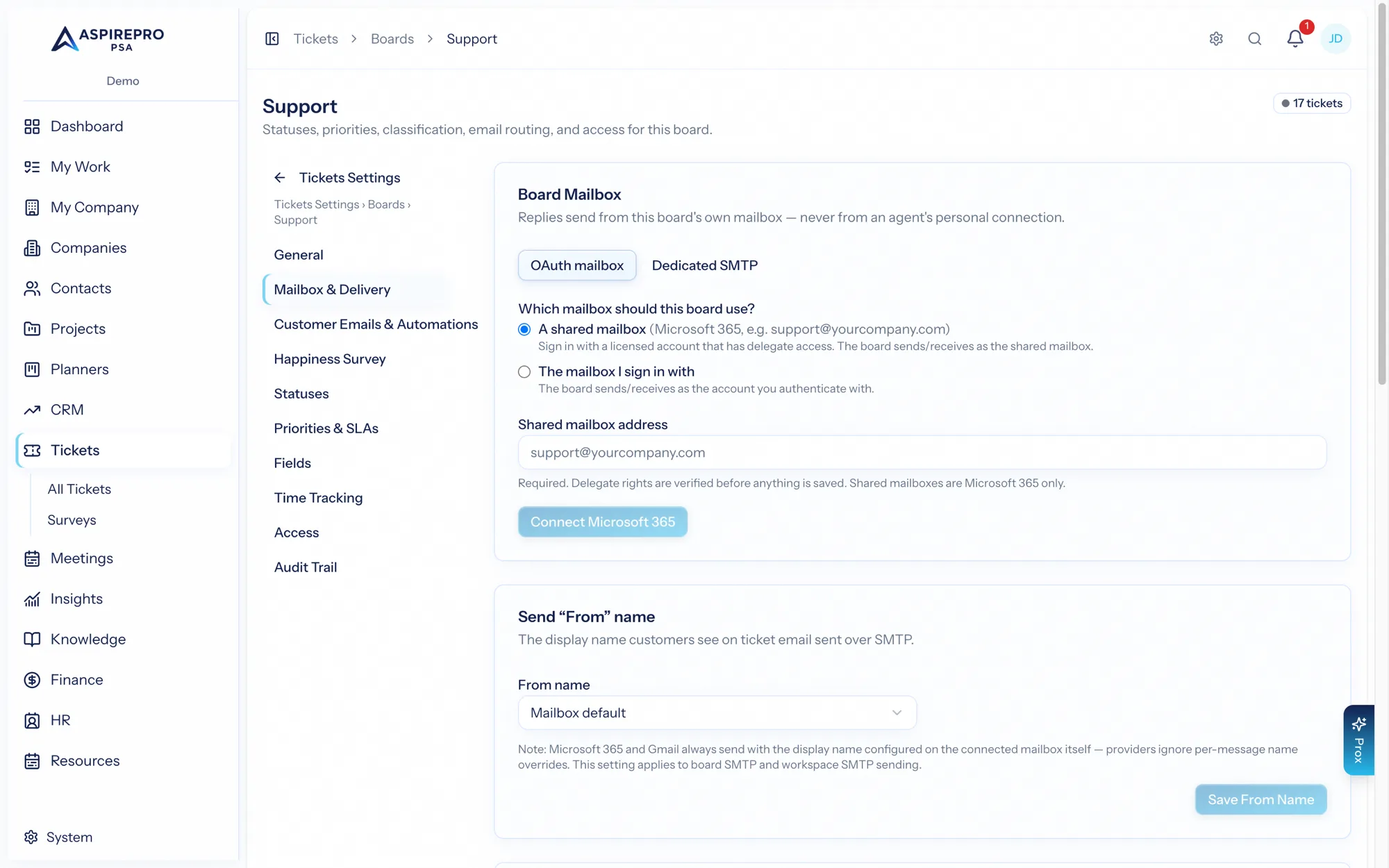
Two ways email reaches a board#
- Microsoft 365 — connect the board's mailbox (a shared mailbox such as support@yourcompany.com, or the account you sign in with) under Board Settings → Mailbox & delivery. AspirePro reads that mailbox and sends replies as it. Nothing else to set up.
- Google Workspace, Gmail, or any other mailbox — AspirePro sends as a Google mailbox but never reads one, so incoming email arrives by forwarding: point a forwarding rule (or a filter) at the board's forwarding address, shown under Inbound email on the same page. Replies still go out as the board and thread normally on the customer's side.
Use Test connection to confirm sending works before you go live. You can control whether inbound mail creates new contacts, and how it matches senders to companies.
Setting up forwarding from Gmail or Google Workspace#
- Copy the board's forwarding address from Board Settings → Mailbox & delivery → Inbound email.
- In Gmail, open Settings → See all settings → Forwarding and POP/IMAP, click Add a forwarding address, and paste it.
- Gmail sends that address a confirmation. It never becomes a ticket — within a minute the confirmation link and code appear on the board's settings page. Click the link (or enter the code in Gmail).
- Back in Gmail, choose Forward a copy of incoming mail to that address and save. If only some mail should become tickets, use a filter instead (Create filter → Forward it to).
- Send a test email to your support address and watch it appear as a ticket.
Use Gmail's automatic forwarding or a filter — not the manual Forward button, which sends the message from your own address and is treated as the board's own mail.
If the forwarding address ever leaks, Regenerate address issues a new one; the old address keeps working for 24 hours so you have time to update the rule.
How inbound mail is handled#
- A reply to an existing ticket appends to that ticket's conversation.
- Anything else opens a new ticket on the board.
Threading is deliberate and reliable — AspirePro matches replies by the mail provider's conversation ID, by the standard References/In-Reply-To headers, and by the [Ticket #0042] token stamped on the board's acknowledgement — never by guessing from the sender's address. Forwarded mail keeps those headers, so a board fed by forwarding threads exactly the same way. It also guards against mail loops (auto-responders, its own addresses, its own replies echoed back by a forwarding rule) and ignores duplicate deliveries.
Senders are resolved to contacts (created automatically if you allow it), and their domain to a company (matched or created per the board's setting; generic free-mail domains never create a company). Attachments are saved to the ticket's Attachments tab, with likely email-signature images filtered out.
Auto-acknowledgement#
When enabled, a board sends the customer a threaded acknowledgement that stamps the [Ticket #] token — this is what keeps their future replies attached to the same ticket. The acknowledgement respects your board's exclusion list and per-contact preferences.
Sending as the board#
Every outgoing reply is sent as the board — through the board's Microsoft 365 or Google connection, its SMTP settings, or the organization mailer — never an agent's personal mailbox. That means:
- The customer always sees a consistent, branded sender.
- Replies thread correctly on both sides.
- Outgoing email includes the recent conversation history (a configurable number of prior messages) so the customer has context.
Replies queue and send in the background; the thread shows "Sending," then sent or failed. If a message fails to send, the error is shown on the message so you can retry.
Because sending is always board-based, your customers experience a single, professional support address — even though many agents work the queue behind it.