Workflows let your pipeline run itself. Each workflow is a rule that reads: WHEN a trigger fires on a deal, IF the conditions match, THEN run these actions. Use them to keep deals moving, nudge owners, tag and route automatically, and surface risks — without anyone remembering to.
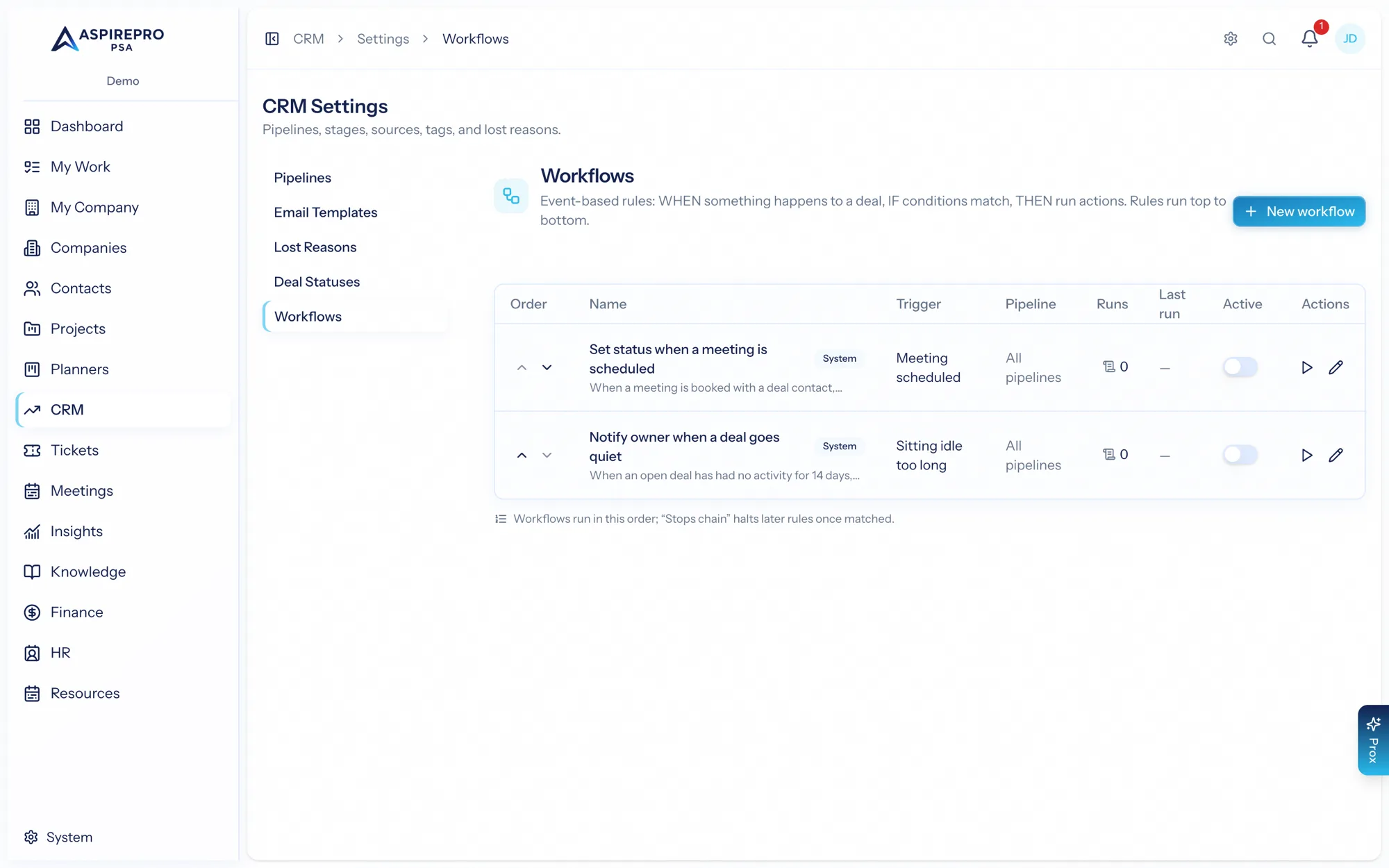
Workflows are configured under Sales → Settings → Workflows. Viewing them needs the workflow-view permission; editing needs the workflow-manage permission.
How rules run#
- Rules run top to bottom in the order listed. Reorder them with the arrows.
- A rule can be set to stop processing — when it matches, no later rules run for that deal. This lets you build precedence (a specific rule before a catch-all).
- Rules are either system rules (built in, always present) or ones your team creates. Each has an Active toggle so you can pause a rule without deleting it.
Triggers#
A trigger is the event that starts a rule. The available triggers are:
- Deal created
- Stage changed
- Status changed
- Deal won
- Deal lost
- Owner changed
- Activity logged
- Meeting scheduled — from a synced calendar (see Meeting auto-log)
- Email sent
- Value changed — the deal's value is set, changed or cleared, here or in HubSpot
- Quote accepted — the customer accepts a quote on the deal
- Quote declined or changes requested — the customer declines a quote on the deal, or asks for changes
- A custom field changed — someone (or Prox, an import, HubSpot or another workflow) changes one of the deal's custom fields. See Custom fields.
- Sitting idle too long — a deal untouched for N days (checked hourly)
- Sitting in a stage too long — a deal that has stayed in a chosen stage for N days (checked hourly; moving to another stage resets the clock)
- Expected close date passed — an open deal whose expected close date has gone by, in your organization's time zone
- Expected close date coming up — an open deal whose expected close date is within N days
The time-based triggers fire once for each idle stretch, stay in a stage, or close date. A deal that didn't match the rule's conditions is checked again later (hourly for idle rules, daily for stage and close-date rules), so it still fires if it starts to match.
Conditions#
Conditions decide whether the actions run. You build them as groups that match ALL or ANY of their contents, nested up to three levels deep for precise logic. Conditions can test fields across the deal, its company, and its contacts — value, probability, stage, status, source, owner, tags, next step, age, days since last activity, won/lost, dates, and more. Newer fields include lost reason, value type, annual value, days in this stage, days since last contact, the deal team, and whether the deal has a project. Operators are type-aware: equals, contains, is one of, greater/less than, is empty, changed / changed from / changed to, date is in the past/future, and so on.
Changed / changed from / changed to are offered only for the field the trigger is about — the stage for Stage changed, the owner for Owner changed, the value for Value changed, the activity type for Activity logged (so "Activity type changed to Call"), and the quote outcome for the quote triggers.
Leave conditions empty and the actions run whenever the trigger fires.
Actions#
When a rule matches, it runs its actions in order:
- Set status
- Move to stage
- Add tag and Remove tag
- Set expected close date — to a number of days from today, or clear it.
- Add internal note — a note on the deal with no author, shown as from "Automation". You can use
{deal.name},{deal.stage}and{deal.owner}in the text. Like any new deal note, it also goes to HubSpot when your organization syncs notes there. - Display a banner on the deal — info, success, warning, or critical text, shown while the conditions match (great for "high-value deal gone quiet").
- Assign owner
- Create a follow-up activity — a task or call with a subject, a due offset (in days), assigned to the owner or a specific person.
- Send a notification — to the owner, a specific user, or a role, with an optional message.
- Set a custom field — fills, changes or clears one of the deal's custom fields.
- Create a project from a template: usually on Deal won or Quote accepted. It makes a project for the deal's company (and its point of contact, if they work there), linked to the deal, owned by the deal owner (or a person you pick), optionally with the deal team as members. A deal never gets two projects from the same template, even if it's won again or the rule runs twice, and by default no project is made when the deal already has one. The deal needs a company, because a project needs a client to bill. You can use
{deal.name},{company.name},{template.name}and{won_date}in the project name. Instead of one template, it can make projects from what was sold: one project per service on the deal's accepted quote (or, with no quote, its products from HubSpot), each from the template set on that service's catalog item, or one project with a phase per service, as set under Project templates. The template you pick is then used only when nothing sold has a template. With no template picked and nothing sold that has one, the action is skipped: the run log says so and nobody is emailed, because the rule worked and there was nothing to make. A deal with no company is different: that run is an error, and the rule's managers are told, because someone needs to fix the deal. Adding this action needs permission to create projects. - Add a task to the deal's project: puts a task in the first column of every open project linked to the deal (or only the newest), with an optional due date and assignee. You can use
{deal.name}and{project.name}in the task name. Archived projects are skipped. Adding this action needs permission to see every project. - HubSpot actions: Update a HubSpot field, Add to or remove from a HubSpot list and Add a note in HubSpot, on the deal or its company or primary contact, while HubSpot is connected. See HubSpot actions in automations.
Saving a rule checks every action has what it needs (a stage to move to, a status to set, a subject for a follow-up, and so on). Rules saved before this check keep running; they're checked the next time someone saves them.
Testing before you commit#
Automations are powerful, so test them safely first:
- Test (dry run) evaluates the rule against your open deals without changing anything and reports how many would match and how many actions would run, with a sample. Use it to confirm a rule does what you expect.
- Run now applies the saved rule to all matching open deals. This does make changes, so it asks you to confirm. It runs in the background: you'll get a notification with how many deals matched and how many actions ran, linking to the rule's runs.
The runs log#
Every evaluation is recorded. Open a workflow's runs to see each run — when it happened, which deal, the trigger, whether it matched, the outcome (success, error, or skipped), how many actions executed, and how long it took. Filter by status or matched, and open any run for details, including which conditions matched and any error. The log is your window into what automations are actually doing.
Ready-made rule#
Every organization starts with one deal rule, switched off: Tell the owner when a deal's expected close date passes. Switch it on to use it, or edit it first. It can be switched off but not deleted.
Deals from HubSpot#
Deal workflows run for live HubSpot changes: a deal created in HubSpot after its pipeline was linked, and later stage, owner and value changes. They don't run for deals that arrive through an import, or that already existed in HubSpot when the pipeline was linked, because those are history, not news. See HubSpot.
Good to know#
- If the server fails part-way through a rule, the actions it already did can run again when it retries. Creating a project from a won deal and the Phase completed trigger are protected against running twice.
- Run now changes records like any other rule run, so its changes can set off other rules (up to the organization's limit on automations in a row).
Workflows in the rest of AspirePro#
Deals aren't the only place with workflows. Each module has its own rules, built the same way (when, if, then), with the same Test, Run now and run log:
- Service desk — tickets, under Tickets → Settings → Workflows. See Ticket settings and SLAs & automations.
- Projects and tasks — under Projects → Settings → Workflows, including time-based rules like "hours budget reached" and "gone quiet". See Project and task workflows.
- Time — under System → Finance settings → Time workflows: no time logged, time logged or edited, and prepaid hours alert levels. See Time workflows.
System → Organization → Automations sets how long run history is kept and how many workflows may set each other off in a row, and lists the ready-made rules. See Organization.
Prox and your AI tools can read, create, edit, test, switch on and off, and delete workflow rules for every module, using the same permissions and checks as the settings pages. See Working with Prox.
Start small: one or two rules with Test run first, watch the runs log, then expand. Because rules run top-to-bottom with stop-processing, a tidy, ordered list is easier to reason about than many overlapping rules.