Every organization tracks a few things AspirePro doesn't have out of the box — a contract tier, a renewal date, an account manager, an affected system. Custom fields let you add them to companies, contacts, deals, projects, tasks and tickets. People fill them on the record, every change is in the audit log, and merges keep them.
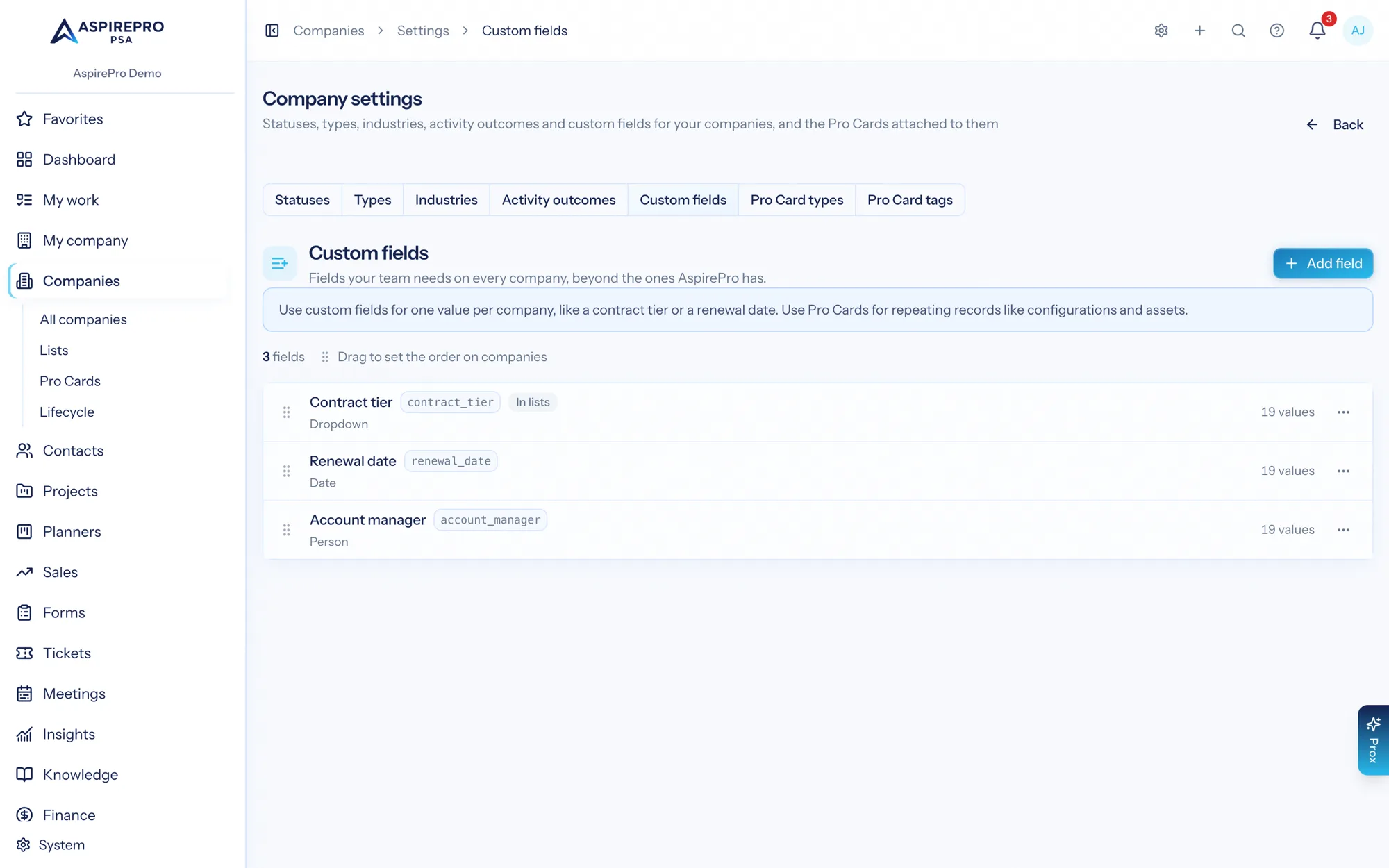
Where to set them up#
Each module keeps its fields in its own settings, and you need that module's settings permission:
Record | Where |
|---|---|
Companies | Companies → Settings → Custom fields |
Contacts | Contacts → Settings → Custom fields |
Deals | Sales → Settings → Custom fields |
Projects | Projects → Settings → Custom fields |
Tasks (in projects) | Projects → Settings → Task fields |
Tickets | Tickets → Settings → Custom fields |
Click Add field, give it a label and pick a type. Drag fields by their handle to set the order they show on records; fields with the same section are grouped together.
Field types#
Text, Paragraph, Number, Money (in one currency per field, your organization's by default), Date, Dropdown, Multi-select, Checkbox, Person, Link, Email and Phone.
Each field gets a short name made from its label (for example contract_tier). Automations, AI and integrations use it, so it never changes — you can rename the label and its options any time without losing a value.
Fields for one board, pipeline or project type#
Ticket fields can apply to all boards or only some boards, deal fields to some sales pipelines, and project fields to some project types. Task fields follow their project's type; tasks on planners never show custom fields.
- A field only shows on records where it applies.
- When a ticket moves to a board that doesn't use a field (or a project changes type, or a task moves to another project), the value is kept but hidden. You're warned before the move, and the value comes back if the record moves back.
- Narrowing where a field applies asks first when records already have values there — they're hidden, never deleted.
- Required can be "wherever it applies" or only on some boards, pipelines or types.
Fields on lists#
On the Companies, Contacts, Projects, Tickets and All deals lists every custom field is a column you can show from Columns (fields marked Show in lists start visible), sort by, and filter by under More filters — options, people, date and number ranges, "contains" for text, or Is empty. Saved views keep custom filters. Turn on Include in search for a text field and the list's search box looks in it too. A sales pipeline's board and its List view offer only the fields that pipeline uses, in Columns, More filters, search and Set field; the board keeps its own Sort by order.
Task fields show as columns on All tasks (under Projects, which also filters and searches by them), My work, and a project board's List view, which shows its project type's fields marked Show in lists and offers Set field on selected tasks.
A filter on a field that only applies to some boards, pipelines or project types only ever returns records where the field applies — "Is empty" means "uses this field and has no value". To fill a field on many records at once, select them and choose Set field; records where the field isn't used are skipped and counted.
Dynamic lists#
A dynamic company or contact list can fill itself from custom fields too. On the list's settings, under Who's on this list, each custom field has a rule after the built-in ones: pick any of a dropdown's options or people (or Is empty), Is checked or Is not checked for a checkbox, a range for numbers, money and dates, and Is empty for every other type. The list updates every half hour and whenever you save the filter, like any other rule.
A field that a dynamic list uses can't be deleted until you take the rule off the list. Archiving it asks first: while the field is archived, the list stops updating and keeps the members it has, so nobody is added or removed by mistake. Restore the field and the list picks up where it left off, or remove the rule from the list and save.
Required fields#
A required field must be filled when a person creates or edits the record. Automatic creation never fails because of it — an email that opens a ticket, a HubSpot sync, a recurring ticket or an import still creates the record, and the record shows Needs: … until someone fills it. Making a field required never blocks saving older records that are still empty.
Who can change a field#
Choose Anyone who can edit the record or Only people who manage the module's settings. A locked field shows its value read-only to everyone else, and they're never asked to fill it even when it's required.
Dropdown options#
Rename an option and every record keeps it. Switch an option off to retire it: records that already have it keep it, but it can't be picked again. To clean up, use ⋯ → Move records between options: every record holding one option gets another (or is cleared) in the background, with one audit entry.
Person fields#
Picking someone in a person field tells them (they can change this in their notification preferences). Turn Notify the person picked off on a field to keep it quiet.
Archive and delete#
Archive hides a field everywhere and keeps its values; Restore brings it back. Only an archived field can be deleted, and deleting asks you to type its label — its values are deleted for good.
Use in automations#
Ticket, deal, project and task automations (Settings → Workflows) can use custom fields:
- When: A custom field changed runs when someone — a person, Prox, an import, HubSpot or another automation — changes one of the record's custom fields. Pick a Field to run only when that field changes, or leave it empty for any custom field. It doesn't run when a record is created; use created with a custom-field condition for that.
- If: every custom field is a condition (the record's company's fields too, as Company: …). A condition on a field that isn't used on the record's board, pipeline or project type is never met — not even Is empty. An automation limited to one board, pipeline or project type only offers the fields that one uses.
- Then: Set a custom field fills, changes or clears a field (for a multi-select: replace, add or remove options). Required and locked rules don't apply to automations; a record whose board doesn't use the field is skipped.
While an automation uses a field, the field can't be deleted, change type, or stop applying to that automation's board — the settings page says which automation to change first. Archiving a field is allowed: conditions on it are then never met, and the automation shows it as "(archived)".
Client portal#
Custom fields are internal until you say otherwise. On ticket, project and task fields, turn on Shows to clients and clients see the field's value, read-only, in the client portal: on the ticket's Details, in a Details card on the project, and under More details on a task. A client only sees it on records where the field applies and has a value — a field for another board or project type, an archived field, or an empty one never shows. For a person field, clients see the person's name. Clients can't change custom fields. Company, contact and deal fields never show in the portal, so they don't have the switch.
Import and export#
Company and contact fields can be filled from a spreadsheet. In the import wizard, custom fields are listed under Custom fields when you match columns; a column whose header matches a field's name is matched for you. For a multi-select, separate several options with commas or semicolons; for a person field, use their email address.
A value that doesn't fit a field — text in a number field, or a dropdown value that isn't one of its options — is skipped, and the rest of the row still imports. The preview lists every row with a skipped value. People who manage the module's settings also see Add new dropdown options found in the file: tick it and a value that isn't an option yet is added as one, once, however many rows use it (a retired option stays retired). Only fill in blank fields keeps custom values a record already has. A field set to Only people who manage the module's settings can only be filled from a file by those people; for anyone else its column is skipped with a warning. A required field left empty is a warning, not an error, and the record shows Needs: …. Undoing an import removes the records it created, values and all; values it changed on existing records stay.
Exports add one column per active field after the standard ones, showing values as you see them on the page. A field named like a standard column (say "Phone") is exported as "Phone (custom)", so the file imports back cleanly. Current view exports with your list's custom-field filters and search applied.
Merges#
Merging two companies or contacts keeps the survivor's values and fills any blanks from the other record. Where both have a different value, the merge wizard lets you pick which to keep (or keep every option from both, for multi-selects). Merging tickets never moves custom values — each ticket keeps its own.
Reports in Insights#
Add the Custom Field Breakdown metric to a dashboard to see how records split across a dropdown, multi-select, checkbox or person field — for example tickets by affected system, or deal value by "Budget confirmed". Pick the record type and the field from the widget's ⋯ menu. It counts records created in the period you choose (deals can also be totalled by value) and leaves out records where the field isn't used, so Not set means "uses this field and has no value". A record with several options counts under each one. Like every metric, it only counts records you can open, and each bar opens the records behind it.
Prox and AI clients#
Prox and AI clients connected over MCP see a record's custom fields (only the ones that apply where the record is), can filter lists by them, and can fill them when they create or update a record — following the same required and locked rules as people. People who manage a module's settings can also ask Prox to add, edit or archive that module's fields; restoring and deleting stay on the settings page.