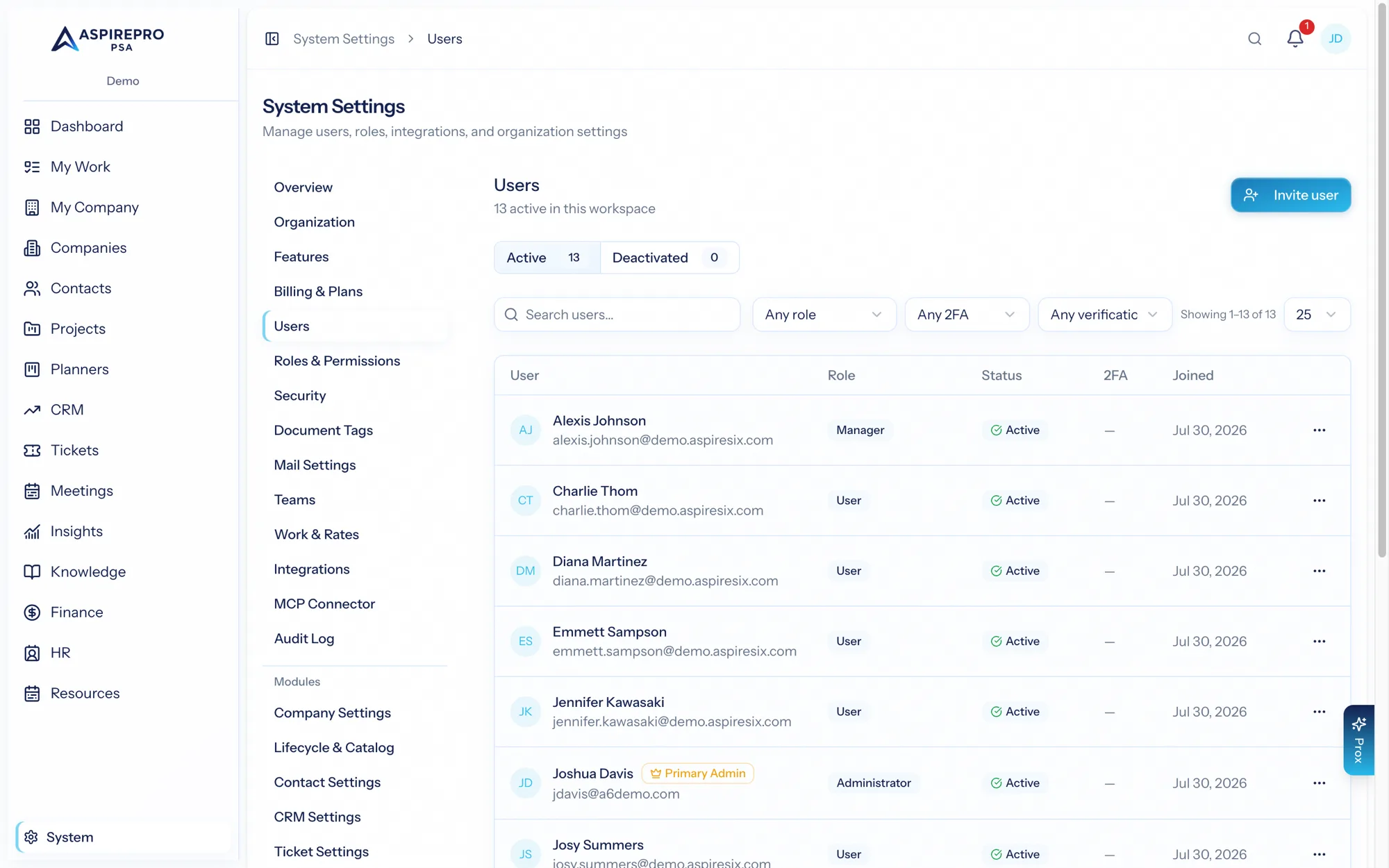
System → Users is where you manage everyone who signs in to your organization. From here you invite new people, assign their roles, and manage their accounts over time.
Inviting people#
- Open System → Users and choose Invite user (or Add user).
- Enter their email address and assign one or more roles (roles determine what they can do — see Roles & permissions).
- Send the invitation.
The person receives an email with a secure link to set their password and join. Their account activates once they accept. Invitations are tied to the email you used, so the person joins as exactly the account you intended.
Assign roles thoughtfully at invite time so people land with the right access on day one. You can always adjust later.
Managing a user#
Open any user to manage their account. Depending on your configuration you can:
- Change their roles to grant or reduce access.
- Deactivate a user who has left or no longer needs access — they can no longer sign in, while their history and assignments are preserved.
- Reactivate someone who returns.
- Help with sign-in issues, such as resending an invitation.
Connected accounts#
A user's page also shows the accounts they have connected as themselves — the mailboxes they send and capture email from, calendar accounts and which calendars sync, the AI Notetaker calendar, notetaker imports such as Fireflies or Fathom, and AI clients (MCP) connected to this organization. Each one carries a status:
- Connected — working as of the last check.
- Needs attention — the last attempt failed; the reason is shown underneath (for example, the provider revoked access). The person needs to reconnect it under their Account settings → Integrations.
- Paused — a rate limit at the provider; it resumes on its own.
- Disconnected — the person or the provider ended it.
This view is read-only. It never shows tokens or keys, and only the person themselves can connect or disconnect an account. It is controlled by the See users' connected accounts permission, on for Administrators and Managers by default and adjustable per role under System → Roles & permissions (a role also needs Manage users to open a user's page).
Seats and billing#
Active users consume seats on your subscription. If your plan is per-seat, adding users may affect your bill; deactivating users frees seats. See Billing & plans for how seats and your subscription relate.
Users vs. contacts vs. portal users#
It's worth keeping three ideas distinct:
- Users are your internal team — people who sign in to the organization and do the work. Managed here.
- Contacts are people at the companies you work with. They don't sign in to your organization. See Contacts.
- Portal users are contacts you've granted access to the client portal — they sign in to a separate, restricted area to see their own tickets and projects. Managed from the contact record, not here. See Client portal access.