The client portal is a separate, secure area where your clients sign in to see their tickets and projects — without any access to your internal organization. You control who gets in, contact by contact, right from the contact record. (The portal itself requires the Client Portal module to be enabled; this page covers the staff side of managing access.)
Granting access#
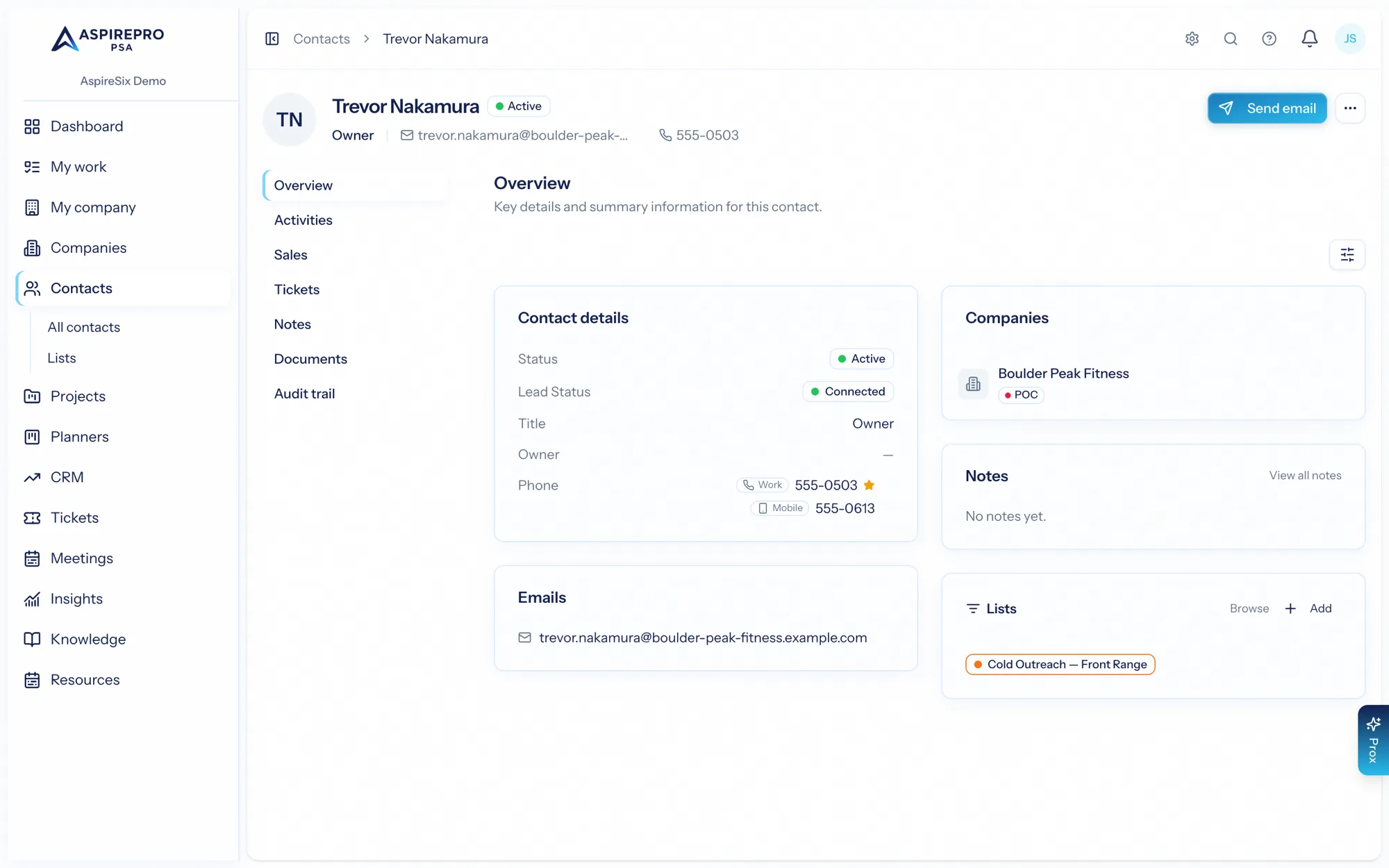
From a contact's record, use Portal access to invite the person in:
- Open the contact and choose Grant portal access (or the portal section of the record).
- AspirePro sends the contact an invitation to set a password and sign in to the portal.
- From that point, the contact can sign in to the portal at your client-portal address and see what you've made available to them.
What clients can see#
Portal users see a deliberately narrow slice of the organization — their tickets (and can open new ones and reply) and their projects (a simplified organization with tasks, checklists, comments, attachments, and links). They never see internal-only details like time entries, audit logs, assignees, or other clients' data. Exactly which capabilities are available is governed by the portal's default-deny permission model, configured by an administrator.
Company-level opt-in#
Access can also be governed at the company level with a portal toggle, so you can enable or disable portal access for an entire client organization at once, then fine-tune per contact.
Managing and revoking access#
From the contact's portal controls you can:
- Resend the invitation if the contact didn't receive it.
- Reset password for a contact who's locked out.
- Update their access.
- Revoke access entirely when the relationship or the person's role changes — immediately cutting off portal sign-in while preserving all the underlying records.
Portal access is a privilege you grant deliberately. Because it's managed per contact and per company, you always know exactly who on the client side can sign in.
For the client's experience inside the portal, see the Client Portal module documentation.