Contacts are the people at the organizations you work with — the individuals you email, sell to, deliver for, and support. Together with Companies, contacts form the always-on foundation of AspirePro. Every contact belongs to a company, and every deal, project, ticket, note, and logged email can reference the specific people involved.
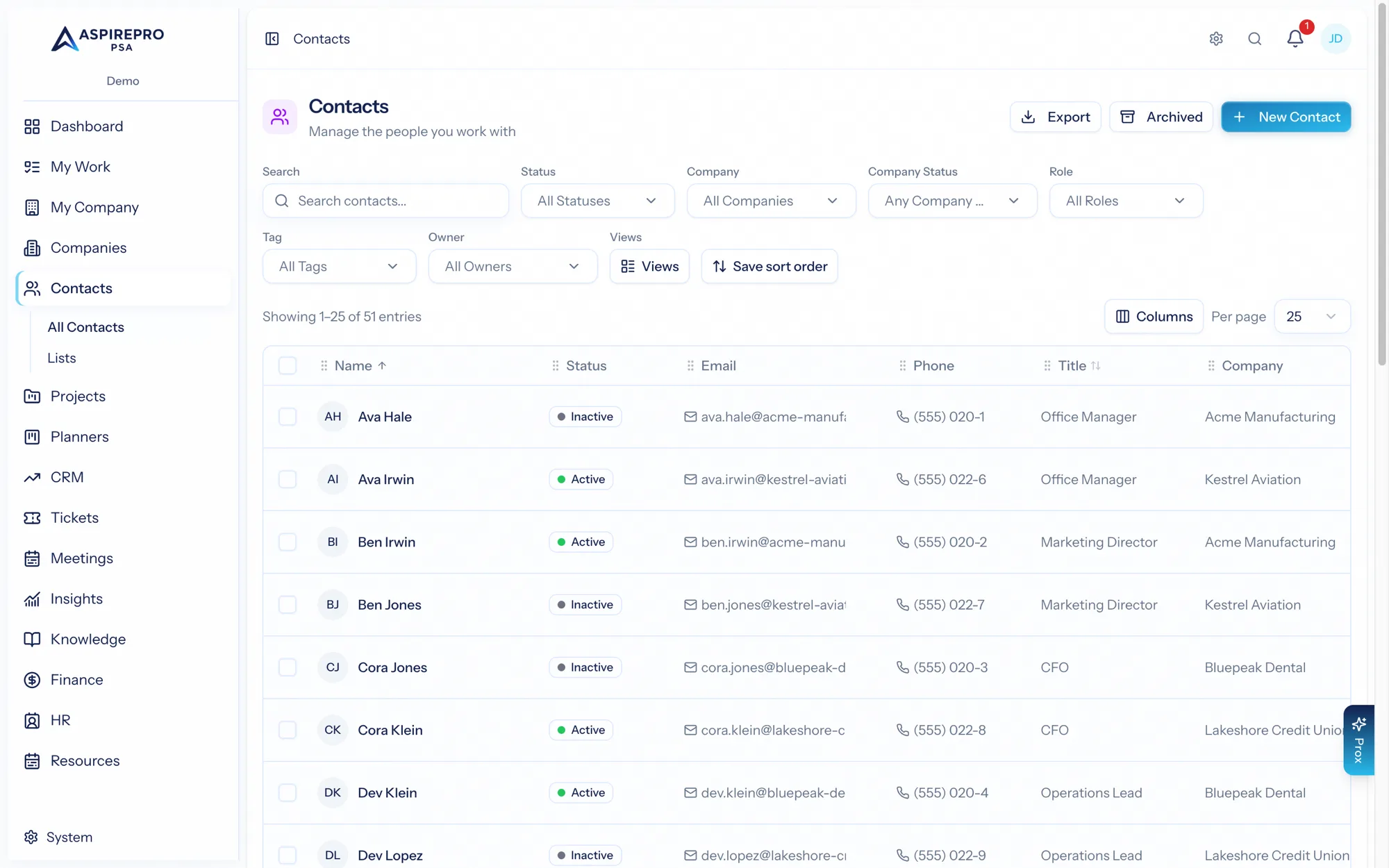
The Contacts list#
Open Contacts from the sidebar for every person in your organization. Like Companies, it supports:
- Filtering and sorting by status, type, tags, company, owner, Lead Status, and more. Search matches any of a person's numbers, mobile included.
- Columns you choose — a Mobile column and a Lead Status column among them.
- Saved views for the segments you work with (the same pattern as Companies views).
- Bulk actions across selected contacts — including Lists → Add to, which puts a selection on any list.
- Export to a spreadsheet, mobile numbers included.
Adding a contact#
Click New contact, enter their details — as many emails and phone numbers as they have, one of each marked as primary — and, if you know it, their company. A company is optional: a person can carry calls, notes and follow-ups on their own, and rolls up to a company the day they get one. You can set the contact's status and type, add tags, and upload an avatar. Contacts added from within a company record are linked to that company automatically, and an email at a company's domain links the person to it on its own.
What lives on a contact#
Each contact record gathers everything about that person across tabs — their activity timeline, related deals and tickets, notes, and documents. The full tour is in The contact record.
Client portal access#
Contacts are also how you grant clients access to the client portal, where they can see their tickets and projects. You manage a contact's portal access right from their record — see Client portal access.
Archiving#
As with companies, archive contacts you no longer work with rather than deleting them. Their history is preserved and they're out of your active lists; restore them from the Archived view whenever you need to.