The HubSpot integration keeps AspirePro and HubSpot telling the same story: companies, contacts, deals, owners, and lists sync between the two. You choose which way changes travel for each, what happens when both sides change, and how much comes in from HubSpot.
Before you start#
- You need to be an administrator in AspirePro with the Manage integrations permission, and a Super Admin in the HubSpot account you are connecting (HubSpot only lets Super Admins install apps).
- One AspirePro organization connects to one HubSpot account. Connecting a different HubSpot account later releases the old links (see Disconnecting is reversible below).
Installing#
There are two ways in, and they end in the same place.
From the HubSpot App Marketplace
- Open the AspirePro listing and click Install app.
- Choose the HubSpot account to connect. HubSpot shows the permissions AspirePro asks for — read and write access to companies, contacts, deals, lists and products, read access to owners and to logged sales email — and you confirm them. Every permission is used by something described on this page.
- HubSpot sends you to AspirePro. Sign in and choose the organization the HubSpot account belongs to. The approval is held for fifteen minutes; if it lapses, start again from the listing.
- You land on System → Integrations → HubSpot with the connection live.
From inside AspirePro
- Go to System → Integrations → HubSpot and click Connect HubSpot.
- Choose the HubSpot account and confirm the permissions.
- HubSpot returns you to the same page, connected.
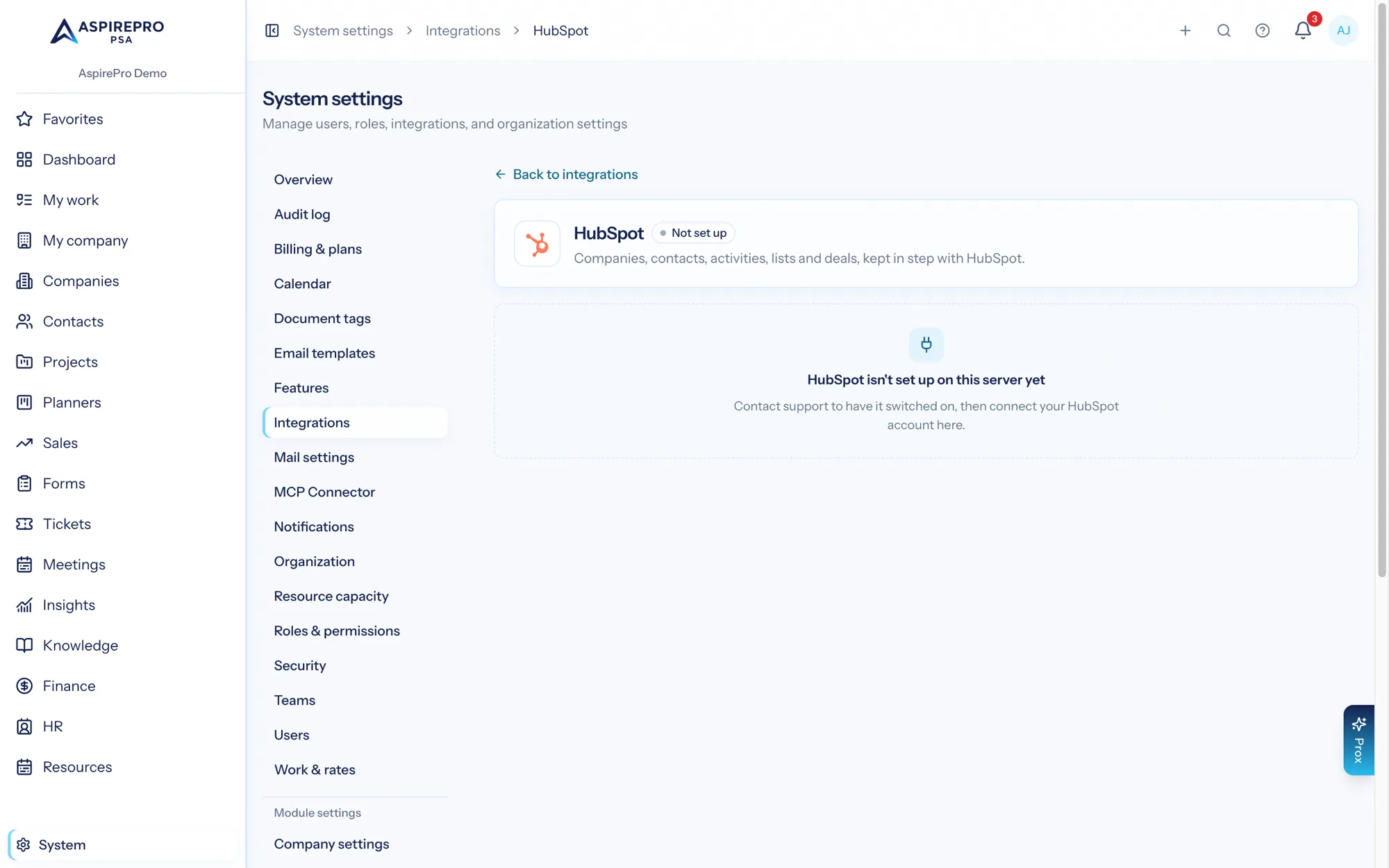
Configuring#
Everything is on the HubSpot settings page, and nothing syncs until you say so. The header shows the HubSpot account, how many companies and contacts are synced, and the last change in each direction. The settings sit in six tabs — Sync, Fields, Safeguards, Activities & tasks, Lists and Pipelines & deals. The Sync, Safeguards and Activities & tasks tabs and the deal rules on Pipelines & deals share one save bar. A pipeline's sync direction and a list's direction apply as soon as you pick them, and matching a field happens in its own dialog.
- Sync — four steps, top to bottom: - What syncs and which way — switch Companies and Contacts on, and pick a Direction for each: Both ways, HubSpot → AspirePro (HubSpot is the source of truth: its changes come in, and nothing is sent back), or AspirePro → HubSpot (AspirePro is the source of truth: changes here go out, and nothing comes in). Activities and tasks follow the contacts setting unless you change them. - When both sides changed — what happens when a company or contact was edited in both places since the last sync: Hold for manual review, Most recently edited wins, or Source of truth wins (the side each type syncs from is kept; where sync runs both ways, the most recent edit wins). - Matching — how a company coming from HubSpot finds one you already have, so nothing is created twice: Website domain, then name, Website domain only, or Name only. Contacts always match on email. - Import scope (optional) — limit what comes in to the members of chosen HubSpot lists (each marked Active or Static), and, under Advanced, a Property filter — for example, Lifecycle stage equals Customer. Companies and contacts outside the scope are skipped, never deleted. It only limits what comes in; what you send to HubSpot isn't affected.
Below the steps, Products and services links your products and services to HubSpot's product library — see Products & Services. 2. Safeguards — the switches described under Safeguards below, plus three optional extras: Tag synced contacts in HubSpot, Sync owner, and Set company and contact types. 3. Matching — the Matching button at the top of the page opens HubSpot matching, where you match HubSpot owners to AspirePro users, check lead statuses, name HubSpot sequences, and match a HubSpot property's values to your company and contact types. The built-in fields are fixed; to sync your own HubSpot fields too, match them on the Fields tab — see Matching fields below. 4. Activities & tasks — choose whether activities come From HubSpot and go To HubSpot, which kinds (tasks, notes, calls, emails, meetings), whether to Keep email bodies, and History on first sync — how far back to copy history the first time. 5. Click Preview import to see what would arrive, then Sync now for the first import. It runs in the background and the page shows progress.
After that the sync is continuous — see Day-to-day below.
What syncs#
- Companies & contacts — a fixed set of fields, in the direction you chose on the Sync tab. For a company: name, website and website domain, phone, description, industry, and number of employees. For a contact: first and last name, email, job title, phone numbers, and Lead Status. A contact's phone numbers travel by kind: HubSpot's Phone number is the default non-mobile number here and Mobile phone number the mobile, both ways. With the matching switches on (Safeguards tab), the owner and the company or contact type are set from HubSpot too. While HubSpot is the source of truth for companies or contacts, the fields it manages are locked on the edit form here.
- A contact's company — the company HubSpot attaches a contact to is found here by its website domain or name, even when HubSpot holds a duplicate of a company you already have (the duplicate goes to Possible duplicates for review); a contact with no HubSpot company is linked to the company that owns their email domain.
- Deals — whole pipelines, with their stages and deals. See Pipelines & deals below.
- Owners — HubSpot owners are matched to AspirePro users so "whose account is this" survives the trip.
- Lists — on the Lists tab, link a HubSpot list to an AspirePro list and choose a direction: HubSpot → AspirePro, AspirePro → HubSpot, or Both ways (AspirePro creates the matching list, or uses a static list here with the same name). A HubSpot Active list syncs from HubSpot only, because HubSpot fills it automatically from its own rules and won't let anyone else change who's on it; a filter-based list here syncs to HubSpot only. Linked lists sync every hour, Sync all now runs them on demand, Link all links every HubSpot list at once, and only companies and contacts already synced take part. See Lists.
- Your own fields — any field your organization added in HubSpot can be matched with an AspirePro custom field on the Fields tab. See Matching fields below.
- Lead Status — HubSpot's contact Lead Status is its own field on the AspirePro contact, synced both ways the moment it changes.
- Activities & tasks — HubSpot tasks, notes, calls, emails and meetings are copied onto the contact, company or deal; what you log here goes back. See What syncs with HubSpot, and how fast below.
What syncs with HubSpot, and how fast#
Two people often work the same contact from two systems: someone inside the client's HubSpot sending emails and assigning tasks, and someone in AspirePro dialing from an outbound list. This part of the sync gives both of them one history.
Lead Status. A field of its own on the contact (beside Status, not instead of it), with your HubSpot account's options copied into Contacts → Settings → Lead statuses — rename or recolour them there, add your own, and match any option to a HubSpot value. Matching → Lead statuses lists each one with its HubSpot value (AspirePro only when it has none), and Refresh from HubSpot copies in any HubSpot has added since. It syncs the moment it changes, in either direction, and appears on the contact header, the contacts index (filter and column), exports and list filters.
From HubSpot, within about five minutes. Every five minutes AspirePro checks your HubSpot account for tasks, notes, calls, emails and meetings that changed, and copies each onto the synced contact (or company, or deal):
- Tasks become scheduled activities assigned to the matching AspirePro user (by HubSpot owner), due when the task is due. Completing one here completes it in HubSpot; completing it in HubSpot completes it here; setting one aside here marks it Deferred there. A task on a contact who is on an outbound block takes its place in that block's Today / Overdue / Upcoming by its due date, and the row says "HubSpot task due" when that is why. A contact needs no company here for their tasks and emails to land.
- Emails, calls and meetings become logged activities marked with the HubSpot sprocket, which links back to them in HubSpot. Email bodies are kept only if Keep email bodies is on; off keeps the subject, sender, recipient, time and a 300-character preview.
- How an email was sent shows beside it: the sequence that sent it (linking to the sequence in HubSpot), the inbox it went through (Outlook (Microsoft) inbox, Gmail inbox), or how else it reached HubSpot (Logged in HubSpot, Via Zapier…), and a Campaign chip when it rolls up to one. HubSpot doesn't tell AspirePro a sequence's name — only its number — so the chip reads Sequence #735543994 until someone types the name once under Matching → Sequences. After that, every email that sequence sent says the name.
- Notes land as Notes on the contact (and so on the company HubSpot links it to), on the deal, or — when HubSpot links a note to a company only — on the company's Notes tab.
Activities copied from HubSpot are read-only here except for completing, rescheduling or setting aside a task — they belong to the client's HubSpot. A terminal outcome logged here (disqualified, do not call, unsubscribed) completes the person's open HubSpot tasks too.
To HubSpot, right away. With To HubSpot on, a call, a meeting, a follow-up, a note on a contact or company, or an email you write from AspirePro appears in HubSpot on the synced contact, credited to your HubSpot owner. Mail captured from a connected mailbox is never sent (HubSpot already has it, or it was never theirs to see), and neither are private activities. Logged activities and notes are only ever created in HubSpot — later edits stay where they were made. Tasks are the exception and stay in step both ways.
The switches are on the Activities & tasks tab. From HubSpot and To HubSpot each offer Same as contacts (currently on/off), On, or Off. Same as contacts means From HubSpot is on while contacts sync Both ways or HubSpot → AspirePro, and To HubSpot is on while they sync Both ways or AspirePro → HubSpot. The tab also sets which kinds move (none ticked means every kind), Keep email bodies, and History on first sync — how far back to copy history the first time; after that only new changes are copied. The status table, Copied from HubSpot · checked every five minutes, shows each kind as Working, Off or Error with when it last ran, and Recently skipped — and why lists anything it left out.
Working from a list. The end-to-end BDR workflow — link the client's list, make it a block, work their tasks from the queue — is written up under Outbound calling & email. In short: an outbound block is one screen — the queue on the left, the person on the right: their open work (HubSpot tasks included), recent history across both systems, and their notes — and you can complete a task, log or schedule the next step, add a note, or fix a number without opening the contact. Everything promised from the block is stamped with it.
Prox and MCP. list_contact_activities shows a contact's history with each row's origin and HubSpot link; complete_contact_activity closes out a follow-up or HubSpot task; create_contact_note writes a note that syncs; update_contact takes lead_status; and get_hubspot_status reports how activity copying is doing, per kind.
Matching fields#
Besides the built-in fields above, you can sync any field your organization added in HubSpot with an AspirePro custom field. Open the Fields tab on the HubSpot page and pick Companies, Contacts or Deals.
- Built-in fields lists the fields every sync carries. They follow the Sync tab and can't be changed here.
- Matched fields lists each HubSpot field you matched, the AspirePro field it fills, which way values go, and whether it's syncing.
- Other HubSpot fields lists the ones not matched yet. It shows your organization's own fields first; switch Show to see HubSpot's own fields or the ones you hid. Fields AspirePro already uses (the built-in ones, the type and import-filter properties) are greyed out with the reason.
- AspirePro fields not in HubSpot lists your custom fields with no match yet.
To match a field, click Match… beside it:
- Choose Create a new AspirePro field (it copies the HubSpot field's type and choices) or Use an AspirePro field you already have. Creating a field needs the settings permission for that area, the same as on its Custom fields page.
- Choose which way values go: Both ways, HubSpot → AspirePro or AspirePro → HubSpot. A read-only HubSpot field, or a pair where one side can't hold the other's values exactly, only comes in from HubSpot; the dialog says why.
- Choose what happens the first time: Fill in blanks only (nothing is overwritten; the default), HubSpot's value wins or AspirePro's value wins.
- For dropdowns, pair each HubSpot choice with an AspirePro option. Choices that match by value or label are paired for you. Turn on Add new HubSpot choices to the AspirePro field to add HubSpot's other choices to the AspirePro field; it never removes the field's own options. With it off, a value with a new choice is skipped and noted in the sync log. An AspirePro option with no HubSpot choice isn't sent: add it to the HubSpot field first. A HubSpot choice whose AspirePro option you merged away or removed isn't added back; pair it here if you want it.
Changing the pairs later updates the records whose two sides still agree: HubSpot's value is read again under the new pairs (or, for a match that only sends, AspirePro's value is sent again). A record changed on either side since the last sync follows the normal rules, so nobody's edit is overwritten.
Values then move in the background, and the match shows the counts when it finishes. After that, changes in HubSpot come in within about 15 minutes for companies and contacts and about an hour for deals (deals follow their pipeline: a paused pipeline pauses its fields too), and changes made here go out within a minute.
Moving values by hand. On a match's ⋯ menu, Bring in HubSpot values copies HubSpot's value onto every linked record here, and Send AspirePro values does the opposite. Blank values never clear the other side.
Stopping. Stop syncing removes the match. Both fields and all their values stay where they are. Pause matched fields stops every match at once while the built-in fields keep syncing; turning it off catches up with anything that changed meanwhile. Stopping a match also lets go of any conflict waiting on that field, so matching it again starts fresh.
AspirePro doesn't create HubSpot fields. To sync one of your AspirePro fields, create a matching field in HubSpot (Settings → Properties), click Check HubSpot for new fields, then match it. AspirePro checks for new fields once a day on its own.
When a match needs attention. If the HubSpot field is deleted or changes type, the AspirePro field is archived or deleted, or HubSpot keeps refusing a value, that match stops and shows Needs attention with the reason. People who manage integrations get a notification. Fix the cause, then edit the match or stop syncing it.
On a record that syncs with HubSpot, a field matched to come in from HubSpot only can't be edited here: change it in HubSpot.
HubSpot actions in automations#
Deal, ticket, project and task automations can change things in HubSpot. Add one of these actions to a rule (they only appear while HubSpot is connected):
- Update a HubSpot field sets one of your HubSpot fields on the deal itself, on the company or contact of the deal, ticket or project, or on a project's linked deal. A task's action works through its project. Only your organization's own HubSpot fields that aren't read-only and aren't matched on the Fields tab can be set: a matched field already syncs, so use Set a custom field for it instead. Text fields can use placeholders:
{deal.name},{deal.stage}and{deal.owner}on deals,{ticket.number}and{ticket.subject}on tickets,{project.name}on projects, and{task.name}and{project.name}on tasks. - Add to or remove from a HubSpot list puts the company or contact on a static HubSpot list, or takes it off. Active lists aren't offered, because HubSpot fills them from its own rules. If the HubSpot list is linked to an AspirePro list that sends members to HubSpot, the AspirePro list changes too, so the hourly list sync doesn't undo it. A HubSpot list filled from an AspirePro dynamic list can't be used: change that list's filter instead.
- Add a note in HubSpot writes a note on the deal, company or contact here (whichever the action is attached to) and sends it to HubSpot, even if notes don't otherwise go to HubSpot. Its title names the automation.
The actions run in the background a moment after the rule fires. Each one shows in the Sync log as an Automation action: done, or skipped with the reason (the record isn't synced with HubSpot, the field already has that value, sync is paused, or the field has been matched since). A record that isn't synced with HubSpot is skipped; nothing is created in HubSpot for it.
Who can add them. On the Sync tab, Who can add HubSpot actions is either anyone who edits that area's automations (the default) or only people who manage integrations. Actions already on a rule keep running either way.
Starting a HubSpot sequence. HubSpot only lets the person who owns a sequence enroll people in it, so AspirePro can't enroll anyone directly. Instead, have the action set a HubSpot field (for example Ready for renewal sequence = Yes) or add the contact to a list, and build a HubSpot workflow that enrolls contacts when that field or list changes.
These actions change your own HubSpot account only. A HubSpot workflow that reacts to the field or list may still email people, so check what your HubSpot workflows do before you add an action.
Safeguards#
Sync without safeguards is how CRMs get quietly ruined, so several are deliberate. The switches are on the Safeguards tab:
- Pause all sync — stops every change in and out. Nothing is lost; turn it back off to pick up where it left off.
- Never overwrite with blank values — an empty field in HubSpot never wipes a value you already have here.
- Only create, never update — HubSpot can add new companies and contacts here, but never change ones that already exist.
And some are built in:
- Conflict review — when a company, contact or deal changed on both sides, When both sides changed decides what happens; set it to Hold for manual review and nothing is overwritten until a person picks.
- Possible duplicates — a HubSpot company linked to one you already have by name alone is flagged for review instead of being trusted blindly.
- Companies and contacts switched separately — turn on one, the other, or both on the Sync tab while you build trust.
- Import scope — the first import can be limited to specific HubSpot lists rather than everything in the HubSpot account.
The Enrichment extras on the same tab carry a little more along: Tag synced contacts in HubSpot sets an AspirePro synced property on each synced contact there (contacts only), Sync owner sets each company's and contact's owner from HubSpot, and Set company and contact types sets their type from a HubSpot property you choose.
Pipelines & deals#
Beyond companies and contacts, whole deal pipelines sync — built for two situations: running HubSpot and AspirePro side by side, and moving off HubSpot entirely. They're managed on the Pipelines & deals tab.
Importing. From Sales → Settings → Pipelines (or the Pipelines & deals tab), Import from HubSpot lists your HubSpot pipelines — pick one, some, or Select all, choose which deals to bring in (All deals, or Won deals only) and how much history to bring over (open deals only / open plus closed in the last 90 days / full history — or, for won deals only, won in the last 90 days / all won deals), and the import runs in the background. Each becomes a new synced AspirePro pipeline; deals can never sync onto a pipeline you built in AspirePro, so nothing you've made is ever restructured by a sync.
Who owns what. HubSpot owns a synced pipeline's stages: rename, reorder, or add stages in HubSpot and they update here within the hour; the stage editor here shows Managed by HubSpot and stays read-only. The deals are fully workable AspirePro deals — boards, automations, Prox and reporting treat them like any other deal, because they are.
Automations on synced deals. Deal workflows run for live HubSpot changes: a deal created in HubSpot after its pipeline was linked, and later stage, owner and value changes. They don't run for deals that arrive through an import, or that already existed in HubSpot when the pipeline was linked, because those are history, not news.
Which deals come in. Each synced pipeline also says which HubSpot deals it brings in: All deals (the default) or Won deals only. With won deals only, a deal arrives once it's won in HubSpot (within the hour, or sooner when HubSpot notifies AspirePro) and then keeps syncing like any other — if it's reopened in HubSpot later, that change comes through too. Deals already in AspirePro are never removed when you switch; switching back to all deals brings the others in as they change in HubSpot.
Products on deals. A synced deal's HubSpot line items come in as the deal's Products (on the deal page), with their quantity and price, and follow HubSpot from then on: added, changed or removed there, the same happens here at the deal's next sync. They're read-only in AspirePro and marked From HubSpot; products you add on the deal page yourself sit alongside them and are never touched by a sync. Nothing about line items is ever sent to HubSpot.
Each line is linked to an item in your catalog where AspirePro can tell which one it is: the item already paired with that HubSpot product by catalog sync, else a link you've made, else a catalog item with the same SKU. Lines it can't place show Not matched. Products on deals on the Pipelines tab lists the HubSpot products on your deals that aren't linked yet, with how many deals each is on; Link to catalog item… links one, and every line using it updates at once. A link only tells AspirePro how to read line items. It doesn't pair the item for catalog sync and never changes your HubSpot products. Unlink undoes it.
If HubSpot refuses to share line items (an older connection that wasn't given permission to read them), the deals still sync and the sync log says products weren't brought in. Reconnecting HubSpot and approving the request fixes it.
Sync direction. Each synced pipeline has one setting: Both ways (stage moves, edits, and new deals made here go to HubSpot too), From HubSpot only (HubSpot is the source of truth; nothing is sent back), or Paused. Edits colliding on both sides follow When both sides changed on the Sync tab, with manual review available.
Missing companies and contacts. When a HubSpot deal names a company or contact that isn't in AspirePro, two settings decide — If a deal's company isn't in AspirePro and If a deal's contact isn't in AspirePro: Create the company (or contact), through the same safeguards, or Show the name only (keep it in HubSpot) — the deal shows the name, and you can add it to AspirePro from the deal page later. Companies default to create (deals need one for reporting); contacts default to showing the name, so a pipelines-only setup doesn't drag a thousand contacts in behind it. Each pipeline shows how many are not in AspirePro yet.
Notes keep their look. A note copied from HubSpot keeps its bold, italic, lists, links, highlights and text colors; a note written here with the editor's highlighter or text color travels back the same way. Text pasted into the editor arrives without its own colors — only the palettes decide those. Notes copied before highlights were kept stay plain until an administrator runs the one-off hubspot:refresh-notes — the regular five-minute check never edits a note it has already copied.
Sequences. Every sequence seen in emails from HubSpot — or on a person — is listed under Matching → Sequences with how many emails it sent and when the last one was. HubSpot doesn't tell AspirePro a sequence's name, so type it once as HubSpot names it and the chips update everywhere; Open in HubSpot in the In HubSpot column opens it there. Clearing the name falls back to the number.
Where a person stands with sequences is copied onto the contact too: the sequence they were last enrolled in, whether it is still running, and when it started (HubSpot's Currently in Sequence, Last sequence enrolled and its date). It updates the moment HubSpot enrolls or unenrolls them. The contact's row on a block and the Workbench panel show it as a chip ("In sequence: IT Risk Assessment #2", or "Sequence ended: …"), and a block's members table, every Workbench tab and the contacts index (a Sequence column too) can filter by it — Sequence (HubSpot): in a sequence now, not in a sequence, or a particular sequence. A dynamic list can use the same criteria, so a finished sequence becomes a call list that keeps itself current. The contacts export carries HubSpot Sequence, In Sequence Now and Sequence Enrolled On columns. The filter, column and export columns appear only when HubSpot is connected. Prox sees it too: ask for everyone in a sequence, or in a particular one. On the contact's Overview, the Lists card becomes Lists & Sequences once HubSpot is connected and a sequence has been seen: the one they are in now (In progress, since when), and every sequence that has emailed them, with how many emails and over what dates — each linking to the sequence in HubSpot.
Owners. HubSpot owners are matched to AspirePro users by email address, automatically — review or change the matches under Matching → Owners, where each shows Matched by email or Set by you (or Not matched), and Refresh owners reloads the list from HubSpot. A deal whose HubSpot owner has no match goes to the user you pick under If a deal's HubSpot owner isn't an AspirePro user, assign it to — or stays unassigned, the default.
One catch worth knowing before you import: owners are only applied when Sync owner is switched on (Safeguards tab; it governs companies, contacts and deals alike). With it off, imported deals arrive unassigned — the import summary says so — and turning it on then importing again fills them in.
Deleting. A deal deleted in HubSpot is archived here (restorable). Deleting a synced deal here follows When a synced deal is deleted here: Ask each time (with archive in HubSpot pre-selected), Always archive in HubSpot, or Never touch HubSpot.
Bringing the history. Import history on a synced pipeline copies every linked deal's HubSpot emails, notes, calls, and meetings onto its AspirePro timeline — dated at their real moments, labeled as from HubSpot, and safe to run twice (nothing duplicates). Run it before you stop syncing so the history is complete after you leave.
Disconnecting is reversible. Disconnecting HubSpot does not unlink your pipelines. They stay linked but show Sync paused: nothing syncs, their stages become editable here meanwhile, and reconnecting the same HubSpot account picks up exactly where things left off (HubSpot's stages win again from that point, so stage edits made here while paused are replaced). The one exception is connecting a different HubSpot account — the stored links point at pipelines in an account you no longer use, so they're released automatically; the pipelines, stages, and deals all stay.
Leaving HubSpot for good. Stop syncing on any synced pipeline ends its link deliberately — the pipeline, its stages and every deal stay exactly as they are, the stages become yours to edit for good, and HubSpot keeps its own copy. Stop syncing all pipelines does every pipeline in one confirm. Nothing is ever deleted, which makes import everything → work in parallel → stop syncing all a complete path off HubSpot.
Company and contact types. Matching HubSpot values to AspirePro company and contact types happens under Matching → Types, but it needs a HubSpot property first: turn on Set company and contact types on the Safeguards tab and pick which HubSpot property holds the type, and its allowed values become a dropdown on the Matching page. Pick the value and an AspirePro type (or Don't change the type) and choose Add match. Until a property is picked there is nothing to match — a value typed with no property behind it can never match anything. A free-text property has no list of values, so type those exactly as they appear in HubSpot.
On the board. A synced pipeline says so where you work: the board carries the HubSpot mark and states what its sync direction means right now, and the pipeline switcher marks which pipelines are HubSpot's before you switch into one.
Delivery updates in HubSpot#
Sales can see how delivery is going without leaving HubSpot. When a deal is linked to projects here, AspirePro fills in delivery fields on the deal in HubSpot: the project's status, how much is done, hours used and budgeted, a link to the project, and how many projects are linked.
AspirePro doesn't create fields in HubSpot, so create them there first. In HubSpot, go to Settings → Properties → Deal properties and create any of these (any group):
Field | Type | Internal name |
|---|---|---|
Delivery status | Dropdown select (or single-line text) |
|
Percent complete | Number |
|
Hours used | Number |
|
Hours budget | Number |
|
Project link | Single-line text |
|
Projects linked | Number |
|
Then, on the HubSpot page's Pipelines & deals tab, open Delivery updates in HubSpot and click Check HubSpot for new fields. Fields with those internal names are suggested on their own; any other deal field of the right kind can be picked instead. Pick a field for each thing you want to send (or Don't send), switch on Show project progress on HubSpot deals, and save.
- Delivery status is the status of the deal's most recently updated open project (or, when every project is done, the most recently updated one). For a dropdown, match each project status to one of its choices; matching names are paired for you. A status with no matching choice isn't sent, the deal keeps its last value, and people who manage integrations are told once. Add the choice in HubSpot, check for new fields, and match it.
- Percent complete is done tasks out of all tasks across the deal's projects. Hours used is all time logged on them; Hours budget is their estimated hours added up.
- Update at most every (15 minutes by default): a busy project sends one update per deal in that time. Deals whose values haven't changed aren't sent again.
- Send to all linked deals now sends every linked deal straight away, for example right after you set this up.
Only deals in pipelines that sync with HubSpot are updated; a paused pipeline pauses them too. When a deal loses its last linked project (the project is deleted, archived, unlinked or moved to another deal), its delivery fields are cleared in HubSpot once: Projects linked goes to 0 and the others are emptied, so HubSpot never shows an old project's progress. If HubSpot refuses a field, or a picked field is deleted or changes type in HubSpot, the card shows the problem on that field, the other fields keep sending (a field HubSpot refused sits out until it's fixed: AspirePro tries it again a day later, when you pick another field, or when the field changes in HubSpot), and people who manage integrations get a notification. The delivery fields can't also be matched on the Fields tab or set by an automation action.
Disconnecting#
On System → Integrations → HubSpot, open the ⋯ menu, choose Disconnect…, and confirm.
What happens:
- AspirePro's access to HubSpot is revoked immediately and syncing stops in both directions.
- Nothing is deleted on either side. Companies, contacts, deals and activities stay in AspirePro and in HubSpot exactly as they were; only the live link between them is paused.
- Synced pipelines show Sync paused (editable here, not syncing) and resume where they left off if you reconnect the same HubSpot account.
Uninstalling from HubSpot#
You can also remove AspirePro from the HubSpot side: in HubSpot go to Settings → Integrations → Connected apps, open AspirePro, and choose Uninstall (HubSpot's guide). AspirePro's access stops working at once; the settings page shows the connection as Needs attention, and the data on both sides stays put. Reconnecting from AspirePro re-runs the consent screen and picks up where it stopped.
Reconnecting vs disconnecting#
These are different tools and it matters which you reach for. Both are in the ⋯ menu at the top of the settings page.
- Reconnect re-runs the HubSpot consent screen while keeping everything linked — companies, contacts, pipelines and settings stay exactly as they are. This is what you want after AspirePro's HubSpot app gains a new permission, for example when Import scope says List access needs a reconnect.
- Disconnect… ends the connection. Companies, contacts, deals and pipelines are kept (see Disconnecting is reversible above), but AspirePro's access is revoked and syncing stops until you connect again.
Day-to-day#
Once connected, the sync runs continuously in the background. Synced companies and contacts show their HubSpot link, the header shows Last from HubSpot and Last to HubSpot, and Sync log at the top of the settings page lists each change in either direction with its result — the place to look when something seems off.
The review queues. Two things are deliberately never decided for you. When either has something waiting, a card at the top of the settings page counts it, with Review.
- Sync conflicts — a company, contact or deal changed on both sides since the last sync. When When both sides changed is set to Hold for manual review, these wait on the HubSpot sync conflicts page with the exact field-by-field difference; choose Keep AspirePro version or Keep HubSpot version, and the other side is updated to match. On the other two settings conflicts are settled automatically, so nothing appears here. Matched fields wait here too. Picking a side is a person's deliberate choice, so it still applies while Pause all sync is on. It's refused with the reason, and the conflict stays open, when matched fields are paused, when a deal's pipeline doesn't sync that way, or when HubSpot refuses the value.
- Possible duplicates — a HubSpot company was linked to one you already have by name alone. Weak matches are flagged rather than assumed, since two different companies can share a name. If it's the same business, choose Confirm match; if not, open both and fix them by hand.
Prox can work both queues for you. Ask it to review your HubSpot conflicts and it will read them out with the differing values, resolve them in favour of either side (individually or in bulk), list possible duplicates, and confirm the ones that are the same business. The same tools are available to any connected MCP client. Resolution is for the whole company, contact or deal, not per field — you pick which side's version to keep — and a possible duplicate can be confirmed but not merged.
If nothing is arriving from HubSpot. The page warns when no change has come from HubSpot for 48 hours. Changes you make here may still be reaching HubSpot, but HubSpot's updates aren't reaching AspirePro — reconnect HubSpot, then click Sync now to catch up on anything missed in the meantime.