Lifecycle is about the ongoing relationship with a client, not one deal or one ticket. It answers questions like: Are we doing the recurring work we promised this client? Which accounts are slipping? What are we not yet selling them?
Lifecycle is part of Companies — there is no module toggle for it, and every organization has it. Client health, the score built on top of it, is the one piece that can be switched off: an administrator can stop scoring altogether, or keep scoring and stop the notifications, under System → Lifecycle → Client health. The Health section says exactly what each switch hides.
The four pieces#
- Lifecycles — what should happen with a client over time, and whether it did. A lifecycle is added to a company from a template (a quarterly business review, a monthly check-in, an onboarding program) and carries that template's goals. Each goal opens a period on its schedule and expects to be met inside it.
- Owner — the person responsible for a lifecycle, who gets its reminders.
- Services sold — how much of your catalog this client buys, as a share of the services you sell. The gaps are the growth conversation.
- Health — a 0–100 score that reflects how well you are keeping up with a client's lifecycles, how engaged and satisfied they are, and whether there is still a contract underneath.
The lifecycle worklist#
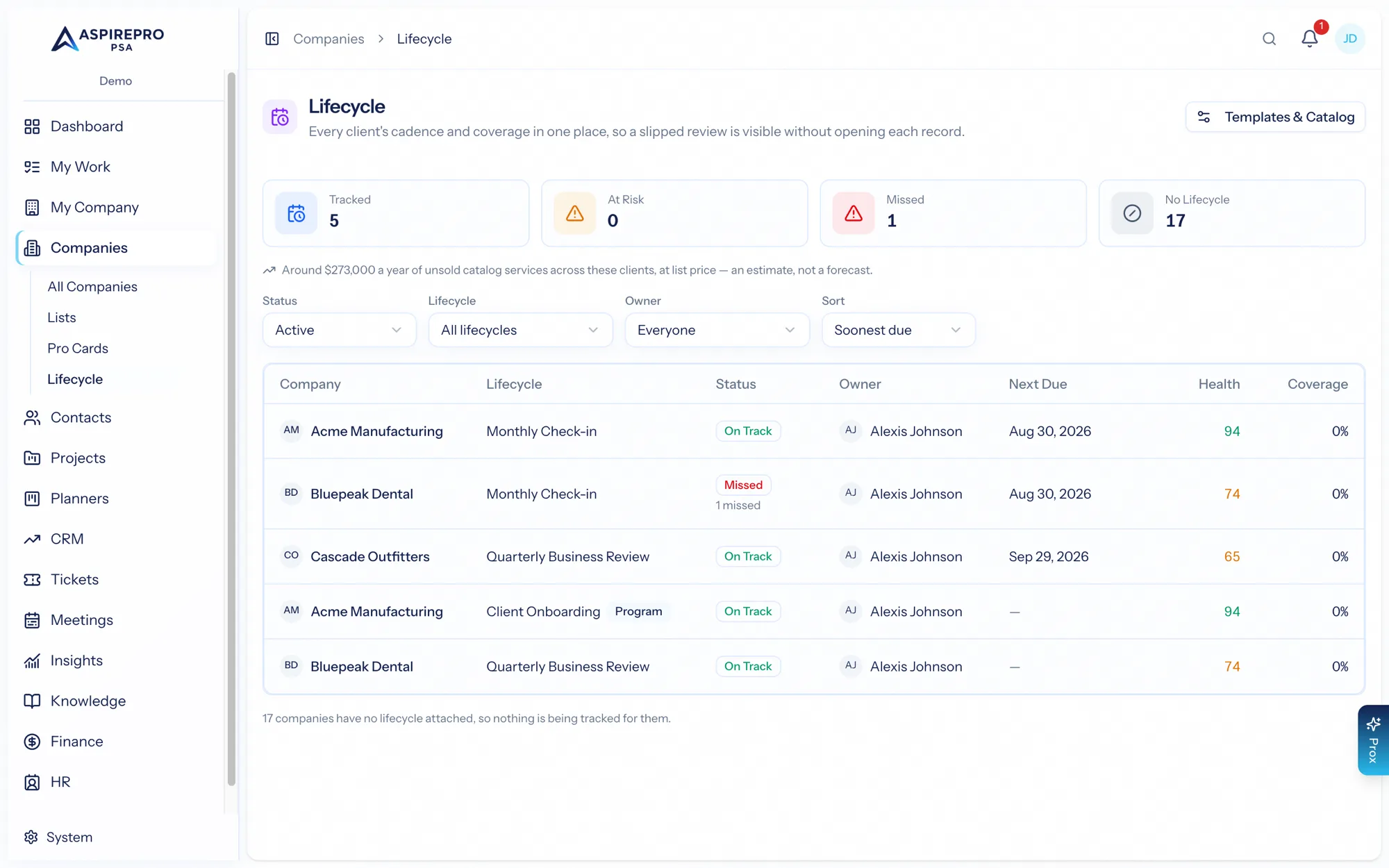
Open Lifecycle from the sidebar for a cross-company worklist — every client's lifecycles and where they stand — so you work down what is due this week across your whole book of business rather than company by company.
The tiles#
- Lifecycles — how many are on the list under the current filters.
- At risk and Missed — how many of those lifecycles roll up to each state (see what a lifecycle's colour means).
- No lifecycle — clients nothing is tracked for. Click it to pick companies and add one template to all of them at once, without opening a single company. Companies that already have the template are skipped.
- Looks dormant — only shown when it finds someone. Companies still on the Active status that were real clients once (a project, invoice, or agreement exists) but now have no open project, no agreement that has not ended, no ticket in six months, and nothing logged in six months. One dialog moves them to the Dormant status and, optionally, adds a check-in lifecycle in the same click — it suggests the seeded Dormant Client Check-in. The tile only exists while your organization has a status called Dormant; see The client journey.
Under the tiles, when there is anything to say, a line reads "Around $X a year of unsold catalog services across these clients, at list price — an estimate, not a forecast." That figure counts each company once, however many lifecycles it has on the list. It is assembled from list prices, so read it as an estimate.
Filters#
- Status — Active (the default), At risk, Missed, Paused, or Completed. At risk and Missed are the active lifecycles whose roll-up is in that state.
- Template — one template, or all.
- Owner — one person, or everyone.
- Sort — Soonest due (the default; lifecycles with no open goal sort last), Company, Lowest health (only while client health is on), or Fewest services sold.
The columns#
- Company — links to the company's Lifecycle tab.
- Lifecycle — the template's name, with a Program badge when starting it created a project.
- Status — the roll-up: On track, At risk, Missed, Paused, or Completed. Under it, "n missed" counts periods missed in the last 90 days; older misses are history — still in the health score, no longer colouring the row.
- Owner — the person who gets the reminders ("Me" when it is you), or Unassigned.
- Next due — the soonest open period's end. Amber inside 14 days; red, with "(_n_d late)", once past.
- Health — the latest score, coloured by band; "—" while a company has no score. The column is not shown while client health is off.
- Services sold — the company's coverage percentage.
An archived company drops off the worklist with its lifecycles and comes back if the company is restored.
On a company#
Each company has a Lifecycle tab: two summary cards (Client health and Services sold) and then the client's lifecycles. Anyone who can view companies can read it; adding, changing, and linking need Edit companies. When lifecycle pages are open — the tab or the worklist — the cog in the top bar offers Lifecycle settings to anyone holding Manage lifecycle.
Adding a lifecycle#
Add lifecycle lists the active templates the company does not have yet, with a description of each. Choose the Owner and a Start date:
- The owner defaults to the company's owner when the template names a default owner role; otherwise it is the person adding the lifecycle. The owner is chosen here; to hand a lifecycle to someone else later, ask Prox (its set owner action) — either way the change is written to the audit log with who it was and who it is now.
- Tracking starts today or on an earlier date. A future start date is refused: a lifecycle that should not begin yet is one you add when it does. Nothing is backdated on its own, so adding a quarterly review to a hundred existing clients cannot produce a hundred instantly-overdue reviews.
A Program template also creates a real project at this point — see Program templates.
Reading a goal row#
Each goal shows its name, how often it repeats, and one line of progress:
- "n of m done · d days left" (or "d days overdue" once the window has ended but the grace period has not) while a period is open.
- "Done for this period — next opens date" once the current period is met.
- "x of y done before" once there is history, and "n waived while paused" when a window was excused.
- "Retired — no new periods open" for a goal retired in Settings that left history here.
The badge beside it is the period's status:
Label | Meaning |
|---|---|
On track | The period is open and its reminder window has not started. |
At risk | The period is open and inside its reminder window, or past its end but inside the grace period. The owner is told at the next nightly run. |
Missed | The window and grace period ended without the goal being met. |
Done | Met — by enough linked activities, or by someone marking it done. |
Waived | The window elapsed while the lifecycle was paused, or the goal was retired while it was open. Neither done nor missed; not in the health score. |
The lifecycle's own badge, and its row on the worklist, uses Paused and Completed for those two states, and otherwise the worst of its goals' current states.
A small lock beside a goal's name means it requires a linked activity — it cannot be marked done on someone's word alone.
Linking activities#
A period is done on the strength of a logged activity — a meeting, a call, a review — not just a checkbox. Linked activities appear as chips under the goal; each chip's tooltip says whether it was Matched automatically or Linked by hand.
What counts automatically. AspirePro matches activities for this company that are not cancelled, have already happened, fall inside the period's window, are of the goal's activity type when it names one, and involve a contact of the required type when it names one. A meeting on the calendar for next week is matched only once its time has passed. Private activities still count — the fact of the meeting is what matters, and its subject stays private.
Linking by hand. Link activity in the goal's ⋯ menu offers this company's activities from a week either side of the window, newest first, with the goal's expected type first and flagged Expected type. A hand-linked activity may sit a few days outside the window or be a different type — that is what linking by hand is for. Two rules still apply exactly as they do to automatic matching: a meeting that has not happened yet cannot be linked until it takes place, and a cancelled one never can.
Linking records what happened; it does not decide the verdict. A goal needing two activities in a period stays open at one.
When an activity changes. If a linked activity is cancelled, moved to another company, or rescheduled into the future, the link goes with it and the period is recomputed — even a period that closed months ago. An automatic match is also withdrawn when the activity is edited so it no longer qualifies (moved outside the window, changed to another type). Once a rescheduled meeting has taken place, a qualifying one is matched again on its own; one that was linked by hand as an exception needs linking again.
Unlinking. The × on a chip removes a wrong match. The activity stays on file as removed, so the next evaluation cannot quietly put it back. Linking it again by hand undoes the removal.
Mark done#
Use Mark done (in the goal's ⋯ menu) when the work happened outside the system. This is an attestation: the goal reads "Marked done by name on date", and it covers the whole requirement — a goal needing three check-ins is done on one person's word. Linking a real activity later keeps the attestation alongside it.
Undo mark done, in the same menu, takes it back; the period then reflects its linked activities again, which can leave it open — or missed, if the window has already closed.
A goal set to Require a linked activity (the lock) refuses a bare Mark done and says so: "needs a linked activity — link the one that satisfied it."
Pause and resume#
The lifecycle's actions menu (the sliders icon on its card) offers Pause while a client is on hold, and Resume when they are back. While paused, no periods open, close, or change status, and the lifecycle is left out of the health score; the card says so. A reason can be recorded when Prox pauses a lifecycle, and shows on the card.
On resume, any window that was still running when the pause began and has since ended is closed as Waived — nobody was expected to do the work, so it is neither done nor missed. A window that had already been missed before the pause stays missed. Waived is a fact about the window: linking a late activity shows it as done, and unlinking that activity brings back waived, never missed. The current window opens straight away rather than at the nightly run.
Complete and remove#
Mark lifecycle completed when a program has run its course. It keeps its history and shows as Completed.
Remove is for a lifecycle that was never the right fit. Its goal history goes with it; a project a program created stays, because it holds real work, time, and files. The confirmation reminds you that pausing keeps the history if you only need it to stop. Both are written to the audit log.
How periods and reminders work#
Windows#
A goal's Repeats value decides its windows, and they are anchored to the calendar, not to the day the lifecycle was added — "quarterly" means the client's quarter:
Repeats | Window |
|---|---|
Weekly | The calendar week |
Monthly | The calendar month |
Quarterly | The calendar quarter |
Twice a year | January–June and July–December |
Yearly | The calendar year |
One time | Opens on the start date and stays open until it is met |
The first period never starts before the lifecycle's start date; a lifecycle added on the 20th has a first monthly window running from the 20th to month end.
Grace period and the reminder window#
- The grace period (days) is extra time after the window ends before the goal counts as missed. During it the goal reads "d days overdue" and stays open.
- The template's Remind (days before due) value opens the reminder window at the end of every period; inside it an unmet goal becomes At risk. The reminder window is never more than half the period, whatever the template says — a template that reminds 30 days ahead cannot put a monthly goal at risk from day one.
Rules are fixed when a period opens#
Each period keeps the rules it opened under — times per period, the activity type, and the contact requirement. Editing a goal applies to the next window, never to one that is open or closed, so a rule change never re-judges a past period.
Notifications#
Three notifications belong to Lifecycle. The first two go to the lifecycle's owner; the third goes to the company's owner:
- Coming due: goal for company — when a period enters its reminder window. The body gives the due date and progress ("Due Sep 30. 0 of 1 done.").
- Missed: goal for company — when the grace period ends unmet.
- Company dropped to Watch (65) — when a client's health drops a band. See Bands and band-drop notices.
Each transition produces exactly one notice, whichever caller moved the status there. A goal that goes back to On track or Done and slips again later is a fresh notice. Everyone chooses in-app or email per type under Profile settings → Notifications; see Notifications.
When things update#
Evaluation runs the moment an activity is saved — logging a review updates the tab immediately — and whenever you add, resume, link, unlink, or mark done. A nightly pass at 05:30 UTC is the safety net: it opens the windows that have rolled over, finalizes the ones that have closed, sends the notices above, and snapshots health. Viewing a page never changes anything.
What the colour means#
A lifecycle's colour on the tab and the worklist reflects the present: an open period that is at risk, or a period missed within the last 90 days. After 90 days a miss becomes history — it still counts in the goal's "done before" ratio and in the health score, but it stops painting an otherwise-healthy lifecycle red.
Services sold#
Services sold answers one question per client: of the services we sell, which ones are they buying?
- The denominator is the service side of the Products & Services catalog — active services and recurring services. Hardware and products are not part of it.
- The numerator is the services that appear on an agreement line under an agreement in force today: a live status (not draft, completed, or cancelled), started, and not past its end date — the same rule the rest of the app uses for what is live. A draft proposal, an agreement that has not started, or one that lapsed last month does not count; counting it would hide a sales gap as if it were already sold.
- Only mapped lines count. An agreement line whose free-text name was never mapped to a catalog item is unknown, not absent. The card says how many such lines there are ("n agreement lines are not mapped to a catalog service, so this percentage may be understated") with a link to map them, rather than quietly reporting a wrong number.
The card shows the percentage, "n of m catalog services", the first eight services under Not sold yet, and — when the gaps have list prices — "Around $X a year at list price — an estimate, not a forecast." Each catalog service's estimated annual value is a list-price estimate, derived from its recurring price when none is set. With the CRM on, Create opportunity starts a deal from the gap. The per-company number and the worklist number come from the same rule, so they always agree.
Health#
Client health is a 0–100 score built from up to six named contributors, each with its own weight. The card lists them under What's behind this score, each with a sentence and its own score.
The contributors#
- Goal compliance (30) — of the lifecycle periods that closed in the last year, how many were met. Waived periods and paused lifecycles are left out.
- Engagement (20) — how recently anyone actually spoke to the client: full marks within 30 days, falling to zero at 90 days of silence.
- Responsiveness (20) — the share of the last 90 days' tickets that stayed inside their SLA.
- Delivery (15) — the share of open project tasks that are not overdue. Ongoing tasks with no completion pressure are left out.
- Commercial (15) — the share of outstanding invoices that are not late, capped by agreement standing: a client who had a contract and now has none cannot score above 30 here ("No active agreement — the relationship has no contract under it"), and one whose every agreement ends within 30 days with nothing renewing it is capped at 70. Paying on time does not hide a missing contract. A company whose only paperwork is a draft has no commercial contributor rather than a failed one.
- Satisfaction (15) — the share of positive survey responses in the last six months.
The three rules#
- Only contributors with data count, and the weights renormalize. A client with no projects is not failing on delivery; that contributor is simply absent.
- Every contributor comes with a sentence ("2 of 14 tickets breached SLA in 90 days"), so the score is never a bare number to argue with.
- Only things that have happened count. A scheduled meeting does not satisfy a goal or count as contact until its time has passed.
For Commercial, a contract underneath means an agreement in force today — the same rule as services sold. The "ends within n days" warning only clears when something — live, or signed to start inside the window — carries the relationship past the next 30 days. Two agreements that both end inside the month are two expiries, not a renewal.
The three states#
Not every company is scored, and that is deliberate. Every place health appears says which state a company is in:
- Scored — a number, with its contributors and their sentences, and the line "Measured _date. Internal only — clients never see this." (or "Calculated live."_ before the first nightly snapshot).
- Not scored yet — health measures a relationship you are actively running, so scoring only starts once there is something real to measure: an active lifecycle, any logged activity, a ticket in the last 90 days, a live project, an invoice, an agreement, or a survey response in the last six months. Until then the card reads "Not scored yet — no activity, tickets, projects, invoices, agreements, or surveys to measure." There is no neutral placeholder score, and scoring starts on its own the moment real work lands against the company.
- Excluded — the company's status or type has been opted out, or it is your own organization. The card reads "Health not scored — excluded by this company's status or type." with no number and no colour, and any score captured before the exclusion is no longer shown anywhere.
The eligibility bar is low on purpose, and it is worth knowing where it bites: a single logged call or meeting makes a company eligible. If you log outreach against prospects or keep notes on vendors, those companies will start appearing in health — and score badly, because they have no lifecycle, no services sold, and no agreement, which is exactly what a prospect or a vendor is supposed to look like. The opt-outs below are how you keep them out.
Opting statuses and types out#
Each company status and company type carries a Counts toward client health toggle (Companies → Settings → Statuses / Types, permission Company settings). A company whose status — or any of whose types — has it off is never scored and never notified about. Out of the box the Inactive and Dormant statuses and the Past Client type are opted out: a dormant or former client with no tickets or meetings is in its expected state, and scoring it at risk would bury the real warnings. Their check-in lifecycles still run and still remind you. The toggle is hidden while client health is switched off for the organization; the values are kept.
Bands and band-drop notices#
Scores fall into three bands: Healthy (80 and above), Watch (60–79), and At risk (below 60). When a client drops a band, its company owner gets one notification naming the previous band and score and the weakest contributor's sentence. Band transitions only — a score moving from 82 to 80 never pings anyone — and one notice per drop, even if health was recalculated by hand earlier that day.
Where health appears#
Scores are snapshotted nightly. Health appears on the company's Lifecycle tab (with its contributors), as a line on the company's Overview card, on the lifecycle worklist, and as a sortable Health column on the companies list; Prox reports it with its reasons. It is internal only: clients never see it, in the Client Portal or anywhere else.
Recalculate (Lifecycle tab, Edit companies) refreshes a scored company's number right now — after closing tickets or logging a review — rather than waiting for the night. On a company that is excluded or not yet scoreable it says so instead of writing anything.
Switching client health off#
Client health is on for every organization by default. Two switches under System → Lifecycle → Client health (permission Manage lifecycle) cover organizations that do not want it:
- Score client health — off means no scoring, no nightly snapshots, and no band-drop notices, and every health surface disappears: the Client health card on the Lifecycle tab (Services sold takes the full width), the health line on the Overview card, the Health column and sort on the companies list and the lifecycle worklist, the Counts toward client health toggle on statuses and types, the two client health metrics in Dashboards & Reporting (an existing widget shows "This metric is no longer available to you." rather than a stale number), and the client health row in everyone's notification preferences. Prox says client health is switched off rather than reporting a score. A saved company view sorted by health falls back to the default sort, and a saved column layout that includes Health omits it.
- Send client health notifications — off means scoring continues but no one is told about a band drop. It is implied off, and disabled, while scoring is off.
Nothing is deleted by either switch: history, snapshots, and each person's own notification preference are all kept. Switching scoring back on resumes at the next nightly run — and that first run re-baselines quietly: a drop is only reported against a snapshot from the last 7 days, so after weeks off nobody is paged for every client that slipped meanwhile. The same rule applies whenever a client goes unscored for more than a week for any reason. Both switches are written to the audit log with their old and new values.
Settings#
Anyone with Manage lifecycle manages templates under System → Lifecycle (the cog on any lifecycle page takes you there). The page has three tabs: Templates, Client health (the two switches above), and Products & Services, which points to the catalog's own settings area.
Templates#
A template is defined once and added to as many clients as you like. Its fields:
- Name and Description — the description is shown when someone picks the template on a company.
- Type — Recurring (relationship work that repeats), Review (a periodic assessment), or Program (a phased engagement that creates a project).
- Remind (days before due) — opens the reminder window at the end of each period, capped at half the period.
- Applies to — a company type, or all companies. Used by Attach automatically and shown on the template.
- Default owner — a role name (for example "Account Manager"). While there is a default owner, a new lifecycle's owner defaults to the company's owner; without one it defaults to whoever adds it.
- Order — where it sorts in pickers.
- Attach automatically — new companies matching Applies to get this template as they are created or gain the type, whether by hand, through an import, or from HubSpot, with a nightly catch-up over companies created in the last week. Existing companies are never changed by switching it on; that is what Apply to companies… is for.
- Active — an inactive template cannot be added to a company, but lifecycles already running keep going.
Editing a template applies to every company that already has it; their tracked history is kept. A template that is on any company cannot be deleted — deleting it would remove their history — so deactivate it instead. A template on no company can be deleted outright.
Apply to companies… adds a template to every company matching the criteria you build — statuses, types, industries, owners, or every company — after a live preview: how many match, and how many of those will actually change because the rest already have it. Choose the owner for each new lifecycle (each company's own owner by default). Companies that already have the template are skipped, so it is safe to re-run after adding clients. The run is written to the audit log with its criteria and counts.
Goals#
A goal says what has to happen. Its fields:
- Name and Description.
- Repeats — Weekly, Monthly, Quarterly, Twice a year, Yearly, or One time. See Windows.
- Times per period — how many qualifying activities the window needs.
- Counts when — Any logged activity, or one specific activity type.
- Grace period (days) — extra days after the period ends before it counts as missed.
- Must involve — Anyone, or a contact type a counting activity has to include: a review with an executive is not the same as a chat with whoever answered.
- Require a linked activity — the goal cannot be marked done until an activity is linked to it. Leave it off for goals whose proof lives elsewhere — a ticket, a project task, or work that predates AspirePro.
Once a goal has tracked history, Repeats is locked. Re-reading quarterly history as monthly would falsify every past period; to change how often a goal repeats, retire it and create a new goal. Times per period, the activity type, and the contact requirement can still change, and apply to newly opened periods only.
Goals retire; they don't vanish. A goal that has never tracked anything can be deleted. Once it has periods on any company, the action becomes Retire: no new periods open, and every period already tracked stays on file and keeps counting toward health. Open periods with nothing linked, nothing marked done, and nothing unlinked are dropped; any other open period is kept, and if it is still unmet it is closed as Waived rather than left to become a miss for a goal nobody is asked to meet. A retired goal shows a Retired badge here and — only on companies where it left history — on the Lifecycle tab, with nothing to link or mark. Unretire brings it back and opens the current window straight away; a window waived at retirement that is still running is reopened and owed again.
Program templates#
A Program template also carries phases, each with a Name, a Description, a Duration (days), and Deliverables (one per line). Starting the program on a company creates a real project — named after the template, owned by the lifecycle's owner, starting on the lifecycle's start date — with one phase per entry laid end to end, the first phase active and the rest upcoming, and each deliverable as a task due at the end of its phase. The project is linked from the lifecycle's card and behaves like any other project; see Phases. Removing the lifecycle later leaves the project in place.
The starter templates#
Every organization starts with five templates, all with Attach automatically off, and all editable or deletable:
- Quarterly Business Review (Review) — Hold the quarterly review: one Business Review activity per quarter, 14 days' grace, reminder 30 days ahead.
- Monthly Check-in (Recurring) — Talk to the client: one Check-in activity per month, 5 days' grace, reminder 10 days ahead.
- Client Onboarding (Program) — the first 90 days as a project: Discover (21 days), Set Up (39 days), and Hand Over (30 days), each with three deliverables; the last one is attaching the ongoing lifecycle.
- Dormant Client Check-in (Recurring) — Check in with the client: one Check-in activity twice a year, 30 days' grace, reminder 21 days ahead.
- Stalled Work Nudge (Recurring) — Nudge the client: one Check-in activity per month, 7 days' grace, reminder 7 days ahead.
The Business Review and Check-in activity types they use are seeded with them.
The audit trail#
Every change under System → Lifecycle — templates, goals, phases, retire and unretire, bulk applies, and the two health switches — is written to the audit log with what it was before and after. So is every action on a company's lifecycle: adding, owner changes, pause, resume, complete, remove, linking and unlinking, and mark done and its undo.
Who can do what#
- Access companies — see the Lifecycle tab and the worklist, including health and services sold.
- Edit companies — add, pause, resume, complete, and remove lifecycles; link and unlink activities; mark done and undo it; recalculate health; quick-add from the worklist; mark companies dormant.
- Manage lifecycle — System → Lifecycle: templates, goals, phases, Apply to companies…, and the two client health switches. It implies Access companies and carries the catalog permissions with it.
- Company settings — the Counts toward client health toggle on statuses and types.
Reminders go to the lifecycle's owner and band-drop notices to the company's owner, whatever their permissions.
Prox and MCP#
Prox can read one company's whole picture — its lifecycles, each goal's current period and history, the services sold and the gaps, and the health score with its reasons — list the cross-client worklist (optionally just what needs attention, or one owner's), and list the templates with their goals. With Edit companies it can add a template to a company, change a lifecycle's owner, pause (with a reason), resume, complete, or remove it, and mark a period done or undo that, under the same rules and audit trail as the pages. With Manage lifecycle it can create, update, delete, retire, and unretire templates, goals, and phases. Lifecycles, periods, and templates are also available to Prox's general record queries; health snapshots deliberately are not, and when scoring is off Prox says so rather than reporting a score. Every one of these tools is also exposed through the MCP server.
Insights metrics#
Dashboards & Reporting offers seven lifecycle-related metrics. Under Clients: Client Health (latest score per client, lowest first) and Client Health Over Time (average health per day from the nightly snapshots) — both only while client health is on — plus Services Sold by Client, Lifecycle Compliance by Client (the share of goals met, per client, over the period), Lifecycle Goals Needing Attention (at risk or missed, by owner), and Estimated Expansion Value (the list-price value of the services each client does not buy yet — an estimate, not pipeline). Under Lifecycle: Lifecycle Goals by Status and Lifecycle Goals Due Soon (open goals closing within 30 days). Health is internal, so the health metrics never belong on a public dashboard link. See the Metrics catalog.
Scenarios#
- The retainer client — add the Quarterly Business Review (the structured conversation) plus the Monthly Check-in (staying in touch between reviews). Missed periods surface on the worklist before the client notices the silence.
- The finished-project client — the website launched, everything's paid, and they'll be back if you stay in front of them. Status → Dormant, add the Dormant Client Check-in (twice a year). See The client journey.
- The parked project — signed and built, but sitting on staging waiting on the client's review for months. Status → On Hold, add the Stalled Work Nudge (monthly) so the follow-up is a system, not a memory.
- The new client — start the Client Onboarding program; it creates a real project with Discover / Set Up / Hand Over phases, and its last deliverable is adding the ongoing lifecycle — so onboarding ends by starting the steady state.
Lifecycle vs. project phases: Lifecycle governs the ongoing relationship with a client. For one-time delivery work that moves through stages, Projects has its own phases — for example Assess → Build → Launch → Grow. The two complement each other, and a Program template is where they meet.