Notifications keep you informed when something needs your attention without your having to go looking for it. Assignments, @mentions, approvals awaiting your decision, overdue items, and other events across every module surface in one consistent place.
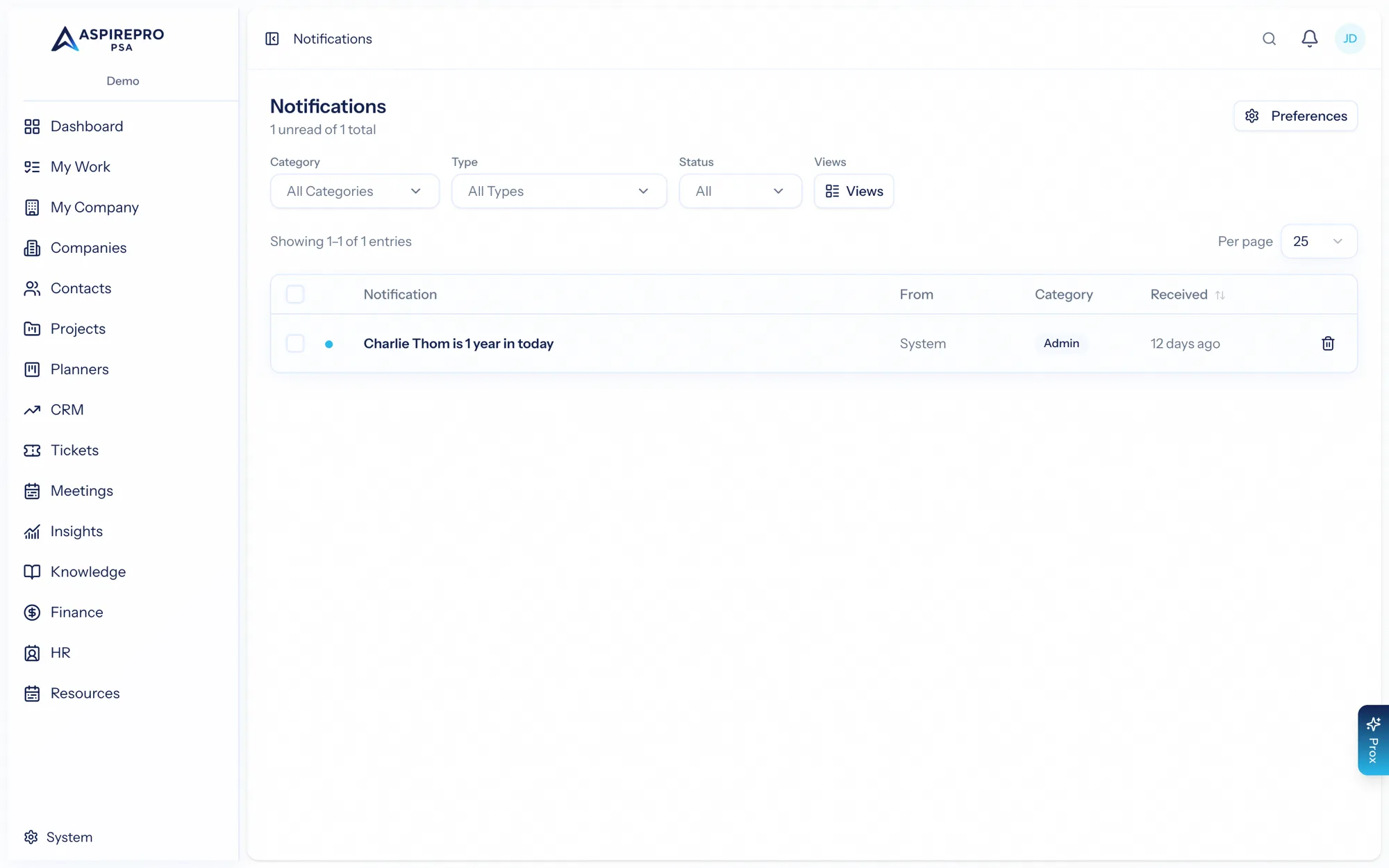
Where notifications appear#
- The bell in the top bar shows a running count and a dropdown of your most recent notifications, so you can triage without leaving what you're doing.
- The Notifications inbox (open it from the bell or the sidebar) is the full history — everything you've been notified about, filterable, with saved views of your own.
- Email — depending on your preferences, notifications also arrive in your inbox.
Managing your notifications#
From the inbox you can:
- Mark as read / unread, individually or in bulk.
- Mark all as read to clear the slate.
- Clear read notifications to tidy up.
- Delete notifications you're done with.
- Save views for the kinds of notifications you want to keep an eye on.
The groups#
Notifications are grouped the way the app is: Companies, contacts & sales, Client success (lifecycle goals and health), Tickets & support, Projects & tasks, Planners, Time, staffing & expenses, Finance, People & HR, Meetings (bookings and meeting notes), Administration, and System & security (always sent). The same groups filter the inbox.
Choosing what you're notified about#
You control the what and the how under Account settings → Notifications. For each type of event you can choose in-app, email, or both — so you hear loudly about approvals and mentions, and quietly (or not at all) about lower-signal events. See Your profile & preferences.
Your administrator sets organization-wide defaults; your personal preferences override them for your account, except for rows marked Set by your organization, which an administrator has locked.
How email arrives#
- Immediate sends an email for every notification.
- Hourly and Daily digest collect your unread notifications into one email. Anything marked Right away (assignments, @mentions, customer replies, approvals waiting on you, security alerts) still arrives the moment it happens, whatever your cadence.
- Off stops email entirely; in-app notifications still work.
New people start on a daily digest unless the organization chose differently. The daily digest arrives at the hour your organization set (8:00 am in its timezone unless changed). Every notification email carries a Manage notification settings link back to this page.
Organization defaults (administrators)#
System → Notifications is where an administrator sets the starting point for everyone. For each type of notification:
- In-app and Email — the channels a person starts with until they choose their own.
- Send right away — the email goes out immediately even for people on a digest. Leave it off for news that can wait.
- Locked — the organization's decision applies to everyone; a person's own choice for that type is ignored while the lock is on.
The same page sets the email cadence new people start on, the hour the daily digest arrives (in the organization's timezone), and whether AspirePro should remind people about overdue HubSpot tasks (off by default — HubSpot already reminds the task owner). Reset to defaults on any group returns it to the AspirePro defaults.
A module switched off under System → Features tells nobody anything: its notifications stop with it, whatever a person's own settings say.
Piles are said once#
Scheduled reminders never send a mail per item when there is a pile: more than a few overdue activities, overdue or due-soon tasks, or lifecycle goals for one person in one pass become a single notice that names the first few and counts the rest. A client's health only earns a band-drop notice when at least two things are measured about it, a drop into At risk is emailed by default while a drop to Watch stays in-app, and the same company is not reported again for two weeks.
What generates a notification#
Notifications come from across the platform — a task or ticket assigned to you, an @mention in a comment, a time-off or timesheet approval waiting on you, an overdue task, and more. Lifecycle adds three: a lifecycle goal you own coming due, a lifecycle goal you own missed, and a client you own dropping a health band. As modules are enabled, they plug into the same notification system, so everything that needs you shows up in one predictable place.
One row can be switched off for the whole organization: client health drops. When an administrator turns off Score client health or Send client health notifications under System → Lifecycle, the row disappears from your preferences and is replaced by the note "Client health notifications are switched off for your organization." Your own choice is kept and comes back when the organization switches it on again.