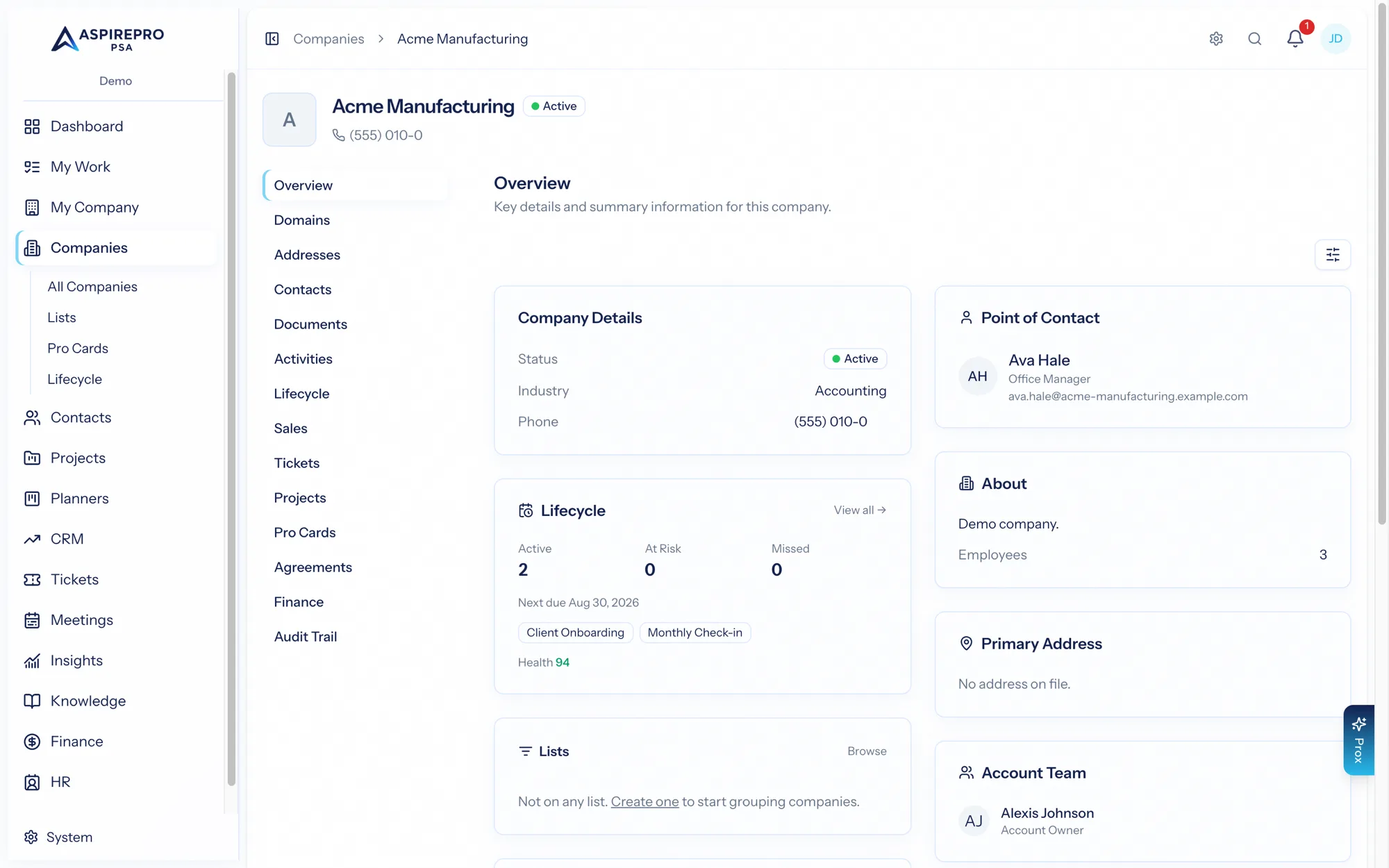
Click any company to open its record. Across the top are tabs, each a different facet of your relationship with that organization. Which tabs appear depends on the modules your organization has enabled — an organization without the Finance module won't show the Finance tab, for instance.
Overview#
The landing tab. It summarizes the company at a glance — key details, owner, status, and a snapshot of recent activity — so you can pick up context quickly. Edit company sits in the header's … menu, alongside merging; header actions also change its status or owner, upload a logo, and more.
A company can carry several phone lines — main, support, sales, fax, other — with one as the default: the number every list and queue dials, and the one a contact with no number of their own is reached on (labelled as the company's line wherever it stands in).
Contacts#
Every person you know at this company. Add contacts, see their roles, and jump to any contact's own record. Contacts created here are automatically tied to the company. See Contacts.
Sales#
The deals associated with this company — open and closed — so you can see the sales relationship without leaving the record. (Requires the CRM module.)
Projects#
Delivery work for this company. Every project tied to the company, with status and progress. (Requires the Projects module.)
Tickets#
Support and service requests from this company, with status and priority. (Requires the Tickets module.)
Activities#
A unified timeline of what's happened with this organization — calls, emails, notes, meetings, and status changes — newest first, and it rolls up everything logged against the company's contacts and deals too. This is the fastest way to answer "what's the latest with this client?" Each activity row's ⋯ menu includes Add time entry, so time spent on a call or meeting can be logged the moment it's over.
Anything you log can carry an outcome — what actually happened — which is what makes connect and reply rates measurable. Type, Outcome and Call block filter the timeline directly; Mode, Status, Source and Email sit behind More filters. Turn on By conversation to collapse an email thread into one row you can expand in place.
The Email filter governs how a message arrived: your own sends and hand-logged mail show by default, while mail pulled in by the mailbox sync stays opt-in — one deal thread can run to hundreds of messages. The full breakdown is on the contact record.
Notes#
Rich-text notes about the company — and every note written on one of its people, in one list, newest first. A note on a person is the same note that sits on the person's own Notes tab: it shows in both places and is never copied, so editing or deleting it in one place does it everywhere. Each note says where it was written: Company for a note on the company itself, or the person's name (a link to them) for a note on one of its people.
- New company note writes a note on the company itself.
- Written on narrows the list to company notes or contact notes; Contact narrows it to one or more people; Author, From and To narrow it further.
- A person's note belongs to the company they worked for when it was written. If they move to another company later, their earlier notes stay here.
- People who can't see contacts see the company's own notes only.
A company note also shows on the panel of everyone at the company who is on an outbound block, and syncs to HubSpot on the company.
Documents#
Files attached to the company, organized with tags. Upload contracts, briefs, brand assets, or anything else that belongs to the relationship. Document tags are configured under System settings.
Addresses#
The company's locations — billing, shipping, office. Addresses added here are available to other modules (for example, on invoices).
Domains#
The email/web domains this company owns (for example acme.com). Domains help AspirePro recognize which company an inbound email or a new contact belongs to.
Finance & Agreements#
When the Finance module is on, the record gains Finance (invoices and financial summary) and Agreements (recurring service agreements and their terms) tabs. See the Finance module documentation.
The Finance tab's work in progress figures cover everything waiting to be billed for this client — unbilled time, unbilled expenses and unbilled charges — each with its own total and its own list underneath, so a client whose only outstanding work is a box of parts still reads as having something to bill.
Pro Cards#
Structured cards — configuration records, asset inventories, credentials checklists, or any custom card type — attached to this company. See Pro Cards.
Lifecycle#
The client's lifecycles — what should be happening and whether it is — with the services sold and the client health score. See Lifecycle. Lifecycle is part of Companies and has no module toggle; if client health is switched off for your organization (System → Lifecycle → Client health), the Client health card here and the health line on the Overview card are not shown.
Audit#
An immutable log of every change to the company record — what changed, who changed it, and when. Nothing is hidden and nothing can be edited; the audit tab is your source of truth for accountability.
Header actions#
The record header carries the common actions no matter which tab you're on: edit details, change status or owner, upload a logo, archive, and (via the record menu) create related work such as a new deal, project, or ticket for this company in one step.