Lists are named collections of companies or contacts you can reuse — think of them as durable segments. Where a saved view is a filtered look at a table, a list is a first-class object you can build membership into, act on, automate, mirror with HubSpot, and work as an outbound block.
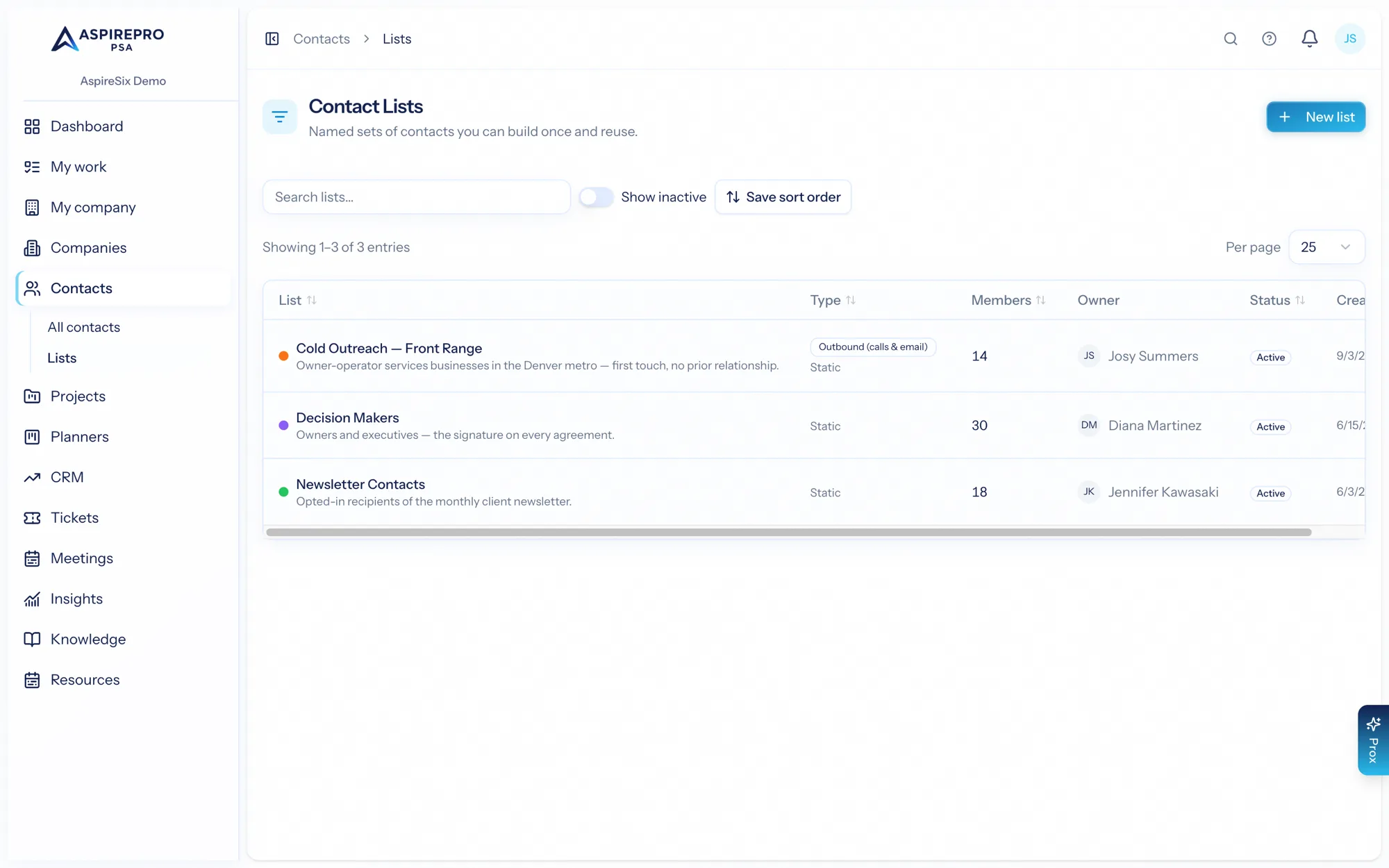
Lists live under both Companies → Lists and Contacts → Lists; each list holds one kind of record. The index shows each list's kind, purpose, member count and owner; sort it how you like and Save sort order to keep it.
Static vs. dynamic#
A list defines its membership in one of two ways:
- Static — you add and remove members yourself. Membership stays exactly as you set it until you change it. Good for hand-picked sets: "Q3 event invitees", "Strategic accounts", a block of names to call.
- Dynamic — you define criteria (the same filters the Companies and Contacts tables use), and the list includes every record that matches. It re-evaluates itself every thirty minutes, and Refresh now on its settings page runs it on demand; the page says when it was last checked. Good for living segments: "Active clients in Minnesota", "Contacts with no activity in 90 days" — or, with HubSpot connected, "everyone the IT Risk Assessment #2 sequence has finished with", from the Sequence (HubSpot) and Sequence enrollment criteria, which makes a finished sequence into a call list that keeps itself up to date.
For a dynamic list you preview how many records the criteria match before you save, so there are no surprises.
Building a list#
- Go to Companies → Lists (or Contacts → Lists) and press New list.
- Name it, add a description if you like, and choose static or dynamic and its purpose. A colour is set later, on Settings.
- For a static list, add members three ways: Add individual from the picker; Add by criteria, which previews the count and adds everyone matching a filter; or from the Companies / Contacts table, select rows, press Lists and choose Add to. A record's own page also has a Lists card where you can put it on, or take it off, any list (on a contact with HubSpot connected it reads Lists & Sequences and also shows the HubSpot sequences they have been in).
- For a dynamic list, define the criteria and preview the matches.
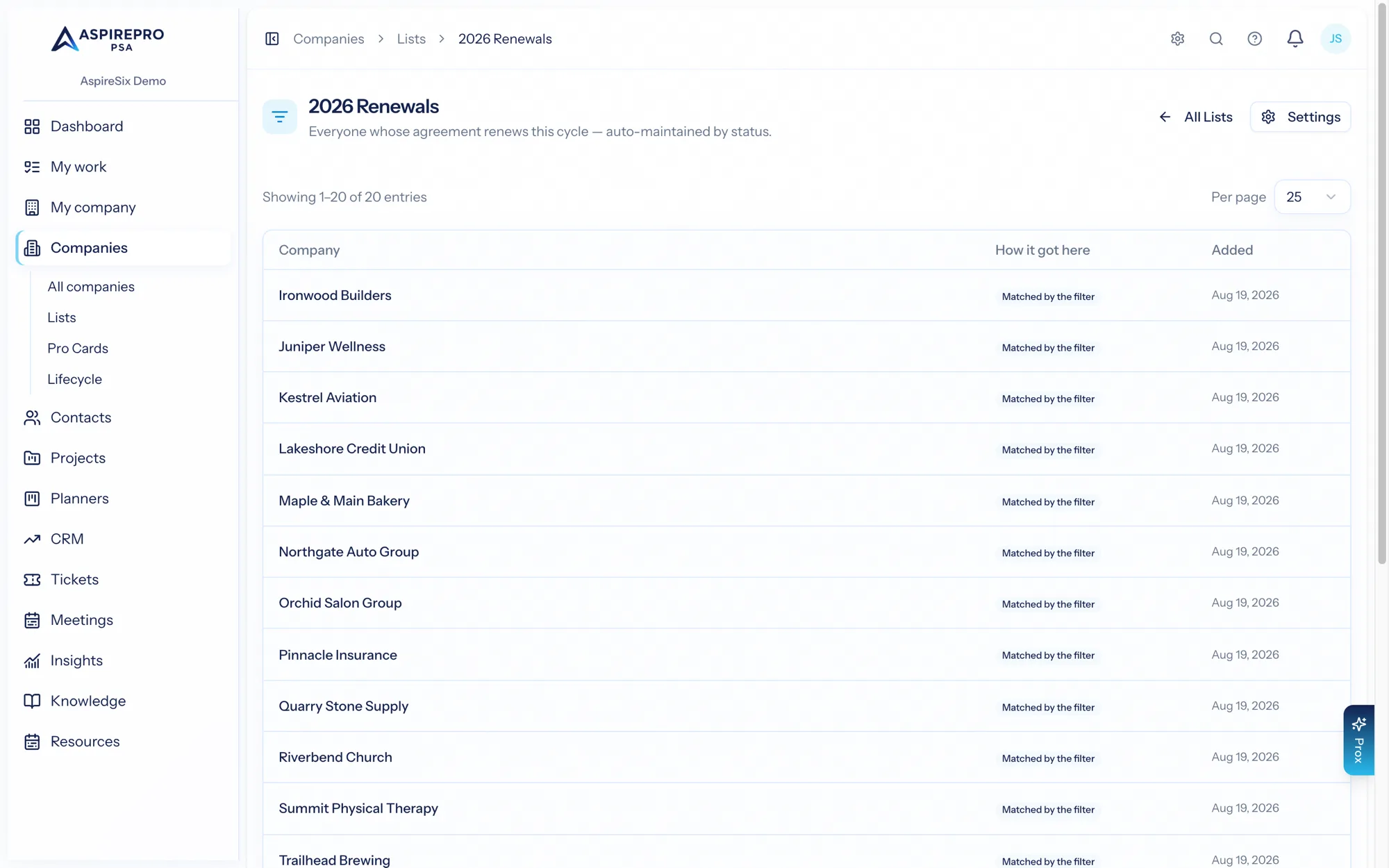
Open a list and its members are a table showing each record, how it got here — by hand, by an automation, by the HubSpot mirror, or matched by the list's filter — and when; a block adds Lead status, block state and last touch, with filters for those. Select rows to remove them from the list. Tagging, owners, statuses and the other bulk edits live on the Companies and Contacts tables, where they apply to any selection, on a list or not.
Settings#
A list's Settings page holds its name, colour and description; an Active switch that retires a list without deleting it; Delete; and, for a list with a purpose, Close block, Reopen and Split into blocks… (see Sizing a block).
Automations#
A list can carry rules that run the moment a record joins or leaves it — the way to keep downstream work in step with a segment without anyone watching it. A rule does one of:
- Notify people — named users, and/or the record's owner
- Create a task — in a planner and bucket of your choice, due in N days, assigned to someone
- Log an activity — a scheduled call, email or meeting on the record, due in N days (on a contact with no company it lands on the contact)
- Add to another list / Remove from another list — so lists feed each other
Rules run for every way a record can arrive — by hand, by criteria, by a dynamic list's own filter, or by the HubSpot mirror. Each rule can be paused, and shows how many times it has run and whether its last run failed. Rules are managed from the list's Settings page, or by asking Prox.
Mirroring a HubSpot list#
If your organization has the HubSpot integration connected, an administrator pairs lists on System → Integrations → HubSpot, under Lists: pick a HubSpot list and a direction — HubSpot → AspirePro, AspirePro → HubSpot, or both — and AspirePro creates the matching list here (or adopts a static list with the same name). Prox can pair any existing list.
- A HubSpot active list is pull-only — HubSpot owns its membership rule, so AspirePro mirrors it. A HubSpot manual list can go either way, or both.
- A dynamic list here can only be pushed — its filter owns membership on this side.
- Only companies and contacts already synced with HubSpot take part; the rest are skipped and counted.
- Mirrored lists sync hourly; Sync all now runs them on demand, Import all brings every HubSpot list over as a new list here, and Stop mirroring unpairs a list without touching its members.
The list's own page says which HubSpot list it mirrors; when it last synced is on the mapping table under System → Integrations → HubSpot.
Giving a list a purpose#
A list can be given a purpose, which turns it from a bucket of names into a place to work:
- General — the default. A list, nothing more.
- Outbound (calls & email) — the list becomes a block: the cockpit's numbers and where everyone stands across the top; a queue of who to call today, what slipped, what is ahead and who has no next step yet; the person beside it with their numbers, open work, notes and history; and everyone on the block underneath. See Outbound calling & email for the whole workflow.
A list mirrored from HubSpot can carry a purpose too — the usual way to work a client's HubSpot list as a block. See Working a list that came from HubSpot.
Purpose is set when you create a list, or later from its Settings.
Working through Prox#
manage_list— create, rename, deactivate or delete a list; add or remove members; set or change a dynamic list's filter and evaluate it; link, unlink or sync a HubSpot list; set a purpose; close or reopen a blockmanage_list_automation— list, add, change, pause or remove a list's rulesget_list_cockpit— where an outbound block stands and who is up next