Pro Cards let you attach structured, custom records to a company — the kind of information that doesn't fit neatly into deals, projects, or tickets but is essential to how you serve a client. Think hosting and DNS configuration, licensing details, access checklists, equipment inventories, brand guidelines, recurring-service specs — anything you'd otherwise keep in a spreadsheet or a wiki page per client.
You design the card types; AspirePro gives you the structure, permissions, history, and cross-client views for free.
Card types and the field builder#
A Pro Card type is a template you define once and reuse. Using the field builder, you add exactly the fields that type needs — text, numbers, dates, dropdowns, and more — so every card of that type captures the same structured information. Types are configured under Companies → Pro Card settings (see below), where you can also organize types with tags and provide starter packs to seed new organizations.
Cards on a company#
Open a company's Pro Cards tab to see the cards attached to that client. From there you can:
- Create a new card from any type, filling in its fields.
- Open a card to view and edit it, with its own tabs for documents, related tickets, and an audit history.
- Relate cards to each other, including parent/child relationships, to model structure (a site and its sub-sites, a product and its components).
- Clone a card to reuse a configuration, and archive/restore cards you no longer need active.
The Pro Cards fleet#
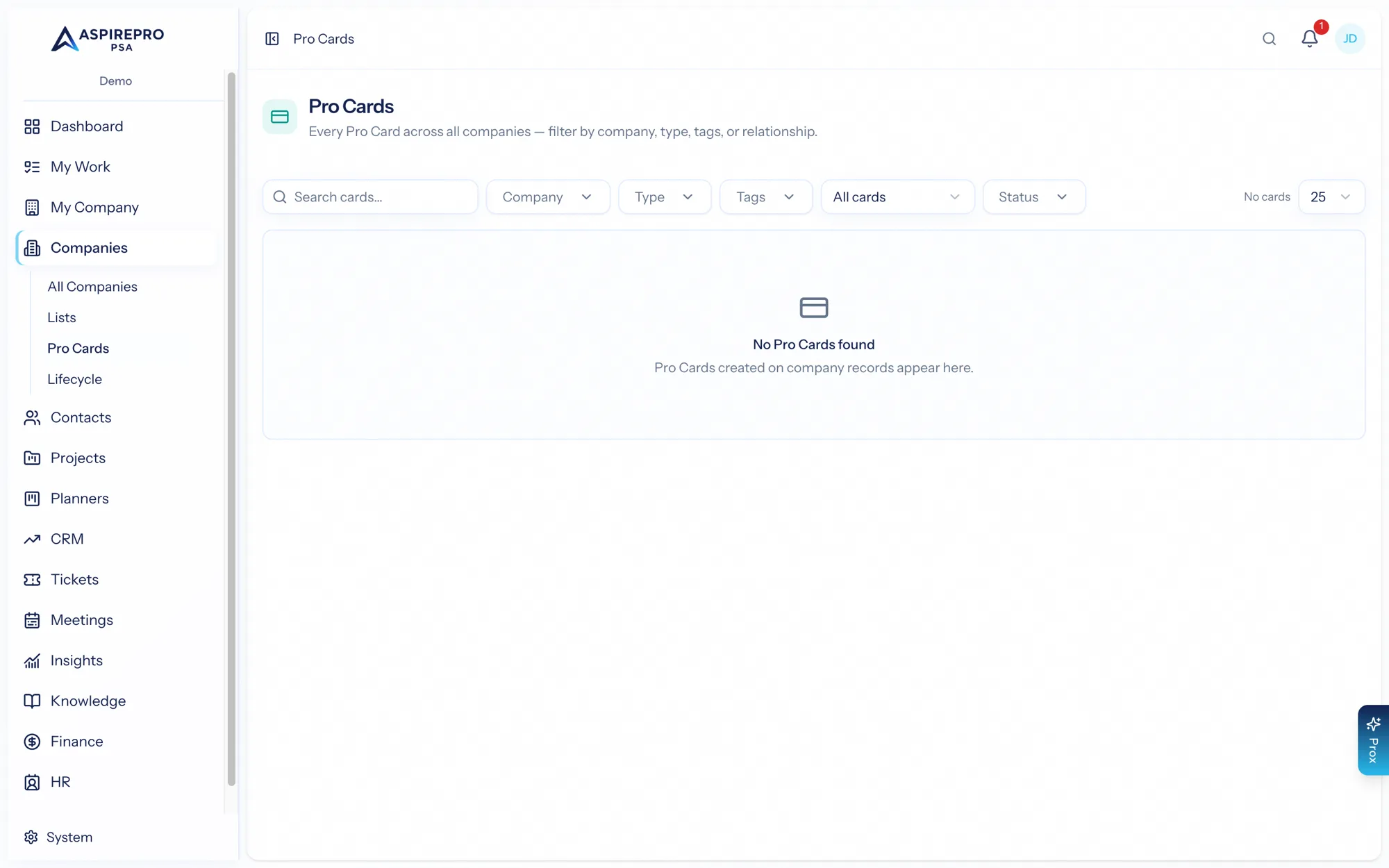
Beyond a single company, open Pro Cards from the sidebar for a fleet view — every card of every type across all your clients in one place. This is where you answer portfolio questions: which clients are missing a completed onboarding card? which are on the legacy configuration? You can filter, use a board view, and run bulk actions (status, tags) across the fleet.
Templates stay in sync#
Pro Cards use a snapshot-on-template model: when you create a card, it captures the type's structure at that moment, so existing cards aren't disrupted by later template edits. A synchronizer keeps cards aligned with their type as templates evolve, giving you both stability and the ability to roll improvements out.
Settings#
Under Companies → Pro Card settings (requires the Pro Card settings permission) you manage:
- Types & templates — create and edit card types.
- Fields — the field builder for each type.
- Tags — organize types and cards.
- Starter packs — ready-made type sets to get going quickly.