Company settings define the taxonomy your company records use — the vocabulary you classify organizations by. They're found under Companies → Settings and require the company settings permission. Getting this taxonomy right early keeps your data clean and your filters and reports meaningful.
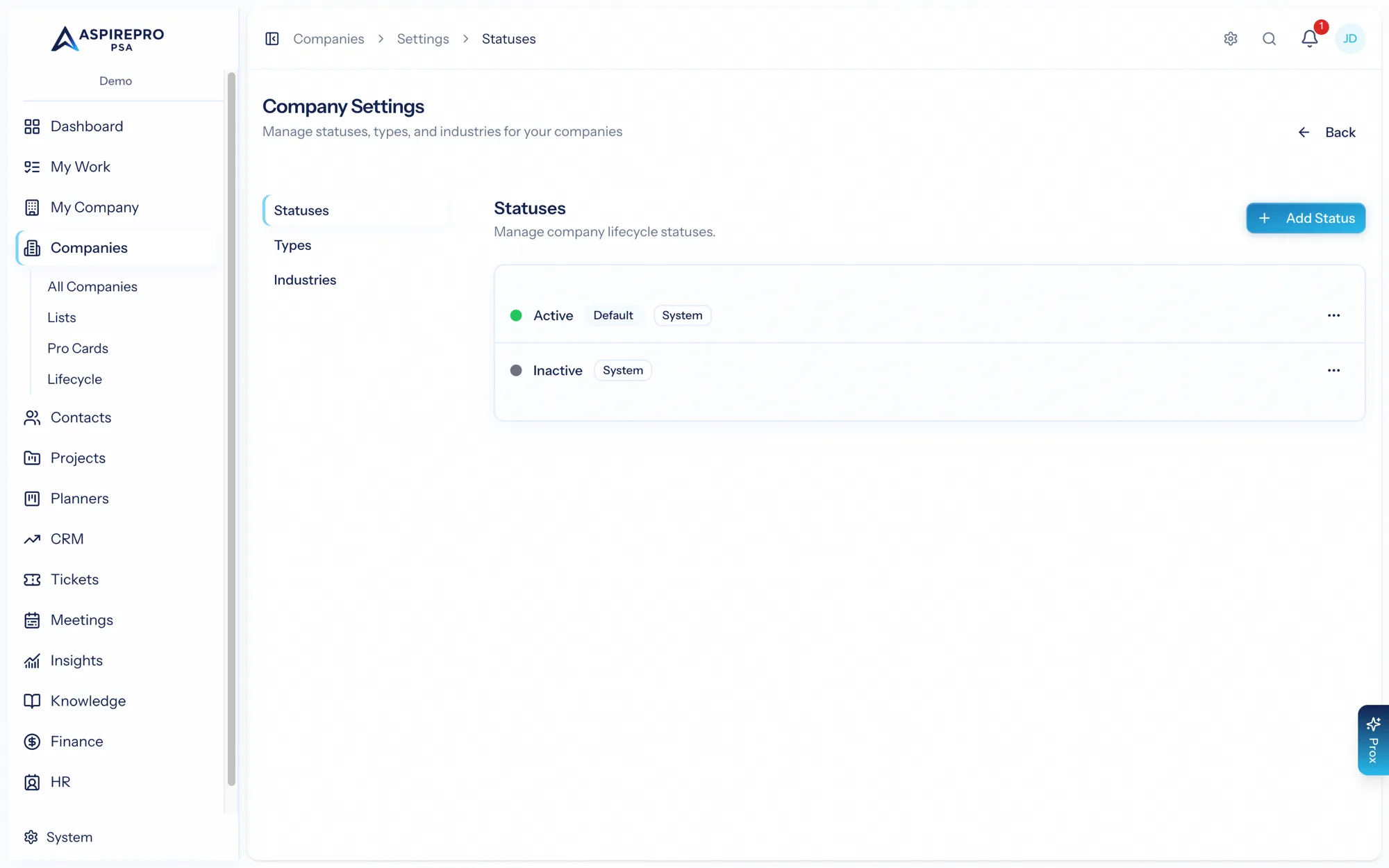
Statuses#
Statuses describe where a company stands in its relationship with you. Out of the box you get Active, Inactive, Dormant, and On hold — rename or replace them with whatever your business actually says. Statuses are the primary way you segment and filter companies, so choose a set that reflects how your business actually thinks about accounts. You can add, rename, reorder, and retire statuses here. Each status also carries a Counts toward client health toggle — turn it off and companies on that status are excluded from health scoring entirely (no score, no at-risk alerts). Inactive and Dormant ship with it off. The toggle disappears while client health is switched off for the organization (System → Lifecycle → Client health); the values are kept and come back when scoring is switched on.
Types#
Types classify what kind of organization a company is — Client, Partner, Vendor, Competitor, and so on. Type is independent of status: an organization can be an active client and a vendor at once, depending on how you model it. Types carry the same Counts toward client health toggle as statuses — a company with any opted-out type (like the built-in Past Client) is excluded from health scoring. Only Past Client ships with it off, so every other type — including Prospect, Vendor, Partner, and Competitor — is eligible for health as soon as it has an active lifecycle, a logged activity, a ticket in the last 90 days, a live project, an invoice, an agreement, or a recent survey response against it. If you don't want non-clients turning up in the at-risk list, turn the toggle off on those types. See health scoring for what makes a company eligible in the first place. Like statuses, the toggle is hidden while client health is switched off for the organization.
Industries#
Industries capture the sector a company operates in — Manufacturing, Healthcare, Professional services. Industry is useful for segmentation, reporting, and tailoring how you serve different verticals.
Activity outcomes#
Companies → Settings → Activity Outcomes defines what "what happened?" can mean for each kind of activity. Calls and meetings ship with a starter set; add your own, rename them, recolour them, or deactivate the ones you don't use.
Every outcome belongs to one activity type, so a call can never be marked "No-show" and a meeting can never be marked "Voicemail".
Each also carries a category — connected, not connected, positive, negative, or terminal. The category is what reporting counts, so connect rate keeps working after you rename "Connected" to something your team actually says. Built-in outcomes let you change the name and colour but keep their category, because the numbers depend on it.
Three optional effects turn an outcome into an action:
- Also tag the contact — point "Do not call" at your do-not-contact tag and it applies itself. Outbound blocks then skip that person automatically.
- Also set contact status — for when someone should stop appearing in your default lists.
- Also set lead status — HubSpot's field on the contact. Out of the box, "Disqualified" sets Unqualified, so the client's HubSpot sees the same ending you recorded.
A terminal outcome does one more thing on its own: it completes every open follow-up and task on that person — from any block, the record, or HubSpot — so they leave every queue for good. The outcome's row says Closes open work.
Prefer a tag for why you stopped and a status only for hide this person by default. A status carries no reason with it.
An outcome that has already been recorded on activities can't be deleted — deactivate it instead, and history keeps its meaning.
Why taxonomy matters#
Every status, type, and industry becomes a filter, a saved-view dimension, and a reporting axis. A tight, well-named taxonomy makes the whole product sharper:
- Cleaner filters and saved views (see Views & bulk actions).
- More meaningful dashboards and reports.
- Consistent data as your team grows.
Change taxonomy thoughtfully once you're live — renaming a status is safe, but removing one that companies still use affects those records. AspirePro guides you through the implications when you retire an option.
Related settings#
- Document tags (used on the Documents tab) are managed under System → Document tags.
- Contact statuses, types, and tags have their own Contact settings.
- Pro Card types and tags are under Companies → Pro Card settings (see Pro Cards).