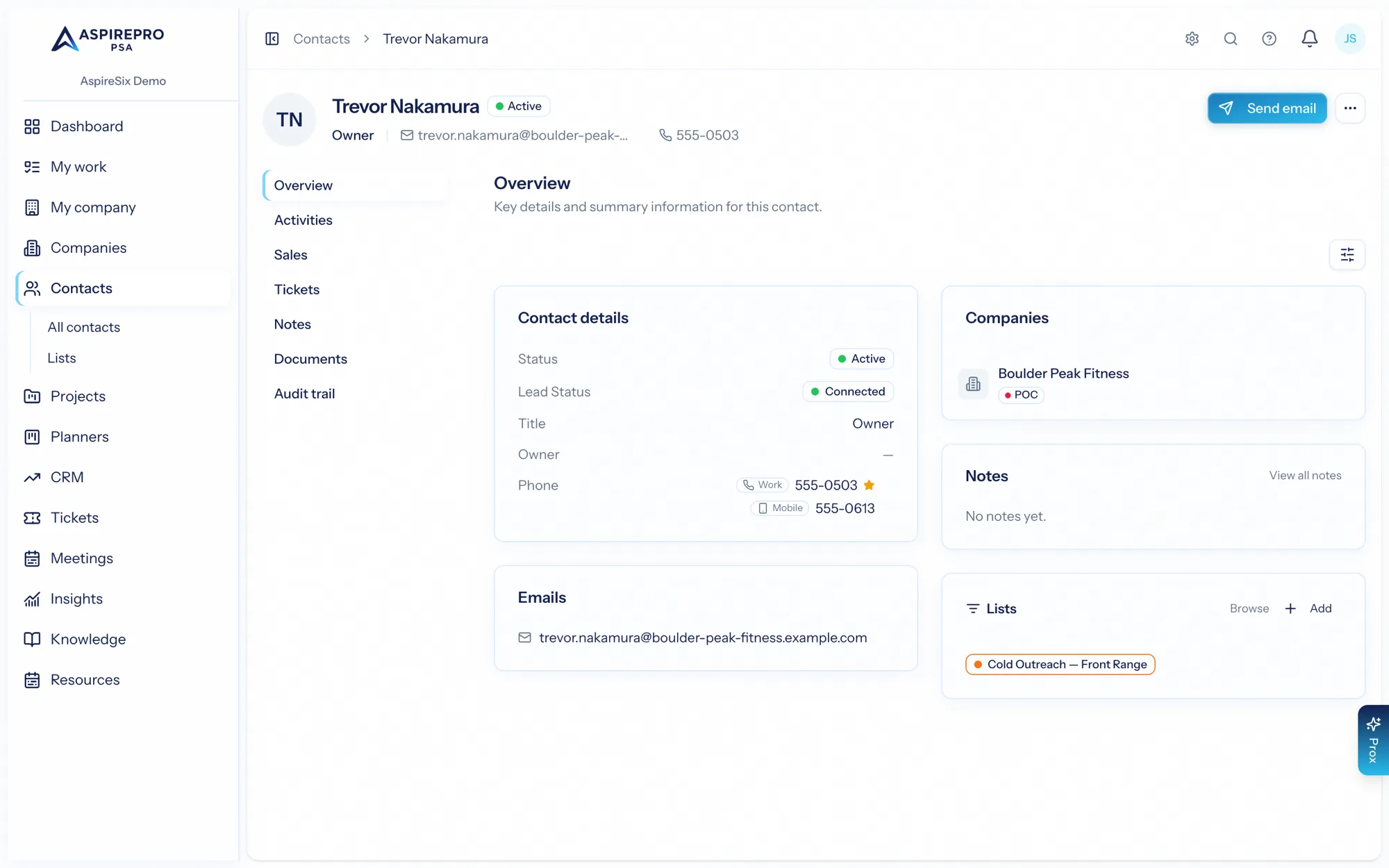
Open any contact to see their record. Tabs across the top organize everything you know about that person; which appear depends on the modules your organization has enabled.
Overview#
The landing tab — the person's details, their company (or companies — and a person can have none), owner, status, type, tags, and Lead Status (synced with HubSpot when the integration is on), with a snapshot of recent activity. Edit contact sits in the header's … menu, alongside merging; header actions also change status or owner, upload an avatar, and manage portal access.
Phone numbers#
A person can carry several numbers — work, mobile, direct, home, fax, other — and one of them is the default: the number the header, every list, ticket and outbound queue dials. Each shows with an icon for its kind (a handset for mobile, a desk phone for work), so a cell and a desk line never look the same. Add, retype, remove or star one as the default on the edit form; the same numbers appear on the contacts table (a Mobile column) and in exports and imports (mobile_phone). A person with no number of their own is dialled on their primary company's main line, labelled as such. With HubSpot connected, the default non-mobile number and the mobile number sync both ways with HubSpot's Phone number and Mobile phone number.
Activities#
A timeline of interactions with this person — calls, emails, notes, meetings, and changes — newest first. It's the quickest way to see the history of your relationship with an individual. Each row's ⋯ menu includes Add time entry for logging time against an activity on the spot.
A contact needs no company to have a history: calls, follow-ups, tasks, meetings and time can be logged on the person directly. When they get their first company, everything they carried alone rolls up to it, so the company's timeline and reports see it from then on.
Recording what happened#
Anything you log can carry an outcome — what actually happened on the call or the email — and a duration. Outcomes belong to the activity type, so a call offers Connected, Voicemail, Gatekeeper and so on, while a meeting offers Held, No-show, Rescheduled. Your organization defines its own; see company settings.
Outcomes are what make connect rate and reply rate real numbers rather than a guess based on subject lines. They also drive outbound blocks.
Filters#
Type, Outcome and Call block sit on the filter row; Mode, Status, Source and Email live behind More filters, whose badge counts anything hidden so a filter can never be active out of sight.
The Email filter is about how a message got here:
Sent from AspirePro | Composed and sent from a record here |
Logged by hand | Someone recorded an email they sent elsewhere |
Replies & synced mail | Pulled in by your mailbox sync |
Imported history | Bulk history carried over from before AspirePro |
Leave it alone and you see your own work — the first two. Synced mail stays opt-in because one deal thread can run to hundreds of messages.
By conversation#
Turn on By conversation and an email thread collapses to a single row, standing for its newest message with a count of how many it holds. Expand it in place to read the rest. Non-email activities are never grouped.
Sending email#
Send Email in the record header opens the composer — the same one the CRM uses, with merge fields, templates, your signature, and attachments from the contact's Documents.
Mail goes out through your own connected mailbox, so it arrives as you and the reply comes back to you. Without a connected mailbox the composer says so and won't send; connect one under Account settings → Email connections.
Every send is logged on this timeline as Sent — no reply yet. When the reply lands, the mailbox sync files it here too and flips the original to Replied — unless you already recorded your own judgement, which is never overwritten.
Sales#
The deals this contact is involved in. (Requires the CRM module.) Because a deal can involve several people, a contact's Sales tab shows exactly where they fit across your pipeline.
Tickets#
Support requests this contact has raised or is involved in. (Requires the Tickets module.)
Notes#
Rich-text notes about the contact — meeting takeaways, preferences, background. Bold, italic, lists, links, and a highlight or text colour from the toolbar palettes (the highlighter and the A). Notes are visible to your team (subject to permissions) and are a good home for the human context that doesn't belong in a structured field. Every note on a contact also shows on their company's Notes tab, labelled with their name — one note in two places, not a copy. A note mirrored from HubSpot keeps its highlights, and a highlight made here travels back.
Documents#
Files attached to the contact, organized with tags — a signed form, an ID, a portrait. Document tags are configured under System settings.
Audit#
An immutable log of every change to the contact record — what changed, who changed it, and when.
Header actions#
From the record header you can edit the contact, change their status, type, owner, or tags, upload an avatar, archive the contact, and manage client portal access (see Client portal access). Send Email opens the composer when your mailbox is connected — see Sending email.