Once you've met Prox, here's how to get the most out of it day to day.
Starting a conversation#
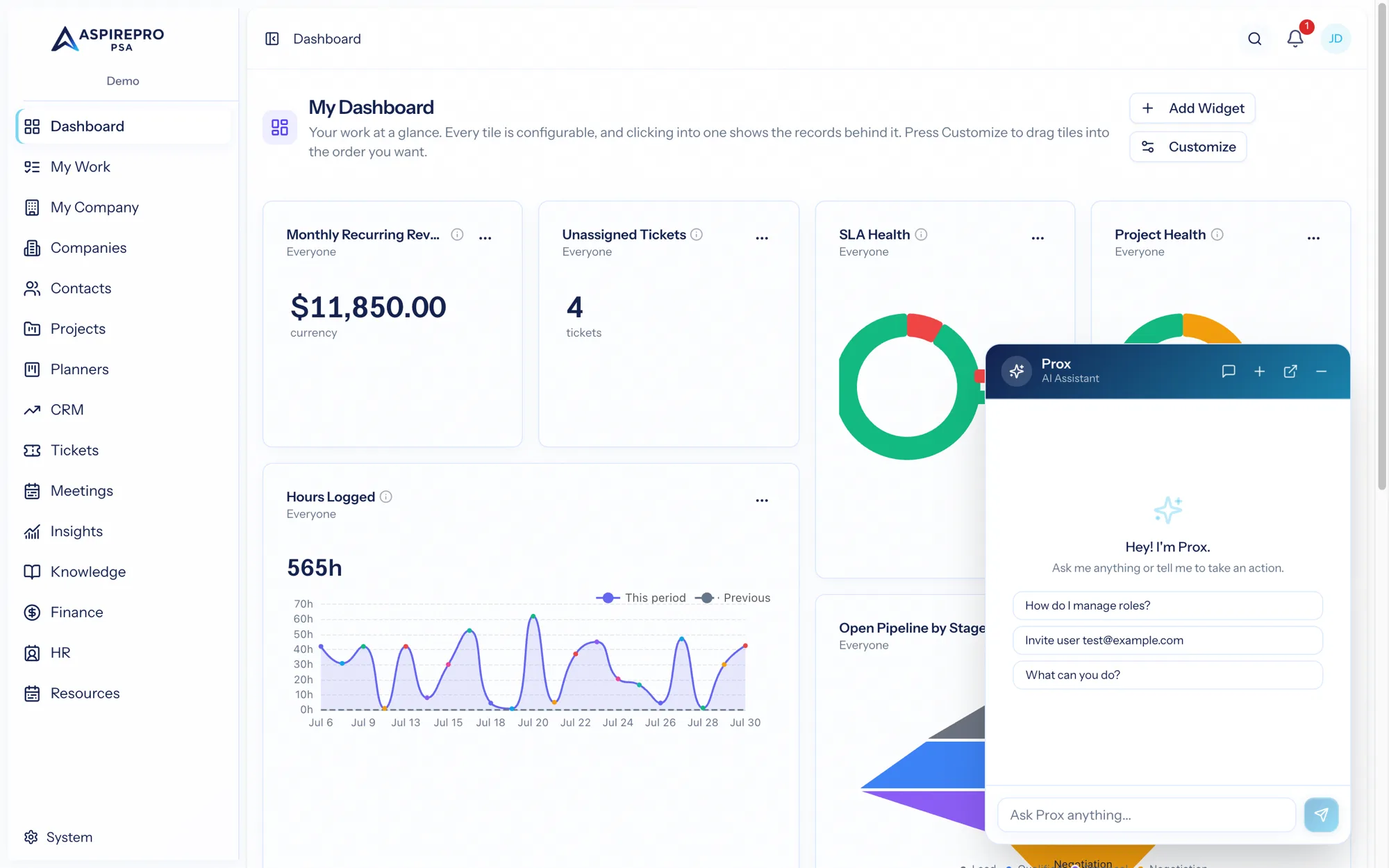
Open Prox from the top bar and type what you need in plain language. You don't need special syntax or command names — describe the outcome you want:
- "Show me tickets assigned to me that are overdue."
- "Create a contact named Jordan Lee at Acme, title Operations Manager."
- "Who is up next on the Q3 cold block, and what happened last time?" — Prox reads the block's cockpit and queue, logs a call with its outcome and next step, completes a follow-up or a HubSpot task, and moves a Lead Status, all from the chat.
- "Add everyone at Acme to the renewals list, and notify the owner when someone joins." — lists, their members and their rules are all Prox's to manage.
- "What deals are closing this month and what are they worth?"
If Prox needs more detail to do the job right, it'll ask a clarifying question rather than guess.
Confirming actions#
When your request would change data, Prox presents the action for review — the record, the fields, exactly what will happen — and waits. Read it over and confirm to proceed, or refine your request if it's not quite right. This confirm step is your safety net: you can ask Prox to do bold things knowing nothing lands until you approve it.
Conversation history#
Your conversations with Prox are saved. Come back later and your earlier threads are there, so you can resume a line of work, revisit an answer, or continue where a task left off. Start a fresh conversation any time you want a clean context.
Pop-out window#
For heavier work, pop Prox out into its own window and keep it open beside the app — ask it to pull something up while you work in another module, or keep a running assistant alongside your screen. The pop-out is the same Prox, just in a dedicated window.
Tips for good results#
- Be specific about scope. "My open tickets" and "all open tickets" are different questions — say which you mean.
- Name records clearly. Company and contact names help Prox find the right record fast; if there are several matches, it'll ask.
- Lean on it for summaries. Long ticket threads, busy projects, and activity timelines are exactly what Prox is good at condensing.
- Remember permissions. If Prox says it can't find or can't do something, it may be that your role doesn't have access — the same limit you'd hit navigating the app yourself.
Prox and your data#
Prox works within your organization and your permissions. It's there to make the platform faster to use, not to work around its rules — the confirmation step and permission enforcement mean you can rely on it as a genuine part of your team's workflow.