Xero is an organization connection at System → Integrations → Xero — the same depth as QuickBooks Online: add your invoices to Xero as approved sales invoices, bring in the invoices your team makes in Xero, and bring in the payments recorded in Xero — within 15 minutes while an invoice is unpaid, and overnight otherwise.
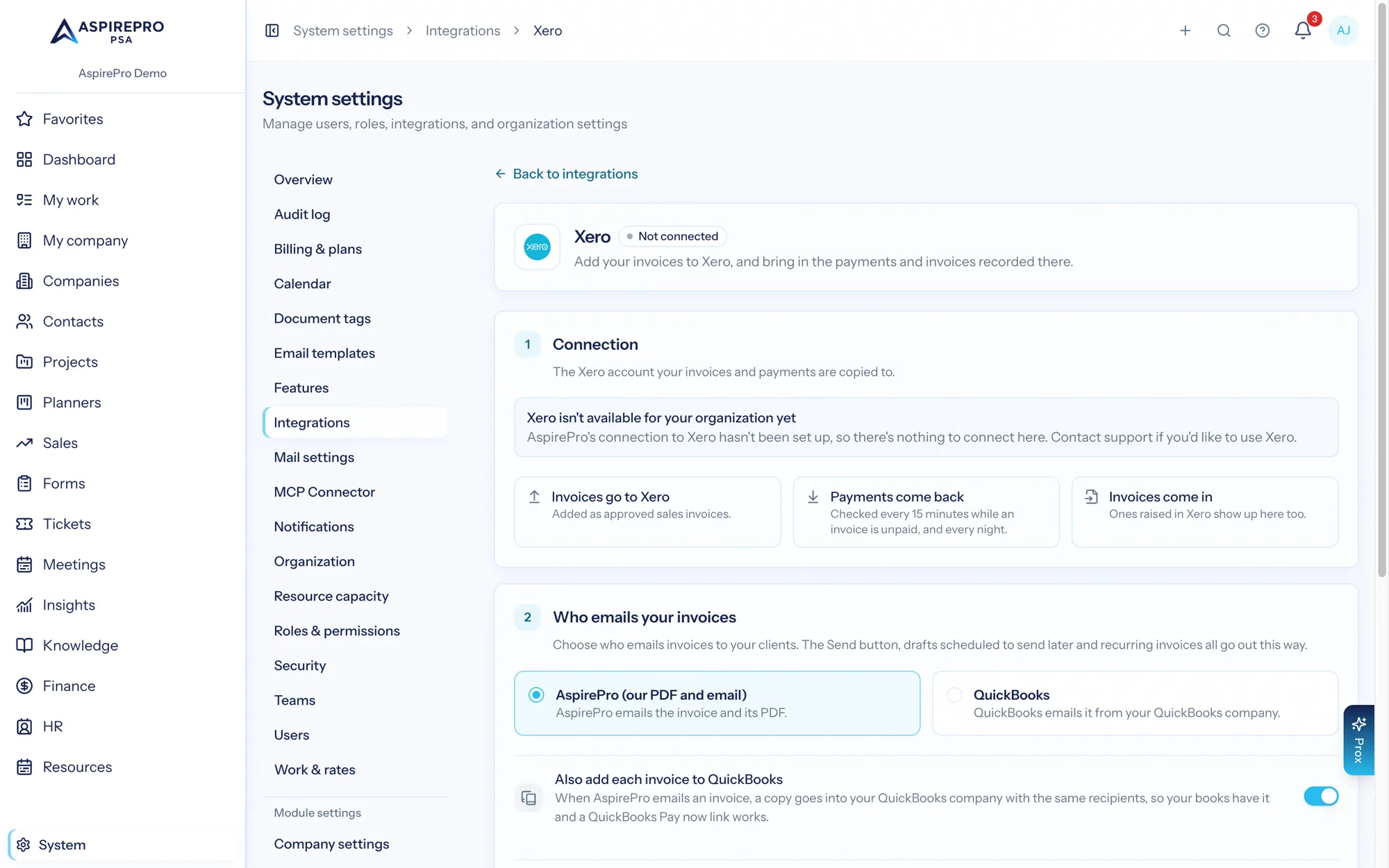
Once connected, the page shows your Xero account, when it was Last checked and your Sales account. In the header, Bring in payments now checks Xero for new payments straight away, and the ⋯ menu has View sync activity (Finance → Sync) and Disconnect Xero….
We say "Xero account" for what Xero itself calls an organisation, so it isn't confused with your AspirePro organization.
Connect#
- Click Connect Xero, sign in at Xero and allow AspirePro access to the Xero account you want linked. One Xero account per organization.
- Back on the page, under Invoice settings for Xero, choose your Sales account (needed to add invoices to Xero) — every invoice line added to Xero is recorded in it, so it's needed before the first one. The list comes straight from your Xero account (revenue accounts only).
- Choose a Sales tax account (needed when an invoice has tax) and, if Xero is to work out tax, a Xero tax rate (used when Xero works out tax) from your Xero account's own tax rates. Then Save invoice settings.
AspirePro keeps the connection alive by itself. If Xero ever stops accepting AspirePro's sign-in (roughly 60 days without any activity, or access removed in Xero), the page shows Needs reconnecting with Xero's reason, a Reconnect Xero button and Disconnect Xero. A banner across the top of every page tells the people who can change Finance settings what's paused: syncing with Xero waits, invoices Xero works out the tax for wait unsent, and your other Finance settings that use Xero fall back to AspirePro meanwhile.
Reconnect keeps everything. Sign in to the same Xero account and nothing is lost: every invoice, client and payment link stays, and so do the sales account, sales tax account and tax rate on this page — "Xero works out sales tax" works again the moment it's back. Your Finance settings apply again by themselves and the banner goes.
Disconnect Xero… stops AspirePro adding invoices to Xero and bringing in Xero payments. Links to your clients and invoices are kept, so reconnecting the same Xero account picks up where it left off. Finance settings that use Xero, like who emails your invoices, go back to AspirePro.
Your organization is linked to one Xero account. Connecting a different one on top of linked records is refused; to switch, use the Linked Xero account card on this page — see Finance sync.
Linking clients to Xero contacts#
On Company → Finance → Integrations, link each client to a Xero contact — search your contacts, or Create this company in Xero. One Xero contact is linked to one company, and the link is independent of the QuickBooks and Stripe links: a company can have all three. Before a company's invoices can be added to Xero, it must be linked to its Xero contact.
Adding invoices to Xero#
With the company linked, any invoice can be added to Xero (Add to Xero):
- The invoice arrives in Xero as an approved sales invoice carrying your AspirePro invoice number, dated and due exactly as it is here. When AspirePro works out sales tax, the tax goes to Xero as its own line on the sales tax account, and Xero adds none of its own; when Xero works it out, taxable lines use the Xero tax rate you chose, and the tax Xero adds is copied back onto the invoice (see Sales tax). Either way both systems show the same total to the cent.
- Choose Xero emails the client (to the contact's email, with your Xero branding and template), or Just create it in Xero and email no one.
- The Xero online invoice link is kept and shown on the invoice.
An invoice is added to Xero once — after it's in Xero, changes go through void and reissue, the same as with Stripe.
Invoices made in Xero#
Invoices your team writes in Xero come into AspirePro too, so a client's Finance tab, Finance → Invoices, reports and profitability show all of them, wherever they were made.
- When: as soon as you link a company to its Xero contact, when you click Sync invoices on the company's Xero card, in the background when someone opens the company's Finance tab, and every four hours for the whole organization.
- Which: approved, paid and voided sales invoices for contacts linked to a company. Drafts and invoices awaiting approval in Xero stay out until they're approved. Invoices for a contact no company is linked to are left out until you link it.
- What they carry: Xero's number, dates, totals, tax and reference, and the lines (shown read-only on the invoice). Every payment, credit note, prepayment and overpayment Xero applied to the invoice is recorded against it, so its balance matches Xero.
- Xero is the source of truth for them. They're read-only here and marked as Xero invoices. Record payments, change them or void them in Xero, and the change comes back the next time invoices are brought in. An invoice deleted in Xero is removed here too.
- No doubles. An invoice AspirePro added to Xero is never brought back in as a second copy. A Xero invoice with the same number and total as one already here is linked to it. One that only looks like it (the same number, or the same total within a few days) waits on Finance → Invoices for you to choose Same invoice — link it, Import as new or Leave it out.
- Invoices a Xero repeating invoice made show under that recurring invoice.
- Their agreement is AspirePro's own: an invoice is put on the client's agreement only when one clearly covers its month, and you can change or clear it on the invoice even though the rest is read-only. See Which agreement an invoice is on.
Payments come back#
Payments your bookkeeper records in Xero land on the matching AspirePro invoices — amount, date, and bank reference — updating status and every report. Xero doesn't tell AspirePro about payments, so AspirePro checks: every 15 minutes while an invoice in Xero is unpaid, and every night. If a payment is later deleted in Xero (bookkeepers fix mistakes), that comes back too: the invoice reopens rather than staying wrongly marked paid. Bring in payments now at the top of the Xero page checks straight away.
Who emails your invoices#
With more than one of Stripe, QuickBooks and Xero connected, the Who emails your invoices setting appears on the Xero, Stripe and QuickBooks pages — one shared setting, so changing it on one page changes it on all of them. Choose Xero (added to Xero as an approved invoice) to have Send add each invoice to Xero. The invoice page puts that way first; any invoice can still go out another way.
Products and services#
The Products and services card links your products and services to Xero items, so invoice lines use real items. Import items from Xero brings in Xero's items (matching ones of yours by SKU or name are linked), and Add missing items to Xero adds the rest. Once linked, AspirePro is the source of truth — changes you make here update Xero automatically. See Products and services.
Alongside QuickBooks and Stripe#
The three integrations are independent. Each invoice goes to at most one accounting system (QuickBooks or Xero — chosen per invoice by which button you press), a payment is recorded once whichever system reports it, and one real dollar only ever lands once. See the integrations overview.