Everything Prox (the built-in assistant) can do, an outside AI can do too: AspirePro ships a full MCP server — the open Model Context Protocol — so Claude, ChatGPT and other MCP clients can search your companies, file tickets, log time, and work your real data by conversation.
Connecting#
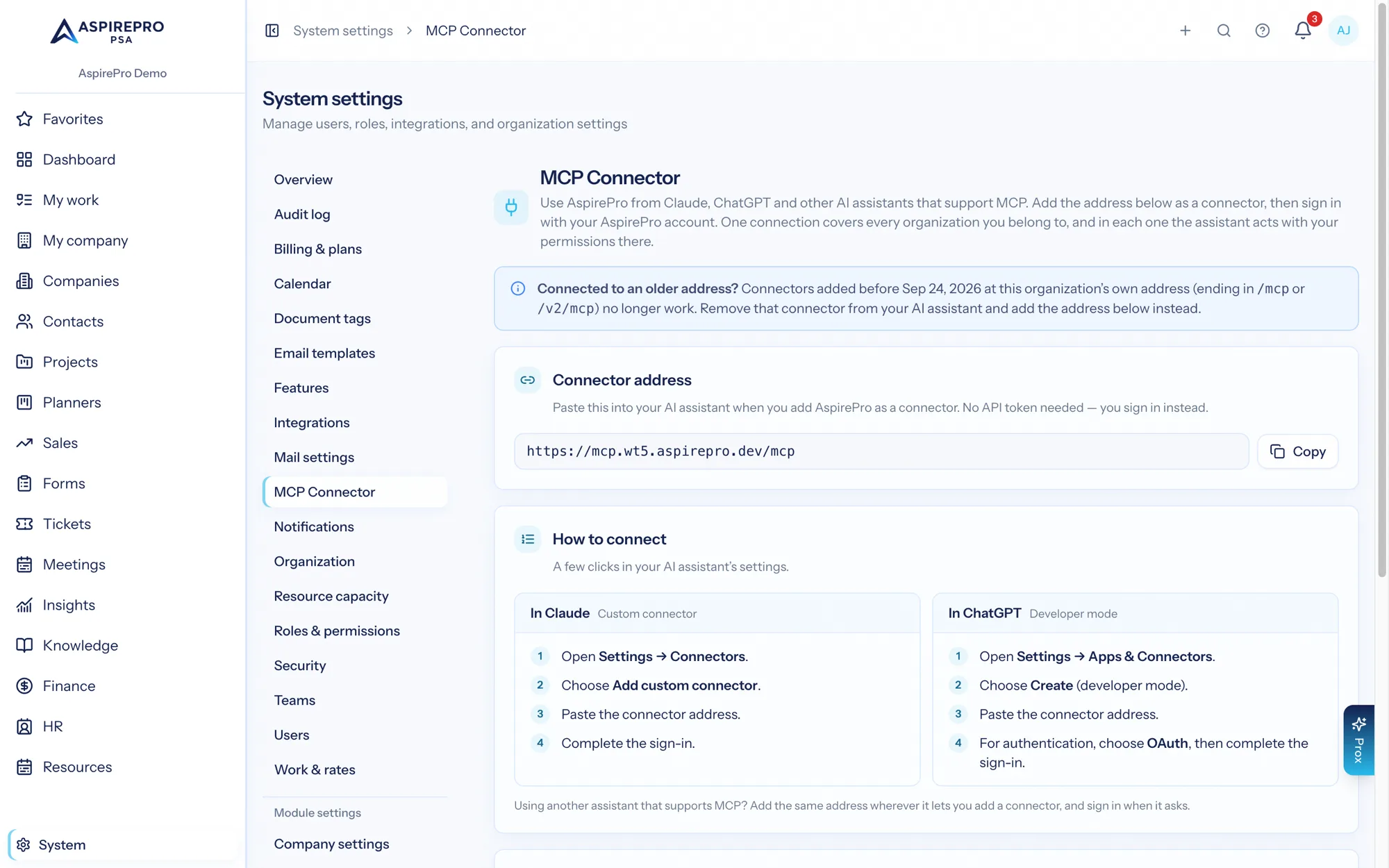
Add this one connector URL to your AI client and sign in when prompted:
https://mcp.aspirepro.io/mcp- Claude — Settings → Connectors → Add custom connector, paste the URL, complete the sign-in.
- ChatGPT — Settings → Apps & Connectors → Create (developer mode), paste the URL, choose OAuth, complete the sign-in.
- Anything else that speaks MCP over HTTP with OAuth — same URL, same sign-in.
The same URL is shown, with a copy button, on the AI clients card under Account settings → Integrations and on System → MCP Connector.
What happens when you sign in#
- You enter your email. AspirePro finds the organizations it belongs to.
- You sign in to one of them — the normal login for that organization, including SSO and two-factor.
- You choose which organizations the client may use, and which one is the default the client acts in when it doesn't name one. Every organization you belong to is listed; one that doesn't allow MCP access for your account is shown with the reason, and can't be included until an administrator there grants it.
One connection then covers all the organizations you included. The client asks for list_organizations to see them, and every call names the organization it ran in. When more than one is connected, a tool that changes data has to be told which organization to change — the client cannot guess.
Connected to an older address?#
Before September 24, 2026, connectors could also be added at an organization's own address, https://your-organization.aspirepro.io/mcp (or /v2/mcp). Those addresses have been retired and no longer work, and neither do the old ap2_… personal tokens. Remove that connector from your AI client and add the URL above instead — one connection now covers every organization you belong to.
What the client sees#
The connector shows 42 tools, grouped by area, and behind them sits everything Prox can do — companies, contacts, deals, tickets, projects, planners, tasks, time, resourcing, finance, inventory, HR, lists, dashboards, knowledge, meetings and organization settings. Nothing Prox can do is left out; new modules add their actions to these tools as they ship.
To… | the client uses |
|---|---|
Look things up |
|
Add something new |
|
Change something | the matching |
Delete something |
|
Send email |
|
Sync a connected system |
|
Administer the organization |
|
Each tool that changes data takes an action (for example add_to_tickets with add_note) and that action's fields. find_actions lists every action and the fields it takes, so the client can look one up when it isn't sure.
When the client asks first#
Every tool is labelled for what it does, and Claude and ChatGPT use those labels to decide when to ask you:
- Look-up tools run without asking.
- Adding to tickets, tasks and projects only ever creates something new. Your client may let you allow these without being asked each time.
- The other add tools (deals, contacts, companies, time, finance and HR) can also change something already there — logging a call with an outcome updates the contact's status, adding a primary address demotes the old one, recording a payment changes the invoice's balance — so they ask before they run, like every change, delete, email, sync and admin tool.
- Tools that can reach someone outside your organization are marked as such: sending email, creating a public booking page, cancelling a booking or answering a meeting invitation, inviting a user, ticket changes that set off the board's customer emails, and ticket workflow rules that email the requester. Your client can then tell you what will go out before it asks.
You can also turn individual tools off in your client — for example, switch off delete_record or manage_organization_admin so a connection can never delete or administer.
The security model#
- Every call runs as you, in one organization, through the same permission grains the app enforces there — an MCP client can never see or do more than you can in that organization.
- MCP access itself is a permission (MCP API Access) that each organization's administrators grant or withhold, and it is re-checked on every call. Withdraw it and the connection stops working in that organization immediately; the others are unaffected.
- An organization that is suspended for billing, or where your account has been deactivated, refuses calls with a plain message saying so.
- Ownership-guarded records (Notetaker meetings, knowledge articles) flow through the same visibility gates as the UI; there is no side door.
- Tokens are bound to the exact endpoint URL they were authorized for, so always use the URL the app shows rather than typing one from memory.
A common gotcha#
If a connector shows "connected but no tools", it was almost always added at an old organization address. Remove it and add https://mcp.aspirepro.io/mcp (copy it from the AI clients card so it matches exactly).
If a client is refused with a message that your organization has turned off AI client connections, an administrator switched off Connect AI clients (MCP) under System → Features → AI; ask them to turn it back on.
If a call is refused with "your role there doesn't include AI app access", that is the organization's permission setting, not the client: ask an administrator of that organization for the MCP API Access permission.