Email and calendar are personal connections — each teammate links their own accounts under Account settings → Email connections and Account settings → Calendar, both reachable from Account settings → Integrations.
Signing in#
Sign in with Microsoft and Sign in with Google work out of the box — the buttons are on the sign-in page, and they sign you in when the email on your Microsoft or Google account matches your AspirePro user.
Personal mailboxes#
Connect your Outlook (Microsoft) or Google mailbox to send as you — deal emails and composed messages go out from your real address with your signature. You can connect more than one mailbox, and each stays yours — nobody else sends from it.
What happens to replies depends on the provider:
- Outlook (Microsoft) — AspirePro also reads the mailbox, so a reply lands on the right deal or contact timeline automatically (instant push delivery with a polling fallback), and the original send's outcome moves from Sent — no reply yet to Replied.
- Google — the connection is send only. AspirePro never reads a Google mailbox, so a reply arrives in Gmail and not on the record. To log it, BCC the deal's BCC to log address (on the deal's Details card) when you reply, or forward the message to it.
Where replies land#
A reply is filed against whatever the conversation was started from — the deal if you wrote from a deal, the contact if you wrote from their record. Matching is by the mail provider's own thread, falling back to the message's References header, so a reply lands even when the subject has been rewritten. Every message is recorded once, however many mailboxes or integrations saw it.
Landing a reply also updates the original send's outcome from Sent — no reply yet to Replied, unless somebody has already recorded their own judgement on it.
Board mailboxes (tickets)#
A ticket board can have its own mailbox (support@…): the board sends as that address and inbound email becomes tickets, with threading, auto-acknowledgements, and loop protection. An Outlook (Microsoft) board mailbox is read directly; a Google (or any other) support address forwards to the board's forwarding address. That's a board-level setting — see Email to ticket.
When a mailbox needs reconnecting#
If a mailbox's sign-in is revoked or expires — a changed password, an admin removing access, the app's consent withdrawn — AspirePro stops using it after three failed sign-in attempts in a row, instead of retrying forever. The connection shows Reconnect needed with a Reconnect button, nothing is read from or sent through it, and whoever can fix it is told once: the owner for a personal mailbox, administrators for a board or invoice mailbox. A slow or briefly unavailable provider never counts, and a problem on AspirePro's side is never blamed on your mailbox. Reconnecting picks up where it left off.
Calendar sync#
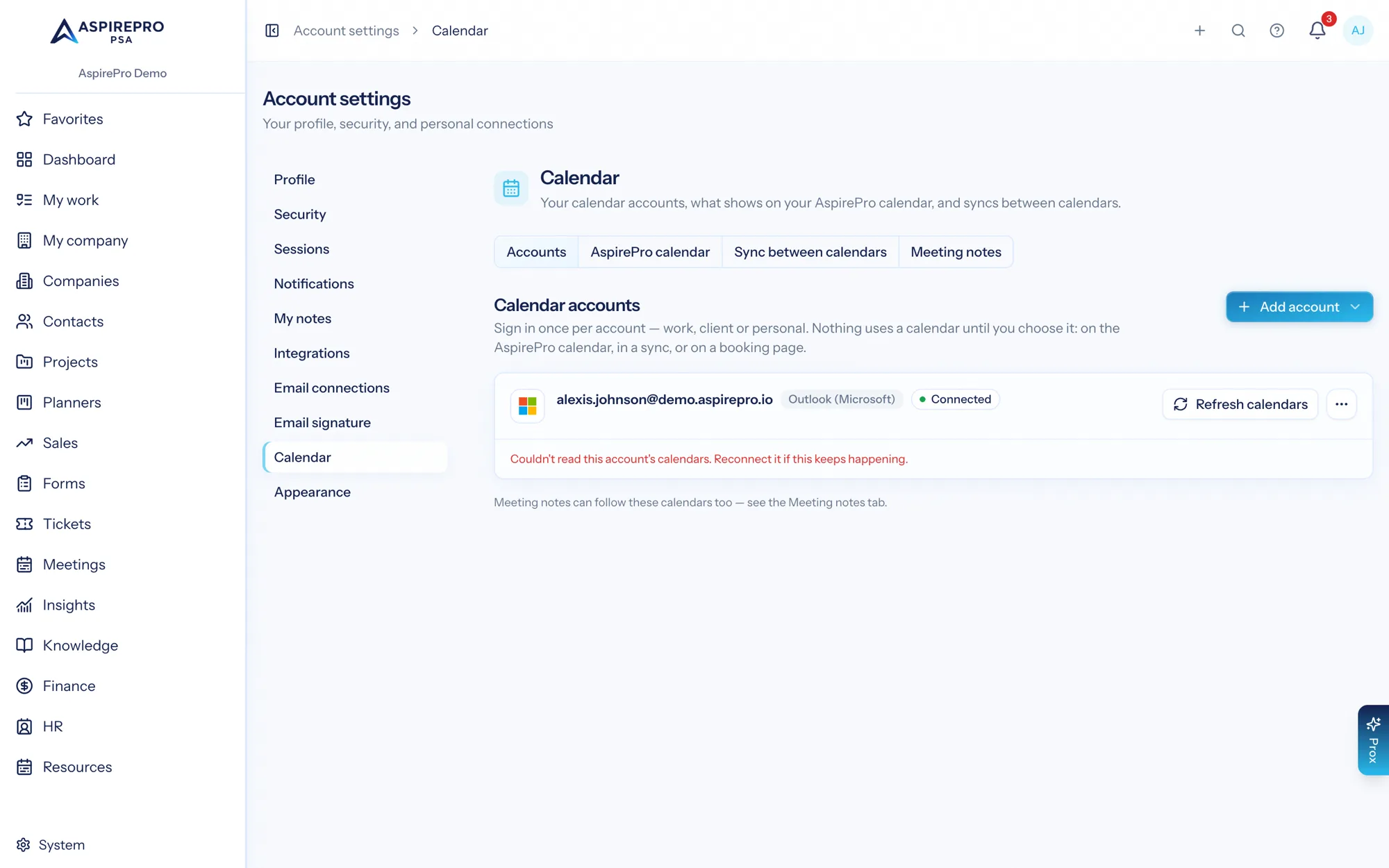
Account settings → Calendar has three tabs, plus a fourth, Meeting notes, when the Notetaker module is on.
Accounts — sign in once per calendar account: work, client or personal, as many as you need. Outlook (Microsoft) covers Microsoft 365 work accounts and personal Outlook.com / Hotmail accounts; Google covers Gmail and Google Workspace. Add iCloud account connects Apple iCloud — or, under Other CalDAV, Fastmail, Nextcloud and other CalDAV servers — with your Apple ID (or username) and an app-specific password, never your main password; the account is checked with the server before anything is saved, and its calendars can show in AspirePro, be where AspirePro puts things, and send or receive copies (iCloud is checked every few minutes; it doesn't push changes). Add calendar link takes any calendar published as an ICS or webcal link (a team or school calendar, a client's "subscribe" link, an Apple iCloud public calendar) — read-only: it can show on your AspirePro calendar, count for booking-page conflicts and be copied onto your other calendars, but nothing is written to it. For an Outlook account, Include calendars shared with me asks Microsoft for one more permission so calendars colleagues shared with you can be shown and synced too (they're checked on a schedule, since Microsoft doesn't send instant updates for shared calendars). Each account lists its calendars and what uses each one (On your AspirePro calendar, AspirePro puts things here, Booking pages: …). Connecting an account never makes a calendar do anything on its own — you choose. Use Reconnect when an account's sign-in expires (it pre-selects that account), and Remove to disconnect it; before it goes you are told which booking pages and settings rely on it.
AspirePro calendar — two choices:
- Where AspirePro puts things — the ONE calendar that receives your scheduled work, client activities, ticket schedules, approved time off and 1:1 invitations (new booking pages default to it too). Pick Nowhere to keep your calendar untouched. Moving it to another calendar takes what AspirePro placed on the old one down and adds it to the new one.
- Show on your AspirePro calendar — switch on any calendar to see its events on the My work calendar, count them as busy for 1:1 suggestions, log time against them, or convert them into work. Switching one off hides its events again; anything you already logged or converted is kept.
Changes push instantly (with a 15-minute poll as the safety net), and an event deleted in Outlook (Microsoft) or Google leaves AspirePro too. The same tab holds Import history and the switches that log meetings onto deals, contacts and companies.
Sync between calendars — copy one calendar's events onto another, so every calendar you keep shows when you're busy: a client's calendar onto your work calendar, work onto personal, or several calendars onto each other both ways. See Sync between calendars below.
Meeting notes (only shown when the Notetaker module is on) — the AI Notetaker still uses its own Outlook (Microsoft) sign-in to know which meetings to join — see Notetaker setup.
Choosing what shows#
A calendar you switch on shows everything on it (private events excepted — see below). Open its Settings to narrow it to only events matching my rules: specific categories, titles starting with a prefix (matched exactly, including capitalization — "AP:" won't match "ap:" or "Apply"), or from these organizers. You can also require busy events only (skip anything marked free) and real meetings only (must have another attendee).
These rules control volume and relevance — which events show up at all. They're independent of the private-events boundary below, which controls a different thing: whether an event you marked private can come in at all, no matter what the rules say.
Sync between calendars#
On Account settings → Calendar → Sync between calendars:
- New one-way sync copies the events of one calendar onto another.
- Sync calendars both ways takes two or more calendars and keeps them as a group: one one-way sync for every pair (three calendars make six syncs), edited together. Edit group changes every pair's settings at once and adds or removes calendars — a removed calendar's copies are taken down. Customize one pair to give it its own settings (group edits then pass it by) and Use group settings to undo that. Read-only calendars (holidays, a colleague's shared view) only copy out.
For each sync you decide:
- What copies show. The date and time always (so the other calendar shows you busy). Add the title, description, location, meeting link, attendees (listed in the description — nobody is invited) or reminders as you like. Copies can be marked private, carry a tag on the title (e.g. "Busy (Acme)"), and use their own color. An event marked private on its own calendar is always copied as a private "Busy", with no details.
- Which events. Everything, or leave out events marked free, invitations you haven't answered, certain colors or categories, or anything outside chosen hours and days. Declined invitations and cancelled events are never copied.
How it behaves:
- Copies appear or change within about a minute of a change on the source calendar (a sweep every 10 minutes catches anything missed), covering the last week and the next six months.
- Copies are read-only. Edit the original; a copy edited or deleted by hand is put back.
- A copy is never copied again, so syncing calendars both ways can't loop or duplicate.
- Pause a sync to stop it without removing anything; Delete removes the copies it made, then the sync. If the destination can no longer be reached, choose Delete and leave copies.
- If a sync stops working (an expired sign-in, a calendar that was deleted), it says so on its card and you get a notification.
- An account can't be removed while a sync uses it — delete those syncs first, so their copies go with them.
- On your AspirePro calendar each event shows once. A copy is hidden when the calendar it was copied from also shows there; if that calendar doesn't show, the copy does. Copies are never logged onto deals, contacts or companies.
- AspirePro keeps only which copy belongs to which event — never the copied titles, descriptions or attendees.
- Up to 100 syncs per person.
- Prox (and AI clients connected over MCP) can list your calendars and syncs, create a sync, sync several calendars both ways, pause, resume, run or delete one — always only your own, and always within your organization's policy.
For administrators: System → Calendar#
Syncing is open to everyone by default. People who manage security settings can limit it on System → Calendar:
- Allow syncing between calendars — off stops new syncs and pauses copying for existing ones (their copies stay until each person deletes the sync).
- Detail copied from organization accounts to outside calendars — whatever each person chooses, titles at most, or busy only. "Outside" means an account whose email domain isn't one of your organization's domains (listed on the same page, or else the domains your people sign in with) — a client's calendar, a personal Gmail.
- Never copy onto these domains — for example
gmail.com; syncs can still copy from those calendars.
The same page shows how everyone's calendar connections are doing — accounts, syncs, and any that need reconnecting or are failing — as counts only. Which calendars someone syncs, and what is on them, stay private to them.
A meeting that several colleagues sync is logged onto a deal, contact or company once, not once per colleague.
Private events#
Outlook (Microsoft) and Teams events marked Private (or with a Confidential/Personal sensitivity) and Google Calendar events with visibility set to Private are treated as private by calendar sync.
By default, private events stay out of AspirePro entirely — they're not imported, not shown to anyone, not even to you. There's no partial version: AspirePro doesn't import a masked title or a "Busy" placeholder for a private event, it simply skips it.
To bring private events in, turn on Include private events in that calendar's Settings on Account settings → Calendar → AspirePro calendar (off by default). This is a per-calendar toggle — you can turn it on for a personal calendar and leave it off for a shared one.
Turning the toggle on only decides whether you see the event in AspirePro. It does not share the event with colleagues — a private meeting that gets imported and even auto-logged onto a deal is still locked down to you (and anyone you explicitly grant it to). See Calendar sync, meetings & privacy for the full picture of who can see what.